Skip to content
Tech

Don’t call it a netbook (or a “Chromebook killer”)—HP’s $200 Stream 11 reviewed

Windows adds much-needed versatility, but low-end hardware limits it anyway.

Andrew Cunningham | 189
HP's Stream 11 is a solid $200 notebook, though it won't replace your primary PC any time soon. Credit: Andrew Cunningham
Story text

Netbooks never really went away—it’s just that no one calls them netbooks anymore. The label became a byword for cheap, plasticky, slow, cramped little laptops that no one would make the mistake of buying twice, but these devices are still around. Sometimes they look like convertibles or even tablets with keyboard accessories, but companies that stopped making “netbooks” never stopped trying to make a device that could provide some facsimile of the Windows PC experience for two or three hundred bucks.

Specs at a glance: HP Stream 11
SCREEN 1366×768 at 11.6″ (135 ppi)
OS Windows 8.1 with Bing 64-bit
CPU 2.16GHz (2.58Ghz Turbo) dual-core Intel Celeron N2840
RAM 2GB 1333MHz DDR3
GPU Intel HD Graphics
HDD 32GB eMMC
NETWORKING 2.4GHz 802.11b/g/n, Bluetooth 4.0
PORTS 1x USB 3.0, 1x USB 2.0, HDMI, SD card reader, headphone jack
SIZE 11.81 x 8.1 x 0.78″ (300mm x 205.7mm x 19.3mm)
WEIGHT 2.74 lbs (1.25kg)
BATTERY 3-cell 37Wh Li-polymer
WARRANTY 1 year
STARTING PRICE $199.99
OTHER PERKS 720p Webcam, Kensington lock slot

For a while these kinds of computers were being squeezed out mostly by tablets, but now Microsoft is making moves to counter another threat to its desktop hegemony: Chromebooks. Google’s laptops need a reliable Internet connection of reasonable speed to accomplish pretty much anything, and they’re still limited in what they can do. But there are plenty of them in Amazon’s list of best-selling laptops at any given time, and they appear to be gaining traction within a few particular markets. They start right around $200, and almost all of them cost less than $400.

Microsoft has made a few changes to Windows’ licensing to combat these laptops, just as it made changes to Windows XP’s licensing in the late 2000s to counter those early Linux netbooks. Most prominently, a new “Windows 8.1 with Bing” SKU offers OEMs a price cut in exchange for the ability to change the default search engine. And that, along with cheap don’t-call-it-an-Atom chips, is what is letting companies like HP build laptops like the 11-inch and 13-inch Stream laptops for $200 and $230, respectively.

Microsoft sent us the Stream 11 for testing—five years ago we would have called this thing a netbook, but those years of technological progress have drastically improved the performance of even the cheapest components. It definitely makes compromises to hit $200, but if you need a certain kind of computer and you find Chrome OS too limiting, it’s an interesting little package.

Look and feel

Most laptops these days go with more neutral colors like black or grey, but the Stream 11 sticks out with its deep blue casing and the blue gradient on the palm rest (a magenta version is also available, but it appears to be rarer as of this writing, and you can’t get a 13-inch version of it). It’s colorful and playful without being too ostentatious, though it does make the laptop seem like it’s aimed more at younger users. A black option wouldn’t be out of place, but we don’t mind the way the blue version looks.

There’s a healthy amount of bezel surrounding the 1366×768 display, but that’s fine—you’ll be more annoyed by the matte LCD panel’s shallow vertical viewing angles, which make colors and contrast shift if you’re not looking at the screen head-on. The display doesn’t get particularly bright, which makes the laptop harder to use in direct sunlight, but this is something we’re used to in cheap laptops. HP isn’t moving the ball forward here. The backlight is nice and even, and it doesn’t bleed around the edges at least. The hinge is rock solid, and the display barely wobbles at all, even if you’re shaking the laptop specifically to see whether the display wobbles.

The Stream’s most pleasant surprise is just how solid the body feels. Most cheap laptops feel like they’ve got a lot of air on the inside—they’re made of this shiny, creaky plastic that looks nice in pictures or on a store shelf but doesn’t feel as good to touch or use. The Stream 11 is all plastic but impressively sturdy, with no flexing or creaking anywhere. The top and the bottom of the laptop use a matte texture that won’t easily pick up scuffs or fingerprints, which again stands in opposition to the cheap, easily damaged paint jobs on most budget laptops.

The keyboard is exceptionally good for the price, and it’d be pretty good even in a much more expensive laptop.
The lid and bottom have a matte finish.

The laptop’s keyboard is also commendable. HP’s product page says it’s 97 percent full-size, a difference so small that most people won’t notice a difference. It’s got great travel for a chiclet keyboard and has a nice clicky feel without being too loud. Most Chromebooks, budget Windows laptops, and even some high-end Ultrabooks that we’ve used have included mushy, shallow keyboards that sometimes make frustrating layout decisions. But just as it did with last year’s Chromebook 11, HP has shown that it can still fit an outstanding keyboard into a budget system. The worst thing we can say about it is that we found the arrow key layout a bit annoying, since it uses full-height left and right arrow keys but half-height up and down arrow keys.

The trackpad isn’t as good. It’s not awful by Windows laptop standards, but that’s a super-low bar to clear. Responsiveness and palm rejection generally aren’t problems, but we found that clicks would occasionally fail to register or register in the wrong place, or the trackpad would register a left-click as a right-click. Tap-to-click proved more accurate, if you don’t mind it. In any case, the experience is only OK.

Rounding out our input and output options is the bare minimum complement of ports—one USB 2.0, one USB 3.0, one full-size HDMI, a headphone jack, a full-size SD card slot, and a Kensington lock slot—and a 720p webcam suitable for Skyping even though its picture quality is on the dark and grainy side. The two bottom-mounted speakers get loud and actually don’t sound too bad even when they’re turned all the way up, but their positioning means they’ll sound better on a hard flat surface rather than a soft one.

Software

The Stream runs a 64-bit version of Windows 8.1 with Bing, which for end users is exactly the same as vanilla Windows 8.1—this isn’t like those old “Starter Edition” Windows SKUs. The only difference is that OEMs can get it for a little cheaper than regular Windows, they just can’t change Internet Explorer’s default search engine from Bing (end users can still change it to whatever they want, though).

There’s plenty of preinstalled software here, most of it in the form of “Modern” apps that can be uninstalled via the Start screen. TripAdvisor, 7-Zip, McAfee, “HP Connected Drive,” and “Music” and “Photo” apps, and a handful of others can be removed if you want without really diminishing the system’s usefulness. 7.2GB of space is given over to a recovery partition—the Disk Management app won’t let you delete this partition, but advanced users confident in their ability to reinstall Windows can delete it to regain that space if they want.

Out of the box the laptop has about 17.5GB of free space, but that quickly fills up once you install a few apps and take advantage of the one-year Microsoft Office subscription and 1TB of OneDrive space. It gets even tighter if you set up another file sync client like Dropbox (HP offers 25GB of Dropbox storage for six months with the laptop, more than could actually be synced to the local storage).

Finally, if you want a version that doesn’t make you remove the junkware first, Microsoft sells a Signature Edition with a clean load of Windows and the same Office and OneDrive offers. We don’t know whether its disk will be partitioned in the same way, but it’s the way to go if you prefer not to deal with uninstalling McAfee and the like.

The Stream isn’t a particularly strong performer, which is what we’ll be talking about next. For people who just want to run productivity and media apps and (very) basic games, though, there’s no denying that Windows 8.1 is more versatile than Chrome OS. It also comes with Windows’ standard maintenance headaches, but for anyone who can’t get away with just Chrome OS, the Stream is a natural choice. Install Chrome on it if you want, and you’ve basically got a Chromebook Plus.

Internals and performance

“Intel Inside” isn’t always a guarantee of great performance.

Here’s the part where the Stream really starts to feel like it costs $200. The laptop uses a 2.16GHz (2.58GHz Turbo) dual-core Intel Celeron N2840 and integrated “Intel HD graphics” plus 2GB of DDR3L RAM. Its 32GB of internal storage uses an eMMC interface rather than SATA or PCI Express, though this is not quite as bad for performance as it used to be. 2.4GHz 802.11n Wi-Fi and Bluetooth 4.0 round out the basic-but-sufficient connectivity options.

Maybe a year or so ago it would have been more common to find a dual-core Celeron based on Intel’s Haswell architecture in some of these $200-to-$300 laptops, but these days the balance has mostly shifted to Bay Trail Celeron and Pentium chips that are really just Atom by another name. Despite sharing identical branding and actually looking faster on paper thanks to higher clock speeds, there’s a fairly wide CPU and GPU performance gulf between the desktop- and laptop-class Haswell chips and the phone- and tablet-class Silvermont ones.

It’s not hard to see why OEMs have decided to go this route—by some accounts, Intel is essentially giving these chips away—but for users it unfortunately means slower systems.

Even at nearly twice the peak clock speed, the Bay Trail Celeron can’t keep up with the Haswell Celeron in any of our CPU benchmarks. Single-core Geekbench scores are about a third slower overall, mostly due to lower floating point and memory performance, and heavier browser-based benchmarks like Octane and Kraken in Internet Explorer are down by around 25 percent. Bay Trail Celerons are a substantial improvement over older Atoms, but it’s frustrating to see that they’re so much slower than the Haswell Celerons that OEMs were shipping in low-cost notebooks a year ago. More expensive CPUs that support Turbo Boost, as the Core i5-4350U in our Haswell NUC does, can use those bursts of speed to get things done much faster.

The story is similar on the graphics side. Performance isn’t as bad as it was in older Atoms when Intel was using a mixture of ancient integrated GPUs of its own make and underpowered GPUs licensed from Imagination Technologies, but it’s not up to the level of the slowest Haswell GPU. You also get less by way of API support—there’s no OpenCL here at all, and lack of OpenGL 4.1 support means GFXBench’s Manhattan test won’t load (OpenGL 4.0 is supported, though, as is DirectX 11).

Gaming on the Stream isn’t impossible, but it’s really not what the laptop was intended for. Older or lighter games like Half-Life 2 or Bioshock or Portal 2 can be made to run acceptably with lower quality settings and/or resolutions, as will simpler stuff from the Windows Store like Solitaire or Jetpack Joyride. Anything more modern or complex will give you problems; even Minecraft is just barely playable with all the settings and the resolution turned down.

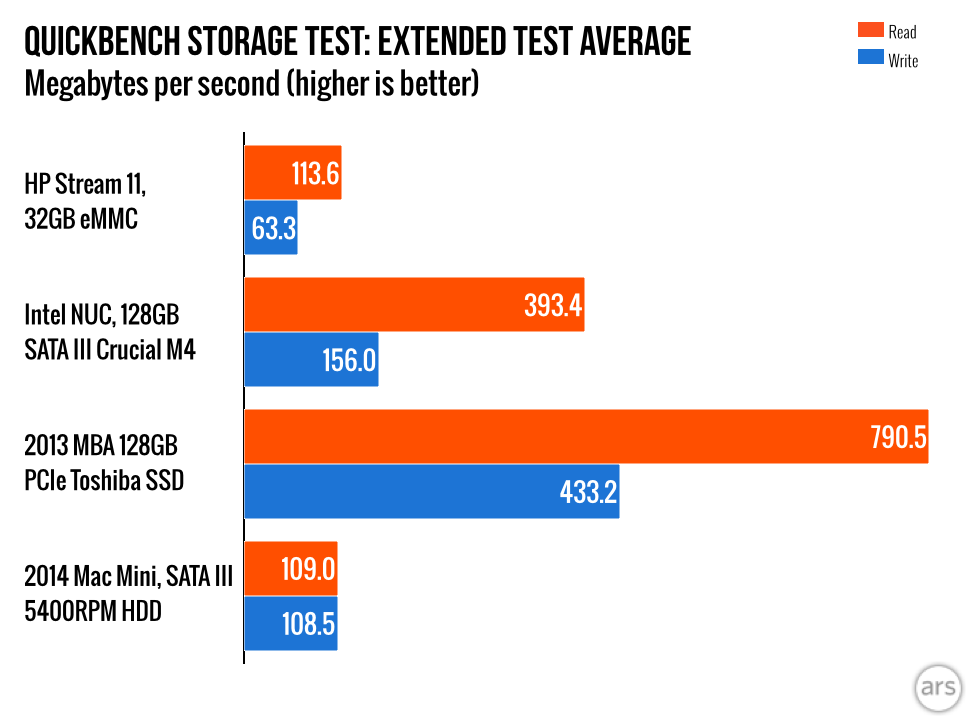
Finally, we get to the storage. The 32GB of eMMC is solid-state storage, but you can’t compare it to a fast SATA or PCIe SSD like the ones you’d find in high-end computers. Read speeds are up a bit from a standard 5400RPM HDD, while write speeds are a bit lower. Using flash storage instead of rotational storage means that performance feels more consistent than a hard drive since you’re never waiting for physical parts to move around, but you’re not looking at the kinds of speeds you’d get from a conventional SATA or PCIe SSD.

If you want to expand that 32GB of storage, the SD card slot is your best option. Its speeds are slower than the internal storage, and the Stream’s SD slot also isn’t as fast as the ones in some higher-end computers. Using the 32GB SanDisk Extreme Plus card recommended by the Wirecutter, we got Quickbench read and write speeds of around 25MB per second in the Stream, compared to around 50MB per second in a 2013 MacBook Air. Using a USB 3.0 SD card reader, the Wirecutter saw even higher speeds, so the card itself shouldn’t be the bottleneck in either case. That’s fine for storing documents and other media, but on the slow side for loading applications and games.

Performance conclusions: How “good enough” is good enough?

Looking at all of this data, it’s easy to be a bit negative about the Stream 11’s performance, but all we’re really trying to do is set your expectations to an appropriate level. Compared to an old netbook from the turn of the decade, this thing is pretty fast. “Good enough” is subjective, but if your needs are limited mostly to light-to-medium Web browsing, working in Office, and IMing or video chatting, the Stream 11 is amply equipped to do all those things.

Our biggest problem is that there’s just not a lot of breathing room here. Running a 64-bit OS on a system with 2GB of RAM is pushing it. With a smallish and fairly standard set of apps open (Chrome, Outlook 2013, and IM and IRC apps) you’ll definitely encounter some draggy performance. If you’re buying this for someone who expects to be able to game, they’ll be fine if they stick to lighter or older games but out of luck when it comes to heavier ones. The same goes for any basic-to-moderate photo or video editing work. A Haswell Celeron system with a conventional SSD and 4GB of RAM is fast enough that it can do this stuff in a pinch without feeling too slow; the Stream 11 isn’t quite up to it.

That’s really a shame, and while it doesn’t defeat the purpose of choosing a Stream 11 over a Chromebook—even without the power to do heavy-duty tasks, there are decades’ worth of applications for Windows that will never run on Chromebooks—it does muddy the waters. You’d choose Windows to get a more flexible operating system, but the hardware running that operating system can’t make the most of that flexibility. As usual, the deciding factor will be what you intend to use the computer for.

Battery life

HP promises up to 8 hours and 15 minutes of battery life with the Stream 11—we only hit 6 hours and 47 minutes in our light Wi-Fi browsing test, but there are a couple of caveats here. For one, we had the screen brightness turned all the way up, since the laptop’s display panel doesn’t get bright enough to hit our standard 200 nit calibration point (it maxes out at around 145 nits). Second, the “critical battery” percentage level at which Windows shuts the laptop down doesn’t go lower than nine percent, where most laptops go down to at least five percent or even lower. Using a lower screen brightness and ignoring the critical battery alert should buy you enough time to get near HP’s estimate.

In our WebGL test, which puts a light but continuous load on both the CPU and GPU, the laptop lasted for about 4 hours and 52 minutes. A lower-performing GPU means a less power-hungry GPU, so if you do manage to game on the Stream 11 the computer at least won’t die on you immediately. The Haswell Celeron systems here—the Dell Chromebook 11 and the original Toshiba Chromebook—are both faster, but they’ll chew through their batteries sooner if you’re doing much with the GPU.

All of the Stream 11’s numbers are a little lower than, but comparable to, the 1080p version of Toshiba’s Chromebook 2, which uses the exact same Celeron with a larger higher-resolution screen and a larger battery. In both performance and battery life, both Bay Trail and Haswell-equipped systems soundly beat the ARM-based HP Chromebook 11.

Maybe not a Chromebook killer, but still a good deal

The HP Stream 11.
The HP Stream 11. Credit: Andrew Cunningham

There have been cheap-and-decent Windows laptops before, and the Stream 11 is missing enough stuff that it doesn’t radically redefine the low end of the PC market. It’s not a Moto G, a phone that does just about everything a high-end phone can do but a little slower. There are a whole bunch of resource-intensive things that the Stream and Windows can technically do that the laptop just isn’t good at.

However, both the 11- and 13-inch models are cheap enough and good enough to be worth a look for anyone in the market for an inexpensive beater or testing laptop, a basic travel companion, a decent first computer, or a PC for the stereotypical kid-or-grandparent-class light user. Build quality is remarkably good for this price, and while the specs don’t do much to impress, they’re all good enough for basic needs. The legitimately useful value-adds included—the year of Office 365, the OneDrive storage, and the Dropbox offer—are all things that we’d love to see included with all PCs at all price points.

Other reviews have focused on the Stream’s potential as a “Chromebook killer,” and while in price and in specs it certainly accomplishes that goal, price is really only a part of the Chromebook puzzle. In some of the places where the Chromebook is succeeding—in schools, especially—the simplicity of Chrome OS is more of an asset than a hindrance, at least compared to PCs. They can be managed and locked down without maintaining Active Directory servers, and user data and profiles can be synced without maintaining directories on file servers. They can be reset to factory settings without building and maintaining operating system images.

Microsoft is using the same strategy against Chromebooks that it used against those very early Linux netbooks: match them on price and watch as consumers flee to better software. The problem for Redmond is that Chromebooks have apparently managed to build themselves a niche that it can’t wipe out just by throwing cheap hardware at it.

Outside of that niche, Chromebooks can still be difficult to recommend as general-purpose PCs—all else being equal, we think most home users will be better off with a Windows computer than a Chromebook. Don’t even stop to consider it if you’re a power user seeking an inexpensive primary laptop, but if you just need a well-built Windows PC for as little money as possible, the Stream should be the first place you look even if you end up buying something more flexible.

The good

  • $200, or $230 for the 13-inch model.
  • Excellent build quality for the price—these are solidly built budget computers.
  • Colorful plastic helps the laptops stand out from their gray-and-black cousins.
  • Comfortable keyboard with better travel than some high-end Ultrabooks we’ve used—the squished arrow keys are our only complaint.
  • OneDrive, Office, and Dropbox value-adds are all more useful than your run-of-the-mill bloatware. There’s some bloatware here, but it’s easily dispensed with.
  • Decent, if not exceptional, battery life.

The bad

  • Bay Trail Celerons are markedly slower than the Haswell ones that were more common a year ago.
  • System struggles when you have more than a few apps or browser tabs open.
  • Temperamental trackpad.
  • LCD panel has the lowish contrast and poor viewing angles you’d expect from a budget PC.

The ugly

  • Of the already slim 32GB of internal storage, 7.2GB is consumed by a restore partition. There has to be a better way.
Photo of Andrew Cunningham
Andrew Cunningham Senior Technology Reporter
Andrew is a Senior Technology Reporter at Ars Technica, with a focus on consumer tech including computer hardware and in-depth reviews of operating systems like Windows and macOS. Andrew lives in Philadelphia and co-hosts a weekly book podcast called Overdue.
189 Comments