Skip to content
Tech

Samsung Galaxy Note 4 review: small tweaks to a big device

It’s a little faster, but this is largely the same phablet.

Ron Amadeo | 157
The Galaxy Note 4. Credit: Ron Amadeo
Story text
Specs at a glance: Samsung Galaxy S5
Screen 2560×1440 5.7″(515 ppi) AMOLED
OS Android KitKat 4.4.4 with TouchWiz
CPU 2.7GHz quad-core Snapdragon 805
RAM 3GB
GPU Adreno 420
Storage 32GB plus MicroSD slot
Networking 802.11b/g/n/ac, Bluetooth 4.1
Cellular Bands GSM: 850/900/1800/1900MHz
HSDPA: 850/900/1900/2100MHz
LTE: Cat.4 or Cat.6, May differ by country and carrier
Ports Micro USB 2.0, headphones
Camera 16MP rear camera OIS, 3.7MP front camera,
Size 153.5mm x 78.6mm x 8.5mm
Weight 176g
Battery 3220 mAh
Starting price $299 with two-year contract, $849 unlocked
Other perks RBG notification LED, IrLED, NFC, S-Pen stylus, removable battery

Coming up with a new smartphone model on a yearly cycle must be tough. You’re expected to come to market with something substantial and give existing customers a reason to upgrade within 12 months. Things get especially difficult when companies you rely on, like Qualcomm, don’t provide massive component updates in time for your product cycle. That’s precisely the predicament Samsung finds itself in with the Note 4, the company’s fourth-generation phablet.

“Phablets” used to be pretty much a single device—whatever the newest Note was. But with Apple following Samsung’s lead and releasing a big-screened device of its own, phablets are now a fully fledged competitive product category. As Samsung’s main differentiator (screen size) evaporated, the company attempted to come up with something new to again separate itself from the pack. During the Note 4 launch event, it also showed off the Note Edge, a phablet with a screen that wrapped around the side of the device. The two-year-old concept wasn’t very compelling, and we later heard that the device would just be a “limited concept.”

So far in 2014, we’ve only got the Galaxy Note 4. Samsung may be the originator of the phablet, but with this new model, it isn’t doing much to push the product category forward. In fact, Samsung might even agree with that assessment. It’s easy to view the Note Edge as the company’s admission that it isn’t doing enough with the Note 4.

The Note 4 design is nearly identical to the Galaxy Note 3. The software got the same makeover as the Galaxy S5, but functionally it isn’t much different from the previous Note model. Even the SoC is still the familiar Snapdragon 80x product line. What you’re left with is a device that feels “obligatory” more than anything. It’s a new year so we need a new Note, and this update brings only a grab bag of little tweaks and improvements accordingly.

Design and build quality

The sides are metal now and have chamfered edges. This side has a power button.
Even the buttons are metal. This volume rocker feels great.

With the Note 4, Samsung is at least growing up a little and trying to ditch its reputation for making cheap-feeling devices. The cheesy plastic “chrome” from the Note 3 is gone. Like the Galaxy Alpha, the Note 4 has an aluminum frame with chamfered edges.

The chamfer has been polished to a mirror finish, while the rest of the metal is anodized to match the body color. The buttons are metal, too, and Samsung even gave them the same mirror-rim-and-colored-center as the body. The corners of the device flare out, and they are given a wider chamfer that goes all the way around the top of the device.

It’s definitely an improvement over the plastic siding Samsung has previously used, and the changes make the device feel less like a toy and a little more like a respectable piece of electronic equipment. It’s a good step forward for Samsung’s build quality, though not a cure-all.

The back is still a big sheet of plastic styled to look like leather, but with the fake plastic stitching gone, it is no longer worthy of ridicule. The fake leather pattern uses a larger scale than last year, and it feels a little grippier. Note, however, we are comparing a white Note 3 to a black Note 4, and often the colors on these soft touch plastics feel slightly different. Plus, other companies are doing real leather on their flagship smartphones. While Samsung is improving, it has a long way to go.

The 2560×1440 screen is, of course, really, really nice looking, like all modern smartphone displays. You can pick out that this is an AMOLED just by looking at it, but the hyper-saturated look can be toned-down in the settings. 1440p is still a pointlessly high resolution for a smartphone, serving only to burn down the battery faster. The Note is now at 515 pixels per inch. Such a ludicrous pixel count is only really good for the Gear VR, but it’s hard to imagine enough Note customers buying the head-mounted accessory to justify selling 1440p screens to everyone.

The glass on the AMOLED display curves downward when it meets the metal edge, giving the pinstripe design underneath a glossy, candy-coated look. We’ve heard reports of this causing a gap in between the glass and metal large enough to stick a business card in, but our Note has seams that are pretty tight.

Unfortunately the Galaxy S5 gimmicks have been brought over to the Note series. There’s now an awkward fingerprint reader integrated into the home button and a finicky heart rate monitor on the back of the device. These didn’t work well on the Galaxy S5 or the Galaxy Alpha, and these don’t work well here. If such features are sticking around, some kind of improvements would be nice.

The best change is the removal of the Menu button in favor of a Recent Apps button.
The white Note 3 had a crosshatch pattern in the bezel, while the black Note 3 (not pictured) had a “brushed metal” texture. This black Note 4 has horizontal pinstripes.

Above is a Gallery of the Note 4 and the Note 3, which turns into an expert-level game of spot-the-differences. Overall, the Note 4 is a little taller and heavier, the camera bump is bigger, and the Menu button was swapped out for a Recent Apps button. The speaker took a step in the wrong direction, moving from the bottom edge of the Note 3 to the back of the Note 4—farther away from the viewer’s ears.

While the Note 3 has Micro USB 3.0, the Note 4 doesn’t. It’s been “downgraded” back to Micro USB 2.0. Surprisingly, Samsung should be commended for removing it. Micro USB 3.0 on the Note 3 was a clunky implementation that needed to be activated every time it was used, and it would auto-shutoff after four minutes. Somehow the faster USB port would interfere with the cellular modem—a disclaimer would pop up saying that calls and data would not work while Micro USB 3.0 was in use.

In Samsung’s never-ending quest to be considered “innovative,” the company frequently crams features into its devices with seemingly little regard for how well they work. With Micro USB 3.0, it’s nice to see the company identify something that did little other than pad out the spec sheet. We wish Samsung would do this with more features that work poorly—for instance, the only borderline-functional heart rate monitor and fingerprint reader that it insists on forcing into its entire product line.

TouchWiz has the same problems as usual

The home screen, notification panel, and recent apps from the Note 4.

TouchWiz got a new coat of paint earlier this year on the Galaxy S5, and those changes have been carried over to the Note 4. The software on a skinned and carrier-locked device like this (we have an AT&T variant) is always a big mess, but that doesn’t make the situation any more acceptable. The software loadout is a fractured war zone, as some apps follow the new TouchWiz design, some apps follow the old TouchWiz design, apps designed by Google look like stock Android, and apps designed by AT&T look like… whatever AT&T’s developers were going for at the time.

At minimum you have one Samsung app and one Google app that provide duplicate functionality for everything. Occasionally there is also an AT&T app and some random crapware for further options. For instance, there are four app stores loaded by default: the Play Store, Galaxy Apps, Famigo (an app store for kids!), and WildTangent Games. That’s only the tip of the multiplicity iceberg—there are five video apps, three music players, and at least two of everything else.

Buying a device like this and opening it up is like buying a very messy house. Rather than enjoying your new purchase immediately, you have to clean up in order to make sense of what things are where. This sorry out-of-box state can, for the most part, be mercifully fixed. You’ll just have lots of apps to disable or uninstall.

Above you can see the home screen and notification bar, which look like the Galaxy S5 version. The Recent Apps design is new, though, as Samsung swiped it from the Android L preview. It’s now a vertically-scrolling stack of full-screen thumbnails, which works like the tab switcher on the Android version of Chrome. The Android L version will eventually dynamically theme the title bar colors, but on the Note 4 everything is blue.

All this white space and there’s no room for a status bar? Really?

Some apps follow Samsung’s new app design, which has picked up an awful new habit: hiding the status bar for no reason.

The Calculator, Calendar, Gallery, S-Note, S-Voice, S-Health, Music, and Milk Music all hide the status bar. None of these apps has a justified reason to do so. And losing the status bar means you don’t see current notifications, the time, your connectivity, or a host of other important info. To further user anger, these apps don’t even make use of the space that removing the status bar opens up. (But really, this is a 5.7-inch, 1440p screen. There is space to spare, and I don’t need to be fully immersed in my calculator app.)

The two multi-app modes and a minimized YouTube bubble on the home screen.

Samsung pushes multitasking as the whole point of the Note’s giant screen, so for a while now there have been lots of ways to run multiple apps simultaneously. The usual two features are split screen apps and floating windows, and while both have worked fine in the past, the problem was that they were always awkward and time-consuming to set up.

Split-screen still works the same way. Open an app, long press on the back button, long press on an app in the menu that pops up, drag it out into the top or bottom of the screen, and finally let go. You’ve now got two apps open. The problem is that if you ever move from this screen, you will lose your split-screen setup. Simply hitting home causes everything to collapse back to single-app mode, and even going back through Recent Apps won’t open the apps in split-screen again. Samsung hasn’t fixed this yet—possibly because as an OEM, it can’t. No matter the reason, the situation makes split-screen a waste of time for heavy multitaskers—the exact group Samsung wanted to target with this feature.

There is, at least, an easy way to open floating apps now. You can drag from a top corner inward to shrink an app down into a small window. However, if you press Home, the floating app still closes. This will interrupt your music, video, or whatever else you were doing. At least the app will stick around as a small floating circle, so you don’t have to hunt around to open it again. It’s a nice idea, an improvement, but it remains clunky. We just want things to stay open until we tell them to close.

S-Pen Functions

The circular Air Command window, an open Action Memo, and a pinned Action Memo.

We wish Samsung would pay some attention to the look and feel of the S-Pen. The latest version should be familiar to users—a hollow plastic tube with a faux-chrome top, feeling about as premium as a pack of Bic pens from the Dollar Store.

The S-Pen on the Note series has always been very awkward. Samsung insists on having a hardware home button, which means you can’t easily activate one of the most important functions in Android while holding the S-Pen normally. The Back and Recent Apps buttons are effortless to use—just tap them—but the home button can’t be tapped with the S-Pen. Your options are to either readjust your grip and press the home button with your finger or clumsily impart the necessary force to activate the button through the plastic stick.

The other problem is that the Note is just too small—believe it—to write on. When writing, it’s natural to rest your hand on something, but, with the Note, your hand spends most of the time hovering in the air. If you’re serious about writing or drawing, it’s a crappy way to function (like constantly fighting with a form on a clipboard, sans table). The S-Pen wants you to accept this as normal, though, and it’s a tiresome way to write.

Samsung says there are now 2,000 levels of sensitivity in the Note 4 vs the 1,000 levels of sensitivity in the Note 3, but when you’re talking about a line that’s a few pixels wide, we’re not sure what difference we’re supposed to feel. There’s still a clicky button on the side that opens the circular “Air Command” window, and there’s new functionality when holding the button down. In most apps with text, you can hold in order to highlight text for copying.

One notable tweak: “Action Memos” can be saved as a widget on the home screen, and the widget contains a little preview of your note. This makes them work just like a sticky note, and, if you like using the S-Pen and Samsung’s note-taking app, this is a seriously handy feature.

Other than that, it’s the same old S-Pen. It has the hover functionality, it will try to convert your scribbles to text, and it’s still really, really cheap feeling.

Camera

The camera was bumped up from a 13MP sensor to 16MP, and it gained the ability to do optical image stabilization. Like everything else in the Note, you won’t find a huge difference over last year’s effort. But the Note 4 does seem a little better at pulling colors out of a scene, occasionally making the Note 3 look washed out in comparison.

The Note 4 pointed at some flowers. Looks nice.
The Note 3 looks nearly identical.
The Note 4 even holds its own against the iPhone 5s, which took this picture.
The Nexus 5 loses detail in the front-most flower.


Here we’ll see some separation between the Note 4, which took this picture, and the Note 3 in the next shot.
The Note 3 looks washed out in comparison to the earlier Note 4 shot. It loses a lot of green and yellow in the forest.
The Note 4 actually seems to do a better job of lighting the bottom of the forest than this shot from the iPhone 5s.
And here’s the Nexus 5.


A dark shot! The Note 4 looks pretty similar to the Note 3 in the next picture. Maybe it’s a tiny bit better.
The Note 3.
iPhone 5s is pretty comparable too.
Nexus 5 shows what not to do.


Indoor lighting with the Note 4.
The Note 3 is washed out by comparison.
The iPhone 5s brings back the colors and is brighter than the Note 4 picture.
The Nexus 5 image is ugly and washed out.

Performance

Qualcomm’s processors have hovered around the same speed for about a year now, and as a result the Note 4 doesn’t blow the Note 3 out of the water. Snapdragon 805 SoC in the Note 4 is running at 2.7Ghz, a bump up from the 2.3 Ghz Snapdragon 800 in the Note 3. The 805 brings a revised CPU architecture—a Krait 450 instead of a Krait 400—and an upgraded GPU, an Adreno 420. The new GPU is a lot faster than what the Note 3 came with (just check out the off-screen GFXBench numbers), but since it’s paired with a higher resolution screen, the performance increase is a wash. The new GPU also supports a new batch of graphics APIs:  OpenGL ES 3.1 (which will be supported in Android L), OpenCL 1.2 (up from 1.1), and Direct3D 11.2 (up from 9.0c).

The lack of a serious speed increase is fine; smartphones are fast enough. Everything runs smoothly here even with multiple apps open, which is a marked improvement over the stuttery, buggy software the Note 3 launched with last year.

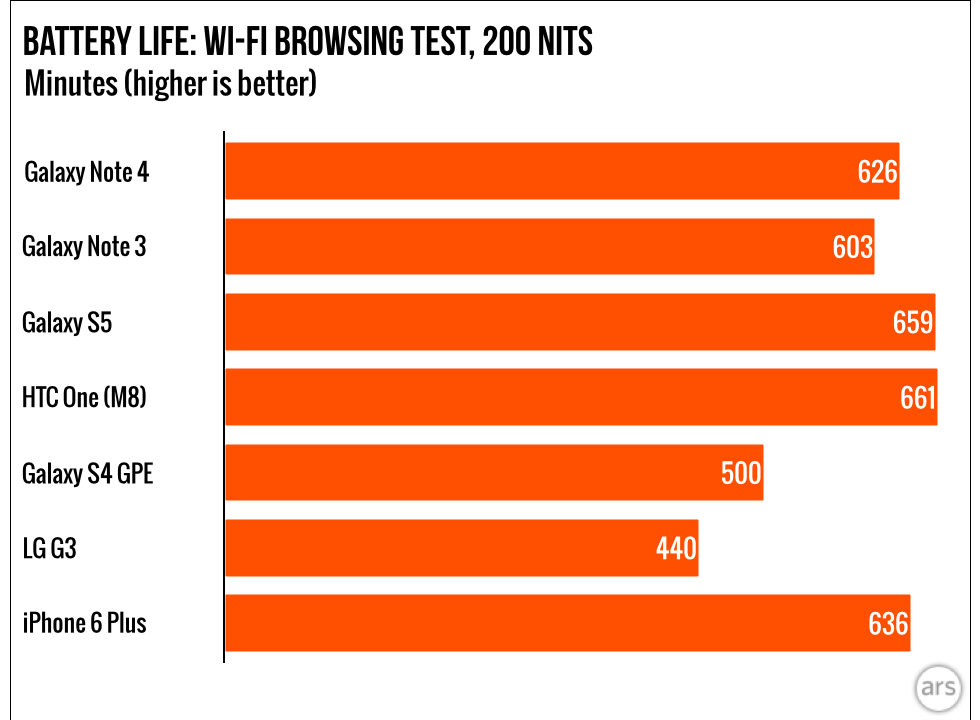
Samsung said to expect about the same battery life from the Note 4 as you got with the Note 3, and that’s roughly what we’re experiencing. The 1440p display will suck down power at a faster rate than the 1080p screen on the Note 3, but Samsung managed to not let things get out of control.

More of the same, with some small improvements

This Note update is kind of boring. It’s a spec bump with a few nips and tucks, but there’s nothing significantly different. We think the Note Edge’s existence shows Samsung is searching for something new in the phablet space, but until it finds whatever that new distinguishing factor is, we’re left with a very minor upgrade. It’s a little faster, the build quality is a little higher, the screen has a few more pixels. The biggest addition to the Note 4 is the eventual availability of the Gear VR, but we don’t have that to test yet.

Samsung is at least experimenting with a metal frame now, and that’s a decent boost to the device’s premiumness. New materials are not a silver bullet, though. Samsung needs to work on the faux-leather plastic back and the S-Pen, which feels like it was made as cheaply as possible.

TouchWiz is still bad, and Samsung doesn’t seem like it wants to solve the long-running problems its software has always had. The company cares more about shoving its own apps in users’ faces than the overall user experience of its devices. This frustration remains something customers must learn to deal with. There are 50 ways to do everything, and Samsung’s app design clashes with the normal way Android works. This year TouchWiz likes to unnecessarily hide the status bar, which is frustrating and pretty pointless. The apps that do this either scroll vertically anyway or have tons of wasted space.

It’s a new year and new iteration, but this is much the same old Note. If you like the Note 3, you’ll like the Note 4. It doesn’t offer much for upgraders, but much of the industry is on a yearly cycle. Samsung seemingly had to release something, so it did.

The Good

  • The metal frame with a chamfered edge is a nice step up in quality for Samsung’s devices.
  • The Menu button is dead! Samsung replaced it with a recent apps button.
  • No more fake stitching on the back.
  • A removable battery and a Micro SD card.

The Bad

  • Physical home buttons and styluses don’t mix. Imparting force through a plastic stick into a clicky button is extremely awkward.
  • Samsung chose branding over usability.
  • The stylus feels like a toy. It’s literally a hollow plastic tube.
  • The speaker moved from the bottom edge on the Note 3 to the back.
  • Samsung’s fingerprint reader and heart rate monitor still aren’t any good. Forcing them into an entire product lineup won’t make them work any better.
  • The software is an inconsistent mish-mash of apps designed by Samsung, Google, and AT&T.
  • Duplicate apps. There are four app stores loaded out of the box.
  • Many of Samsung’s apps hide the status bar for no reason. Immersive mode in a calculator is not a good idea.

The Ugly

  • Samsung’s smallest update yet to the Note line comes at a time when the product category is more competitive than ever.

Listing image: Ron Amadeo

Photo of Ron Amadeo
Ron Amadeo Reviews Editor
Ron is the Reviews Editor at Ars Technica, where he specializes in Android OS and Google products. He is always on the hunt for a new gadget and loves to rip things apart to see how they work. He loves to tinker and always seems to be working on a new project.
157 Comments