Skip to content
Tech

Review: The productivity suite formerly known as iWork

Updates move Keynote, Pages, and Numbers from a state of limbo to a state of flux.

Iljitsch van Beijnum | 141
Story text

Roughly five years ago, Apple released iWork ’09. But at the time, a different Apple lived in a different world: (non-Web) iPhone apps had been introduced only six months earlier and all Macs except the woefully underpowered first-gen MacBook Air still had optical drives. Small furry creatures from Alpha Centauri were real small furry creatures from Alpha Centauri, and pro applications were real pro applications.

In the intermediate years, Apple updated the three iWork applications—Keynote, Pages, and Numbers—to support features such as the new document model (i.e., autosaving) in Lion and the HiDPI mode, which powers the retinavaganza that has pervaded the MacBook Pro line. Slimmed down versions of Keynote, Pages, and Numbers even came to iOS. But these were all smaller wrinkles. Long-standing issues and the most requested missing features haven’t been addressed since the introduction of iWork ’09.
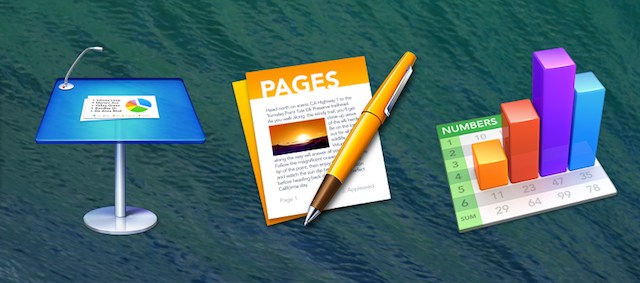
The icons for Keynote 6.0, Pages 5.0, and Numbers 3.0 (iWork ’13).
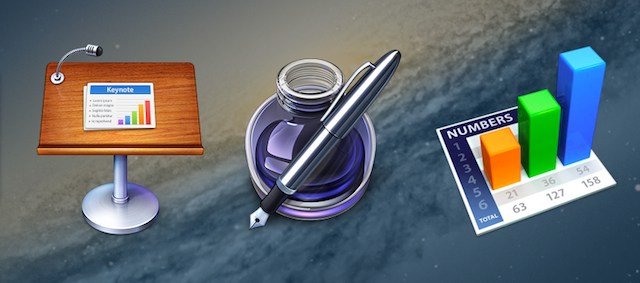
The icons for Keynote 5.3, Pages 4.3, and Numbers 2.3 (iWork ’09).

Finally, Apple has released the update we’ve all been waiting for: iWork ’13, Keynote 6.0, Pages 5.0, and Numbers 3.0. Apparently the band has split up. The iWork name is gone from Apple’s website except for some small print at the bottom of a few pages and long-defunct pages promoting previous versions. It’s not a total surprise, as the three apps have also been for sale individually ever since they came to the Mac and iOS app stores.

In a post-April 2011 world, a new release of Apple productivity software can only be met with trepidation by current users. So, predictably, many initial reactions were negative as the list of missing features kept growing.

It’s obvious that Apple has been aggressively moving forward with simplifying their software in order to reach new users. This means longtime users of the older, complex versions may see features they like or depend on disappear. Unsurprisingly, we tend to hear from those users. But we don’t hear from all the people who couldn’t figure out the old versions and are happy something now addresses their needs. Let’s take a closer look at the productivity suite formerly known as iWork and see just how much Apple got right and wrong.
And naturally, during the writing of this review, Apple took a nearly unprecedented step: the company revealed a list of missing features that will be brought back in the next six months. Just before publication, the first batch of (small) changes appeared.

Buying and installation

Perhaps the most prominent feature of the new iWork happens before opening any single program: for many people, these newest updates won’t involve any transactions. These versions of Keynote, Pages, and Numbers are free with new Mac or iOS hardware. For existing iWork users, there’s a free upgrade through the App Store—even for those of us who bought iWork ’09 the old-fashioned way or just installed the trial version. And who knows what this says about Apple’s confidence in the new release, but the iWork’09 apps are kept when installing the new versions.

The new iWork applications do not come pre-installed on new Macs, however. But if you open the App Store, you’ll be greeted with a message informing you that the apps are available to download for free. Sign in with an account and the applications are then tied to that account. This means that you can subsequently install them on your older Macs, too.

If you never bought or tried iWork before and aren’t buying new hardware, the three apps are available in the Mac App Store for $20 each. The mobile versions are in the iOS app store for $10 a piece, and they are “designed for both iPhone and iPad.”

The applications require OS X 10.9 and iOS 7.0, respectively. If you’re on an older OS, you’ll have the opportunity to download the latest version compatible with your OS. While the latest versions of iWork ’09 for the Mac are 32-bit executables, the new applications are pure 64-bit executables. On the Mac, the three applications take up a combined 1.4GB of disk space. On iOS, it’s a hair less at 1.3GB.

(Missing) Pages for the Mac

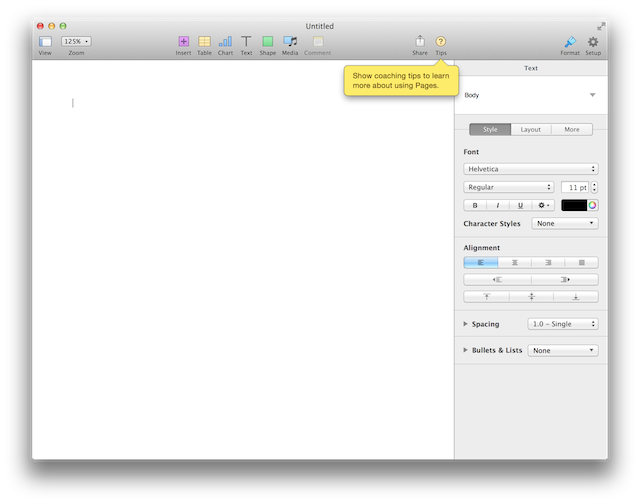
Let’s start with Pages on the Mac, which is being used to write this very review. Right up front, the new “inspector” was a bit of a shock to the system. The old iWork had a pretty nifty way to format text, images, and the like: a (relatively) small inspector window that floats above your document. You could even have multiple inspectors. But in iWork ’13, the inspector no longer floats. It’s firmly attached to the right-hand side of your document window. With the default zoom level (125 percent), the inspector takes up more than a quarter of the Pages window.

After adjusting for a bit, the new inspector feels like an improvement for most users: layout options are nice and big, and they are always found in the same place. If you want the inspector out of the way, you can click on the blue brush in the toolbar to make it go away. (The old keyboard shortcut also still works.) When you bring back the inspector, the window expands to make room for it if possible.

If this change doesn’t sound right for you, you might plan on foregoing the new inspector and sticking with the format bar for all your formatting needs. That would be a good plan, except the format bar is now gone. You can still use the menus, however.

Four years ago, we wrote that Pages “still has no idea whether it wants to be a word processor or a layout program when it grows up.” The verdict is now in, and word processor it is. All the page layout templates are gone. If you open a document created with one of these in the new Pages, you may lose some formatting. In particular, the old Pages made it possible to link text boxes so that text overflows from one to the next. The new Pages can’t do that, so it’s much less flexible when it comes to positioning text on a page. Or at least, if you want to be flexible, you have to manually keep track of how much text can go in each text box.

The next feature to meet the exit door is mail merge. Links are now much less functional, too. It’s still possible to link to a webpage or e-mail, but the options for linking to another Pages document or to a bookmark within the same document are gone. (We used to do that with the old Pages to create clickable references to other parts of the document after exporting to PDF. In order to see whether this still worked, we searched for the text for these links in an old document. Sadly, the links hadn’t reverted back to regular text, so that also no longer works.)

The table of contents in the PDF output also used to be clickable—that is no longer the case. On the plus side, there is no longer an option to update the table of contents because it now live-updates. So it’s possible to have extra tables of content for just a section or until the next table of contents.

Pages still can’t number chapters and headings properly, and it doesn’t seem like anything has changed here between Pages ’09 and Pages ’13. The program actually has no less than 15 numbering styles, but just a number (not followed by a period or any other nonsense) is not one of them. The numbering isn’t part of styles, either; you have to set up numbering for each chapter or heading individually. The previous version of Pages would show proper chapter numbers if you created them in Word and imported the Word document, but the current version of Pages doesn’t.

The Pages ’13 word counter.

In our iWork ’09 review, we mentioned the word counter in the status bar at the bottom of a document. That status bar is gone, but the word counter can now float above the document. Sometimes it actually gets in the way, as it’s possible for the cursor to be completely hidden under the little word counter floating window. There are plenty of other locations where this could be moved to avoid issues, and Pages will accordingly be receiving “improved word counts” in the next six months.

On a personal note, for some reason Pages applied British spelling when spell checking my text. Maybe because I bought the new computer I’m using in the Dutch online Apple Store? In the previous version, you could fix such an issue by setting the language of a document to US English, but there no longer seems to be an option to do that. I worked around that by highlighting the entire document and then choosing “Show Spelling and Grammar” from the Spelling and Grammar submenu under the Edit menu. By changing “automatic by language” to US English, I was able to make the red lines under the word “customize” disappear… until I closed and reopened the document. The way to permanently work around Pages’ inability to set a language for documents is to go in to the System Preferences, Keyboard, and Text and then select “Set Up” under the Spelling drop-down menu. You then get to choose which languages will be used for spell checking in “automatic by language” mode, and if a language has multiple variants, you can enable/disable each and drag them in your order of preference. Still, I dread the day I’ll be writing a document with a lot of code in it, because Pages has no way to turn off spell checking for selected blocks of text.

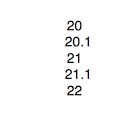
Decimal tabs in Pages.

Overall, the new Pages looks pretty good at first glance. But once you start to look for problems, you find them everywhere. For instance, when using decimal tabs to align a column of numbers, you’d expect 20 and 20.1 to have the zeros in the same place relative to the left margin. However, Pages 6 moves the 20 in 20.1 to the left by what looks to be half the width of the decimal point. Seeing bugs in such basic features doesn’t bode well.

Reportedly, Pages and company have undergone an extensive AppleScriptectomy (we did not test that for this review). Numbers and Keynote will be receiving “improvements to AppleScript support,” but no such thing is mentioned for Pages.

Numbers for the Mac

Unlike Pages, I actually use Numbers every day. But perhaps my spreadsheet needs are less demanding than my word processing needs, because I only ran into a single missing feature during normal use: there is no longer autocomplete based on the contents of existing cells when entering text in a cell. And this is coming back. Once I figured out that you need to drag tables by the little circle at the top left—just dragging the table doesn’t work so well—I had no problem with the new look.

Now, things have changed. The old Numbers had categories, which made it possible to work with subsets of the data in a table. For instance, you could have sales numbers for shops and subtotals per state, with everything sorted on city name within each state. That’s no longer possible, but Apple plans to address this by adding multi-column and range sorting.

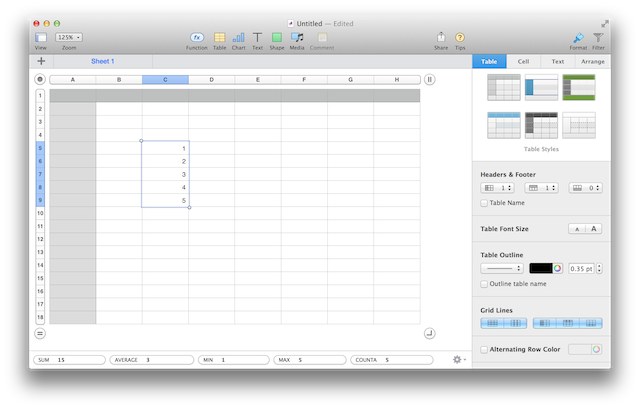
In the previous version of Numbers, you could select a bunch of cells, and the sum, average, minimum, maximum, and count for the cells in the selection would be shown in the sidebar to the left. The new Numbers has the same functionality, except the statistics are displayed in a sort of status bar at the bottom of the window. You can add extra fields to this through the little gear menu on the right.

The old Numbers had a “print view,” which showed how charts, tables, and the like would be split over multiple pages when printed. In this view, you could do everything you could do in the regular view: enter values and formulas, move tables and objects, and so on. The new Numbers has a pretty nice print preview that’s automatically shown before you print a document, and users can resize the document to make it fit on a certain number of pages. However, you don’t get to change the spreadsheet content in any way.

Numbers, Pages, and Keynote all benefit from improved charts—but of course, given the choice, you should create them in Numbers. iWork ’09 has 19 unnamed types of charts; iWork ’13 has 20. Each is named for convenience, and there are now four types of interactive charts. They basically add a third axis that you slide through with a slider or buttons under the chart. For instance, you could have a chart that shows the sales for different departments and then slide through the years. The bars or bubbles then animate to shrink, grow, and/or move interactively. And if you like the specific appearance of a chart you’ve sweated over, save it as a “chart style” and it’s easier to make future charts with the same look.

Numbers also gained five new functions: POLYNOMIAL(), SERIESSUM(), INTERSECT.RANGES(), UNION.RANGES(), and WEIBULL(), bringing the total to 267.

Keynote for the Mac

Like Numbers and Pages, Keynote shows its template chooser when creating a new document. The old one had 44 templates with a selection of sizes ranging from 800×600 to 1920×1080. The new Keynote has 30 templates that come in standard 4:3 aspect ratio and 16:9 widescreen. The former are 1024 by 768 pixels points, the latter 1920 by 1080. However, the templates adapt to setting a custom slide size reasonably well. (As an aside, is it the templates that make these programs so insanely large? If so, Apple should really provide a way to get rid of unused ones. As it is, many look pretty in the preview but really don’t work in practice.)

Some new transitions have been added and some existing ones were removed—and some of the removed transitions were brought back again in the 6.0.1 update—but most members of all three groups aren’t very memorable. (Except for my favorite, the color planes, which got a stay of execution in 2009, were removed in Keynote 6.0, and then were brought back again in the 6.0.1 update.) It seems that the timing for various transitions has changed, as some of the transitions in my existing presentations look faster, others slower. Looking at old presentations revealed that the object zoom transition now treats an entire text block as a single object (not a great update).

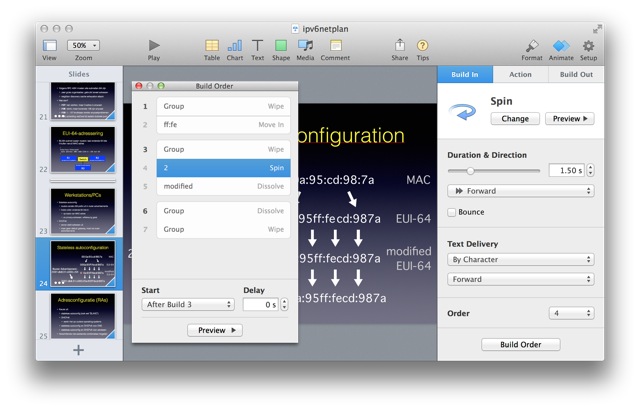
The old Keynote already supported four “actions” for objects in addition to transitions for those objects to appear and disappear. The new Keynote adds a number of actions to provide emphasis, such as blink, flip, and pop. If you use multiple object builds and actions, then it’s necessary to determine the order of all this activity. The build order widget that lets you do this is much improved, and it now provides better visual indications of which actions and builds are coupled together.

iWork ’13 offers contact shadows and curved shadows in addition to the existing drop shadows. Contact shadows make an object appear to be in contact with the background, while curved shadows make it appear as if the background is curved.

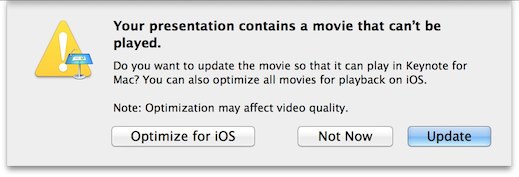
It looks like Keynote—and, presumably, Pages and Numbers—no longer supports QuickTime plugins, at least not very well. New Keynote offered to convert embedded videos for iOS compatibility during testing, but that didn’t work out. Standard H.264 video works as before, though. In general, I’ve had few problems with presentations made in Keynote ’09, but apparently others haven’t been so lucky.

One last note: Apple brought one very useful feature from Powerpoint to Keynote. When you enter more text than fits on the slide, the font size is automatically reduced so that all the text fits.

Window position, size, and zoom

It’s now possible to work on a single slide at 100 percent zoom in full-screen—simply enter full-screen mode and turn off the inspector and the toolbar. (In the old Keynote, this would still leave the status bar at the bottom.) Removing clutter like this also works for Pages, but unlike full-screen in old Pages, you can’t change the color of the unused portion of the screen.

For some strange reason, 100 percent zoom is still based on last millennium’s screen resolution of 72 DPI. Unless you’re using a 30-inch HDTV to write your Pages documents, documents are much, much smaller on-screen than when printed or when exported to PDF and viewed in Preview. (Preview does seem to know the actual resolution of your screen, for laptops at least.)

Before the 6.0.1 updates, our trio had a lot of issues remembering window position, size, and zoom. That has been fixed, except that Pages documents still don’t resize to fit an entire page in the window when that option is selected and the window is being resized.

Apple does get one thing very right in this area: you can now zoom your iWork documents using pinch-to-zoom on your trackpad, the same way you can zoom webpages in Safari. You can even zoom in on objects by double-tapping the trackpad with two fingers. It’s a dream come true, a huge boon when working on a small screen or on any screen if you quickly want to zoom in to align two objects. In the case of Keynote, the ability to pinch to zoom the slide means that you can no longer resize objects by pinching them—a reasonable tradeoff. But you also can’t rotate objects using the trackpad anymore. That feels like an unnecessary regression because the rotation gesture isn’t used for anything else.

Anything worth doing is worth doing in style

When writing long documents, you really can’t get away with formatting text one paragraph, heading, or caption at a time. By the time you’re working on chapter eight, it’s hard to remember whether figure captions were Helvetica Oblique or Helvetica Neue Italic in chapter one. So as good computer scientists, we use a level of indirection: figure captions are assigned a style with a nice descriptive name, perhaps “figure caption.” Formatting is applied to that style, and everything that uses the style inherits the appropriate formatting.

Pages ’09 had a style drawer that slid out of the side of your document and let you quickly select a style. It also had the option to assign a function key to a style, making it possible to assign a style to a paragraph with a single key press. The bad news is that the style drawer and the function keys are gone. But styles are still there under “Style” in the Text pane of the inspector. And Numbers and Keynote now have styles, too.

Styles aren’t entirely new to Numbers: the earlier version had table styles that were basically templates. There are six of those, but they’re no longer user-modifiable. And there is a slight caveat when using styles in a spreadsheet: the plus button that you’d normally use to create a new style doesn’t do anything when you have the cursor or a selection in a spreadsheet table. Here, you can only select an existing style. However, you can add a text box, bring up the Style pane with the cursor in that text box, and then add all the styles you’ll ever need.

Keynote continues to have the concept of master slides, which determine what slides will look like. Master slides and text styles both allow you to customize the look of a presentation without touching each individual slide, but they take slightly different approaches.

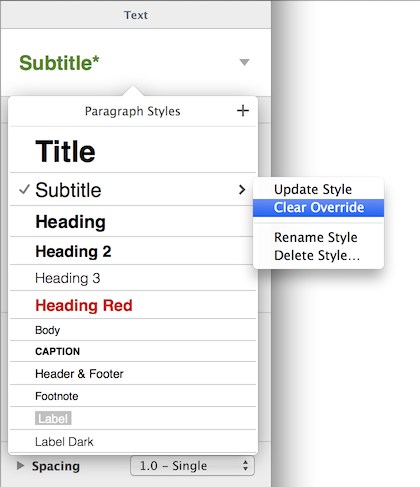
I often use the Gradient theme for my presentations, and I usually change the color of the titles to yellow. After doing this manually for each of three or four slides, it looked like changing the title text color using a style didn’t work. Turns out that once you change the formatting for some text, a “style override” is applied to that attribute for that specific piece of text. You can no longer change that particular attribute for the text in question by modifying its style. You can clear the style override by clicking on the style selector in the text pane of the inspector, where the currently selected style will have an asterisk to indicate a style override is in place. Click on the style to bring up the list of styles you can choose from, move the mouse pointer to the original version of the modified style—don’t click just yet—and a little triangle will show up. This leads the way to a pop-up menu where you can click on “Clear Override.” Obviously.

Clear style override in Pages.

This may prove problematic, as some people don’t practice proper word processing technique and may alter text formatting directly without using styles. This formatting then can’t be removed later by changing a style, instead making it necessary to remove all instances of unwanted formatting by hand. Issues like this could be resolved in Pages ’09 by selecting all the text that uses a given style and then modifying the formatting for that selection, but this is no longer possible in the new Pages.

Performance

The following performance numbers are based on a 13-inch MacBook Pro with 2.4GHz Haswell Core i5 CPU and 8GB RAM. Loading a 12MB text file in Pages ’09 took five seconds. The new Pages takes 20 seconds. However, the old Pages is pretty much unusable with that big of a document in memory, responding slowly to my typing and showing frequent spinning beachballs.

Pages ’13, on the other hand, has no performance issues at all. Saving the document, in particular, is unreasonably fast. I think when autosave was added to Pages ’09 two years ago, this happened in a separate thread to avoid making the entire application hang for seconds at a time. But pressing command-S in Pages ’09 with that huge document loaded renders the program unresponsive for 45 seconds. In Pages ’13, it’s possible to use command-S while the document is scrolling, and the scrolling barely shows a hiccup.

We are talking about a 4,500 page document here. Not that Pages ’13 users would know that, because the program no longer has any way to display how many pages long a document is or what page you’re looking at, save for adding a page number and page count in a header or footer inside the document. Interestingly, when saved as a .pages document, the ’09 version is a hair larger than the original text document. The ’13 version is only 3.5MB, less than 30 percent of the original text document’s size.

Loading a 209,000 line comma-separated file in the new Numbers takes five minutes—but the old Numbers refuses to even try, claiming the document is too large. With a 70,000 line CSV file, the old Numbers says that it loads 65,533 lines and does so in 74 seconds. The new Numbers loads the file in 107 seconds but only the first 65,535 lines without saying so. Excel has no problem loading them all in 3.5 seconds.

I made a simple presentation in Keynote that moves through 100 text-only slides automatically. The old Keynote plays the presentation in 10.6 seconds; the new one does so in 3.2 seconds.

iCloudWork

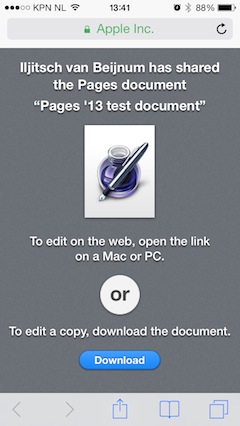
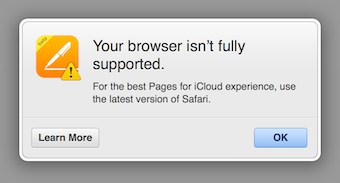
The online versions of the iWork applications are available to anyone with an iCloud account. Someone with an iCloud account can create a document—be it on a Mac, an iPhone, iPad, iPod touch or in a browser through icloud.com—and then share that document with the world by sending out a link. Everyone who knows the link—so don’t lose that link!—can then also edit the document. A reasonable number of browsers are supported on OS X and Windows, but note that the Web apps are not available on iOS.

The owner (original creator) of the document can stop sharing or delete the document at any time. Until then, others may download a copy of the document for safe keeping. As the owner of a document, you can look at the share button on the toolbar to see if it’s shared: if not, you see the standard share button, a white square with an arrow pointing up. If the document has been shared, you see green outlines of several people, possibly accompanied by a number indicating how many people have the document open. You can click to see who.

When I saw the video of the event where the new iWork was introduced, I missed the part where Roger Rosner moved to Safari in order to collaborate with Eddy Cue on a Pages document. So I thought you could actually work on the same document with someone else from inside Pages for the Mac. Unfortunately, that’s not the case. For the changes made by someone else to show up “live” in your document, you need to use the iCloud versions of the iWork apps. And obviously, you need to save the document to iCloud first.

You can also have documents in iCloud open on more than one device (including Macs) using the native app. (Note that this does not count as “sharing” the document; all devices need to be signed into iCloud using the same account.) In that case, if you make changes on device A, device B will load the changed document after a short delay. If you make changes on two devices, you’ll get a warning, and you need to decide which version to keep. You can keep both, but then you have two separate documents with no obvious way to merge them. If you have a document open in a native app and in the Web app, the Web app will reload rather unceremoniously whenever it sees changes made in the native app.

The Web versions of the three apps are simplified versions. For instance, they only support a limited set of fonts, and you only get to pick from a small number of predefined colors. In the native Mac apps, you can use any font that’s installed on the system, and if the predefined colors aren’t to your liking, you can simply bring up the system color picker (these colors do show up in the document in the Web apps). The Web apps also conserve the font selections made in the native apps: for instance, if you copy and paste text in an unsupported font, the newly pasted text will show up in the native apps in the font from the original text, not the font used to display the text in the Web app.

I was disappointed that change tracking isn’t supported by Pages in iCloud. With multiple people editing a document, it would be extremely useful to see what was changed and who made the change. In the current situation, you are relegated to trying to spot changes made by others the old-fashioned way (looking for them).

The iOS counterparts

On the iPhone, I’m amazed that such powerful applications can run on such a small screen. I assume that on the iPad—which I don’t own and have not yet tested—the iOS version of iWork is less of a novelty and more genuinely useful.

If you’re not an iCloud user, you can import iWork documents through various clunky mechanisms and work on them locally. I did this with the old version of Numbers but ultimately decided that I could put the quarter gigabyte that the app took up on my iPhone to better use. It’s useful to be able to work on a spreadsheet, text document, or presentation on your phone once in a while, but you really want to work on those documents on a real computer given half the chance. This is of course where iCloud comes in. Unlike on the Mac, once you’ve set up iCloud, you can only use iCloud to store your iWork documents. I guess that’s not unreasonable on iOS.

Numbers always runs in portrait orientation on the iPhone, Keynote always in landscape, and Pages works both in landscape and portrait. I tried Pages with a Bluetooth keyboard. That worked very well, but there are absolutely no keyboard shortcuts save for the basics: text navigation, selection, cut, copy, paste, italics, bold, and underline.

Like the Web versions, the iOS versions of the three applications are much more limited than the Mac versions. However, these seem to be mostly user interface limitations. The documents still look pretty much the same as in the native Mac apps. Interestingly, Pages on iOS does support change tracking.

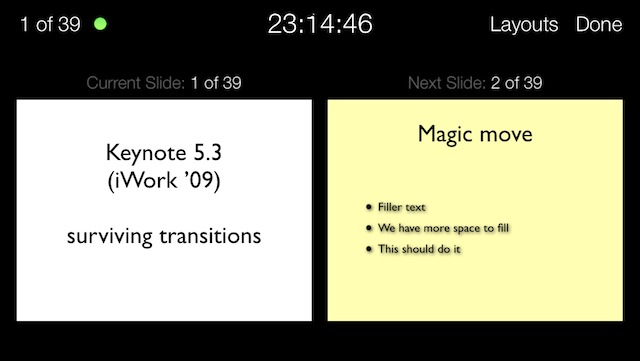
Keynote on the iPhone presenter screen.

There’s a Keynote Remote application in the iOS app store that lets you control Keynote on your Mac over Wi-Fi, but why not actually run Keynote on your iOS device? If you can connect to an Apple TV to stream your presentation to a large screen, this is an excellent alternative to using your Mac. You even get the presenter display, so you can look ahead and keep an eye on the time on your iPhone’s screen while presenting.

File formats

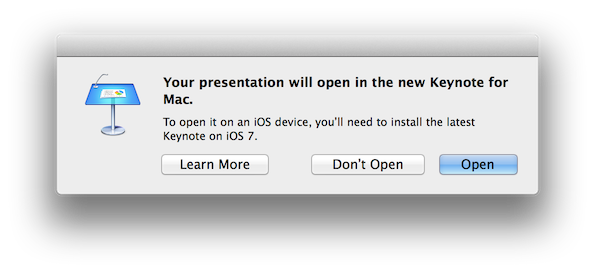
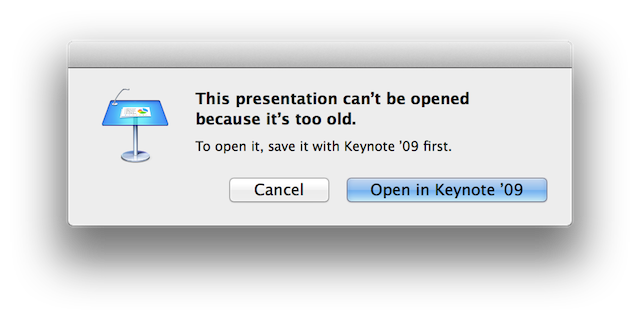
The file format of the new iWork ’13 applications has been completely revamped in order to accommodate the mobile and Web versions and to allow for fast saving to iCloud. Unfortunately, the file extensions are still .key, .pages, and .numbers. This means that there is no easy way to see whether you’re dealing with an iWork ’09 (or older) file or an iWork ’13 file. The iWork ’13 apps on the Mac can open iWork ’09 files but not iWork ’08 files. The iWork ’13 applications warn that they’re about to overwrite an iWork ’09 file in the new format when manually saving.

But there’s also autosave with no such warning. So an inadvertent change may render a document incompatible with iWork ’09. However, you can revert back to the original version in the iWork ’13 applications using Revert in the File menu. I’ve had little success using Get Info in the Finder to make certain documents open in the old versions of the iWork apps, so it’s necessary to use “open with…” each time.

Pages also does away with rich text files (.rtf), which means that the only way to exchange documents between Text Edit and Pages is as plaintext or through one of the Microsoft Word file format variants. Text Edit supports Open Document Format, but iWork still doesn’t. At least the iWork applications can now write .docx files as well as read them.

Compared to the competition: Microsoft Office

The 800-pound gorilla in this market is of course Microsoft Office. Word has all the advanced word processing features that Pages doesn’t have (anymore)—at least, the ones I tried. It’s also the de facto standard for exchanging documents in business and most other big organizations. However, Word has always resisted my efforts to get good layout out of it, and the program is much harder to use in general than Pages.

The above is also true for Excel versus Numbers, maybe even more so. Excel is used for serious number crunching in science, and it’s again a de facto standard in business. However, Numbers’ graphs are much, much better than Excel’s, and layout in general is handled better and more easily.

I’ve been a Keynote user since version 1.0 when it was sold as a standalone application. I’ve always thought Powerpoint was pretty terrible. But a few months ago, I had occasion to use Powerpoint because I was working together with a Windows user, and I must say that the latest version is pretty good. Confusing and full of strange default choices, yes, but it has a reasonable complement of useful transitions and generally gets the job done. Still, for this reviewer, Keynote remains the superior program.

Microsoft has been moving toward a subscription model for Office, starting at $140 for a four-year license for home or student use. It’s also available as a download, or, for those who are still in possession of an optical drive, you can access it the old-fashioned way.

OpenOffice, LibreOffice, NeoOffice

For those who find iWork and Google Docs too limiting and don’t want to pay for Microsoft Office, there’s OpenOffice and its descendants. LibreOffice is a free download of the open source office suite. Of course free-as-in-beer doesn’t pay for bandwidth, so you’re encouraged to download the software in peer-to-peer fashion using BitTorrent. (A few extra clicks will uncover a regular download link.) In addition to word processing, spreadsheet, and presentation modules, LibreOffice also has drawing, database, and formula components.

Like Word, LibreOffice Writer has many of the advanced options that Pages doesn’t, such as mail merge and comparing documents. Unlike Pages (for the most part) and Word, it doesn’t tap into the OS X advanced typography features. LibreOffice feels rather clunky here and there, but not nearly as much as you’d expect from a free cross-platform open source project of this size. If you like LibreOffice, you may want to buy NeoOffice from the Mac app store for $10. That is an OpenOffice fork with many native OS X features added.

There are also several other lesser-known word processors you may want to have a look at, such as Mellel and Scrivener.

Assessing Apple’s approach

It has been suggested that Apple’s intention was to bring parity between the Mac, iOS, and Web versions of the iWork applications. That is not what it has done: the Mac versions have many features that are missing in the iOS and Web versions.

What it looks like is that Apple wanted to unify the file format and layout engine(s) so that it would be possible to have different versions of the apps work with these files non-destructively. The Web and iOS versions do show formatting even if they lack the controls to change it. Apple has been careful to design the file format and core layout engine(s) so that a round trip through a less capable version of an app doesn’t unduly break formatting.

Before Apple released its “About the new iWork for Mac: Features and compatibility” support note, the open question was whether this is a Final Cut Pro X-like situation, an Apple Maps-like situation, or a Carbon 64-bit-like situation. With Final Cut Pro X, Apple delivered a completely revamped application, with many old features excised to the shock and horror of existing users. (But then Apple brought back a lot of the old features.) With the new Maps, Apple executives were apparently under the illusion that they had a great product—which went over like a lead balloon with customers. Tim Cook subsequently apologized, but nothing much happened to improve the situation. (The main train stations in Amsterdam and The Hague are still missing from Apple Maps to this day.) At one point, Apple was set to release a 64-bit version of many Carbon frameworks that power OS X, but it then killed the project halfway through, leaving companies like Microsoft and Adobe in a bind.

Apple isn’t trying to drive away pro users or it wouldn’t have spent time adding styles to Numbers and Keynote and having Pages on iOS track changes. But it does look like the project got away from the company at some point. It’s good to see that Apple is committed to improving iWork in both the short and long term. But the way things are now, I can only use Pages and Numbers for simple documents. Being able to do 80 percent of what I need to do for a complex document is meaningless if the other 20 percent of features that I need are missing or don’t work. Give me that 20 percent—maybe even 15—or you might as well remove the 80 percent and let the (semi-)pro users move on to fuller-featured products from the competition.

Even though for existing iWork users the new versions are free, you’re probably better off waiting for Apple to make those promised improvements before installing unless you really need the Web collaboration feature. If you want to dip in a toe, try Keynote first.

If you don’t have iWork ’09 and you’re getting iWork ’13 free with new hardware, remember that these applications are still very usable, even in their current state. Just know when to cut your losses and move on to a competing product if you start running into too many issues when trying more complex features.

If you’re not eligible to get the new iWork for free, now is not the time to spend money on Pages and Numbers, especially if you may be getting a new computer with iWork on board sometime in the foreseeable future. Keynote for the Mac is certainly worth the $20 if you need to make presentations and aren’t beholden to Powerpoint, but I don’t think iWork on the iPhone is worth the hassle unless for a special purpose, such as Numbers for data entry on the go. If you use your iPad for more than just consumption of information, Keynote and Numbers are probably a good deal, but if you want to get Pages, do your fingers a favor and treat them to a Bluetooth keyboard.

Photo of Iljitsch van Beijnum
Iljitsch van Beijnum Associate Writer
Iljitsch is a contributing writer at Ars Technica, where he contributes articles about network protocols as well as Apple topics. He is currently finishing his Ph.D work at the telematics department at Universidad Carlos III de Madrid (UC3M) in Spain.
141 Comments