

It launched everything in my Applications folder, except the Utilities subfolder. Not going to try that again - do you know HOW MANY NOTIFICATIONS I HAD TO DISMISS to get that screen shot? and quitting them all......, although I could have just restarted, but then a million (do you want to delete?) popups. I do regret not screen capping the App Switcher though. There were like 4 App Store games running too. Thank goodness none of the Steam games are kept in the Applications folder.Curious. So the Dock just gets smaller and smaller or what? Is there ever a cut‑off or whatever? Please continue launching, we want to know
You are using an out of date browser. It may not display this or other websites correctly.
You should upgrade or use an alternative browser.
You should upgrade or use an alternative browser.
Miscellaneous stupid Mac tricks, cool Mac tricks, and stupid cool Mac tricks Thread
- Thread starter xoa
- Start date


Clearly we need a screenshot of a dock where each app is represented as a single pixel, rendering it completely unusable. To find any one app would require scrubbing across the entire dock with the Magnification option, taking ten minutes.
I could move the dock down to my 1920 x 515 screen and try it, but not today...Clearly we need a screenshot of a dock where each app is represented as a single pixel, rendering it completely unusable. To find any one app would require scrubbing across the entire dock with the Magnification option, taking ten minutes.
haha, please don't actually do that. I'd worry what might unexpectedly break. It is amusing, however, that there doesn't appear to be a point where the Dock just refuses to show additional apps or somehow deals with the situation differently than shrinking indefinitely.
Quite frankly, I'm impressed that the computer didn't lock up. Some of those apps aren't light weight.haha, please don't actually do that. I'd worry what might unexpectedly break. It is amusing, however, that there doesn't appear to be a point where the Dock just refuses to show additional apps or somehow deals with the situation differently than shrinking indefinitely.
After 300+ posts, is this the first actual "stupid" Mac trick?


OK. ⌘-A, ⌘-O in my Applications folder, with a measly 84 applications. Clearly demonstrating a lack of commitment.
This is with just Safari running, and whatever odds and sods I have running in the background.

And here we are with ~80-odd applications running. The only interaction with any of them was anything required to stop bouncing icons - usually things like “can I look at your desktop/location/etc?”

And the pressure.

This is with just Safari running, and whatever odds and sods I have running in the background.
And here we are with ~80-odd applications running. The only interaction with any of them was anything required to stop bouncing icons - usually things like “can I look at your desktop/location/etc?”
And the pressure.
Running Shortcuts from the Command Line/making less awful Shortcut... shortcuts:
Apple actually has pretty nice documentation for running Shortcuts from the command line. This lets you bypass opening the Shortcuts app, but the really great part is that you can create a shell script file (with a normal-sized icon), instead of having the ridiculously large Shortcuts widget waste a ton of desktop space. This makes Shortcuts a bit more similar to Automator applications.

As an added bonus, it takes a double-click to run the shell command, unlike the widgets, which obnoxiously run after a single unintentional click.
Apple actually has pretty nice documentation for running Shortcuts from the command line. This lets you bypass opening the Shortcuts app, but the really great part is that you can create a shell script file (with a normal-sized icon), instead of having the ridiculously large Shortcuts widget waste a ton of desktop space. This makes Shortcuts a bit more similar to Automator applications.
As an added bonus, it takes a double-click to run the shell command, unlike the widgets, which obnoxiously run after a single unintentional click.

Wait, did I miss something? All my shortcuts living in the Dock use the same icon size as any other app, and behave 100% as one - including file drag & drop et cetera. You do know that you can easily put shortcuts in the Dock as apps, do you?Running Shortcuts from the Command Line/making less awful Shortcut... shortcuts:
Apple actually has pretty nice documentation for running Shortcuts from the command line. This lets you bypass opening the Shortcuts app, but the really great part is that you can create a shell script file (with a normal-sized icon), instead of having the ridiculously large Shortcuts widget waste a ton of desktop space. This makes Shortcuts a bit more similar to Automator applications.
View attachment 99123
As an added bonus, it takes a double-click to run the shell command, unlike the widgets, which obnoxiously run after a single unintentional click.

Or have I just grossly misunderstood your issue? That's certainly possible, of course.
EDIT: Apparently I did miss something, as you seem to be talking about Shortcuts as Widgets on the desktop, unlike Shortcuts as apps in the Dock. Nice, thanks.
EDIT: Apparently I did miss something, as you seem to be talking about Shortcuts as Widgets on the desktop, unlike Shortcuts as apps in the Dock. Nice, thanks.
Yup! Exactly. On the Dock, they look fine, but I’ve always hated how much space the Widgets take up on the desktop.

I distinctly remember doing something similar back in the Mac OS X Public Beta, and still have the screenshot to prove it!To my regret, this inspired me to open my Applications folder, type Command-A and Command-O.

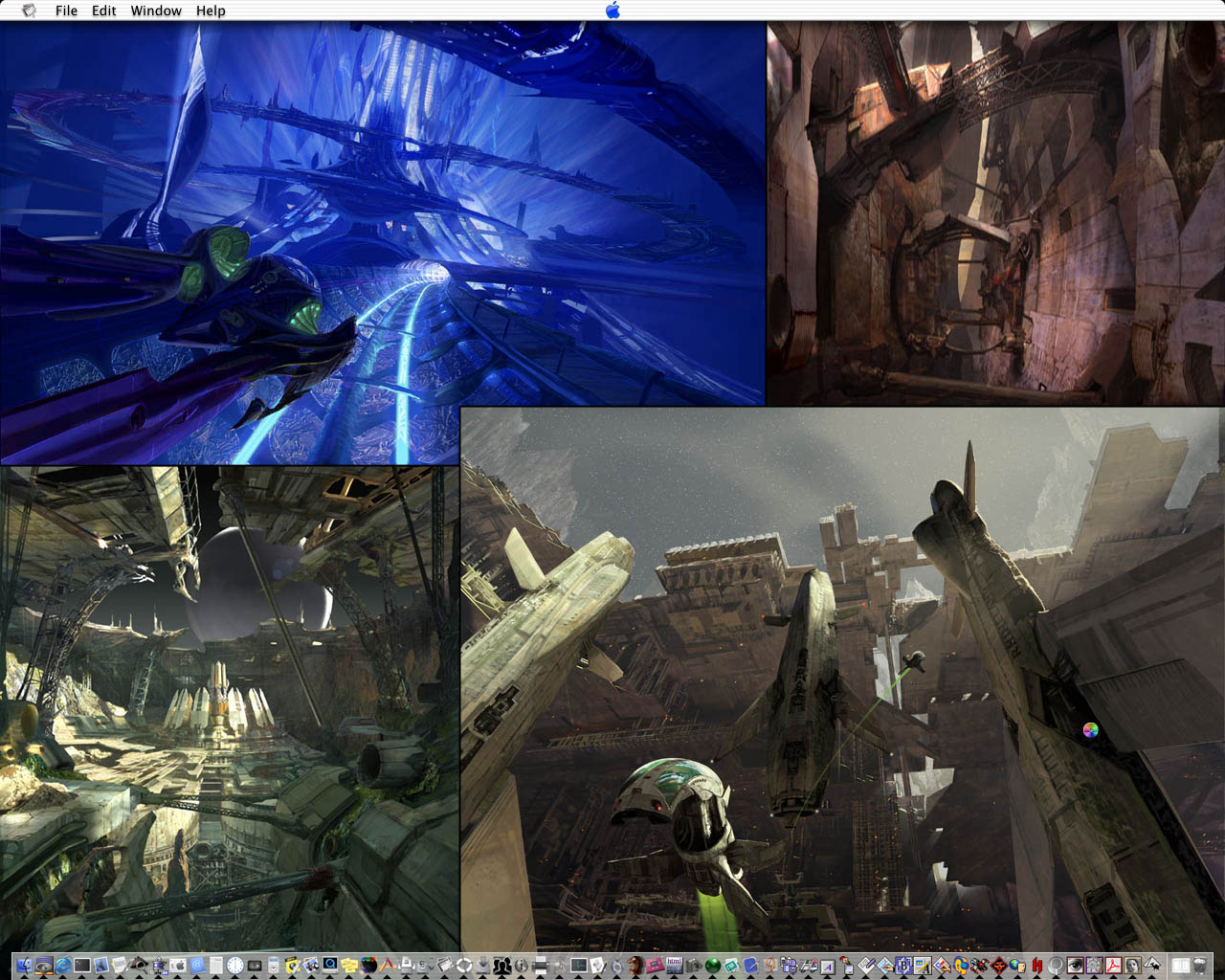
I was opening them one at a time rather than all at once, but got up to 60 in total, 40 Mac OS X applications and 20 Classic ones before I stopped.
(Oh man, the pinstripes. And the non-functional "Apple" icon that was in the middle of the menubar!)
Siracusa did similar (2000 files, not apps) in his DP3 review… 25 years agoI distinctly remember doing something similar back in the Mac OS X Public Beta, and still have the screenshot to prove it!

I was opening them one at a time rather than all at once, but got up to 60 in total, 40 Mac OS X applications and 20 Classic ones before I stopped.
(Oh man, the pinstripes. And the non-functional "Apple" icon that was in the middle of the menubar!)


In 2001, everyone who came close to my venerable G4 DP had to endure this: “see them icons bouncing? wait, I‘ll click some more…“
I was under the impression that third party iOS browsers were all just reskinned safari, but Orion Browser has experimental support for chrome and firefox plugins. Not super stable yet at least for what I want, but it’s very promising.
The Aqua pinwheel was far superior to the dreary flat thing we have nowadays, and this is a hill I will die on.
educated_foo
Ars Praetorian
I briefly considered trying that, then realized that these six alone would put me in beachball hell forever:To my regret, this inspired me to open my Applications folder, type Command-A and Command-O.

I see that, and raise you:

(although, to their credit, and despite their portly-ness and multitude of other sins, all launch and get me to a user-ready state quite quickly on my M1 Pro, and don't really use a ton of memory until I start loading them up with assets)
(although, to their credit, and despite their portly-ness and multitude of other sins, all launch and get me to a user-ready state quite quickly on my M1 Pro, and don't really use a ton of memory until I start loading them up with assets)
Nuke it from the orbit, that's the only way to be sure! Why doesn't Gatekeeper delete those viruses? /sI briefly considered trying that, then realized that these six alone would put me in beachball hell forever:View attachment 100431
Though given recent Apple enshittification with Spotlight basically being broken and whatever else (vis the Apple Rants thread), I am not really sure that even nuking them would help...
Back on topic of Apple tips miscellanea:
TIL one can download the official San Francisco Apple typefaces (as in "typography", commonly and wrongly referred to as "fonts") from the Apple Developer portal, including all the various meta and media key symbols. SF Compact is the typeface used on any recent Apple Keyboards.
From 2017 on, Apple Keyboards use SF Compact (Light or Thin, I guess) as their typeface.
And before, they used the VAG Rounded (Light or Thin again) for the keycaps. A Volkswagen typeface, who'd have thought! I actually preferred that one, the 90° "one" numeral was nicer than the slanted one!
Maybe you are asking why? I am having a set of both physical keycaps and coloured keycap stickers printed (to better suit my most used apps and typing usage on various work and gaming keyboards), and I wanted my customised keyboards to look the same as the Apple one – perhaps a bit ADHD, but I'd really hate to combine a Sans Serif and Serif keycap on one key ;-)
All of those (except Defender) were in my launch attempt.I briefly considered trying that, then realized that these six alone would put me in beachball hell forever:View attachment 100431

Fortunately those early versions of OS X weren’t known for being legendary RAM hogs during an era that was horrendously RAM starved. I’m sure it went fine.I distinctly remember doing something similar back in the Mac OS X Public Beta, and still have the screenshot to prove it!
I was opening them one at a time rather than all at once, but got up to 60 in total, 40 Mac OS X applications and 20 Classic ones before I stopped.
(Oh man, the pinstripes. And the non-functional "Apple" icon that was in the middle of the menubar!)
Why yes, I do still have nightmares about trying to run the PB on a bondi blue iMac with only 96 MB of RAM when the official requirement was 128. Why do you ask?
PSA to anybody wanting to keep their sanity, now that the 
 is back:
Detrumpify browser extension can be easily compiled for Safari (without an Apple Dev cert, it only works with Developer mode and Allow unsigned extensions enabled).
Install XCode, download the repo and run this:
(you might want to switch the target in XCode to Mac OS only)


In other news, I just found out that right‑clicking on Safari's + toolbar button brings up a list of recently closed tabs. D'oh! How could I have missed that? Much faster and easier than going to the History menu.
is back:Detrumpify browser extension can be easily compiled for Safari (without an Apple Dev cert, it only works with Developer mode and Allow unsigned extensions enabled).
Install XCode, download the repo and run this:
xcrun safari-web-extension-converter [/path/to/extension](you might want to switch the target in XCode to Mac OS only)
In other news, I just found out that right‑clicking on Safari's + toolbar button brings up a list of recently closed tabs. D'oh! How could I have missed that? Much faster and easier than going to the History menu.
How to block your Mac laptop from auto-turning on:
Knowledge Base article.
- Make sure that your Mac laptop with Apple silicon is using macOS Sequoia or later.
- Open the Terminal app, which is in the Utilities folder of your Applications folder.
- Type one of these commands in Terminal, then press Return:
- To prevent startup when opening the lid or connecting to power:
sudo nvram BootPreference=%00 - To prevent startup only when opening the lid:
sudo nvram BootPreference=%01 - To prevent startup only when connecting to power:
sudo nvram BootPreference=%02
- To prevent startup when opening the lid or connecting to power:
- Type your administrator password when prompted (Terminal doesn’t show the password as it's typed), then press Return.
sudo nvram -d BootPreference in Terminal.Knowledge Base article.
Hah I was just coming here to post that very article.
I still think the default should be “the power button turns the power on”.

If you fall to sleep on your reclining sofa and had authored some important notes or created important data offline before snoozing, then your iDevice slips down into the lead screw and gets crushed while you lower the foot rest of the sofa don’t give up hope that your data is shot. In the case of the AS MB Airs and iPad Pros, there’s ample flex tolerance to PCBs and multicell lithium batteries that you can probably get the machine powered on, screen share, or mirror if needed, or even directly sync your device with your others via USB-C for data retrieval. So long, M1 iPP! Retrieval was 100% in this case:

Fuck! Impressive resilience, however worth sharing the Do Not Despair recovery tips.
Fuck! Impressive resilience, however worth sharing the Do Not Despair recovery tips.
Holy cats. Sorry for your loss, but I'm amazed it was functional enough for data retrieval.

Personally, I've filed this one under 'moderately impressive', albeit still 'stupid1 tricks'.
While I've generally2 got little to no interest in Apple's current flavor of AI – I don't (yet) require assistance summarizing my emails, texts, or the day's news for me, nor do I have a need for emoji generated by ML – I was curious about last week's hubbub surrounding DeepSeek and the resulting (temp) crash of Nvidia's stock price. So I read up a little on how to install and run DeepSeek locally, and what ultimately convinced me to give it a shot was the fact that once installed, it runs entirely offline. No 'phoning home' that I could detect3.
To summarize the process for myself, and hopefully for others, I figured I might as well write it up here in case anyone else is interested in taking a peek at what them nerds at DeepSeek came up with.
Three prerequisites:
a) A reasonably recent Mac (IMO, AS Pro or higher is best), b) the more RAM it's got, the better a distilled model you can run and, c) either a fast internet connection or a good amount of patience to download the distilled model(s).
Downloading and running DeepSeek:
What model worked best on my hardware:
I've got a 16" MacBook Pro with an M1 Max4 CPU and 32GB of RAM – my experience so far is that I can easily run 'deepseek-r1:32b'. The initialization, meaning the Terminal command 'ollama run deepseek-r1:32b', will take about 30 seconds until everything's been crammed into the poor machine's memory, but after that the model runs buttery smooth and quite fast. For shits and giggles, I downloaded and tried the 43GB 70b model, but my machine does not like that. At all. If I were to guess, I'd say it takes about a minute to return a single token (roughly: 3 words equal 4 tokens, so ~0.75 tokens per word). Almost like 43GB of data couldn't be easily shoved inside 32GB of memory; whodathunkit? ¯\(ツ)/¯
Notable details:
(1 – Personally and for the time being, I don't really have a 'productive' use for a locally hosted LLM. YMMV, of course.)
(2 – Again, 'for the time being')
(3 – Either via LittleSnitch or my router's log files)
(4 – So you don't have to look it up, the M1 Max comes with: 10-core CPU (8 performance- and 2 efficiency cores), 32-core GPU, and a 16-core Neural Engine)
While I've generally2 got little to no interest in Apple's current flavor of AI – I don't (yet) require assistance summarizing my emails, texts, or the day's news for me, nor do I have a need for emoji generated by ML – I was curious about last week's hubbub surrounding DeepSeek and the resulting (temp) crash of Nvidia's stock price. So I read up a little on how to install and run DeepSeek locally, and what ultimately convinced me to give it a shot was the fact that once installed, it runs entirely offline. No 'phoning home' that I could detect3.
To summarize the process for myself, and hopefully for others, I figured I might as well write it up here in case anyone else is interested in taking a peek at what them nerds at DeepSeek came up with.
Three prerequisites:
a) A reasonably recent Mac (IMO, AS Pro or higher is best), b) the more RAM it's got, the better a distilled model you can run and, c) either a fast internet connection or a good amount of patience to download the distilled model(s).
Downloading and running DeepSeek:
- Download the 'large language model runner' Ollama, unzip the archive and move the 'Ollama.app' to your Applications folder.
- Open Ollama.app by double-clicking its icon; the lil' Lama icon in your menu bar is the indicator that the app is running. From that 'Lama' menu item you can also quit Ollama any time.
- Open Terminal.app in your Utilities folder.
- Download the model you're interested in trying, see (spoiler'd) table below. Let's assume you want to try the 14B model – download that by entering the command 'ollama pull deepseek-r1:14b' in your Terminal window and hitting the Enter key.
Model # of Parameters D/L Size ~ Req'd VRAM Rec'd CPU deepseek-r1:1.5b 1.5B 1.1GB 2GB M2/3/4, ≥8GB RAM, deepseek-r1:7b 7B 4.7GB 5GB M2/3/4, ≥16GB RAM, deepseek-r1:8b 8B 4.9GB 6GB M2/3/4, ≥16GB RAM, deepseek-r1:14b 14B 9GB 10GB M2/3/4 Pro, ≥32GB RAM deepseek-r1:32b 32B 20GB 22GB M2 Max/Ultra deepseek-r1:70b 70B 43GB 45GB ≥ M2 Ultra - Once downloaded, you can then run your chosen model (e.g., 'r1:14b') by entering 'ollama run deepseek-r1:14b' in your Terminal window and hitting Enter.
What model worked best on my hardware:
I've got a 16" MacBook Pro with an M1 Max4 CPU and 32GB of RAM – my experience so far is that I can easily run 'deepseek-r1:32b'. The initialization, meaning the Terminal command 'ollama run deepseek-r1:32b', will take about 30 seconds until everything's been crammed into the poor machine's memory, but after that the model runs buttery smooth and quite fast. For shits and giggles, I downloaded and tried the 43GB 70b model, but my machine does not like that. At all. If I were to guess, I'd say it takes about a minute to return a single token (roughly: 3 words equal 4 tokens, so ~0.75 tokens per word). Almost like 43GB of data couldn't be easily shoved inside 32GB of memory; whodathunkit? ¯\(ツ)/¯
The request below took just over 3 1/2 minutes to complete:
Full text output available here on PastebinRequest said:Write me a 2,000 word article about Italy's entrance and involvement in world war 2 including key events, dates and notable persons involved, covering the political, social and economic fallout.
Notable details:
- To get a list of all the available commands Ollama can run, like deleting models you've downloaded etc., simply enter 'ollama' in your Terminal window and hit Enter. Even more info available by entering the flag '--help' following any of the available commands; e.g. 'ollama serve --help'.
- Ollama can of course download/run other models than DeepSeek; full list available here.
- Dowloaded models are stored in an invisible folder named '.ollama' inside your user folder. To get there from the Finder, hit '⌘ - ⇧ - G' on your keyboard, or go to menu 'Go > Go to Folder...', then enter '/Users/yourusername/.ollama', hit Enter, and a new Finder window showing the contents of '.ollama' will open. Once there, the large model files are found inside 'models > blobs'.
- Installed this way, none of the downloaded models you run can/will fetch information from any online source. To manage that feat you'll have to install a tool like Open WebUI. Am currently reading up on that to see if it is something I might want to try.
(1 – Personally and for the time being, I don't really have a 'productive' use for a locally hosted LLM. YMMV, of course.)
(2 – Again, 'for the time being')
(3 – Either via LittleSnitch or my router's log files)
(4 – So you don't have to look it up, the M1 Max comes with: 10-core CPU (8 performance- and 2 efficiency cores), 32-core GPU, and a 16-core Neural Engine)
Clarify a bit please
I read that is if you want the models to fetch information from online?
Are the requests submitted via terminal?
Something I might play around with - I have a suitable Mac that I can run headless or KVM over IP.
- Installed this way, none of the downloaded models you run can/will fetch information from any online source. To manage that feat you'll have to install a tool like Open WebUI. Am currently reading up on that to see if it is something I might want to try.
I read that is if you want the models to fetch information from online?
Are the requests submitted via terminal?
Something I might play around with - I have a suitable Mac that I can run headless or KVM over IP.
Out of the box Ollama runs models (e.g., DeepSeek, Llama, Mistral, etc.) locally only, no internet access. And yes, you do interact with the model via Terminal. So these are the first two of three scenarios that I've seen so far:
The third scenario, letting your model access the internet through the addition of Open WebUI. From what little I've read so far, Open WebUI acts as the connecting link between Ollama and the LLM model running 'inside' Ollama on one end, and the internet on the other.
I've not yet studied this part thoroughly enough, but it appears from the Open WebUI docs page that you can download a single Docker image containing both Ollama and Open WebUI, which should greatly reduce the complexity of getting everything running smoothly. In order to run Docker images on a Mac, you'll of course need to install Docker Desktop as well.
Once you got Open WebUI set up, you'll be able to access it through your browser of choice at 'https://192.168.1.69:3000' [*; the port '3000' being the important part to get to the pages served by Open WebUI]
(* – replace with your machine's actual IP address, of course)
(** – At the moment I am accessing Ollama/DeepSeek, which are running on my MacBook Pro, via my iPad Pro using Secure ShellFish from the other end of our house.)
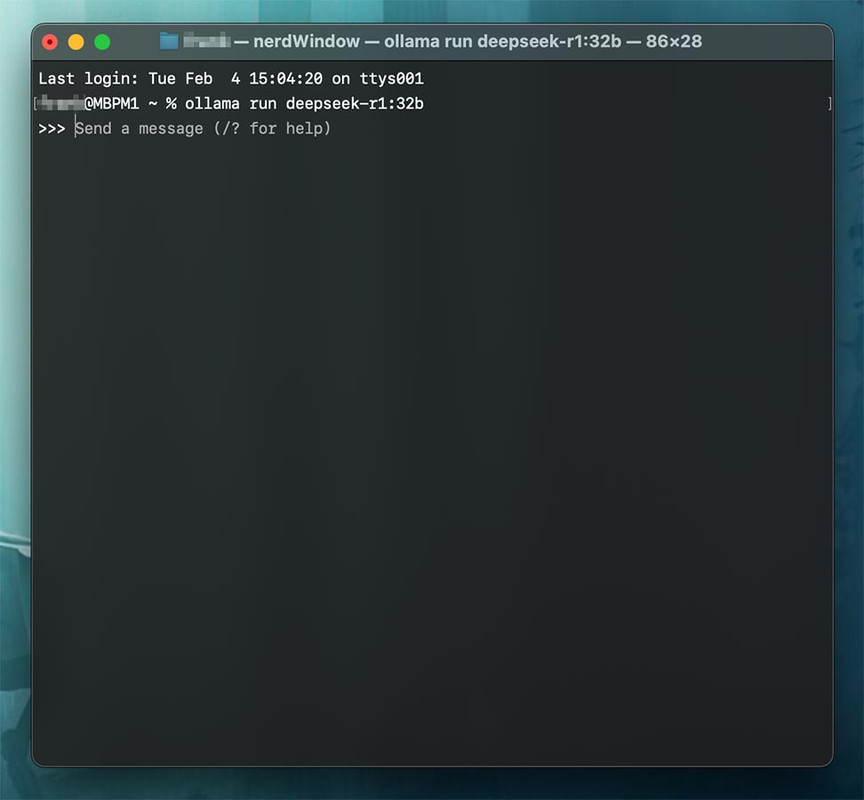
- Run model on 'computer-A', interact with the model directly on the same machine via Terminal.app.
- Run model on 'computer-A' and enable remote access (SSH) on the machine, then access the model running on 'computer-A' from any other computer's Terminal, e.g. 'ssh username@192.168.1.69' [*], then enter password and hit enter to connect. [**]
The third scenario, letting your model access the internet through the addition of Open WebUI. From what little I've read so far, Open WebUI acts as the connecting link between Ollama and the LLM model running 'inside' Ollama on one end, and the internet on the other.
I've not yet studied this part thoroughly enough, but it appears from the Open WebUI docs page that you can download a single Docker image containing both Ollama and Open WebUI, which should greatly reduce the complexity of getting everything running smoothly. In order to run Docker images on a Mac, you'll of course need to install Docker Desktop as well.
Once you got Open WebUI set up, you'll be able to access it through your browser of choice at 'https://192.168.1.69:3000' [*; the port '3000' being the important part to get to the pages served by Open WebUI]
(* – replace with your machine's actual IP address, of course)
(** – At the moment I am accessing Ollama/DeepSeek, which are running on my MacBook Pro, via my iPad Pro using Secure ShellFish from the other end of our house.)
Last edited:
educated_foo
Ars Praetorian
Bluesnooze has been a small but significant improvement in my quality of life by turning off Bluetooth when my MacBook's lid is closed. I used to be regularly annoyed by the "sleeping" laptop taking control of my Bluetooth headphones, but no longer.
Do you turn on Dynamic Flow Calibration for every print?
Wrong
Wrong thread?Do you turn on Dynamic Flow Calibration for every print?

Maybe the tip was about searching 3D print model sites for M4 Mac mini stuff, where dynamic flow calibration would be nice to have. Yeah that must be it. Stuff like these!
NES case: https://makerworld.com/en/models/815576
G5 case: https://makerworld.com/en/models/1017526
I'd probably do something simple like this or one of the open stand types:
https://www.thingiverse.com/thing:6893114
On the software side of things, I posted this one in the perpetual annoyances thread: Sloth. It's a simple GUI for lsof, to find open stuff in use, such as when mds/mds_stores is holding up a drive from ejecting.
I assume BetterDisplay has been posted, but if it hasn't, it's a great utility for external displays, if nothing else for enabling keyboard brightness controls. Volume output too if you're going through your display's audio control.
...volume did not work on mine, I guess since it's just a line out. Which brings me to eqMac. Does a bunch of stuff, some free some paid, but I just have it for keyboard volume control.
NES case: https://makerworld.com/en/models/815576
G5 case: https://makerworld.com/en/models/1017526
I'd probably do something simple like this or one of the open stand types:
https://www.thingiverse.com/thing:6893114
On the software side of things, I posted this one in the perpetual annoyances thread: Sloth. It's a simple GUI for lsof, to find open stuff in use, such as when mds/mds_stores is holding up a drive from ejecting.
I assume BetterDisplay has been posted, but if it hasn't, it's a great utility for external displays, if nothing else for enabling keyboard brightness controls. Volume output too if you're going through your display's audio control.
...volume did not work on mine, I guess since it's just a line out. Which brings me to eqMac. Does a bunch of stuff, some free some paid, but I just have it for keyboard volume control.
Last edited:
Stupid Apple TV trick: the 2nd/3rd gen Siri Remote will very stably stand on end (i.e., charging port down). You can even nudge it and it won’t topple.
I’ve had it for years, but it never occurred to me to stand it on end. I never expected it to be so stable.
I’ve had it for years, but it never occurred to me to stand it on end. I never expected it to be so stable.
Stupid Apple, not a trick:
I think I may have found out why the sensor on the Apple Magic Mouse can’t track in a straight line, and is very imprecise: it’s got a resolution of 1300dpi, which is fine, but it has a polling rate of 90Hz, which is very much not fine, and a device-to-screen latency of 40ms, which is also very much not fine*.
Even that £5 USB-A e-Waste™ mouse you got at the petrol station is better than that, with a polling rate of probably 125Hz or thereabouts. Gaming™ mice of course have stratospheric polling rates and latency so low the mouse actually knows when you’re going to click.
Oh, I suppose there is a trick: stop trying to fix it. It is what it is, and if the touchpad functionality offsets the myriad other reasons the Magic Mouse is dogshit, then more power to you.
*For a comparison with a mouse at a similar price point: the Logitech G903 has a click latency of 4ms, a polling rate adjustable between 125 and 1000Hz, and a sensor adjustable between 100 and a frankly ludicrous 25,000 dpi.
I think I may have found out why the sensor on the Apple Magic Mouse can’t track in a straight line, and is very imprecise: it’s got a resolution of 1300dpi, which is fine, but it has a polling rate of 90Hz, which is very much not fine, and a device-to-screen latency of 40ms, which is also very much not fine*.
Even that £5 USB-A e-Waste™ mouse you got at the petrol station is better than that, with a polling rate of probably 125Hz or thereabouts. Gaming™ mice of course have stratospheric polling rates and latency so low the mouse actually knows when you’re going to click.
Oh, I suppose there is a trick: stop trying to fix it. It is what it is, and if the touchpad functionality offsets the myriad other reasons the Magic Mouse is dogshit, then more power to you.
*For a comparison with a mouse at a similar price point: the Logitech G903 has a click latency of 4ms, a polling rate adjustable between 125 and 1000Hz, and a sensor adjustable between 100 and a frankly ludicrous 25,000 dpi.
Last edited:
Newbie CarPlay user here.
My iPhone is linked with wireless CarPlay in my car.
So whenever the car is on, CarPlay takes over.
For instance, the other day, oI used Google Maps and it will give me the option ONLY to output to the Car screen when the car is on.
Is there a way to toggle the display output of app between the car display and the iPhone display? The iPhone display will show a list of directions while the map view only appears on the car display.
Usually when I wear an AirPod, as soon as the car is on, it will change the sound output to the car speakers, which are not good. So I can click the stem and it will switch the sound back to my AirPod Pro (I only wear one side when driving).
Wondering if there's a similar workaround to toggle the output.
I suppose I should just get used to using the car display for things like navigation but used to the brilliant OLED screen. Or just unlink CarPlay.
My iPhone is linked with wireless CarPlay in my car.
So whenever the car is on, CarPlay takes over.
For instance, the other day, oI used Google Maps and it will give me the option ONLY to output to the Car screen when the car is on.
Is there a way to toggle the display output of app between the car display and the iPhone display? The iPhone display will show a list of directions while the map view only appears on the car display.
Usually when I wear an AirPod, as soon as the car is on, it will change the sound output to the car speakers, which are not good. So I can click the stem and it will switch the sound back to my AirPod Pro (I only wear one side when driving).
Wondering if there's a similar workaround to toggle the output.
I suppose I should just get used to using the car display for things like navigation but used to the brilliant OLED screen. Or just unlink CarPlay.

Can’t speak for Google Maps but when I’m using CarPlay, Apple Maps can be displayed on my phone as well as on the vehicle screen (so long as I lie to the phone and tell it I’m not driving). That said, the larger size of the screen in my Jeep trumps OLED. More than bright enough and reasonable touch sensitivity. Now that I’ve added a wireless CarPlay adaptor the phone seldom comes out of my pocket while I’m in the car.
If you’re bashing away at the command line, and you have a file or directory which will just not fuck off, no matter how much you
*Other terminal emulators are available
sudo chflags or sudo rm -f or sudo chown or sudo chmod or sudo xattr it, instead stubbornly returning operation not permitted no matter what you do - before you disappear down the rabbit hole of safe mode booting and disabling SIP and all the horrors that go with such, ensure Terminal* has been granted Full Disk Access in the Privacy and Security settings.*Other terminal emulators are available
My new-to-me truck has a 12” screen but the stoopid designers give the passengers just as much priority as a the driver thus the screen is not angled towards the driver. It’s a wide vehicle, so a full arm’s reach just to tap on shit on the display and read a map? Sorry, the display is angled pretty far away from me, aimed at the ghost seated in the center of the vehicle. That’s asking to swerve into four other lanes while fumbling and squinting. I’m going to mount the iPhone just to the right of the main cluster and stick with its native display.the larger size of the screen in my Jeep trumps OLED

Not really a tip or a trick, but something I just discovered… when did iOS start transcribing your voicemails? I like it a lot — I can read the transcript in a fraction of the time it takes me to navigate Three's labyrinthinely archaic voicemail system and listen to the damn thing.