Skip to content
Tech

Good ideas, middling execution: the Samsung Galaxy Note 10.1 reviewed

Lack of third-party support hampers some interesting multitasking ideas.

Andrew Cunningham | 112
The Samsung Galaxy Note 10.1 and the included S Pen stylus. Credit: Andrew Cunningham
Story text

Smartphones and tablets with touchscreens have succeeded in no small part because of their simplicity. Things like memory management and multiple layered windows were removed from the equation and replaced with fullscreen applications that allowed for only minimal background activity. To varying degrees, multitasking via applications running in the background has come to iOS and Android, but even Windows is moving away from windowed programs toward a brave new fullscreen future.

At least, to a point. Windows 8 will retain its traditional desktop to enable more versatile computing when desired, and we hope to see more versatile multitasking to come to other tablets as well. Samsung’s new Galaxy Note 10.1 wants to be one of those tablets, trying a couple of different multitasking methods that actually work quite well—or they would, if they could support any applications that weren’t built in to the device.

The hardware: High-end inside, cheap and plasticky outside

Across the top of the Note 10.1: the headphone jack, IR blaster, SD card slot, volume rocker, and power button.
Across the top of the Note 10.1: the headphone jack, IR blaster, SD card slot, volume rocker, and power button. Credit: Andrew Cunningham
On the bottom of the tablet, you’ll see its proprietary power and data connector. On the right side, you can also see the compartment where the pen is stored.
On the bottom of the tablet, you’ll see its proprietary power and data connector. On the right side, you can also see the compartment where the pen is stored. Credit: Andrew Cunningham
The Note 10.1’s speakers don’t get very loud and don’t have much bass, but they are mounted on the front of the device, which makes them more difficult to block by accident while watching videos.
The Note 10.1’s speakers don’t get very loud and don’t have much bass, but they are mounted on the front of the device, which makes them more difficult to block by accident while watching videos. Credit: Andrew Cunningham

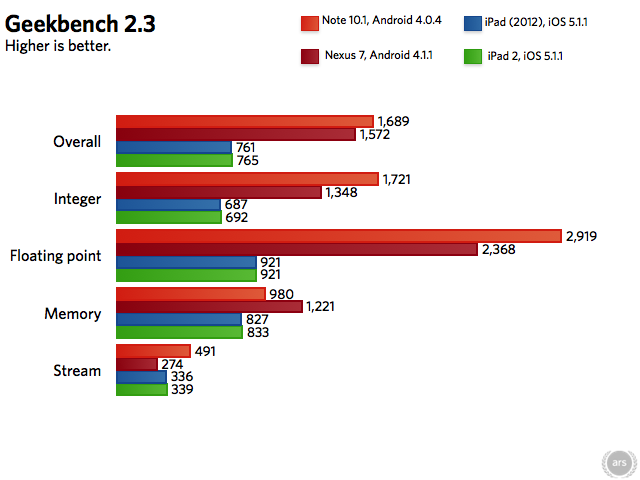
Let’s start with the good: the Note 10.1, which measures 7.1″ x 1.3″ x 10.3″ and weighs 1.3 pounds, is powered by a 1.4GHz quad-core Samsung Exynos 4412 CPU and an ARM Mali-400 MP4 GPU. As our benchmarks will show, this is a fast combination that compares favorably to other Android tablets and to Apple’s iPad. 16GB and 32GB capacities are available now, with a 64GB version planned for release at an unspecified future date—for now, up to 32GB of additional storage can be added via the MicroSD card slot. A 5.0 megapixel rear camera with flash and a 1.9 megapixel front camera are also included; the latter is suitable for video chatting and not much else, and the former takes passable-but-noisy photos with muted colors.

The Note 10.1’s rear camera and flash.
The Note 10.1’s rear camera and flash. Credit: Andrew Cunningham
A picture of some of the junk on my desk taken with the iPhone 4S.
A picture of some of the junk on my desk taken with the iPhone 4S. Credit: Andrew Cunningham
The same desk junk, taken with the Note 10.1’s camera. Note in particular the extra noise and more muted reds.
The same desk junk, taken with the Note 10.1’s camera. Note in particular the extra noise and more muted reds. Credit: Andrew Cunningham

Rounding out the hardware is dual-band WiFi (a 3G version is forthcoming) and Bluetooth 4.0; HDMI output and USB On-The-Go support are both possible if you purchase the required dongles. One odd but interesting inclusion is the presence of an IR blaster, which can be used to control your television and other boxes in your home entertainment center via the included Peel Smart Remote app—this feature has also been available in some past Galaxy Tab hardware. An equally interesting omission is its lack of an NFC chip, meaning that you won’t be able to beam information easily between the Note 10.1 and your Galaxy S III or Galaxy Nexus.

Now that we’ve got the good stuff out of the way, let’s talk about the physical construction of the tablet.

The body of the Note 10.1 is made entirely of plastic, so it weighs less than both the latest iPad and older tablets like the Motorola Xoom, making it a bit more pleasant to use in portrait mode. However, the plastic has a lot of flex to it, especially on the back, and it contributes to a cheap feeling that belies the Note 10.1’s premium pricing. There are ways to do plastic well—I’d hold up the Nexus 7 and Nokia Lumia 900 as good examples—but the Note 10.1 doesn’t stand up to either of those two. The Galaxy Note smartphone is similarly light and all-plastic, but its more rigid, texturized plastic back and lack of chintzy silver trim (which the Note 10.1 has) make it look and feel better in the hand.

The back of the Note 10.1 is a flexible feeling plastic that makes it feel cheap. The tablet also comes in black.
The back of the Note 10.1 is a flexible feeling plastic that makes it feel cheap. The tablet also comes in black. Credit: Andrew Cunningham

The screen is also a disappointment—it’s bright and has good color and viewing angles, but a 1280×800 screen in a $500 tablet is a definite strike when other tablets in the same price range are offering 1920×1200 (in the case of ASUS’ Transformer Pad Infinity) or 2048×1536 (Apple’s newest iPad). It’s a perfectly serviceable screen, but that’s the nicest adjective it elicits.

Benchmarks and battery life

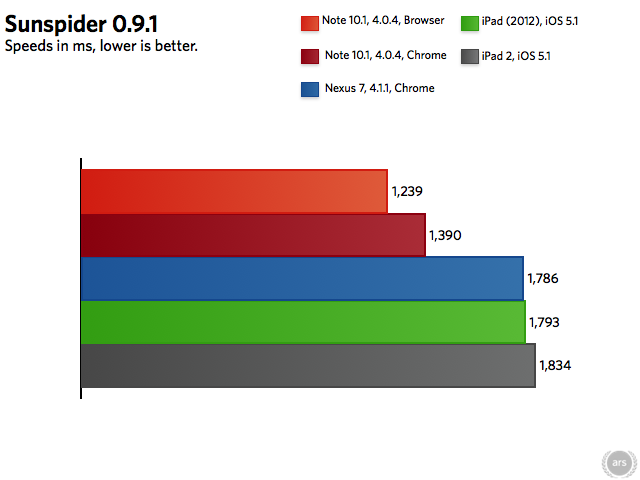
The extra CPU cores in the Nexus 7 and Note 10.1 give them better Geekbench scores than the iOS devices, though as the Sunspider scores show, additional processing power doesn’t always translate directly into increased performance. In this case, the Note 10.1 is still faster than the Nexus 7 and both iPads.

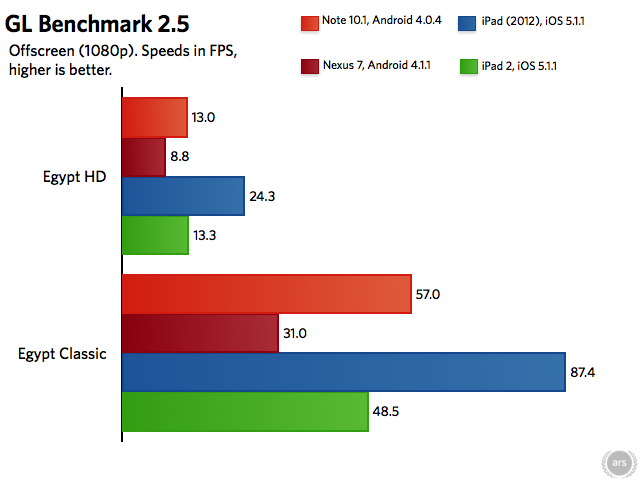
iPad (2012) and iPad 2 results gathered from the GLBenchmark results database. Credit: GLBenchmark Results Database

In our GPU tests, our first with the recently released GLBenchmark 2.5, the Note 10.1 edges out the old iPad 2, but falls far short of the Retina iPad—Apple’s tablets have always placed a heavy emphasis on GPU performance, so this should come as no surprise.

The Exynos 4 is manufactured on a 32nm process, so this power doesn’t come at the cost of battery life. In our usage, which combined Netflix streaming, Web browsing, note-taking with the S Pen, and light gaming—all with WiFi enabled and the screen at 50 percent brightness—the 7,000mAh battery lasted for about eight-and-a-half hours, comparable to other tablets of this size. Your mileage will obviously vary depending on the specific tasks you’re performing.

The pen

Credit: Andrew Cunningham

The thing that Samsung hopes will differentiate the Note 10.1 from other Android tablets is the S Pen, a small, light stylus that slides into the tablet’s case while not in use. As we discussed in our original hands-on, the stylus interacts with an additional layer underneath the LCD—it won’t work with any old tablet, but the additional hardware makes it a bit more accurate than plain capacitive styli (it also allows the tablet to detect the tip of the pen even if it isn’t touching the screen). The tablet’s Wacom digitizer is pressure-sensitive, though Samsung’s advertised 1,000 sensitivity levels seems a bit optimistic based on our usage.

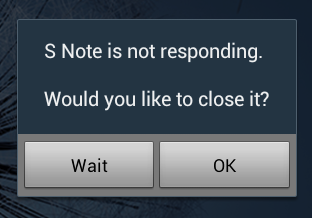
Using S Note’s handwriting recognition features made this happen a lot. Credit: Andrew Cunningham

The Note 10.1 features a few apps designed to use the S Pen—the most prominent is Samsung’s own S Note, which allows for both the scrawling of notes and the drawing of pictures. Its many buttons and settings are a bit oblique at first, but a set of instructions and some poking around will soon familiarize you with its features. S Note also includes handwriting recognition for text and equations, which works fairly well, but I was able to get the application to crash pretty consistently if I threw too much at it too quickly—the worse the handwriting, the quicker the app was to crash.

The other apps designed to showcase the S Pen include Adobe Photoshop Touch, which is made much more accurate by the tablet’s ability to detect the tip of the pen from a couple of inches away; Crayon Physics Deluxe, a fun if nearly four-year-old game; and Kno.com, an e-textbook app that lets you highlight passages of books and write notes in the margins. Other apps designed with the S Pen in mind are available in Samsung’s app store, though the majority of applications from the Google Play store are going to be designed with fingers in mind.

The software: TouchWiz and multitasking

Users of the Galaxy SIII, the original Galaxy Note, or other recent Samsung phones won’t be surprised much by the TouchWiz interface—this is the same skinned version of Android we’ve seen before. A handful of Samsung and third-party applications are preinstalled. TouchWiz’s most useful changes are small ones: easy controls for enabling and disabling WiFi, Bluetooth, and other features are now available in the Notification Center, and the tablet’s five home screens loop back around from left to right or vice versa as you swipe through them. Samsung’s software keyboard also offers several advantages over the stock keyboard, including Swype support and an always-on row of number keys. Other changes are more superfluous—the most obvious example is the dedicated screenshot button in the menu bar, which is there despite the fact that taking screenshots by pressing the volume down and power buttons simultaneously still works.

TouchWiz’s tweaked notification center. Credit: Andrew Cunningham
The Note 10.1’s stock keyboard includes typing suggestions and Swype support, as well as a persistent row of numbers.
The Note 10.1’s stock keyboard includes typing suggestions and Swype support, as well as a persistent row of numbers. Credit: Andrew Cunningham

TouchWiz is still running on top of Android 4.0 (with a 4.1 update promised later in the year), and while its fast hardware helps to keep things smooth during general usage, it’s unfortunately plagued by some of the intermittent stuttering that affects pre-Jelly Bean versions of the software. Scrolling up and down a webpage remains the most reliable way to get the device to stutter, and some of the home screen widgets enabled by default on the Note 10.1 are also performance killers that could leave the wrong impression with people using the tablet for the first time.

There are two ways in which the Note 10.1 attempts to bring multitasking to Android: the first is its list of mini apps, including a calculator, a basic mail widget, a task manager, a music player, and a few others. Tapping the arrow in the middle of the menu bar will bring up the list, and tapping the app will launch it over top of the currently running Android app. These apps are easy to invoke, use, move around, and dismiss, and they’re a logical evolution of the existing Android widget system.

The Note 10.1’s mini apps run over top of fullscreen Android apps, and can be moved and overlapped as in traditional windowed operating systems.
The Note 10.1’s mini apps run over top of fullscreen Android apps, and can be moved and overlapped as in traditional windowed operating systems. Credit: Andrew Cunningham
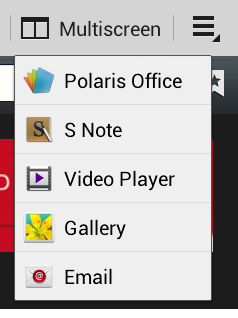
The Multiscreen app menu. Credit: Andrew Cunningham

The second multitasking addition the Note 10.1 makes to Android is called Multiscreen, and it allows you to run a few of the preinstalled applications side-by-side, with each taking up half of the screen. You invoke it by opening up one of the supported applications, tapping the Multiscreen button in the upper right-hand corner of the screen, and then tapping the other app you’d like to open. Unlike the Snap feature in the upcoming Windows 8, which lets you run two applications simultaneously but restricts one of them to a narrow strip on the left or right side of the screen, Samsung’s Multiscreen lets you use two full-featured applications at once.

We noticed some intermittent lag when switching between applications—S Note was again the most frequent offender, and the Gallery application actually locked up and crashed once—but when it works, it’s a solid addition to Android, and offers another benefit of using 10″ tablets over 7″ tablets.

Applications that support this functionality include the built-in browser, the S Note app, the built-in Polaris Office suite, the photo gallery, the video player, and the e-mail app (but not the Gmail app). Therein lies the feature’s biggest weakness: at this point, it doesn’t support third-party applications, so if you want to use Chrome alongside your word processor of choice, there’s not much you can do. Multiscreen is ultimately a decent concept that falls apart once you need anything other than the half-dozen applications that support it.

Multiscreen mode is limited to just a few of the built-in apps, but it does make it easier to restore Spanish frescoes.
Multiscreen mode is limited to just a few of the built-in apps, but it does make it easier to restore Spanish frescoes. Credit: Andrew Cunningham

The multitasking implementation on the Note 10.1 isn’t half bad. The concept of mini apps is a marriage of standard Android widgets and traditional windowed multitasking that mostly works, and while the multiscreen mode does exhibit some lag when trying to switch between applications, it gets the job done.

Conclusions

The Galaxy Note smartphone stacked on top of the Note 10.1.
The Galaxy Note smartphone stacked on top of the Note 10.1. Credit: Andrew Cunningham

The Galaxy Note 10.1 has too many problems to be a great tablet. It’s too flimsy and its screen doesn’t hold a candle to other similarly priced tablets. It’s too expensive as well. The tablet’s performance and battery life are good, but they certainly don’t blow the competition out of the water—we probably won’t see that until the Exynos 5 and other Cortex A15-based SoCs begin showing up in devices. The S Pen makes Samsung’s latest a bit more interesting for artists or heavy note takers and enables the use of apps (like spreadsheet or image editing programs) that benefit from the additional precision, but most Android applications will still be developed for fingers first.

The Note 10.1’s more interesting ideas are in its software—if some of its multitasking ideas were integrated more fully into Android, smoothing out the rougher edges and giving third-party developers the ability to support the features, they could point a way forward for Google, Microsoft, Samsung, and any other company looking to close the multitasking gap between tablets and traditional laptops.

The good

  • Speedy internals and lots of RAM
  • S Pen is comfortable and responsive
  • Mini apps and Multiscreen mode are good ideas, but they’re limited by the small number of available apps
  • Good battery life
  • Front-facing speakers

The bad

  • Lack of Jelly Bean leads to intermittent jerkiness despite the hardware
  • Bright screen with good colors and viewing angles is marred by a low resolution for this price range
  • S Note is promising but unstable, especially in handwriting recognition mode
  • Middling cameras
  • Lack of NFC

The ugly

  • Cheap, flexible plastic doesn’t feel like a $500 tablet should

Listing image: Andrew Cunningham

Photo of Andrew Cunningham
Andrew Cunningham Senior Technology Reporter
Andrew is a Senior Technology Reporter at Ars Technica, with a focus on consumer tech including computer hardware and in-depth reviews of operating systems like Windows and macOS. Andrew lives in Philadelphia and co-hosts a weekly book podcast called Overdue.
112 Comments