Skip to content
Biz & IT

Web Served, part 6: Form the forum

Getting started with the Vanilla forum application, with bonus GitHub action.

Lee Hutchinson | 29
Credit: Aurich Lawson / Thinkstock
Story text

We’ve come a long way since starting this series, and we’ve got a little further to go before the end. Your Nginx Web server is operational and happily serving out WordPress (hopefully with an eye toward safety and security), but we’re going to take things to the next level by setting up a full-blown Web forum.

As with all of our other components, there are many choices. Far and away the most popular (and most well-supported) is phpBB, a mature and extensible piece of software that’s used all over the Web, including on Ars Technica’s own OpenForum. As long as you stay updated and keep on top of installing all the security updates, it’s a good choice for a production website, and it offers an almost ridiculous amount of configurability. We’re not going to use it, though. This series is about experimenting and learning new and useful tools. phpBB is most definitely useful, but it’s a complex beast and overkill for a personal forum.

Other popular forum application choices are things like Simple Machines Forum and FluxBB (or vBulletin, but it’s not free)—we’re not going to use those, either. There’s nothing wrong with them at all, but they’re not my personal choice and they’re not what I’m going to talk about configuring.

Instead, we’re going to go with Vanilla, a free (as in beer and speech) forum application that’s powering a number of forums large and small, ranging from the Chronicles of George forum all the way up to Penny Arcade. Vanilla is fast, open source, and it’s got an active developer community. What’s more, it’s extremely easy to install and configure.

Ah, but it’s not going to be that easy, because we’re going to get a two-fer in this issue of Web Served: we’re not going to just install Vanilla. We’re going to install the beta version of Vanilla.

Why beta?

I want to take a few paragraphs to address this, because it’s a bit of an odd choice. Vanilla has a perfectly serviceable production release in version 2.0.18.4, which is unfortunately almost a year old. It works great and many sites use it, but the 2.1 beta version of Vanilla is easily production-ready for a personal website, and it incorporates a truly ridiculous number of improvements over the current release version, inside and out.

I know that the beta is production ready because I’m running it myself. Check out the Chronicles of George forums. I’ve been using it for almost a full year as it’s progressed through alpha to beta, and there are no existing issues with it that will stop it from humming along perfectly well on our test Web server.

If you’re not comfortable running beta software in production (though it’s arguable whether or not the personal server we’ve been building as part of this series can be considered a “production” server), then by all means, use the standard version. However, because the beta version really is that much better and really is stable enough to use—and because we’re about learning stuff here, not configuring a forum that will support a million users under load—we’re going with 2.1.

The prerequisite: Git

We’re entering adventurous territory and installing the beta instead of the release, but first we need to first install the means by which we’re going to grab Vanilla: Git. Git is a version control system—a tool which lets developers track the changes made to a project’s source code over time. A VCS like Git makes copies of a piece of code every time it’s changed, saving old revisions and letting a programmer see how his or her code is evolving and allowing them to revert back to a previous version if they make an error. A VCS also lets teams of programmers “check out” blocks of code to work on, ensuring that different team members aren’t accidentally working on the same thing at the same time and clobbering each other with edits.

The Vanilla team uses Git to store the Vanilla source code, keeping it in a Web-based Git repository on GitHub, an enormous site that hosts Git projects of every shape and size. In order for us to use the beta version of Vanilla, we’re going to install the Git client on our Linux Web server and use it to clone the Vanilla repository down onto our Web server. That will get us a copy of the current Vanilla code. It will also allow us to easily update it as time goes on.

Fortunately, as with so many of the tools we need, installing Git takes only a single command:

sudo aptitude install git

Cloning Vanilla with Git

Once Git is installed, we will clone the “Master” branch of the Vanilla repository. The repo is divided up into several different branches, each of which contains different stages of the project; we want “Master” because it holds the latest complete Vanilla 2.1 release. Features are authored and tested in the other branches and merged into the “Master” branch when the development team has determined that they’re relatively stable.

If you look at the master branch, you’ll notice that it appears to contain a set of files and directories; these are the files and directories that actually make up Vanilla. We’re going to use the git clone command to make an exact copy of the repository on our Web server, underneath the Nginx Web root (after first launching a root shell so that we don’t have to keep prefacing things with sudo):

sudo /bin/bash
cd /usr/share/nginx/html
git clone https://github.com/vanillaforums/Garden.git vanilla
chown -R www-data:www-data vanilla

The git clone command takes as arguments the repository to clone and the directory into which you want to put the files; we’re using vanilla as the name of our local directory, which Git will create for you. You can name it whatever you’d like (forum or cheesegrater would work equally well). The last command ensures that the ownership of the Vanilla directory and all its contents is set to the Nginx account instead of root.

A note on the cloning process: we’re not actually making a copy of the files in the Vanilla Git repository, but rather creating our own full code repository, complete with versioning. If you’re not going to be doing any hacking on the Vanilla core files, then this doesn’t really make much difference, but the framework is all there. Later, we’ll cover how to update Vanilla, which will involve a pull from the Vanilla Master branch on GitHub—Git will look at the differences between your local Vanilla setup and the files in the Master branch and retrieve the updates automatically.

SQL configuration

Much like with our previous WordPress setup, getting Vanilla working will require us to create an SQL database for it and a user and password for Vanilla to use with that database. Log in to SQL Buddy, then create a database named “vanilla” using the “Create a new database” section on the home screen. Make sure to change the “Charset” field to “utf8” before hitting “submit.”

Adding our Vanilla database. Don’t forget to change the encoding type to utf8.
Adding our Vanilla database. Don’t forget to change the encoding type to utf8. Credit: Lee Hutchinson

After the database has been created, click the “Users” menu item at the left of the window, and create a user. As with our previous WordPress user, we want to make sure to only grant this user privileges to interact with the Vanilla database, so change the “Allow access to” radio button from “All databases” to “Selected databases,” and then only check the “vanilla” box. After this is set, click “submit.”

Adding our Vanilla database user.
Adding our Vanilla database user. Credit: Lee Hutchinson

Nginx and PHP configuration

Vanilla is a PHP application, so we’re going to need to set up a PHP location for it so Nginx knows what to do with Vanilla’s PHP files.

You can choose whether or not you want to serve Vanilla on its own virtual host (like forum.yoursite.com) or in a subdirectory on an existing vhost. We’re going to serve out of a subdirectory, because that’s what we’re already doing with our WordPress blog. However, it’s not that much extra work to have Vanilla served out of its own host.

Open up your /etc/nginx/sites-available/www virtual host file for editing. Add the following three locations to the file:

location /vanilla/ {
  try_files $uri $uri/ @forum;
	allow 192.168.1.0/24;
	allow 127.0.0.1;
	deny all;
}

location ~ /vanilla/.*\.php$ {
try_files $uri =404;
include fastcgi_params;
	fastcgi_pass php5-fpm-sock;
	fastcgi_split_path_info ^(.+\.php)(.*)$;
	fastcgi_param SCRIPT_FILENAME $document_root$fastcgi_script_name;
	fastcgi_intercept_errors on;
}

location @forum {
	rewrite ^/vanilla/(.+)$ /vanilla/index.php?p=$1 last;
}

(If you’re using HTTPS, you’ll need to duplicate these three locations in the HTTPS section of your vhost file, with fastcgi_param HTTPS on; added to the second.)

Two of these blocks should be looking pretty familiar by now. The first defines a location for our forum and sets it to only be visible on our LAN for now—you’d remove this when you want to take your site public. The second sets up our PHP handler, telling Nginx to take requests for files that match its path regex and send them to PHP-FPM to be processed.

One notable line in the PHP handler is fastcgi_split_path_info. This is particularly important because with Vanilla (and other PHP apps, too), request URLs can contain not just files but also arguments used by the forum application. This line tells Nginx and PHP what parts of the URL contain the actual path and what parts are arguments.

The third location is called a named location. It’s prefaced with an “@” sign to set it apart. Named locations aren’t intended to point to actual locations, but rather as shortcuts to be used during rewrites. Here, we’re using it as the final catchall argument in /vanilla location’s statement.

Why? There are two main reasons, but the biggest is to enable pretty URLs. Vanilla, like most PHP applications, has ugly URLs that are usually made up of a PHP file and a bunch of arguments, but we’re going to make them human-readable instead, and that requires doing a bit of rewriting. The forum has a config file option to enable pretty URLs—we’re going to flip it on in just a moment—but it needs the Web server’s cooperation in order to work, and this is how we supply that cooperation. The rewrite line takes whatever is in the URL after /vanilla/ and repackages it behind the scenes as an argument after index.php. Rewrites are quite common in URL prettifying.

There are many ways to tackle this particular rewrite, but the second reason we’re doing it this way specifically is so that we can serve up forum-branded 404 pages when files aren’t found. This is possible because of how try_files works. This directive saves a huge amount of time and effort and if statements (which is good, because you want to avoid using if with Nginx). You can specify try_files once on the root of the site, and again on any other locations you’ve got. The directive tells Nginx what to do when it looks for a URL; in the way we’re using it, we’re telling Nginx to look for a file that matches the URL’s name, and if it finds nothing to then toss a slash on the end of the URL and look for a directory with that name, and if it finds nothing to then pass the entire URL to the @forum named location. That location, as we’ve seen, sticks the request on the end of index.php and runs it. The forum takes care of supplying its own 404 pages because anything you put into the URL bar will be parsed through PHP. If it corresponds to something Vanilla understands, it will serve the object; if not, it will serve its own 404 page.

There’s more Nginx configuration to be done to add a dash of security and to make the URLs pretty, but we’ll hold off on that until the end. First, we’re going to finish up and get Vanilla operational. Make sure to have Nginx reload its config files before you proceed so that the changes will be made active:

/etc/init.d/nginx reload

Logging onto Vanilla for the first time

After you’ve got your database and your Web server all prepped, it’s time to hit Vanilla for the first time and see what happens. Exciting!

Navigate to http://yourserver.com/vanilla to start the Vanilla setup process. You should see a friendly screen that looks something like this:

Setting up Vanilla.
Setting up Vanilla. Credit: Lee Hutchinson

Plug in your Vanilla database name, user, and password, then scroll down and supply the rest of the info. You’ll need to name your forum and then supply some basic info about what you want the forum admin account to be named.

The rest of the options.
The rest of the options. Credit: Lee Hutchinson

If everything works, you’ll be taken to the “Getting Started” page in the Vanilla dashboard. Congratulations, you have a forum!

What you see the first time you successfully log in to Vanilla.
What you see the first time you successfully log in to Vanilla. Credit: Lee Hutchinson

If things look odd, or if your CSS is failing to load or you get any “not found” errors, you might need to enable rewrite-friendly URLs in the Vanilla configuration file. This should be activated by default, but if not, you can quickly add it by editing /usr/share/nginx/html/vanilla/conf/config.php and adding the following line:

$Configuration['Garden']['RewriteUrls'] = TRUE;

If the line already exists but is set to “FALSE”, change it to “TRUE”.

Getting started with Vanilla

I won’t spend a huge amount of time writing about how to configure Vanilla itself—unlike PhpBB, it’s extremely straightforward and the Vanilla development team has spent a huge amount of time and effort producing a rich forum without a complex administration interface. Click around in the menu to orient yourself.

One thing you almost certainly will want to do is change Vanilla’s setup so that it looks a little more like a traditional discussion forum rather than a flat list of discussions. Users tend to be more comfortable with a “normal” looking forum, and the Vanilla developers have thoughtfully included some alternate display modes that embrace this while at the same time providing excellent functionality. Click the “Homepage” section under “Appearance,” and then set the overall layout to “Categories,” the Discussions Layout to “Table,” and the Categories Layout to “Table.”

Modifying Vanilla’s layout and display modes so that it looks more like a traditional forum.
Modifying Vanilla’s layout and display modes so that it looks more like a traditional forum. Credit: Lee Hutchinson

Let’s make some categories so that we can populate a bit of test content. Click on the “Categories” link under “Forum Settings.” There’s already a default discussion category called “General,” so let’s add two categories to that: one for talking about games, and the other for moderators and administrators only. Do this by clicking the “Add Category” button near the top of the page and providing the necessary details.

Adding categories.
Adding categories. Credit: Lee Hutchinson

In the pic above, I’ve added the two categories and given them a description. If you click the “Visit site” button in the dashboard’s header, you’ll see that the categories are right there on the front page:

The front page of your forum, showing the three created categories.
The front page of your forum, showing the three created categories. Credit: Lee Hutchinson

Now, how to hide that “Mods and admins” category? You’re logged in with the admin account, so you’d expect to see everything, but if you log out and view the site as a regular user, you also see the forum. In order to actually hide it, we need to set some custom permissions on it.

Head back into the admin dashboard (that link, if one’s not showing up for you, is http://yoursite/vanilla/dashboard/settings), and click “Categories” again under “Forum Settings”. Click the “Edit” button next to “Mods and admins,” and, this time, check the box for “This category has custom permissions.”

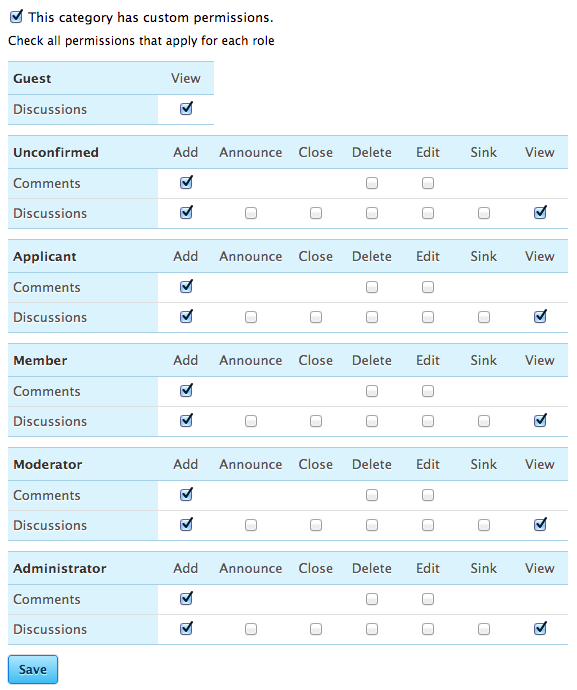
Default permissions on the “Mods and admins” category. We want to change this. Credit: Lee Hutchinson

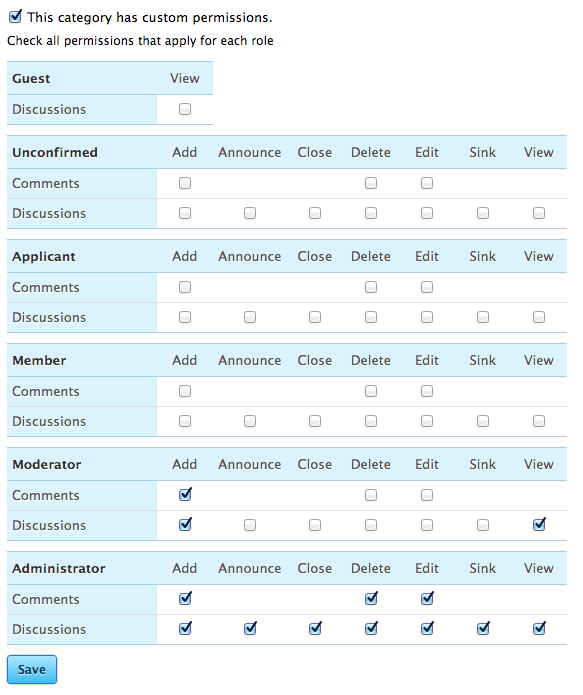
You’ll see a list similar to the one above. This lists all the user groups on your forum and what permissions those groups have for this category. In order to make the category invisible for everyone except moderators and administrators, uncheck all boxes for every group except “Moderator” (a group into which you would add the accounts of all your moderators) and “Administrator” (a group in which only your admin account should live):

Custom permissions applied—only the moderator and administrator groups can even see the category now. Credit: Lee Hutchinson

If you sign out and visit your site, this time you’ll only see the “General” and “Gaming” forums:

What the site looks like to a guest. The “Mods and admins” category is invisible and inaccessible.
What the site looks like to a guest. The “Mods and admins” category is invisible and inaccessible. Credit: Lee Hutchinson

Notice that the “Gaming” forum displays on top of the “General” forum, and the “Mods and admins” forum is on top of that; forum display order can quickly be modified by heading to the “Category” link in the dashboard and simply dragging the categories into the order in which you’d like them displayed. You can also make a category into a subcategory by dragging it on top of another category. Try it!

Security and hardening

I don’t have room in this article to spend more time walking through Vanilla’s basic config options, so let’s return to Nginx and tweak the security a bit.

In our WordPress config tutorial, we created a subdirectory beneath Nginx’s configuration directory called site-configs and stashed our WordPress security configuration in there. We’re going to continue using that directory for Vanilla. Create a configuration file there to hold Vanilla’s extra configuration:

touch /etc/nginx/site-configs/vanilla.conf

Then add an include line to your /etc/nginx/sites-available/www so that your new conf file gets parsed by Nginx when the virtual host file is read on startup:

include site-configs/vanilla.conf;

You can put this include right above or below the WordPress includes from last time, if you have them. Make sure to add it to the HTTPS section as well, if applicable.

Open the vanilla.conf file up for editing and add the following:

# Protect uploads
location ~* ^/vanilla/uploads/.*.(html|htm|shtml|php)$ {
	types { }
	default_type text/plain;
}

# Keep nosey people from discovering categories by number
location ~* /categories/([0-9]|[1-9][0-9]|[1-9][0-9][0-9])$ {
	return 404;
}

# Deny or drop locations
location ~ /\. { access_log off; log_not_found off; deny all; }
location ~ ~$ { access_log off; log_not_found off; deny all; }
location ^~ /conf/ { deny all; }

Let’s go through these one by one.

Protecting uploads

Vanilla lets your users upload files to a directory; this is intended to be used for forum avatars and profile pictures, but anytime there’s an upload directory there’s the chance for mischief. Enterprising users with malicious intentions could potentially upload scripts to the directory instead of images and use those scripts to attack your site.

As with our WordPress config, we’re telling Nginx to serve any active content files—any files containing potentially scripted content—with the MIME type forced to plain/text. This will prevent them from being run.

Do not list categories by number

Vanilla lets you navigate to categories by name, so you can link directly to the “Gaming” category you created by navigating to http://yoursite/vanilla/categories/gaming. However, it also assigns numbers to categories and lets you use those in URLs, so you can navigate to your gaming category with http://yoursite/vanilla/categories/2 (assuming it was the first category you created—the default “General” category is 1, “Gaming” is 2, the “Mods and admins” category is 3, and so on). This has the possibility of exposing to your users more about your forum than you might potentially want them to know—an unprivileged user will get a “Not found” error when trying to access a category by number to which they don’t have access, but then the user knows that there’s something interesting there that they aren’t allowed to see.

Instead, we use a regex to match URLs containing /category/ followed by numbers and respond to all of those requests with a generic “Not found” error.

Drop or deny standard stuff

Finally, we do our standard move: keeping users from seeing files or directories which begin with a dot (this will also keep them out of the .git directory) or a dollar sign. We’re also adding a line to keep users out of the conf directory, to keep anyone from poking through your site’s configuration files.

Upkeep

Because our copy of Vanilla is a cloned Git repo, keeping Vanilla updated is pretty simple. To update to the latest version, you’ll first want to stop Nginx, then run a Git “pull” command, clear out any Vanilla temporary files, and finally restart Nginx:

/etc/init.d/nginx stop
cd /usr/share/nginx/html/vanilla
git pull https://github.com/vanillaforums/Garden.git master
rm /usr/share/nginx/html/vanilla/cache/*.ini
/etc/init.d/nginx start

It’s also a good idea after every update to check for database changes. To do this, paste the following URL into your browser:

http://yoursite/vanilla/dashboard/utility/structure

Replace “yoursite” with your site’s name or IP address.

Next steps

After this, you’re free to explore! There’s a pretty thriving community of Vanilla users over on the Vanilla site, and I’ve been using Vanilla for quite some time at The Chronicles of George as well. Poke through the main Vanilla dashboard and configure it to taste; there are plenty of sources for you to seek help if you get stuck.

You’ll likely want to look through the themes and plugins in order to make the site look and act more like how you want. Theming is a big deal to any community; my own forum uses a modified version of included “Bittersweet” theme, with several plugins to add features like showing who’s online.

It is important to note that for all its stability, Vanilla 2.1 is still a beta release and bugs happen. I believe I’ve adequately justified using 2.1 as the basis for this guide—the traditional forum view and several other advanced features are unavailable in 2.0—but problems will likely crop up. The Vanilla dev team is very responsive, though, so don’t be afraid to seek help on the official forums for issues you can’t get through yourself.

All good things…

We’re nearing the end of our “Web Served” series! We’ve gone from bare metal to running our own blog and forum, and that’s nothing to sneeze at. The final piece, due within the next couple of weeks, will recap all the things we’ve done and the lessons learned, and we’ll provide some suggestions on where to go next.

Listing image: Aurich Lawson / Thinkstock

Photo of Lee Hutchinson
Lee Hutchinson Senior Technology Editor
Lee is the Senior Technology Editor, and oversees story development for the gadget, culture, IT, and video sections of Ars Technica. A long-time member of the Ars OpenForum with an extensive background in enterprise storage and security, he lives in Houston.
29 Comments