
Skip to content
Biz & IT

Web Served, part 5: A blog of your own

Downloading, installing, configuring, and securing WordPress.

Lee Hutchinson | 59
Story text

We’ve got a Web server. We’ve got SSL/TLS. We’ve got PHP. We’ve got a database. Now, finally, it’s time to do something with them: we’re going to set up self-hosted WordPress, one of the Internet’s most popular blogging platforms.

Certainly, WordPress isn’t the only choice. There are many blogging platforms out there, ranging from big and full-featured content management systems (like WordPress, Drupal, or Joomla) to static site generators like Jekyll (and its customized variant Octopress, which I use on my own blog). However, WordPress is extremely popular, and it also has a wealth of themes and plugins available with which you can customize its behavior. So, because it’s the platform that first comes to mind when people think of “blogging,” we’re going for it.

Disclosure, and a word on security

This isn’t the first time I’ve talked about setting up WordPress. Some parts of this article will be taken from my previous blog post on the subject, though the instructions here will contain a number of improvements.

We also need to talk about security. WordPress gets kind of a bad rap about being absolutely riddled with security holes. That’s not entirely fair—vulnerabilities in the base platform are rarely the cause of WordPress blog compromises. Rather, WordPress’s huge library of add-ons is both its greatest asset and also its greatest weakness: security issues in WordPress are more often due to a hole in a plugin than a hole in WordPress itself.

What can we do to help keep things secure? I’ve said it before in this guide and I’ll continue to say it: no system is completely secure, but there are things that can be done to mitigate risk. The first, and most obvious, is to minimize the plugins you use with WordPress. Use what you need and no more. Next, keep your WordPress installation and your installed plugins up to date. Finally, lean on your Nginx configuration to guard against common attack vectors. This last point is one we’ll focus heavily on.
Predownload configuration choices

One important choice needs to be made before we download anything: do you want to serve WordPress off of its own virtual host, or out of a subdirectory on your current virtual host? The former would mean that your blog’s URL would be something like http://blog.yourdomain.com, whereas the latter would mean the URL would be http://www.yourdomain.com/blog (or just http://yourdomain.com/blog, depending on how you’ve configured Nginx).

For this guide, we’re going to go with the second choice and serve WordPress out of a subdirectory. It’s a little easier to set things up this way with the configuration choices we’ve made with Nginx so far. Serving WordPress out of its own virtual host is also quite doable, but it would require us to set up a second virtual host file. For the sake of brevity, we’re going to skip that and just serve it out of a subdirectory on your existing virtual host.

Getting WordPress

WordPress has an excellent set of installation instructions which we’re going to follow pretty closely, but it won’t get us all the way there. That’s OK, though, because the parts it doesn’t cover (namely, Web server configuration) are parts we’ll get pretty detailed on.

Download WordPress directly from its download page. The easiest way to do this is to get the zipped installation file directly from your Web server, so ssh into your server. We’re going to launch a root shell so that we don’t have to keep prefacing commands with sudo, and then we’ll use wget to download the current WordPress package:

sudo /bin/bash
cd /usr/share/nginx/html
wget https://wordpress.org/latest.zip

After WordPress has been downloaded to your Web root directory, we want to decompress it using the command line. We already have the unzip utility downloaded from when we installed SQL Buddy last time, so use the same tool to uncompress it to its own directory:

unzip latest.zip

This will create a wordpress directory underneath your Web root and stuff all of WordPress’s files there. Delete the downloaded zip file with rm latest.zip to keep your Web root nice and tidy.

We’re also going to rename wordpress to blog. It’s a bit shorter, and your site by default will have enough WordPress branding on it without also needing it in the URL. To rename the directory, use the mv (move) command:

mv /usr/share/nginx/html/wordpress /usr/share/nginx/html/blog

Lastly, since we’ve been doing all this as root, we need to change the ownership on the blog directory so that our Nginx user owns it instead:

chown -R www-data:www-data /usr/share/nginx/html/blog
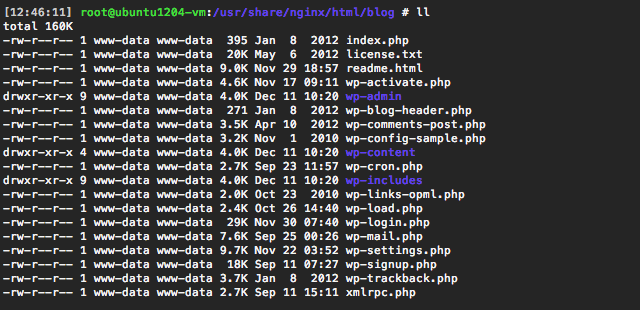
The WordPress directory under the Web root. Credit: Lee Hutchinson

Prepping your database

In order to actually use WordPress, we need to prepare a database for it to use. For this, we’re going to use SQL Buddy, though you can use the command line if you’re more comfortable with that. You can also use any other Web SQL administration utility, including the tiny and light Adminer or the powerful (but complex) phpMyAdmin.

Log into SQL Buddy as your root user (using whatever account name you renamed root to in part 4). The third section in the SQL Buddy home page is called “Create a new database,” and that’s where we’re going to start. In the “Name” field, give your WordPress database a name (I’m using “wordpressdb”), and change the “charset” drop-down list to “utf8” and then hit “submit.”

Creating a new database with SQL Buddy.
Creating a new database with SQL Buddy. Credit: Lee Hutchinson

The WordPress database will be created. Next, we need to create a SQL user that only has access to the WordPress database. This will make sure that WordPress can only do things inside of its own database and can’t interfere with any other databases. It also reduces the amount of potential damage an attacker could do in the event of a system compromise; if they gain access to the WordPress SQL user, they won’t be able to do more than trash your WordPress database.

To create a WordPress user, click the “Users” menu item at the left of the browser window. Leave the “host” field set to “localhost,” and give your user a name in the “Name” field. I’m using “wordpressdb” as the user name, so that there’s a direct correlation between the user name and the name of the database to which we’re going to grant the user access. Give the user a complex password. You won’t be entering this password regularly, so it can be complicated.

Toggle the “Allow access to” radio button to “Selected databases,” and then ensure only “wordpressdb” is checked. This constrains which databases the user can do things to. Leave the “Give user” radio button set to “all privileges,” in order to ensure that WordPress has the ability to alter its own database according to its needs. Leave the “Grant option” box unchecked (this option would give the wordpressdb user the ability to grant other accounts permissions on the WordPress database, and we don’t want that). Finally, click “Submit.”

Adding a new user with SQL Buddy. Note the permission assignments.
Adding a new user with SQL Buddy. Note the permission assignments. Credit: Lee Hutchinson

Prepping Nginx

The database is ready, and now we need to get Nginx set up to serve WordPress. The default PHP catch-all location we added way back in part 3 will serve, but it’s a good idea to set up a specific location only for WordPress.

To do this, open up your /etc/nginx/sites-available/www virtual host file and add the following two locations in the HTTP server section:

location /blog/ {
    try_files $uri $uri/ /blog/index.php?$args;
    allow 192.168.1.0/24;
    allow 127.0.0.1;
    deny all;
}

location ~ /blog/.*\.php$ {
    allow 192.168.1.0/24;
    allow 127.0.0.1;
    deny all;
    try_files $uri =404;
    include fastcgi_params;
    fastcgi_pass php5-fpm-sock;
    fastcgi_param SCRIPT_FILENAME $document_root$fastcgi_script_name;
    fastcgi_intercept_errors on;                                    
}

If you’ve also got SSL/TLS configured, duplicate these lines under the HTTPS server block, making sure to add fastcgi_param HTTPS on; to the PHP section.

While you’re in the virtual host file, verify that the index line of each location looks like this:

index index.html index.htm index.php;

This will ensure that Nginx knows to look for the file index.php if it doesn’t find an HTML index file when it’s serving out directories.

After you’ve added the locations and made sure index is correct, save the file and reload Nginx with /etc/init.d/nginx reload. That’s all we need to do for now. However, we’re going to come back to Nginx after WordPress is running in order to harden our configuration.

Press those words

We’re all ready to make WordPress work. Point your browser to http://yourserver/blog/wp-admin/install.php to begin WordPress’s automated setup procedure.

The first thing you’ll see will be a notice that WordPress’s configuration file is missing. This is normal. Click the button to allow WordPress to create its own configuration file. This should work correctly because earlier we set the blog subdirectory to be owned by our Nginx account, which means that WordPress can create files there as needed.

No configuration file? OH NO! Actually, that’s OK. Continue and WordPress will simply create one.
No configuration file? OH NO! Actually, that’s OK. Continue and WordPress will simply create one. Credit: Lee Hutchinson

Click the “Let’s go!” button on the next page, and you’ll arrive at the database configuration page. Fill in your database information here: the name of the WordPress database we previously created, along with the name and password of the WordPress SQL user. Leave the “Database Host” field set to “localhost.” Consider changing the “Table Prefix” field to something other than the default “wp_”—doing so can offer some additional protection against automated script-based attacks.

Configuring WordPress to use our SQL user and database. Don’t forget to change the database prefix.
Configuring WordPress to use our SQL user and database. Don’t forget to change the database prefix. Credit: Lee Hutchinson

Hit “Submit.” If you’ve gotten everything set correctly, you’ll see one final page indicating that WordPress is ready to commence its automated install; hit “Run the install” to proceed, and you’ll find yourself at the Welcome page.

Almost there. Create an admin user and WordPress will pretty much be good to go.
Almost there. Create an admin user and WordPress will pretty much be good to go. Credit: Lee Hutchinson

Here you’ll select an actual title for your blog, along with a user name and password for your blog’s administrator account. You’ll also need to specify an e-mail address for the admin account, and whether or not to allow search engines to index the site (this option simply controls the initial content of your site’s robots.txt file). After you’ve filled in the appropriate values, click “Install WordPress.” If all goes well, you’ll be greeted with the following page indicating success:

Words, pressed.
Words, pressed. Credit: Lee Hutchinson

Click the “Log In” button to be taken to the main WordPress login page at http://yoursite/blog/wp-login.php, and enter your administrative user’s name and password to log in. You’ll be greeted by the WordPress dashboard. Congratulations, you have a blog!

This is what you’ll see the first time you log into your new WordPress blog.
This is what you’ll see the first time you log into your new WordPress blog. Credit: Lee Hutchinson

Make your URLs pretty with permalinks

I’ll leave the exploration of WordPress and its various configuration options up to you, except for one very important thing: permalinks. By default, the URLs for your blog’s posts are ugly and don’t have anything to do with the actual content of the post. For example, the URL for the boilerplate sample blog post on my virtual machine looks like this:

http://ubuntu1204-vm.bigdinosaur.org/blog/?p=1

Yuck. We want to change this so that the URL more correctly reflects some pertinent information about the post. In the WordPress dashboard, click “Settings” on the sidebar, and then click “Permalinks.” This page allows us to tell WordPerss how to parse and display URLs.

There are many different ways to set up pretty looking URLs, but they all require the cooperation of the Web server in order to work correctly. Notice that all of the radio button choices on the page show URLs that hang off of the back of index.php—that’s clunky and ugly, but it’s the only way to do nice permalinks without using the Web server’s ability to rewrite URLs on the fly.

Fortunately, we’ve already taken care of this during our setup process. This line in the Nginx virtual host configuration tells Nginx how to change our URLs:

try_files $uri $uri/ /blog/index.php?$args;

Rather than deal with long and complex rewrite statements, we’re taking advantage of the power of Nginx’s try_files configuration directive. This tells the Web server that for every request it sees going to the /blog/ location, to first see if there’s a file that matches the request, and to then see if there’s a directory that matches the request, and lastly to take the request, put /index.php? in front of it, and try serving that.

Of course, we need to specify a custom permalink format in order to take advantage of that, but that’s easy: tick the “Custom Structure” radio button and supply the following:

/%year%/%monthnum%/%day%/%postname%/

Your screen should look something like this:

Altering our URL appearance to make it look nicer. This requires the cooperation of the Web server, but fortunately we’ve already taken care of that.
Altering our URL appearance to make it look nicer. This requires the cooperation of the Web server, but fortunately we’ve already taken care of that. Credit: Lee Hutchinson

Save your changes, and then visit your site. The sample blog entry’s URL should now look something like this:

http://ubuntu1204-vm.bigdinosaur.org/blog/2012/12/16/hello-world/

You can customize this to taste, too. For example, if you want your URLs to include nothing more than the post title, then change the custom structure to /%postname%/.

Securing WordPress from Nginx

There are a few security tweaks we can make from the WordPress side of the house, but we’re first going to focus on locking things down from Nginx’s perspective. Rather than relying wholly on WordPress to keep itself secure, we can eliminate a lot of potential holes by using Nginx to control access to areas of the site. Several of these tips (and the ones in the next section) are taken from the official WordPress hardening guide. We’ll cover the important bits, but that document is worth a look.

First, remove the generic PHP handler we’ve got in the www virtual host file—the one that starts with location ~ \.php$. This will help to ensure that PHP code only executes in locations we’ve allowed.

Second, create a directory called site-configs under /etc/nginx/, and create a file inside there called wordpress.conf. We’re going to put all of our extra WordPress stuff in that file, which we’ll then “include” in both our HTTP and HTTPS virtual hosts. That way, we don’t have to type all of this stuff twice, once in the HTTP section of the virtual host file and then again in the HTTPS section.

mkdir /etc/nginx/site-configs
touch /etc/nginx/site-configs/wordpress.conf

Add the following line to both the HTTP and HTTPS server blocks in the www virtual host file to have Nginx automatically include the wordpress.conf file we just created:

include site-configs/wordpress.conf;

If you’re not using HTTPS, you don’t necessarily have to do this; still, when serving everything off of a single virtual host, it doesn’t hurt to break out each application’s settings into separate files.

Open the wordpress.conf file for editing and paste in the following. We’ll go line by line and explain what each setting does.

location /blog/wp-admin {
	try_files $uri $uri/ =404;
	allow 192.168.1.0/24;
	allow 127.0.0.1;
	deny all;
}

# Common deny or drop locations
location ~* wp-config.php { deny all; }
location ~* wp-admin/includes { deny all; }
location ~* wp-includes/.*\.php$ { deny all; }
location ~ /\. { access_log off; log_not_found off; deny all; }
location ~ ~$ { access_log off; log_not_found off; deny all; }

# Prevent scripts from running in /uploads
location ~* ^/blog/wp-content/uploads/.*.(html|htm|shtml|php)$ {
	types { }
	default_type text/plain;
}

The first thing, the location block, keeps our WordPress administrative dashboard from being accessed outside the LAN. This may or may not be desirable behavior; as it is, this makes it so you cannot blog remotely using the WordPress dashboard. Since currently our entire site is inaccessible outside of our LAN anyway, it’s kind of moot, but we will need at some point to make a choice on whether or not the dashboard should be accessible remotely. We’ll come back to this at the end.

Next, we’re setting a location directive for the wp-config.php file and denying access to it. This is important because this file contains our database user’s name and password in plaintext, as well as information about the database. This file shouldn’t be accessed by anyone through the Web server.

Next, we set a location to match all requests for the includes subdirectory underneath wp-admin. Again, nothing in here needs to be accessed by users directly.

We next set a location to prevent users from running PHP scripts anywhere inside the wp-includes directory. No scripts in here ever need to be called by users directly.

After that, we add two lines to prevent the Web server from serving any hidden or temporary files. This is in case you’re ever editing any files inside the Web root; if you’re editing wp-config.php, for example, a temp file will be created while you’re editing, which will typically start with a “.” or a “$”. Since temp files don’t always get deleted (if your editor crashes or quits unexpectedly, for example), these two lines will stop Nginx from serving those files if they happen to be present.

Finally, we set a location directive that forces any files located in your blog’s uploads directory (or any subdirectory therein) and ending in HTML, HTM, SHTML, or PHP to be served as regular text files. The uploads directory is available to WordPress users to stash pictures or other attachments, and it’s possible for an attacker to put files there. An attacker might use this to put a malicious PHP file somewhere underneath uploads and then access it, causing your Web server to run it; this location directive forces Nginx to treat any matching file as plain text and serve it directly, rather than running it through the PHP interpreter.

Securing WordPress from within

We’ve locked things up from Nginx’s perspective, but there are still a few changes we need to make to WordPress itself. The first is to force all logins and all administrative dashboard access to only use SSL/TLS. Without this, your user name and password are transmitted to WordPress in the clear whenever you log in; over the LAN, this isn’t likely to be a problem, but if you want to log into your blog from Starbucks, you’ll want to make absolutely sure your connection is protected against eavesdropping.

Open up the wp-config.php file for editing, and locate the line that reads “That’s all, stop editing! Happy blogging.” Directly above that, add the following line:

define('FORCE_SSL_ADMIN', true);

Save the file. Now, if you try to access your WordPress dashboard at http://yoursite/blog/wp-admin, you’ll be immediately redirected to the HTTPS version of the page.

If you don’t have SSL/TLS set up on your Web server, skip this step. Also, shame on you. It’s free, and it’s a good idea.

The other thing we want to do here is ensure that WordPress doesn’t allow users to directly edit PHP files through the dashboard. This ability is enabled by default, but it potentially allows an attacker with access to the WordPress dashboard to create and launch malicious PHP files which could lead to far more than just a compromised blog. Pop back into wp-config.php and right below the SSL/TLS line, add this:

define('DISALLOW_FILE_EDIT', true);

Security plugins

If you’re actually intending to take your blog public and use it, it’s advisable to install a tool to protect against brute-force password cracking attempts. There are several to choose from, including Limit Login Attempts. To install this plugin, open up your WordPress dashboard and click Plugins > Add New, and then type “Limit Login Attempts” in the search bar. Click “Install Now” to have WordPress download and install it for you.

Once installed, you’ll see the plugin in the Plugins section of the dashboard; activate it by clicking “Activate.” After this, entering too many invalid passwords will result in the account being unable to log in for a period of time, which will make brute-force attacking the password much more difficult.

Make brute force attacks more difficult by using a plugin to impose a logon attempt limit. Credit: Lee Hutchinson

There are configuration options for the plugin, too, which control the number of invalid logins allowed and the timeout period. The options are discussed on the plugin’s page on wordpress.org.

The decision: to blog remotely or not

The configuration that we’ve set up so far has been focused entirely on making WordPress work on the LAN. Making it accessible from the Internet requires removing the IP restrictions around the blog location in the www virtual host file, but actually logging in remotely to the dashboard and blogging requires removing the additional IP restrictions we placed around the wp-admin location.

Consider carefully the implications of opening wp-admin to the Internet. It’s advisable that you create a new WordPress user strictly for blogging and stick to using that user for creating posts—privilege separation is always a good idea. Additionally, the wp-admin location is prime real estate for automated attacks—WordPress’s ubiquity ensures that there are tons and tons of nasty scripts and things tailored for breaching it.

Be smart. Use strong passwords. Keep your plugins and your main WordPress platform up to date. You might consider using Nginx’s basic authentication to place an additional layer of security around the WordPress dashboard (doing so is beyond the scope of this guide, but it’s not difficult to do—the linked page should get you started).

Extra credit: Performance tuning

Your blog will work perfectly fine as it is, but WordPress is a big application: it is made up of many different scripts and it performs many database calls, and you can gain quite a bit of performance with some simple caching. If your blog is going to be merely a little personal site, this isn’t strictly necessary, but enabling caching will certainly help if you ever write something particularly insightful and you bring the entirety of reddit down on your head.

We’re going to install two plugins: the APC Object Cache Backend, and Batcache.

APC, the Alternative PHP Cache, is already helping us out: we installed it during part 3 of our series. APC is an opcode cache, meaning that it caches the compiled, executable results of PHP scripts so that they don’t have to be re-executed every time they’re accessed. With this plugin, APC can also be used as an object cache, to hold not just opcodes, but whole generated pages.

It can’t do it on its own, though—you need both the backend plugin and also the Batcache plugin for it to work, because Batcache controls the actual caching.

These two plugins need to be installed while logged in via ssh, rather than through the dashboard. Navigate to your WordPress directory and run the following commands to get everything downloaded and installed:

cd /usr/share/nginx/html/blog/
wget http://downloads.wordpress.org/plugin/apc.2.0.5.zip
unzip apc.2.0.5.zip
mv apc/object-cache.php wp-content/
rm -rf apc
rm apc.2.0.5.zip

This downloads the current version of the APC plugin (which might change, so double-check the URL on the plugin’s download page), unzips it, gets the object-cache.php file where it needs to be, and then cleans up.

Next, download and install Batcache in the same fashion:

cd /usr/share/nginx/html/blog/
wget http://downloads.wordpress.org/plugin/batcache.1.2.zip
mv batcache/advanced-cache.php wp-content/
rm -rf batcache
rm batcache.1.2.zip

To activate Batcache, edit your wp-config.php file. Locate the other lines we’ve previously added (above the “stop editing” comment), and append this:

define('WP_CACHE', true);

You can verify that Batcache is working by clearing your browser’s cache and reloading your page a few times, then looking at your blog’s page source (in Chrome, you can do this quickly by turning on the “Developer Tools” console). You should see something like this in the head section:

The addition of Batcache statistics to the page’s HEAD (outlined) means caching is working.
The addition of Batcache statistics to the page’s HEAD (outlined) means caching is working. Credit: Lee Hutchinson

Put a fork in us…for now

There’s still so much left to do with our blog: Bolting on a better comment engine like Disqus and enabling Akismet for spam protection! Themes! Configuration tweaks! Plugins!

The fun is in the discovery, though, and you’ll have to discover the joys of configuring your blog the rest of the way on your own. We’ve run out of time and our Managing Editor will probably want to strangle me with an extension cord (Editor’s note: you’re good, Lee!) for spending this many words on a single topic, but it’s all worth it: WordPress requires wrangling and vigilance to be secure.

Now that you’ve got a blog, wouldn’t it be cool to have a forum, too? Stay tuned, readers. Next time: Vanilla.

Photo of Lee Hutchinson
Lee Hutchinson Senior Technology Editor
Lee is the Senior Technology Editor, and oversees story development for the gadget, culture, IT, and video sections of Ars Technica. A long-time member of the Ars OpenForum with an extensive background in enterprise storage and security, he lives in Houston.
59 Comments