Skip to content
What will we complain about now that dark mode is here?

Android 10—The Ars Technica Review

Clear your schedule: this is our longest Android review ever.

Ron Amadeo | 165
Story text
After a half-hearted gesture navigation system in Android 9, Android 10 brings a a much more complete version. The gesture are great, and it saves space on the display.
Pictures of Android Q's gesture navigation.
With a transparent bar, Android will continuously sample the background and change the color of the gesture indicator.

It is once again time for Google’s big yearly Android rollout. This year we’re up to “Android 10,” though if we’re counting by API levels (which actually go up one per release) this is the 29th release of Android.

For most of 2019, this new software snack has been in beta under the name “Android Q,” and we’ve seen a whopping six beta releases. Normally that “Q” would turn into a snack-themed codename with the final release, but this year the “Q” apparently stands for “Quitters”—the codename branding is dead. Android is going on a textual diet and it’s just “Android 10,” with no snacks attached.

Despite the change, Android 10 brings a lot of tasty, frequently user-requested changes to Android. The OS is finally getting a dark mode, the share menu is getting revamped, and gesture navigation has seen huge improvements over the half-baked version introduced in Android 9. Developers have a host of new APIs to play with, including support for upcoming foldable smartphones, floating app “Bubbles,” and a new, more generalized biometrics API. And on top of all that, there’s a host of changes to work around, like considerations for the new gesture navigation system and new app restrictions focused on privacy and security. Even the notification panel is getting a fresh injection of artificial intelligence, and of course there are new emoji.

The under-the-hood work on Android modularity continues, as always, with Android 10. This year “Project Mainline” is the highlighted engineering effort. This initiative creates a new, more powerful file type for system-level code, and it sees several chunks of functionality move out of the difficult-to-update core OS and into the Play Store, where they will get monthly updates. There’s new dual boot functionality, too, which will allow curious users to quickly switch between retail and beta builds of Android.

As has become Ars tradition, we will be covering every single change in excruciating detail. So even if Google is ditching the snack theme, you may want to grab your own snack before diving in to the following 20,000+ words of Android 10 intel.

Table of Contents

Android 10—Just Android 10

Pictures of the new Android logo.
The Android 10 logo, which has no additional “Q” snack name.
Of course, this all looks better with some color behind it.

Before we jump into the actual operating system we should probably talk about the name. For years Android versions have launched with snack-based code names alongside the version number. We had Android 1.5 Cupcake 1.6 Donut, 2.0 Eclair, 2.2 Froyo, 2.3 Gingerbread, 3.0 Honeycomb, 4.0 Ice Cream Sandwich, 4.1 Jelly Bean, 4.4 KitKat, 5.0 Lollipop, 6.0 Marshmallow, 7.0 Nougat, 8.0 Oreo, and Android 9 Pie. The names were a way to add a bit of whimsy to an Android release, with fun speculation and jokes about what the name might be, and an eventual statue unveiling with the release of the OS. The codenames were alphabetical, so this year we were supposed to get a snack that started with “Q.”

With Android 10 the codename system is coming to an end though. Android 10 is just “Android 10” with no extra names. In an August blog post, Google said the codename system was ending because it wasn’t “always understood by everyone in the global community:”

For example, L and R are not distinguishable when spoken in some languages. So when some people heard us say Android Lollipop out loud, it wasn’t intuitively clear that it referred to the version after KitKat. It’s even harder for new Android users, who are unfamiliar with the naming convention, to understand if their phone is running the latest version. We also know that pies are not a dessert in some places, and that marshmallows, while delicious, are not a popular treat in many parts of the world.

In addition to the new name, Android is getting a new wordmark and a tweaked color scheme. While the wordmark is not that exciting, the little Android robot logo (usually called the “Bugdroid”) is now a part of the wordmark, with its head sitting on top of or next to the letters. The bugdroid injects a bit of fun into the logo when animated. In Google’s videos it tends to spring out of the ground, the antennas wiggle, and the eyes blink. One of Google’s images even shows him looking around.

Gesture Navigation—Massive improvements, but not quite done yet

The biggest feature in Android 10 is easily the gesture navigation, which has gotten a major rework in this release. Google started down this path with last year’s Android 9 Pie release, but with Android 10 it now has “fully gestural navigation.”

The Android 9 implementation of gesture navigation was a mess. Google started with Android’s traditional three-button navigation system: Back, Home, and Recent Apps, and then converted a single button—Recent Apps—into a gesture. The functionality of the other two buttons was mostly left alone. This made the navigation bar look really weird, with a Back button, Home button, and then a blank space where Recent Apps used to be. It also made the functionality pretty strange, with a single tap for two of the navigation functions and a gesture for the third.

Android 9’s gesture navigation also didn’t offer the user any benefits. The main sales pitch of gesture navigation on the iPhone X and many third-party Android manufacturer skins is that it saves screen real estate. When every navigation command is a swipe gesture, you don’t need a big space for navigation buttons anymore. On Android, that means reclaiming around 7% of your screen real estate from the three button bar, while on an iPhone, it means removing the hardware home button on the front bezel and adding a much bigger display.

The Android 9 implementation didn’t save any screen real estate. It was a strange, awkward half-step toward gesture navigation, but it was also optional. So for most phones, it was easy to just forget about. Unless, of course, you bought the Pixel 3, in which case the new navigation was mandatory and a big negative for the device.

Pictures of Android Q's gesture navigation.
By default, the system bar is a black or white strip. Apps can set a transparent system bar, though, which looks great.
Pictures of Android Q's gesture navigation.
This even works for the three-button bar.

The “fully gestural” navigation in Android 10 is a huge improvement and solves most of the major problems we had with the Android 9 implementation. Best of all, after the mess that was mandatory gestures on the Pixel 3, Google actually committed to ecosystem rules that will keep the old three-button navigation bar around for all devices, because it meets some accessibility needs.

So what’s actually new in the new gesture system? The first big improvement is that everything is a gesture now. Some kind of swipe movement can trigger Home, Back, Recent Apps, the Google Assistant, and a few other extras. The second big improvement is that this version of gesture navigation finally saves screen space. In correctly configured apps, the system bar becomes completely transparent, replaced only with a thin horizontal bar to indicate the gesture area, just like an iPhone X. “Works more like iOS” is a concise way to describe the way the new gesture navigation works, and that’s great, since that’s what everyone has been asking for since Google started all of this with Android Pie.

Now, meet the new gestures:

  • Back: Swipe in from either side of the display.
  • Home: Swipe up from the bottom of the screen.
  • Recent apps: Swipe up from the bottom and hold.
  • Quick app switch: Swipe horizontally across the gesture bar.
  • Google Assistant: Swipe in from either bottom corner of the screen.
  • App Navigation Panel: Long-press on the side of the screen, then drag in.

That’s a lot to remember, but the “big three” of “Back,” “Home,” and “Recent Apps” are easy enough to figure out if you’re a seasoned gesture-navigation user. Just like on iOS, I think users completely new to gesture navigation will need a while to become accustomed to gesture navigation. But these three are easy to remember and quickly become second nature.

The animation and physicality of some of these gestures is great. If you’re in an app and you swipe up from the bottom to trigger Home or Recent Apps, the app zooms out a bit and follows your finger. From here, you get a seamless transition to either screen: if you’re triggering “Home” and the app has a home screen icon, the app will shrink down and disappear into its home-screen icon. If you’re headed to Recent Apps, the app thumbnail will seamlessly shrink into its place in the app thumbnail carousel.

These gestures are, again, just like iOS. But that doesn’t stop them from being wonderful to use, as if you’re physically moving app thumbnails around with the gestures. Opening Recent Apps really does feel like you’re grabbing the app and pushing it up into its spot in the Recent Apps thumbnail carousel. My favorite touch is that you can undo this gesture by just doing it in reverse. Drag a Recent Apps thumbnail down and it will expand, filling the screen, exiting Recent apps, and returning to the app.

Recent Apps doesn’t work as well from the home screen, where it conflicts with the opening of the app drawer. Both start with a swipe up, so if you do a “swipe up and hold” on the home screen for Recent Apps, the app drawer begins to rise up. Then it realizes you want Recent Apps, so it slides down, and then Recent Apps slides in from the side of the screen. If all this sounds busy and messy, it totally is! Older versions of Android had an app-drawer button that didn’t require a swipe up. Going back to that seems like it would be much nicer, as doing so would remove the conflict with Recent Apps.

The quick-switch gesture is excellent. Swiping left and right on the gesture bar will let you smoothly slide through the Recent Apps carousel from a full-screen view and, again, feels like you’re physically pushing app windows around. This looks and feels great, with silky smooth animations as the apps slide to the side. I feel like this is one of those UI interactions with a “high fidget factor”—I’ve caught myself just sliding through apps a few times, for no reason, just because it’s fun.

The Google Assistant gesture—swipe in from the bottom corner—is one of the less-obvious gestures of the bunch. But Android offers continual reminders when you unlock the phone. For a second or two after unlocking, L-shaped corner indicators appear saying “Hey, you can do something here!” and hopefully after some brief experimentation, users will stumble onto the right gesture.

Once you do figure out the Google Assistant gesture, the animation attached to it looks great. The L-shaped gesture indicators turn into segmented Google logo colors (red, yellow, blue, and green) and grow along the bottom edge of the display. When they connect in the middle, the Google Assistant opens with the usual white pop-up card. It’s fun. Previously, you could open the Google Assistant by long-pressing the home button. With that button’s removal, it’s reassuring that there is a new gesture to take its place.

The Back gesture: Feels great, looks bad

Swiping in from the side of the phone will trigger “Back,” and ergonomically, this gesture feels great. You can swipe-in from anywhere along either side of the phone, giving you a huge, unmissable target. The Back gesture is always in a spot that’s fast and easy to reach, and on modern, giant, all-screen Android phones with basically no bezels, it’s easier to reach one-handed than the old, single-touch back button that was tucked away in the corner of the phone.

The Back-gesture animation, unfortunately, lacks the physicality that exists for the other gestures. When you drag-in from the side of the screen, instead of the app view moving to the side with your finger, a pop-up arrow appears. Lift your finger off the screen, and you’ll trigger Back, then the app view will change state with another incongruous animation by either sliding down or doing a fade transition. These animations don’t match the horizontal gesture at all, which makes the Back gesture feel janky and half-baked, especially compared to the other gestures.

On iOS, the app view slides horizontally with your finger when you trigger Back, which continues the motif of pushing app windows around by touch. Again, I think the right answer here is “Make it work more like iOS.” Back would feel noticeably better and be more consistent if Google dumped the pop-up arrow UI and just made the app view move with your finger during the gesture, just like how Home and Recent Apps works.

Again, I think the right answer here is “Make it work more like iOS.”

Even Google’s own Material Design Guidelines agree with the iOS approach to the Back gesture. “Elements should be directly controlled by the user’s touch” Google’s guidelines read, “Avoid gestures that trigger an animation.” Back triggers two canned animations (one for the back arrow and another for the app transition), and the app view is not directly controlled by the user’s touch. This setup leads me to believe that the Material Design people should have a talk with the System UI people.

Third-party OEMs have been rolling their own optional gesture-navigation systems for a while, and those systems have been just as varied and fragmented as you would expect. Samsung has three areas at the bottom of the phone for Back, Home, and Recents, and you trigger them all with a swipe-up. OnePlus has the best third-party gesture system out there, with swipe-up for Home and swipe-up and hold for Recents, just like an iPhone or this Android 10 implementation. OnePlus’ Back gesture is a bit strange, though: it’s a swipe up from the bottom corner of the phone display. This is exactly the same as the Home gesture, just in a different spot. Many is the time I’ve accidentally triggered “Home” when I wanted “Back” just because my finger wasn’t far over enough.

Unlike OnePlus’ gesture navigation, Android 10’s Back, Home, and Recent all have different-enough physical actions that I never accidentally triggered the wrong gesture. At Google I/O, Rohan Shah, project manager for Android’s System UI team, said that Back was Android’s most-used navigation function and was used about twice as much as Home. While it could be animated more logically, nailing the physical finger movement of what is probably the most frequently used Android function is a huge deal.

The many edge cases of gesture navigation

The Back gesture claims the navigation drawer’s horizontal-slide gesture, so these are hard to open via gesture now. Use the hamburger button instead.
The Back gesture claims the navigation drawer’s horizontal-slide gesture, so these are hard to open via gesture now. Use the hamburger button instead. Credit: Ron Amadeo

The biggest oddity introduced by the new gesture-navigation system has to do with the side navigation drawer that is used in many apps. Traditionally, you’ve been able to open an app’s side navigation drawer by swiping in from the side of the screen. But now this conflicts with the Back gesture. Google has experimented with a few options during the Android Q beta, but the solution that stuck for the final release is to long-press on the side of the screen. This will cause the navigation drawer to peek out from the side, and then you can drag it open.

This navigation-drawer gesture feels like a clunky workaround. Having to start the navigation-panel gesture with a long-press is slow, and misjudging the long-press timing and accidentally triggering Back is easy. That slow long press is the trick to making this a backwards-compatible solution—the Android system briefly disables the Back gesture and sends the app a finger movement that opens the old navigation drawer, while you are just sitting there waiting.

The navigation drawer gesture is not the smoothest thing to use, but the good news is that most apps also give you a three-line “hamburger” button to open the navigation drawer, so you can usually just ignore this gesture and press the button if you’re in a hurry.

Pictures of Android Q's gesture navigation.
Smart rotate now exists as a floating button. Tap it to fix the orientation.
Pictures of Android Q's gesture navigation.
Opening a keyboard makes the whole bar grow taller so the old icon can appear.

In landscape mode, gesture navigation behaves completely differently from the traditional three-button system bar. The three-button bar doesn’t move when you switch to landscape—instead, the bar stays right where it is in portrait mode (relative to the phone body), and the icons just rotate. So the three-button navigation is on the side of the phone in landscape.

Gesture navigation does move, however, and it lives at the bottom of the phone in landscape. This is more in line with how tablets work, and since gesture navigation is a lot skinnier than the three-button bar (and ideally transparent), it doesn’t suck up a ton of the limited vertical real estate.

Speaking of landscape and gesture navigation, I was a bit worried about what would happen to Android 9 Pie’s handy smart-rotation switch in Android 10, especially since early builds didn’t have it. The smart-rotate switch is a new way to manage device orientation. Instead of auto-rotate switching orientation, which can be wrong and annoying, the smart-rotation switch in Android 9 was a small system-bar button that would pop up when the phone detected your orientation was wrong. If you agreed with the button, just tap it to switch to landscape. If it was wrong, like auto-rotate so often is, you could just ignore it. The smart-rotation switch was a system bar button, and the system bar buttons are dead with gesture navigation. So now what?

Smart rotate is still present in Android 10, but now it exists as a floating button that pops up in the system-bar area. It fits in the skinny gesture bar, and that’s just fine! The button floats in the corner now, which is an easy and elegant solution, although it’s the only thing in Android that looks like this or works like this.

The back gesture has a “sensitivity” setting to help with phone cases.
The back gesture has a “sensitivity” setting to help with phone cases. Credit: Ron Amadeo
The other situational system button we don’t have room for in the gesture bar is the keyboard down arrow, which would take over the back button when the keyboard was open. The solution here is kind of simple: Google just makes the gesture bar get bigger, so it’s the same size as the old three-button bar. Now there’s room for the old keyboard down arrow icon again! The bigger gesture bar means there’s now a big, blank area below the keyboard, which looks strange.

The last gesture navigation edge case we have to deal with is, uh, the edge, of cases. All of these gestures rely on dragging in from the edge of the phone, and since cases often wrap around and stick up slightly from the side of the phone, having a case on could make using these gestures more difficult. This isn’t a problem on the bottom of the phone (where you swipe in to trigger “Home” and “Recent Apps”) because the gesture bar gives you some buffer room. The potential problem is with Back, which has no buffer zone and is just a swipe in from the side of the phone.

Luckily, Google has a “Back sensitivity” option in the gesture navigation settings. This will horizontally increase what counts as the “edge” of the phone. The setting warns that Back sensitivity could conflict with some apps, though. There are many levels, so case users can find a sweet spot.

Gesture nav for developers

The Back gesture is blazing a new path within the Android ecosystem. Despite being rather similar to the implementation in iOS, this is something none of the third-party OEMs could ever implement on their own. Google’s involvement is necessary because swiping in from the side of the screen for Back has the potential to break apps, and only Google can standardize gesture navigation across the ecosystem and create tools to help developers deal with this new gesture in their apps.

As I mentioned earlier, the standard Android navigation-panel implementation uses a swipe-in gesture to open the nav panel, which is a problem when you also use that gesture for Back. Back can also interfere with any other horizontal movement that happens near the edge of the screen, like horizontally scrolling carousels, seek bars, or side controls like photo-cropping handles. Accidentally triggering Back when you meant to tap a seek bar would be awful.

Just giving developers the tools to work around gesture navigation probably wouldn’t be enough, as a million different Android OEMs would all come up with their own gesture navigation system, and designing around them all would be a huge task. It sounds like, from now on, Google will be locking down gesture navigation in Android, with Project Manager Shah saying at Google I/O, “We’re going to be standardizing the ecosystem as of Q on three buttons and our [gesture] model moving forward.”

Normally from Google I would expect language like: “We really hope our partners will adopt this.” But Shah’s definitive statement makes it sound like Google will be codifying its gesture navigation system into the Android Compatibility Definition Document (CDD). Adhering to the CDD is mandatory for OEMs that want to license the Play Store and the Google apps. That means Google fully has the ability to say “you will use our gesture navigation system and not yours,” and all the device manufacturers will listen. Shah citing app compatibility concerns is exactly the kind of thing the CDD is for: legislating developer interfaces across the Android ecosystem to reduce the fragmentation developers have to deal with.

Pictures of Android Q's gesture navigation.
For swipe gestures, the system reserves the sides of the screen for back, while the bottom of the screen is reserved for home, all shown here in yellow.
Pictures of Android Q's gesture navigation.
Developers can override gestures on the sides, but the Home and Recent gesture at the bottom is mandatory.

With only a single gesture-navigation system to design around, let’s talk about what tools developers have for dealing with this. First, it’s up to developers to make the gesture navigation bar look pretty. By default, apps will have the standard opaque black (or white) system bar, which—while it is skinnier than the old three-button bar—still looks bad. This happens by default because it is the most compatible setting, as apps still get the regular, unobstructed rectangle to draw in, while the system bar gets an area for its own gestures. Forcing apps to draw in areas they weren’t originally set to draw in (and making them deal with this gesture bar floating over the top of the app) could lead to compatibility issues.

Developers who want to design around the system gestures can trigger a prettier, more immersive UI by setting their app to draw under the system bar and setting the system bar to “transparent.” With these two settings on, you’ll get a beautiful design that looks just like an iPhone X. Only the thin, semi-transparent gesture bar will float above the app, while app content stretches from edge to edge. In this mode, Android OS will actually continually sample the pixels surrounding the gesture navigation bar and change its color from dark to light on the fly to maintain a readable contrast.

This transparent, edge-to-edge gesture navigation mode means the system navigation bar is overlapping the app, so it’s up to developers to bump their app controls out of the way of the system bar. For bottom buttons, a new “WindowInsets” API will let developers position buttons relative to the system bar. That means, for instance, you can set any bottom buttons to always have 16dp of padding above the top of the system bar. This also means the absolute position of this button will change on the screen depending on if the user has the skinny gesture navigation bar or the taller three-button navigation bar turned on—the new API will handle all that spacing for you.

While Window Insets will handle dealing with the size-changing system bar on edge-to-edge apps, dealing with horizontally scrollable content near the edge of the screen is still a problem. The user could still accidentally trigger “Back” when interacting with controls along the edge of the screen, like a photo crop handle or a media seek bar. For these controls, developers can set “gesture exclusion” rectangles that allow their controls to override the system Back function. Google imagines this being used only in the small area around conflicting controls, with the rest of the side area free for the Back gesture. Developers can also completely disable the Back gesture if they want (but never Home or Recent), which is appropriate for some games.

Finally, while the navigation-drawer gesture is backward-compatible, developers can help things be a little less clunky by using the latest version of the “Drawerlayout” library in their apps. As of 1.1.0-alpha02, the library will make the navigation drawer gesture area a bit bigger. It seems like normally the gesture area is just the very edge of the screen, which is good for backward-compatibility and not interfering with anything, and I guess using the library means you agree to design around the bigger gesture area.

Third-party launchers get left out, again

With the launch of Android Q Beta 4, Google dropped the bombshell announcement that third-party home-screen apps won’t work with gesture navigation at launch.

That’s right: you won’t be able to use gesture navigation at the same time as a third-party launcher. Google apparently developed gesture navigation as part of the home-screen code, and making it modular and able to work with third-party home apps is not something that will be ready in time for launch.

Gesture navigation isn’t compatible with third-party home screens, and this is what happens when you try to enable one. Gesture navigation turns off, and you get the three-button layout.
With a third-party home screen set, you can’t enable gesture navigation. Pressing the “i” button pops up a message blaming a third-party launcher for the incompatibility.

If you have gesture navigation on and try to set a third-party home screen as the default, gesture navigation will turn off, switching back to the old three-button navigation layout. Why this happens is never really explained to the user—there is only a notification saying “System navigation updated,” with no further explanation. If you have a third-party launcher enabled and try to turn on gesture navigation, the option will be grayed-out. Pressing the information button next to the grayed-out option displays a message blaming the third-party launcher for the incompatibility, which is just not true. The fault for the incompatibility lies entirely with Google, which didn’t provide third-party launchers a way to use gesture navigation.

Android 10 marks the second major Android release that has gone out the door without considerations for third-party home screen apps. These custom launchers are one of the best parts of Android, allowing for customization of the device’s primary app-launching interface. Switching to a new launcher can give you everything from additional features and power-user controls to a radically different interface. Google prides itself on the “customization” of Android, but this is the second time now the company has cut launchers out of a new feature.

In Android 9 Pie, Google introduced a new recent apps design. The new design stuck the following below the horizontal carousel of app thumbnails: a Google Search bar, a row of predictive app icons, and quick access to the app drawer. Google tied all of these features exclusively to the Pixel Launcher or the built-in system launcher, and switching to a third-party launcher meant you’d lose everything but the basic thumbnail carousel. There isn’t a solid reason why these features needed to only work with the built-in system launcher only—Google just neglected to build the feature around a public API that home-screen apps could access.

Home-screen apps already have a powerful, highly-trusted API—this API is the whole reason third-party home-screen apps exist, after all. So adding a few more permissions to it doesn’t seem like a huge security problem. Google just neglected to build the API and apparently didn’t think this loss of features was a big deal.

For Android 10, we’re going through all this again, and users who use a third-party home screen will have gesture navigation disabled at launch. This time, Google has at least said the problem will be temporary, and, sometime after the launch of Android 10, it will patch gesture navigation to work with something other than the system launcher. In the initial announcement, Google said, “We’ll be working with our device-maker partners to include with their devices shipping or updating to [Android 10].” This brings up the scary proposition of a third-party OEM shipping the initial, broken version of Android 10 instead of the version with the gesture navigation patch. I hope no one does this.

Google rarely treats developers like this. There are times when it crushes whole app categories in the name of security (RIP, clipboard apps and call recorder apps), but Google usually gives plenty of notice for breaking changes, so developers can at least be prepared. Home-screen apps were, and still are, explicitly supported by Google. But now those apps and their users will have to spend months locked out of one of Android 10’s biggest features.

The reason, apparently, is that the Android team ran out of time. It’s hard to imagine that this is the case given that Google has been marching down the road to gesture navigation since at least April 2018 with the start of Android 9’s gesture navigation. But here we are.

The development of gesture navigation seems like it came down to the wire for Android 10. Google unveiled the feature at Google I/O 2019, gave several talks on how the feature would work, and then ended up obsoleting those talks two months later by changing key app compatibility behaviors. (The last-minute changes have actually made writing this section of the review pretty challenging! I hope I didn’t include any obsolete information from Google I/O, but it’s hard to tell.) Google’s own overview page lists Beta 4 as “Final APIs,” yet we got major gesture-navigation changes, including new nav-panel behavior and a whole new gesture for the Google Assistant, in Beta 5, which was supposed to be a “release candidate for testing.” Remember, Google’s gesture navigation system will be the only gesture-navigation system going forward in the Android ecosystem. So it really needs to get everything right.

Ready for primetime, pending that future update

Hopefully, this upcoming gesture-navigation update gets everything right. Personally, I would like to see this update right the wrongs of Android 9 Pie and give third-party launchers access to the full suite of Recent Apps features, in addition to making gesture navigation work. Google should also let developers formally add the Google “Discover” news-feed page to their launchers as a fully supported option, instead of the weird side-loading procedure that is needed now. Please just fully support third-party home apps. They are one of Android’s best features.

While Google is taking the time to break things and rework Android’s navigation system in ways that require development involvement, I also wish the company would have done something to improve the way the back button works. Since its inception, Android’s back button has never been predictable. Instead of the obvious and predictable functionality of “back takes you to the previous screen” (like a Web browser’s back button), Android’s back button works on a per-app basis. So if you open the Web browser and hit the system back button instead of closing the browser and going to the previous screen, you will start navigating backward through your Web history. These might be webpages you opened hours or even days ago!

Every app is like this. Toss in the ability for app developers to mess with the back history and inject pages into it, and you’d have to be psychic to know what the back button will do at any given time. Most users already recognize it as an “anywhere but here” button, and I’ve joked before that we should just rename it “Shuffle.”

And with that, I think I’ve exhausted everything I can talk about for gesture navigation. As someone who was very dissatisfied with Android 9 Pie’s implementation, the Android 10 gesture navigation is a massive improvement. Other than the way the back animation looks, Google got just about everything right. Once it is patched for third-party home screens, it will be ready for full-time usage on a smartphone. Gestures feel fast, fluid, ergonomic, and work well even on gigantic 6.7-inch smartphones. Best of all, if you don’t like the gesture-navigation system, Google will allow you to go back to the three-button mode. The new system is a huge upgrade in particular for Pixel 3 owners, who have been stuck with the half-baked Android 9 gesture navigation system for the past year.

Project Mainline: The next great update scheme

The big engineering effort this year is “Project Mainline,” which—stop me if you’ve heard this one before—is focused on making Android more modular and easier to update. Back in the 1.0 days, Android started as a monolithic brick of an operating system. The only way to update anything that shipped with an Android phone was to send out a full system update package, reboot the phone into recovery mode, and be offline for many minutes while you flashed the new software to the device.

This has traditionally been the way phone software works, and iOS still has this monolithic model today. It’s not a problem for Apple, though, as the company has sole control over the software on an iPhone and can ship out an update whenever it wants. For Android, though, shipping a system update to any specific phone requires a quorum of companies: the SoC vendor, Google, the device manufacturer, and sometimes even the carrier.

Motivating all these companies to come together and develop, test, and ship a system update, in a timely manner, for free, is significantly more of a challenge than what Apple has to deal with. Any break in this chain of update custody can stop a system update from coming out. So the less you can rely on full system updates, the better.

The three themes of the Project Mainline components.

Thus begins the journey of chopping Android up into little bits so it’s easier to update. We started with offloading as many Google and system apps into the Play Store (formerly Android Market) as possible. Today, nearly everything on a Pixel phone with a user-facing app icon is updatable through the Play Store. Google wanted to be able to update the Google APIs that developers use inside apps, so it created a catch-all app called “Google Play Services” that can be updated through the Play Store. In recent times, we’ve had Android 8’s Project Treble, which created a stable interface between the OS and the hardware, allowing for portable builds of Android that work across different devices.

Updatable apps and developer APIs are nice, but that still leaves a big list of core OS components that can only be updated via a system update. In order to update some of these lower-level items, Google is starting up another “Project” in Android 10: Project Mainline. With Mainline, Google is not only moving more system components into Android’s “APK” app file format and updating them through the Play Store, it’s also developing a whole new file format for lower-level system components called “APEX.” This new format will allow Google to update even more of the OS without needing to ship a system update.

With Project Mainline, the responsibility for shipping various bits of core OS code will shift from device manufacturers to Google, making the project one-part technical solution and one-part cat-herding ecosystem negotiations. Pulling code away from manufacturers and telling them they could no longer customize it was done in cooperation with manufacturers. Both manufacturers and Google worked to upstream code and make the AOSP version acceptable as the one, true version of any given component.

Key system components now will have their updates shipped directly through the Play Store, and updating them will be as easy as updating an app. Google is taking the monthly update development cycle it uses for security updates and applying it to Mainline, so you should see updates about once a month for these components. Publicly, Google is branding these Mainline updates “Google Play System Updates,” but all the engineers and documentation call it “Project Mainline.”

APEX versus APK

What’s inside an APEX file.
What’s inside an APEX file. Credit: Google

The APEX file format is purpose-built to hold system components that wouldn’t work as an APK, due to the security and boot-time limitations of the APK app format. Google’s documentation for APEX lists good example components like “native services and libraries, hardware abstraction layers (HALs), runtime (ART), and class libraries.” Take, for instance, ART, the Android app RunTime—of course you can’t update and replace the app runtime with an app, since you’d run into the conflicting situation of needing to load an app before loading the app runtime. APEX files solve this problem by not relying on the app runtime and starting earlier in the boot process than apps. Since they only come from trusted sources like Google or your device manufacturer, they don’t need to run within the bounds of the app permission system, and they have essentially root-level permissions.

APEX files are laid out a lot like an APK. Like an APK, APEX files are just ZIP files with a fancy file extension. Unzip an APEX and you’ll find the familiar “AndroidManifest.xml” file that usually lives in APKs, which gives APEX files compatibility with many of the existing APK infrastructure and tools. Just like APK files, APEX files can be installed by the ADB command line tool, or Android’s PackageManager, or Google’s preferred distribution mechanism, the Play Store. According to the docs, AndroidManifest is here just for this kind of backward-compatibility, while a new file called “apex_manifest.json” contains more or less the same information but is used for the newer APEX functionality.

The main piece of an APEX file is the APEX_payload.img, which is a full-blown EXT4 image file that gets mounted at runtime. All your updated code for whatever the component is goes in here. Naturally being able to mount storage happens relatively early in the boot-up process.

Security starts with the same APK Signature Scheme v3 that protects app installs, and that “apex_pubkey” file is a second key used to sign the “payload” image file. The payload key gets checked at runtime to ensure the image hasn’t been tampered with. In use, the image file is protected by Android’s device-mapper-verity (dm-verity) kernel feature, which is the same system that protects the main system partition from modification. Basically, everything is signed with a developer key, and only code from that same developer can replace the existing components.

What’s getting updated

THEME Module Name Type CDD Requirements
Security Conscript APEX Recommended
DNS Resolver APEX Recommended
Media Codecs APEX Must
Media Framework Components APEX Must
Consistency ANGLE APK Must
Captive Portal Login APK Recommended
Module Metadata APK Must
Network Permission Configuration APK Recommended
Networking Components APK Recommended
Time Zone Data APEX Must
Privacy Documents UI APK Must
ExtServices APK Must
Permission Controller APK Must

Google provided the above table, which shows what new components are getting updated as part of Project Mainline and gives us no shortage of things to talk about. Some of these modules use the new, more powerful APEX format, and some of them are regular old APKs. Both sets of modules represent Google clawing back control over bits of AOSP code from device manufacturers—what was previously customizable by the OEM now comes direct from Google.

New devices launching on Android 10 (as opposed to devices updating to Q from an older version) are required to support Project Mainline, with some components hitting mandatory status and others being optional. As Anwar Ghuloum, the lead of Project Mainline, explained to us during our Google I/O interview, the mandatory-versus-optional status of each component is just a result of how complete the Mainline implementation of each module is.

“The way we worked on these modules was to talk to all our device manufacturers and say, ‘Hey, we’re doing this, work with us on it.’” Ghuloum told Ars. “They upstreamed a bunch of code. They had a bunch of future requests for things that they were beginning the process of working on, and—for those modules where we could actually meet all those requirements—we made those mandatory. For the modules where there are still gaps, we made them optional for this release, and for the next release, they’ll be mandatory. So that gives us time to get to parity, because we don’t want to regress their device experience.”

For this first round of modularization, Google has components slotted into themes labeled “Security,” “Privacy,” and “Consistency.”

Security and Media

The “Security” modules account for nearly every APEX file (as opposed to APK file) in Google’s table, and many of them help address areas that have had high-profile vulnerabilities over the years. Back in 2015, the Android world was rocked by a series of vulnerabilities discovered in “Stagefright,” Android’s media-playback engine. Reading a malformed media file (even one pushed to the phone through MMS) could potentially allow an attacker to remotely hijack an Android phone. While other mitigating factors in Android might have stopped widespread exploitation of this vulnerability, it was theorized that around a billion devices contained the Stagefright vulnerabilities.

Stagefright’s mission of having to process dozens of different media file types from unknown and untrusted sources sounds like a security nightmare. In fact, Ghuloum told us “nearly 40%” of Android’s patched vulnerabilities last year were in the media stack. It makes a ton of sense, then, to create APEX modules for “Media Framework Components” and “Media Codecs,” and now Google can update the media stack as easily as it pushes out an app update.

Mostly, Project Mainline means removing the responsibility and customizability for a piece of code from the OEM to Google and having the code live in the open source Android repository. But this model doesn’t work for all media codecs. Some Media Codecs are not free, not open source, and can’t be distributed without a licensing agreement. For proprietary codecs like this, Google developed an extension model for APEX files, allowing OEMs to ship their own extras on top of Google’s set of base Android codecs as an additional APEX file. So in the future, imagine something like a Samsung phone with Google’s Media Framework and Media Codecs APEX files, and then an extra “Samsung Codecs” APEX file with things like Dolby Audio or whatever else Samsung wants to license.

Also in the “Security” bucket is an APEX file for Conscrypt, which houses Android’s BoringSSL implementation and Transport Layer Security (TLS). Having this as an updatable module will be great for stomping out SSL vulnerabilities like Heartbleed without having to do the cross-company coordination work of issuing a system update. This module will also allow Google to update the list of trusted HTTPS credential providers that reside on Android devices, just like it can on desktop Chrome browsers. Now if a credential provider goes out of business, or Google wants to smack down an insufficiently secure credential provider on Android, it can just update this module.

Our last APEX security module is the DNS resolver, which turns human-readable URLs into the IP addresses that Internet servers really live at. For instance, a DNS resolver would turn “meincmagazine.com” into something like “50.31.169.131.” A vulnerability here could allow a piece of malware to poison the DNS lookup table and send you to websites you did not intend to go to, and now things like that can be easily patched.

Consistency and ANGLE

Next up: Consistency! The consistency bucket is mostly a developer-centric category, and it aims to minimize API behavior differences that exist thanks to the quirks of individual devices or manufacturer skins.

A piece of actually new software here is ANGLE, the “Almost Native Graphics Layer Engine,” which debuts as an APK in Android 10. This is an open source project developed by the Chrome OS team that implements OpenGL on top of Vulkan, giving Google a way to push its own OpenGL implementation without being tied to silicon vendors or system updates. As Google writes in its ANGLE docs, “There are a number of OpenGL ES drivers supplied by the different hardware vendors on Android devices. This contributes to an inconsistent behavior on those drivers. It also means that bug fixes often do not propagate to all devices and helps lead to fragmentation of the OpenGL ES ecosystem.”

The eventual promise with ANGLE is that developers can opt out of a myriad of OpenGL implementations and use a single Google version of OpenGL with only one set of bugs and quirks to work out. This promise is something for the distant future, though, since ANGLE only works on devices running Android 10 and up. Vulkan support, a prerequisite for ANGLE, is also not mandatory on all Android devices. Usually low-end devices get left out. You’ve got to start somewhere, though.

Buried in the developer settings are some settings for ANGLE. You can force an app to use it.
Buried in the developer settings are some settings for ANGLE. You can force an app to use it. Credit: Ron Amadeo

The one new consistency item that is actually an APEX file is the Time Zone data. You can imagine needing extra permissions to do something as low level as modifying the way the system clock works. Keeping track of the world’s time zones is a deceptively complicated task (this Computerphile video is a wonderful explainer), and horrible, horrible things can happen to computers when they get the time wrong. This module isn’t really for squashing bugs; it’s meant for keeping up with the world’s many time zone rules, which can and do change.

ICANN is most famous for administering Internet domain names, but they also have a division called the Internet Assigned Numbers Authority (IANA). And among other things, IANA provides monthly updates to the “Time Zone Database” that basically the entire Internet uses to coordinate time. Just this year Brazil canceled Daylight Savings Time, Palestine started DST a week later than expected, and Morocco decided to implement “Reverse DST” for about a month for Ramadan.

Android 8.1 actually added the ability for OEMs to push new time zone rules without a system update, but why would individual OEMs want to build their own time zone rules? With the APEX file, the whole time zone system can now be handled centrally, by Google.

The rest of the items in the “Consistency” bucket don’t use the new APEX file type, instead they work as regular old APKs that will be centrally distributed by Google. They aren’t really Earth shattering, but developers will eventually be able to move from dealing with many implementations to the one, true Google implementation (again, among Android 10 devices only). There’s the “Captive Portal Login,” which is code that deals with the login pages required by some public Wi-Fi hotspots to track and control internet access. “Networking components” and “Network permission configuration” should make network API calls more consistent, and I assume “Module Metadata” is something that helps Project Mainline work.

The Privacy modules

Another major Android 10 change we’ll cover later on is the new “Scoped Storage” requirements. These aim to protect user privacy by sandboxing app storage. As far as Mainline is concerned, our first module is the “Documents UI,” which is better known to users as the system’s “Files” app. It seems like Google decided that, if it was going to implement sweeping storage changes, it would be a good idea to be able to update the system’s storage interface.

Also listed in the privacy section is “Permission Controller,” which is a brand-new component in Android 10. So far there is no official documentation for a “Permission controller” that I can find, but in /system there’s a new APK called “GooglePermissionController” that seems to be all the permission stuff rolled into an APK. It seems to have full system permission power as far as granting and revoking permissions goes, it provides the UI for picking default apps and roles, and it generally seems to be a total re-implementation of the permission system in a single, updatable APK.

A foundation for the future

In talking to the people responsible for Mainline, it sounds like the Android Team is laying the foundation for a major change to the way it does Android development, with big plans for the future. Dave Burke called Mainline “probably the biggest fundamental shift in how we do software development for operating systems since we started.”

Instead of building for a single device and letting device manufacturers worry about scaling Android across a million devices, the centrally distributed Mainline modules mean the Android Team is now taking on a lot of that fragmentation burden. Burke told us, “We’ve had to seriously scale up our, what we call, ‘engineering productivity,’ or our test automation. We’ve had to significantly scale up our telemetry. We’ve had to have rollback protection. We’ve had checkpointing. We’ve had to have canary models. It’s really changed how we’ve done things.”

[Mainline is] probably the biggest fundamental shift in how we do software development for operating systems since we started.
Dave Burke, VP of Android Engineering

With this new infrastructure in place, it sounds like Android 10’s Mainline implementation is just the beginning. “We’re starting this set of modules,” as Burke told Ars. “We prove them all out, and once we have that right, we can do more.” The “more” here sounds like even more bits of Android that will be centrally updated, though Burke says it’s important for the Android Team to do this “in conjunction” with device manufacturers.

The next module we’ll probably see added to the official list is ART, the Android RunTime. ART is already shipping as an APEX file in the Pixel 3 build of Android 10, but it’s not officially a module yet and won’t be updated in Android 10. It also seems strange that there aren’t any APEX files for Hardware Abstraction Layers (HALs), since those are used in the APEX documentation as examples of components that could be updated. Maybe for Android 11.

In the interface, Project Mainline is referred to as “Google Play System Updates.” There’s a field in the “About” screen for it.
In the interface, Project Mainline is referred to as “Google Play System Updates.” There’s a field in the “About” screen for it. Credit: Ron Amadeo

As far as the UI goes, Google expects the distribution of Mainline updates to be mostly invisible to the user. Notifications of a currently active download might appear in the notification panel, but they will disappear shortly after. You need to reboot to apply a Mainline update, but you won’t be notified when an update is awaiting a reboot. Google assumes a reboot will happen naturally, usually around the same time the user reboots to apply a monthly security update. This all seems a lot like the way Chrome and Chrome OS work.

There is a small amount of UI for Mainline, though. In the user interface Google is calling Mainline “Google Play System Updates,” and if users go to the “About Device” screen and tap on “Android Version,” they’ll see a new field for the Google Play System Update version. Tapping on this will bring up a screen that looks similar to the system update check, and pressing the “Check for update” button will trigger a check for new Mainline updates.

New notification panel features

Top to bottom we have: a moved and charged battery indicator, way more white space above the date, and new icons in the status and in the blue quick settings buttons. In the notification we have a right-aligned expansion carat, then a new gap and header for “silent” notifications, complete with a “close” X. Finally, “Manage notifications” is now just “Manage.” Oh, also a lot of fonts are different.
Did your phone just beep? Now a bell icon will identify the latest noisy notification. It doesn’t stick around long, though.

We can’t have a new Android release without changes to the notification panel, right? Google’s constant iterations have made notifications Android’s best feature, and the way notifications work on Android remains a big differentiator compared to iOS. This year it is, again, a source of actual innovation.

First, there are a million tweaks to the layout of the panel. One of my favorite additions is the new battery indicator that appears when you open the notification panel. While the battery percentage is still on the normal status bar, when you pull down the notification panel you’ll see a runtime estimate for the battery. Seeing something like “1 day, 3 hr left” or “until 8:00PM,” is much more useful than a random percentage number leaving me to estimate the time myself.

Another standout feature is a new live seek bar on media notifications. You can drag the seek bar to change your place in the media, and below that you get the current timestamp and full run time. With this addition nearly every media control is now in the media notification, leaving only larger album art and song browsing for the actual app. The seek bar works off Android’s existing media playback framework, so it automatically works for most apps.

Some of Android’s status icons have been redesigned, too. The “metered” icons that fill up to indicate status—the Wi-Fi, cell signal, and the battery icons—are all different. In Android 9, they showed a semi-transparent shape that would fill up with an opaque color, but now in Android they have an outline style with an interior that is clear when empty and fills up with an opaque color. This new style lines up better with the “Material Design 2” push that Google started in Android 9 Pie (this push famously changed a lot of icons to this outline art style).

New priority notification buckets

Apps and the OS can pick what is and isn’t high-priority, but users have final say over what goes where.
Long-pressing on a notification brings up these simplified notification controls.

Android has had notifications of varying “importance” for some time, which meant various settings for size, sorting, the ability to make sound, and the ability to pop-in on the display. This notification priority has been simplified in Android 10. Google is now grouping notifications into two big buckets: “Alerting” notifications, which beep, vibrate, and present in full-sized notification cards, and “Gentle” notifications, which are silent and minimized to a single line.

These two options don’t really represent any new functionality in Android. They are more like two easy “presets” for the notification options, providing users quick access to the two most common batches of settings. If you want to dive into the app notification settings, you can still individually adjust sound, vibration, popping-in from the top of the display, overriding do-not-disturb, and whether the notifications appear full-size or minimized. Android 10 presents casual users a simpler UI up front, but power users who want to dig into the settings will find that no functionality has been removed. If you want to simplify something, this is the way to do it.

You can access the new presets via long-pressing on a notification (or sliding it to the side and pressing the gear button), which now brings up a new UI featuring the two big, meaty buttons. Other than the two new buttons, this looks a lot like Android 9, but the “Turn off notifications” button has changed, too.

Android 9’s implementation of the “Turn off notifications” button was a bit confusing, as you might expect it to block notifications from the app completely. Instead, this option would only block a single notification channel from that app. But apps can have multi-notification channels that are programmed in by the developer, allowing you to do things like block review notifications from Google Maps, but not navigation notifications. So in Android 9, it would be confusing to see a noisy app, press the “block” button thinking the app would go away, but instead discover you only blocked one out of the multiple notification channels that app could have. Android 10 fixes this by popping up a list of notification channels when you press the “turn off notifications” button, allowing you to adjust each notification channel an app provides.

While this notification channel card is brought up by the operating system, Android 10 added a number of these pop-up “settings panels” that apps can call on for Wi-Fi and Bluetooth settings. We’ll talk more about them later, but they are a great way of bringing up the settings for an app without losing your app context.

“Silent Notifications” work a lot like the minimized notifications in past builds of Android, in that they are pushed to the bottom of the notification list and can be shown in a minimized, single-line form. Google is making this sorting even more explicit in Android 10 by giving silent notifications a separate section in the notification panel along with a big header that says “Silent notifications.” There’s even a “Close” button in the silent notifications header that will dismiss all the silent notifications while leaving the priority notifications alone.

Smart Replies and Notification Actions

Google has been playing with the idea of embedding smart action buttons in Android messaging notifications for some time. The feature started with the experimental “Reply” app, which added machine-learning-generated smart replies to the notification panel. If an incoming message asks you, “Are you at the restaurant yet,” the Reply app could detect that as a yes or no question and offer buttons for “yes” or “no” right in the notification. Users could fire off that reply with a single tap.

The Reply app proved the idea has some merit, but the app was a quick-and-dirty hack that was mostly a proof of concept. Reply hijacked Android’s smartwatch API to clone your entire notification panel so it could patch in these extra smart reply buttons. It sort of worked, but giving a single app access to all your notifications was not the ideal way to do things.

In Android 9 Pie, Google officially built smart replies into the notification panel. Well, let me walk that back a bit: Google added the ability to add buttons for one-touch text replies to notifications, but for the vast majority of Android 9’s life cycle, there was nothing that could generate the reply text for the buttons. Google promised it would later release a “Smart Reply API” library that would do the heavy lifting of smart text generation, and while that did happen, it was only released in April 2019, eight months after the launch of Android 9. So if you’ve been using Android 9 and have never seen a smart reply in any of your messaging notifications, it was because even the most enthusiastic developers could not actually implement the feature until very recently.

Pictures of notification actions.
Out of the box, notification actions can pick up addresses, tracking numbers, phone numbers, and appointments.
Pictures of notification actions.
You also get URL detection, which will provide a deep link to an app, where appropriate. Here a Play Store link will directly open the app in the Play Store, and a Soundcloud link will open Soundcloud.

Android 10 is expanding on all of this smart reply work with “Notification Actions.” These not only improve on the mostly non-existent smart reply system, but they add additional functionality besides text replies. Notifications can display a row of up to three pill-shaped smart action buttons right in the message notification just below the message text. And unlike the Android 9 system, Android 10 users should actually see these new notification actions in the wild now, since many of the barriers to adoption have been lifted.

First up, all the machine learning tech for these notification actions, including generating smart text replies, is built right into the OS instead of in an external library developers have to add to their app. Every app on Android 10 will automatically have access to notification actions—they even work on long-neglected apps like Google Hangouts. The second major adoption improvement is that notification actions will be enabled *by default* for all messaging notifications, so unless a developer specifically opts out of it (and why would a developer ever do that?) smart replies and notification actions will work in your favorite messaging app notifications.

Besides machine-learning-generated smart replies, apps will also be provided “smart suggestions” that let users quickly take an appropriate action based on the incoming message. If the built-in message parsing bots detect an address in an incoming message, for instance, one of the action buttons will be a link to open that address in Google Maps. If it contains a URL, one of the options will be to open a Web browser and load the URL. The new system can also detect phone calls, tracking numbers, appointment dates, emails, and flights.

These machine-learning models all exist on the phone for privacy reasons, so while an algorithm is digging through all your messages, the text isn’t traveling over the Internet to a Google server.

Another new feature—although it’s one that developers need to opt in to—is the ability to edit a smart text reply before sending it. Developers can pick from two different modes for a smart reply: “tap to send,” which fires off the reply as-is in a single tap, or “tap to edit,” which loads the text into the “reply” field to then edit or add to before anyone presses the send button. Unfortunately, this choice doesn’t seem like it is up to the user. Another problem I see is that there doesn’t seem to be an indicator as to whether an app’s smart replies are in “tap to send” or “tap to edit” mode. You just have to press a smart reply once to find out. I feel like we see this a lot in newly implemented Android features: user preference settings are left up to the app developer instead of the user.

Smart replies still aren’t very smart

Since they debuted in Google Inbox (may it rest in peace), Google’s smart replies have never seemed that great for communication. They are usually very short two- or three-word answers with perfect punctuation and capitalization, which comes across as artificial at best and can actually be rude in many messaging contexts. In a text messaging context, full punctuation is often used to seem terse or annoyed. A very short reply to a long message can seem dismissive. Smart Reply doesn’t understand any of this nuance.

Editing smart replies would probably be a nice start, but if Google is going to start building smart replies into more and more of the Android UI, it should first focus on making them more useful and natural sounding. It would be nice if Google’s smart replies tried, even a little, to replicate whatever typing style you are currently using. Don’t use full capitalization and punctuation if the message you’re replying to uses a more casual texting style, for instance. And don’t even bother offering to send “OK” as an answer to someone’s formal, multi-paragraph email, because that is always going to make you sound like a jerk. Both of these seem like something Google’s algorithms would be capable of detecting. But for now, I don’t think I’ve ever used a smart reply in real life, because they always seem so rude and dismissive, and at this point I’ve trained myself to ignore them.

From what I can see, Android 10’s smart replies still don’t replicate the experimental “Reply” app’s best feature, which was to offer a calculated response to “When will you be home?” Reply had special functionality just for this type of message, which could grab your home location from Google Maps, check your current location, compare it against the traffic conditions, and offer a smart reply that featured the ETA down to the minute based on all these factors. This kind of functionality—quickly providing info that would otherwise be a lot of work to figure out—was very useful, and it played to the strengths of the smart reply system. It was obviously an artificial, computer-generated message, but it was exactly the kind of thing computers should be doing: transmitting raw, useful information without the need to worry about messy human sentiment.

In contrast to the smart replies, notification actions are great, and like with the Reply app’s “When will you be home?” response, they play to the strengths of a computer. I often get messages with random links in them, and being able to jump right into a Web browser has been really handy. All of these deep links into apps save time and are useful, and they work without having to teach a computer about the etiquette of text communication.

Focus Mode

Pictures of Focus Mode.
Blocked apps get their icons grayed out.
Pictures of Focus Mode.
Try to open them and you’ll get a warning that you wanted to focus.

Also new in the Android 10 notification controls (and being back-ported to Android 9 Pie) is “Focus Mode.” Focus Mode is a new quick settings toggle that will let you block individual apps for a period of time, so you can be less distracted by your smartphone. It’s a lot like Do Not Disturb, just with easier settings to only block individual apps. For Focus Mode, you’re presented with a big checklist of your apps, and a single check mark indicates which apps you would like to not hear from for a while. The apps you check will have their notifications blocked for the specified time period, the app icons will turn gray, and you’ll be blocked from opening them until you turn off Focus Mode.

That’s about it really. It’s a pretty simple mode and nice for silencing things like Twitter after you fire off that popular tweet and just want to get some work done.

Dynamic System Update—Dual Boot, for Android

Pictures of the Dynamic System Update demo phone.
Here’s the main system, a Google version of the Android Q Beta.
Pictures of the Dynamic System Update demo phone.
This is the same phone, but a quick reboot later and we’re on a totally different version of Android! This is an open source-only version of Android Q.

A new feature in Android 10 is called “Dynamic System Update (DSU).” It does not really have anything to do with updating your system; instead it lets you dual-boot two different builds of Android on a single device. The idea is that you can leave your current, production version of Android untouched and load a guest OS on a second, virtual partition. DSU allows you to switch between the two OSes with a quick reboot.

The idea of a “guest OS” on an Android phone is something that is only possible thanks to Project Treble. Once you modularize the OS away from the hardware and make a stable interface between the hardware and software, it turns out it is pretty easy to swap out one side of the interface for something else. In this case, we can keep the hardware and swap in a new OS.

Running a guest OS would mean needing a second, compatible OS other than the retail build of Android that you would want to run on your phone, and currently there is not a lot to choose from. The feature is only compatible with builds of Android 10, and right now switching from one build of Android 10 to another is not very compelling. The only true option for something else are Google’s “Generic System Images” (GSIs), which are hosted on Android.com. These are Project Treble-centric builds of Android that are compatible with every Project Treble device.

In the future, though, imagine when a new Android beta comes out. You’d be able to leave your regular version of Android alone and still be able to test out the buggy beta as a guest OS. Before DSU, doing any kind of testing or development on an Android phone would usually mean dedicating a piece of hardware to that task. Betas can be a bit too buggy for production use, and switching Android versions can require erasing your phone data. Usually, the go-to devices for development are the Pixel phones, given their range of Android version support and unlocked bootloader, but they are expensive and only available in a tiny handful of countries. With DSU, though, we should start to see these gatekeeping hardware requirements disappear.

Loading full system images onto your Android phone also requires an unlocked bootloader, which then lets you load whatever software you want on your phone. An unlocked bootloader isn’t available on most phones, so in the past, you just haven’t been able to do testing on most devices. OEMs and carriers often lock the bootloader because it reduces support costs and lets them control the device. If the consumer can’t do things like wipe out the system partition or gain root access, there is less chance of them breaking things or removing bloatware. With the DSU system, though, testing and loading an alternative OS can be done safely, since you aren’t touching the stock operating system and aren’t deleting anything. OEMs and carriers can still choose whether or not to support DSU, but hopefully more devices support it compared to an unlocked bootloader.

I’d also imagine the custom ROM community will hijack this feature for all sorts of fun shenanigans.

The setup for DSU isn’t hard: after enabling the feature with an ADB command, you download a GSI, unzip it, push it to your device, and run a long command to install it. A notification will be created letting you know the guest OS is ready and tapping “reboot” will boot into it. By default, the next reboot will go back to your main OS, but you can run a “sticky” command to have reboots go to the guest OS.

Dynamic partitions

A big new under the hood feature that helps make Dynamic System Updates more viable is support for dynamic partitions, which are now a requirement (at least for new devices) for Android 10. Dynamic partitions allow you to take one real partition and chop it up into easily resizable logical partitions. When it’s time to install a second operating system for dual booting, dynamic partitions allows Android to carve out space for the new OS without the scary and possibly destructive process of actually repartitioning the phone. If you choose to delete the guest OS, it’s easy to reclaim that space back for the main OS.

The other bonus brought by dynamic partitions is that it should help cheaper devices like those Android Go devices with a paltry 8GB of storage. Today, where partitions are locked in stone at the factory, device manufacturers have a delicate balancing act to perform. They need to split the storage into two main partition segments, a “System” partition, which houses the operating system, and a “Data” partition, which contains the user data. Of course you want to give the user as much room as possible for photos, apps, games, and other media, but you need to give the system partition some buffer room for future updates. I have yet to confirm if an OEM will actually use dynamic partitions this way, but theoretically the feature should allow storage limited devices to just set the system partition free space to somewhere around “zero,” and then resize it as needed when an update comes in.

While data and system partitions are the big ones, the modularization of Android through things like Project Treble has seen the Android partition count balloon in recent years. Today, you can crack open an Android 10 build for the Pixel 3 and you’ll see upwards of 20 image files. Project Treble means there’s now a “vendor” partition for the hardware code. A “product” partition is supported to contain OEM customizations. Android’s A/B partition system means some partitions now have redundancy. There’s a ton of stuff. Balancing the partition sizes for all of these partitions would be a nightmare, so being able to dynamically resize all of them sounds a lot more convenient.

Dark Mode—save your eyes and your battery

With version 10, Android is finally getting an officially supported Dark Mode, which has probably been the most user requested feature over the years. Android beta users have been continually teased with a dark mode going back to the first developer preview for Android 6.0 Marshmallow. Back then a “dark” theme would change the settings (and like, only the settings) to white text on a dark background, but the feature was removed before the final release. The feature came up again in the Android 7.0 Nougat developer preview, and it was again disabled before launch. The closest we got to an actual shipping dark mode was in Android 8.1 and Android 9, which could turn the Quick Settings (and nothing else) dark when you used a dark wallpaper.

There is so much more to a good dark mode than just changing a few colors in the operating system interfaces, though. In fact, some device manufacturers have already done this, and they will allow you to change all of the built-in interfaces to light text on a white background. That doesn’t help when you actually want to use an app, however. What we really need is a dark ecosystem, and with the launch of Android 10, Google seems committed to enabling this.

In addition to dressing all the of the built-in interfaces like the settings, notifications, phone, contacts, and more with a dark theme, Google has also committed to dark mode themes for all Google apps, like Gmail, Google Maps, YouTube, the Play Store, and more. There are also tools for developers to produce dark mode versions of their apps, and a few have even gotten the feature up and running during the betas.

The full Android 10 settings, in dark and light mode.
Everything in the notification panel gets colored.

In the Display settings, you’ll find an option for “Dark Theme,” and this isn’t just for the operating system. It’s meant to be a system-wide settings option that affects the OS, packed-in apps, and any third-party apps you download. Third-party apps are supposed to listen for this system Dark Theme and switch over accordingly, saving you from having to configure every single app. There are options to have dark mode automatically kick in when the battery gets low (because it saves battery on OLED displays) and even a Quick Settings toggle.

The only option missing is the ability to have dark mode kick on when it, uh, gets dark out. This seems like an oversight, especially when you consider the blue-reducing “Night Light” feature can already work automatically based on the time of day. Way before we got any Android Q betas, XDA got ahold of an early alpha build of Android Q with the dark mode intact, and that build had an option for “Automatic (based on time of day).” For whatever reason, this implementation never made it to launch. After being peppered with questions about automatic dark mode during an AMA on Reddit, a member of the Android Engineering team said they would look into it.

While Google would prefer developers hand-craft a dark mode for their app, there is also a “force dark” mode that developers (or users) can trigger. Force Dark is like a “smart invert” where it will automatically turn some interfaces from a white background with dark text to a dark background with white text, but this option won’t mess with pictures and other important colors. This goes a long way toward forcing applications to support dark mode, but there can be some contrast issues. Ideally, developers will put some thought into their dark mode with carefully chosen colors and, as Google recommends, pictures that aren’t so bright.

There are two conflicting ways to implement a dark theme. One is to make the majority of the app pure black, and another open is to make the background a dark grey. Google can’t really seem to pick one. The OS tends to go with black in places like the Settings and Notifications, while dark grey shows up in the phone and calendar.

Again, dark mode can actually save a ton of power depending on your device’s display technology. For LCDs, it doesn’t really matter, since those displays work by blocking light. A black light is brightly shining all the time producing the same amount of light and consuming the same amount of power. Liquid crystal sub-pixels in front of the backlight open and close to selectively allow some of that light out of the display, creating a picture. On OLED displays, however, there isn’t a backlight. Light is produced by each individual sub pixel, so creating colors involves selectively turning sub-pixels off. Darker colors, then, save power on OLED display, since darker colors means cutting power to certain sub pixels. For the color black, you’re turning off all the sub-pixels and using very little power.

Different colors user differing amounts of power. White, of course, is all colors.
Having to light up all the pixels for white means it takes a ton of power.

For a look into how much power dark mode can actually save on Android, we have this great talk from the 2018 Android Developer Summit from Googlers Chris Banes and Alan Viverette. The two shared Google’s research into smartphone OLED display power usage, measuring how much power was used by the display in apps with light and dark themes.

At max brightness, Google’s testing showed a white OLED pixel uses almost six times more power than a black pixel. Using a dark mode screenshot as an example, the Pixel 1’s OLED display running at max brightness used 63% less power than the light theme. In an actual app, Google’s testing showed 43% less power usage for the display running YouTube’s dark mode, 31% power savings in Maps, and even Gboard, which only takes up about half the screen, used 21% less power.

Now, if you’re not running at max brightness, the power savings from a dark mode will be less dramatic. Google also tested 50% brightness, where the difference in display power usage for dark mode dropped to 4% to 8% for the tested apps.

All those numbers are only for the display usage, but the display is the biggest user of power on a device. None of Google’s tested apps used a pure black theme, either, they were all dark grey. There’s theoretically more power savings to be had.

At max brightness, Google’s testing showed a white OLED pixel uses almost six times more power than a black pixel.

Still, that much power savings from a simple theme change is very significant, and Google’s push for an “all white, all the time” design with its new Material Design spec introduced in Android 9 was not a great design decision in regards to battery life. Banes even admitted this during his talk, saying that with Material Design’s white theme, “We kind of shot ourselves in the foot in regards to power.”

During the dark theme talk at Google I/O 2019, Android engineer Nick Butcher told the crowd, “All Google applications are committed to update to support dark theme by the time Android Q [Android 10] rolls out.” Android 10 is here, and we’re still missing quite a few dark mode updates but Google’s most popular apps. At the time of writing, dark mode support is missing from Docs, Gmail, Search, Google Pay, Hangouts, Google Home, Maps, Messages, Play Music, Play Store, YouTube, and many others. I would imagine we’ll see dark mode updates roll out for most of these apps sometime soon. Hurry up, Google!

What’s the deal with theming?

The light mode versus dark mode accent colors. I really don’t think “Black” is the best way to describe that white accent color in dark mode.
Pictures of Android Q.
The new UI accent colors apply to buttons and other controls.

Also sort-of related to Dark mode are the new “Theming” options all the way at the bottom of the developer settings. There are eight accent colors to pick from, and your choice will color the controls and highlights in most parts of the base OS. Whether this applies to apps has to do with how the app is programmed. These accent colors work in dark mode, too, where you’ll get tweaked, muted versions of all the colors.

You’ve been able to set the “icon shape” for a while from some home screen launchers, but now the theming settings allow you to change the shape of things all over the operating system. The options for “Default (Circle),” “Square,” “Teardrop,” “Squircle,” and “Rounded Rectangle” will change the home screen icons, the settings icons, and the quick settings icons. You can also pick from fonts, where you get one other option.

I have yet to hear an explanation for why these theme settings are in developer options and what, exactly, is going on with all this theme stuff. It’s not for a lack of trying, either. I asked questions about these new theme options during my Google I/O interview with the leaders of the Android team, but no one wanted to offer an explanation beyond “it’s an experiment.”

An experiment for what? It might be the beginnings of an OEM theming system, or maybe it’s just adding more user customization to Android. The developer settings are usually for settings that affect apps and app development, and I haven’t seen any instance where these settings affect apps or any documentation that tells developers to be ready for user-chosen color and shape switching. This is all powered by an APK called “PixelThemes,” and XDA has seen some odd Pixel-centric customization options pop-up during the beta. Check back on this when the Pixel 4 launches.

Foldable smartphone support

The Galaxy Fold. Some day this thing will come out.
The back of the Galaxy Fold. There is a tiny screen on the front, and a big screen on the inside, and Android has to deal with both of them.

Foldable smartphones are the next big thing in mobile computing! Maybe, if they ever actually come out. Samsung, Huawei, and others have been developing a new smartphone form factor that replies on flexible OLED displays. Imagine a tablet with a hinge down the middle, which allows it to fold in half, becoming something close to a smartphone form factor. There are already two different foldable form factors that are starting to emerge. Devices like the Huawei Mate X have one giant, flexible screen that wraps around the front and back of the device. A hinge on the side allows it to open up, changing shape from 6.6-inch phone display when closed to an 8-inch tablet display when open. The other option is a two-screen device like the Samsung Galaxy Fold. When closed, the Fold has a small, 4.6-inch display on the front and then the device opens like a book, revealing a second, 7.3-inch tablet display on the inside.

Both of these form factors pose potential software issues for Android. In the case of the single-screen, shape-changing Huawei phone with a screen on the outside, you need an OS that can handle the screen size suddenly changing size and shape. When closed, you want to use half of the Huawei Mate X display—the front half—leaving the back-facing section of the display turned off. For a Galaxy Fold style phone with two displays, you need to be able to turn one display off and turn on the other display, seamlessly moving apps over, reconfiguring them for the new display size and shape. And you need to do this all without losing the user’s app state.

In Android 10, Google is building in system-level support for these foldable smartphones. So while the phones might not be out yet and seem to be constantly getting delayed, Google is getting ahead of the software support.

For developers, a lot of the things that qualify as “support for foldables” have been best practices for Android app development for years. Android apps have almost always needed to deal with the screen size changing and to possess the ability to reconfigure themselves on the fly, thanks to a little thing called “auto-rotate.” In recent years multi-window support has been an ongoing concern, too, thanks to Android’s split screen support and Android apps on Chrome OS. Closing the Huawei Mate X and cutting the viewable screen in half is not all that different from turning on split screen mode—the screen cuts in half, the app needs to move over, everything needs to shrink, rearrange, redraw, and in some cases, it might be nice to change from a two-pane tablet UI to a single pane phone UI. Google says apps that work with split screen mode and Chrome OS should “just work” with foldable smartphones.

Google’s App Continuity video. (There is no sound).

With support for changing screen sizes already in Android, the foldable work that Google needed to do in Android 10 was mostly around multi-screen support. “App Continuity” is a new feature that will allow an app to jump from screen to screen without losing state. Android 10 also added support for simultaneous use of multiple screens, which doesn’t only happen in foldables. In cars, phones that dock into something and start a larger desktop experience (like Samsung Dex) fit this use case, too, as will whatever other crazy form factors companies come up with. It’s now possible for the keyboard window to move from screen to screen, and wallpapers are supported on secondary screens. Home screen launchers can show a different UI on secondary screens, too.

I can’t imagine why any app would be written like this, but if your app really, really can’t handle any of this resizing or multi-screen stuff, Android 10 introduces a new “compat mode” that will block all orientation and window size changes. When enabled, the app will get scaled down and letterboxed to fit the screen. (Please never use this.)

For developers to test devices like this, Google added a freeform desktop mode to Android 10, which will launch an interface that looks a lot like Chrome OS. You’ll get a desktop-style experience where apps live in resizable windows, which is great for seeing how your app reacts to the rigors of a multi-window, resizable device. There’s also foldable support in the emulator now, which will just change screen sizes.

Multi-resume: Fixing split-screen mode for poorly-coded apps

Annotated drawing of smartphone.
Multi-resume will allow every foreground app to act like a live app, even the ones that don’t follow Google’s best practices.
Here is the awful “compat” mode that apps can enable, if they aren’t coded for resizing.

As part of all this foldables work, Google is cleaning up the way split screen works with a new Android 10 feature called “multi-resume.” Split screen on Android has been with us since the launch of Android 7.0 Nougat, and while the feature has let you see multiple apps at once, the two apps usually didn’t run simultaneously.

A legacy quirk of the Android app lifecycle would only give the frontmost, currently running app the “resumed” state, meaning it was a live, running app. In split screen, the “resume” state only went to the last app you interacted with. The other app got the “OnPause” state, which can be used to keep an app currently running and continue to update the UI, but most developers (probably not helped by the misleading name) would stop updating the app UI. Google’s best practices specifically say to not pause apps when given the “OnPause” state, but many developers ignore this recommendation.

In split screen, this meant you would have one live app with a working UI and another app that was a frozen screenshot. An example of this would be to fire up Slack in split-screen mode and scroll through a website in Chrome on the other half of the screen. While you are using Chrome, the Slack window stops updating, and you don’t see new messages. Tap on the Slack window and it will jump back to life, and a million messages will appear, because tapping on it gives it the “Resumed” state.

As you can imagine from the name, “multi-resume” in Android 10 will allow multiple apps to have the resume state at once. In split screen or multi-window, every visible, user-focusable app will be allowed to run at once. This means upgrading to Android 10 will fix a ton of apps that are incorrectly coded for split-screen mode. Slack on Android 10 now actually works in split-screen mode, even if you are working in a second app. Soundcloud’s song progress timer freezes in split-screen mode, but it will continue ticking on Android 10. I’m sure there are a million more examples.

The new Share menu

Android’s Share menu has not scaled well over the years, and that’s putting things as generously as possible. The share menu can be triggered by most apps on your device, and it will show a list of apps that can handle whatever type of content you’re sharing, like a URL, text, a picture, a video, and more. The problem with the share menu is that the list is built at runtime, so the share screen gets slower and slower depending on how many apps you have installed.

First, the system starts drawing the UI with a bunch of blank share icons, then it goes around and queries every single app on your device for share targets. Of course this takes time, often several seconds, so while the share menu is open, the list is jumping around and scrambling the order as icons slowly load in. Going to tap on an icon and then having it suddenly shift over a spot, launching the wrong app, was enough to make you want to throw your phone across the room.

Android also never remembered this list, so every single launch of the Share menu would slowly live-index your entire app list. This also meant the order was never consistent, so the Share menu was randomized every time you opened it.

These performance issues can be hard to nail down during the initial launch period. When something like Android 6.0’s “Direct Share” feature launched (which added contacts to the share menu), basically zero apps supported it at first. So the query at runtime doesn’t seem like a big deal. As the years go by, and more and more of the Android app ecosystem picks up these features, the share menu gets slower and more bloated.

Android 10 comes with a number of improvements to try and fix the sorry state of the share sheet. First is a new API called “Sharing Shortcuts,” which comes as a replacement for the slow “Direct Share” API. To a user, these two APIs present basically the same thing: a list of app and contact pairs, like “Bob on Hangouts” where you see Bob’s contact picture with a tiny Hangouts logo badge below it. The difference is that—while Direct Share is a runtime-built list that jumps all over the place as it slowly compiles in the UI—Sharing Shortcuts is an index that is built ahead-of-time and remembered. So the list of sharing shortcuts appears instantly.

The Direct Share API has not been removed from Android Q and still exists as the normal, runtime-built list of contacts. This is the API that most apps use right now, so expect to still see the one-row list of contacts that shuffle around while the share sheet is open. Developers will all need to manually update their apps to use Sharing Shortcuts.

Google talks a lot about the Sharing Shortcuts API being faster, which is just the top row of contact icons. But the entire share sheet seems to have gotten a performance boost, too. I compared the share sheet speed of Android 9 and Android 10 after installing about 40 messaging apps, and while the Android 9 phone would bring up an empty share sheet and begin to populate it with app icons, the Android 10 phone would instantly pop-up a completed share sheet. This is probably the biggest deal for the share sheet in Android 10—it’s just straight up faster than it was in Android 9, making it a huge improvement.

Pictures of the share sheet.
Expand the sheet and you’ll get an alphabetical (instead of random) list of app icons.
Pictures of the share sheet.
This slide from Google shows a content preview in the “copy” area. I can’t say I’ve seen that in any of the builds so far.

The share sheet also gets a number of UI tweaks. First, the system’s “Copy” share target—which just copies shared text to the clipboard—now gets top billing above all the other share icons, instead of being shuffled in with the apps. Copy is one of my most-used share targets, so I love this feature! Below that, you get a row of contact icons powered by Direct Share or Sharing Shortcuts, just like on Android P. Below that is another row of icons that is new to Android 10: a list of your last-used sharing targets. The Share list has always seemed like a bloated app drawer you have to sift through, so seeing a list of last-used icons is extremely handy. This might be the share sheet’s best feature.

The share sheet pops up from the bottom of the screen, and you’ll see the Copy target, Direct Share section, and last-used apps on the screen. You can also drag the share sheet up to expand it, which will bring up the full list of—get this—alphabetized share targets to pick from. Quirks in the Android P implementation would shuffle this list, so the consistent sorting is a big improvement.

I am not a fan of the approach taken with Direct Share or Sharing Shortcuts. First, you’re building a list of pairings that takes all your communication apps and multiples them by all your contacts, so you end up with hundreds or even thousands of app+contact pairings. Then you pick four or eight items from this list of thousands by… what metric exactly? It feels random, but whatever the algorithm is, the contact and app pairing I want is rarely in the list. Some apps seem really aggressive about getting on the list, like for some reason it is always full of Twitter DMs from months ago instead of the person I am currently talking to on Hangouts.

Google, in a bid to boost adoption of the newer Sharing Shortcut API over the older Direct Share API, has said that Sharing Shortcuts will always be ranked above Direct Share targets on this list. Uh, hey Google, this is a list of my contacts and apps. I don’t really care what the underlying API used is, and it should not be used for sorting. The ranking should always be based on what apps and contacts would be most useful to the user and not sold out to whichever developer jumps on the new API first. The ranking for Direct Share (and now Sharing Shortcut) targets has never really seemed useful, and tossing in this developer land-grab component where the newer API will move to the top of the list will only make things worse. I think the whole automatic-sorting component should be tossed out. Just let users star the app+contact pairings that they want and have what we’ve chosen always appear in the list. Right now, this list feels like a user-hostile battleground where apps scratch and claw for those “engagement” boosting shortcuts.

Another good option for the share sheet would be to just copy the customization that you get in Quick Settings. Both are grids of icons, but Quick Settings gets a little edit button in the corner, which lets users drag the icons around to a preferred order. I always feel like there is so much junk in the share sheet that I never use, and the Quick Settings solves this with a junk drawer in the bottom of edit mode that will hide whatever you drag down there. Just copy the Quick Settings customization interface wholesale for the share sheet.

While Direct Share/Sharing Shortcuts could be more useful, the share sheet is the big improvement in Android 10. It’s faster, which solves its biggest problem, and navigating the dumping ground of icons is made easier thanks to alphabetical sorting and a “last used” row of icons.

Emoji 12.0—We’re up to 3,053 emojis

Many, many emojis.
Clothes, people, and miscellaneous stuff.
Many, many emojis.
Wheelchairs, hearing aids, probing canes, and more.

It would not be a new release of Android without a new batch of emojis to send to your friends. The paltry list of 2,823 emojis in Android 9 were not enough, so for Android 10 we’re upgrading to Unicode Emoji 12.0, with its more adequate count of 3,053 emojis. How did we ever survive before?

First up: 65 new glyphs. For animals we get skunks, sloths, flamingos, and otters. For food there is garlic, onions, waffles, oysters, and falafel. There are numerous inclusivity additions, including people in wheelchairs, people doing sign language, hearing aids, probing canes, service dogs, and more. We get one new smiley face: “Yawning,” and the instantly viral “pinching hand” emoji.

A lot of the action and occupation emojis call for a person of unspecified gender, and on the march from Emoji 1.0 to Emoji 12.0, they were often just assigned a random—often stereotypical—gender that stuck. Things like a male police officer, a woman getting a haircut, a male weightlifter, female dancers, and a million other things. Fifty-three of these emojis are now getting all three gender options (Male, Female, and Person) and will default to the gender neutral “Person” version when you first pick them.

Of course, anything new that depicts a skin tone gets all six skin tone options. The couple emoji is getting a major upgrade with an abundance of combinations of skin tone and gender, for a total of 74 options. The way this works is you get base Couple emojis for person/person, female/female, female/male, and male/male, and you can long press on them to bring up every skin-tone combination for each glyph. This is still not every possible combination—there is no way to make a “Person/Male” or “Person/Female” couple.

These emojis are all missing skin-tone options. In the case of the “Family” emoji, with groups of two, three, or four people of varying ages, genders, and skin tones, a proper implementation would involve tens of thousands of combinations.
These emojis are all missing skin-tone options. In the case of the “Family” emoji, with groups of two, three, or four people of varying ages, genders, and skin tones, a proper implementation would involve tens of thousands of combinations. Credit: Ron Amadeo

While “Couple” emoji has been knocked out, there’s no way to pick skin tones for the “Kiss” or the “Couple With Heart” emoji, which is just the same issue of having two people that need to have all the gender and skin tone combinations.

The true endgame for emoji representation is the “Family” emoji, and if you really want to do this one right, the list-style UI really isn’t up to the task. A fully-realized family emoji would need every combination of one or two parents in three genders and six skin tones, as well as one or two children in four variants (male, female, person, baby) and six skin tones. Currently on Android, there are 26 different family emoji glyphs covering different combinations of parents, children, and genders. But they only come in yellow.

Microsoft has the biggest family emoji selection, with skin tones for each individual family member, leading to 52,000 different versions of the family emoji. No one is going to scroll through a list for that, and it really feels like Google would need some kind of “Emoji builder” UI to make this happen. Even Microsoft has not cracked this yet. It implemented these 52,000 family emoji in Windows 10, but the OS is only capable of displaying all of these combinations. There’s no way to actually type them.

Scoped storage: Sandboxing app storage

During the Android Q beta period, plenty of noise was made about “scoped storage,” a privacy-focused change that would limit what parts of the internal storage apps would have access to. Basically, storage access on Android is currently an all-or-nothing free-for-all. Meanwhile, scoped storage would move apps to their own isolated storage sandboxes, with permissions-gated access to individual parts of storage.

Scoped storage will be a dramatic change for Android developers. When Google made scoped storage mandatory for all apps in Android Q Beta 2, it warned “you might see issues with apps that access photos, videos, media, or other files stored on your device, such as when browsing or sharing in social media apps,” but it was enabling the feature now to gather “testing and feedback” from developers. Sure enough, lots of apps broke, notably file managers. Google never really said if mandatory scoped storage was the plan for a final release, but after numerous complaints from developers and requests for more time to adapt, Google announced scoped storage would be optional for Android Q.

Like many new Android features, scoped storage restrictions are only possible on apps that target Android Q. “Targeting” a version of Android is just a flag you can set during the app’s development, indicating the highest version of Android an app is compatible with. This allows Google to implement breaking changes for new apps without breaking old apps that haven’t been updated. scoped storage won’t affect apps that target Android 9 or lower, and even if an app targets Android 10, there is a special opt-out flag for scoped storage. This means, basically, scoped storage won’t break anything in Android 10. It is totally optional. Next year though, the hammer is falling.

Apps with scoped storage get their own private storage folder and not much else.
Apps with scoped storage get their own private storage folder and not much else. Credit: What’s New in Shared Storage

So, if a developer targets Android 10 and if it doesn’t choose to opt out of scoped storage, let’s talk about what changes will happen. All apps get their own storage sandbox to play in, where they can write and read whatever files they want in their own private directory. This directory will be deleted when the app is uninstalled. Without any permission, apps that opt-in to scoped storage will also be able to write to the shared MediaStore collection, which is the system collections of videos, images, audio, and—new in Android Q—downloads. Apps will also be able to read any files they created in the shared MediaStore, again, without any permission. But reading files created by other apps requires the storage permission. For file-creation apps, like a camera app, they can basically function without the storage permission now.

Even if an app gets the storage permission, it won’t see the entire internal storage anymore. The “storage” permission now only grants read access to the shared media collections. Apps with the storage permission will still not be able to edit or delete MediaStore files that they did not create. In order to do that, it will need to pop-up a box and ask the user for permission for that specific file. For access to anything outside the MediaStore, the app will need to pop up the system file manager and the user can grant access to a file or folder.

Scoped storage won’t break anything in Android 10. It is totally optional. Next year though, the hammer is falling.

Another interesting addition to the MediaStore is a permission to access the Exif location data in photos. Many cameras, when you take a picture, will add GPS coordinates to the image metadata. So if an app wants to pry into your location history, it can just request access to your photos, scan every one of them for the GPS data, and build a pretty good location history. Naturally, it makes sense to restrict this.

In Android Q, Google now stores this information behind the “Access_Media_Location” permission, but this “permission” is not actually a runtime permission—the user doesn’t actually get to say “Allow” or “Deny.” At Google I/O 2019, Android Framework Engineer Jeff Sharkey told developers the setting was “purely a signal to us, on the OS, that you are interested in this information. Simply by adding it, it will grant you that access.” I don’t really understand the purpose of making a permission and then automatically saying “yes” to any app that asks. Maybe Google is planning to lock this down at some point in the future?

Scoped Storage versus File Managers, FIGHT!

Photos of Solid Explorer, one of the few apps that works with scoped storage.
The storage permission is not nearly enough though, so we get this explainer saying it is going to fire up SAF, aka the system’s file manager, and ask for access to the whole internal storage.
Photos of Solid Explorer, one of the few apps that works with scoped storage.
Left: Opening the side drawer of the system file manager, just to see what’s there. Right: A confirmation pop-up box that will grant access to the entire internal storage.

Sandboxing an app to single folder access seems reasonable for most apps. Apps can use the storage for whatever the app needs to actually function, but they’ll be forced to mind their own business and won’t be allowed to dig through every file on the device. That sounds great. The one problem is when you need a more complicated app that deals with storage, say, one of Android’s signature app types, the file manager.

Scoped storage does not mean the complete and total death of file managers, but a lot will have to change. If you want to implement a file browser with access to everything, you’ll have to grant access through the Storage Access Framework (SAF) presents to the user as the system’s built-in file manager. Everything seems to mostly work once you jump through all the permissions hoops. The above gallery shows the screen-to-screen progression of setting up Solid Explorer, one of the few file managers that has been rewritten to work under the scoped storage rules (which, again, are optional, for now).

After the usual permission pop-up asking for access to the shared media stores, Solid Explorer shows an instruction box and then opens the SAF UI. At the bottom of the SAF file manager, there’s a big blue button that says, “Allow access to Pixel 3 XL” meaning you’re granting access to the phone’s entire internal storage. You would have to do this a second time if you had any other storage devices, like say, an SD card. This interface doesn’t have to grant access to the entire internal storage—you can navigate around and grant access to any single folder if you would like. But once you tap “allow,” Solid Explorer gets the access it needs, and everything works!

While there are now multiple levels to the storage permission, there’s really no way to see how much storage permission an app has within App Info. Just like in older releases, there is a “Storage” permission in app info, but is that just for photos or downloads, or did I grant this app folder access through SAF? None of this information is listed. It’s just “Storage allowed” or “Storage denied,” which is not the way storage works anymore.

While file managers can continue to work, there are a few downsides to the SAF method. First, every file manager basically needs to be rewritten to support it. Second, SAF is a neglected API from back in the Android 4.4 days, and it has poor documentation and poor performance. Tod Liebeck, the developer of FX File Explorer, wrote a benchmark app for SAF during the beta (which, sadly does not seem to work on later builds) and found that file I/O was “25-50 times slower than the conventional file access.” Liebeck says that “in the case of file managers, that means it will take orders of magnitude longer to perform searches and storage usage calculations.”

Liebeck ran his tests on the Pixel 2 with stock Android Q, but elsewhere in the ecosystem, OEMs have apparently “customized” SAF to have even worse performance. Justin Tipton of JRTStudio benchmarked the Huawei Y5 and found SAF to be around 70 times slower than the normal file access method. The Samsung Galaxy S8+ was even worse, around 135 times slower with SAF. If Google is really going to force file managers to SAF next year, it would be great to first see them clean up and improve SAF and to create compatibility tests ensuring SAF works correctly on third-party devices.

Coming next year: Storage Armageddon! Maybe?

While scoped storage is totally optional this year and shouldn’t break anything, next year (in Android R) it sounds like we’re going to be in for a wild ride. Here’s Google’s official statement from this blog post: “Scoped Storage will be required in next year’s major platform release for all apps, independent of target SDK level, so we recommend you add support to your app well in advance.”

It really sounds like this is going to break everything. Making new changes that apply to “all apps, independent of target SDK level” is usually not the way Google does things. Breaking changes happen in new Android versions all the time, but usually they are only for apps that target the latest release. Developers get to pick which version of the Android API they are compatible with, so when a developer targets the latest APIs, this means they have updated their app with the latest version of Android in mind. Even though certain changes might have broken something, the “target SDK” system means the developer is aware of those changes and has coded around them. Apps that haven’t been updated to target the latest API get backwards compatibility considerations, and the breaking changes are not applied to them. Changes never happen retroactively to all apps regardless of target API level.

Back before Google announced that scoped storage would be optional, the doom and gloom surrounding mandatory scoped storage made things sound really bad. It’s not just that file accessing applications needed to be rewritten, but scoped storage has the potential to break thousands of third-party app libraries that developers rely on. So the problem isn’t just with file managers—random apps from all over the place could break depending on what libraries the developer used.

I’m not really sure why Google is going with the destructive approach of changing the way storage works for all apps. The new API-freshness rules implemented in the Play Store means developers can only post new or updated apps with API targets that are, at most, one year old. In regularly updated apps, the old storage methods would have died a natural death eventually. This year everyone has to target the Android 9 Pie API or above, so all the security restrictions in Android 9 will apply to them. A normal progression would be to make scoped storage mandatory for new apps in Android R, then a year after Android R’s release, the Play Store would make Android R APIs the baseline for new and updated apps. This is a good progression since supported apps are forced to get with the times, while abandonware (which never updates) can still continue to be listed on the Play Store and work.

Right now, it sounds like Android R is going to nuke older apps to enforce these storage restrictions. I have a hard time believing that will actually happen, since Google usually goes out of its way to protect backwards compatibility, but this is what the public facts point to currently. Maybe Android R will force all apps to use scoped storage but implement some kind of emulated storage sandbox for older apps, denying them access to user storage but not crashing them. There will be a lot of announcements and information between now and the launch of Android R next year, but this is definitely something to keep poking Google about.

Other privacy changes

The “Permissions Manager” is really nothing special and existed in Android 9.
Location gets a third option that only allows location usage while the app is in the foreground.

New in Android 10 is the standalone “Privacy” section in the settings. There’s really nothing new in here, as it only houses links to the app permissions page and a few other miscellaneous checkboxes. It looks pretty bare in this release. The emptiness here is highly suspicious, given that XDA’s alpha build of Android Q contained a “Privacy Dashboard” that did not make it to any of the official betas or the final release. Google carved out all this space for “Privacy” features, and a dashboard would be a good fit.

Google hasn’t officially said anything about more enhanced privacy tracking, but XDA’s leaked build seemed to take a “Digital Wellbeing” approach to app privacy, tracking permissions access with charts and graphs. It would not surprise me to see this Privacy Dashboard pop back up around the time the Pixel 4 launches, and in that case this “Privacy” section won’t seem so underdeveloped.

“Location” runtime permission gets another option besides “Allow” (which is now “Allow all the time”) and “Deny,” labeled “Allow only while using this app.” Pick this and the app can only ping your location in the foreground, meaning it can’t spy on you in the background. If a user picks “allow all the time,” they’ll also occasionally get a notification when an app accesses the location in the background. The whole permission settings screen has also gotten a new coat of paint along with the settings, and that’s now called “Permission Manager.”

A lot of device identifiers are being locked down in Android Q to make it harder for companies to track users without the appropriate permissions. Android 8.0 used a random MAC address when scanning for Wi-Fi networks, and Android 9 Pie tested always-randomized MAC addresses behind a developer mode flag. In Android 10, this is now on by default, stopping any listeners out there from building an activity history from your Wi-Fi traffic. If you’re in an enterprise setting and actually want to track a device’s MAC address, the enterprise “Device owner” app can pull from a new API that gives the actual MAC address. This is useful for companies with fleets of devices, but to use this API you’ll need to be in full enterprise remote management mode using something like Android for Work.

Other identifiers like the IMEI and serial numbers are locked behind the “Phone” permission now. Access to the USB serial requires permission to access the USB device. For apps that target Android 10, access to telephony, Wi-Fi, and Bluetooth APIs now require the “location” permission, since those things can be used to derive a rough location.

Android 10 has put some limits on which apps can launch activities (activities are just an interface window) from the background, which will stop applications from randomly taking over the screen. It’s not a total lockdown—there is a laundry list of caveats that will still allow for a background activity launch. A lot of them have to do with recency, as in, apps can launch an activity from the background if they have started recently, or closed recently, or are in the back stack of the current application. Certain apps with services bound by the system are allowed to launch activities, namely Accessibility apps, Autofill apps, NFC apps (read: Google Pay), Phone apps, Quick Settings tiles, Assistant apps, and VR apps. Intent requests from the OS or the current app can cause an app to launch an activity, so an app calling for a camera will still make the camera app open. Background app launches are also allowed for incoming calls, companion device apps (like the Wear OS app), and anything that is an enterprise device policy app. Whew.

The last privacy-inspired change has to do with clipboard apps. Unless an app is the currently selected keyboard or has focus, it cannot access clipboard data. This essentially kills clipboard apps. I can see how allowing access to every string the user copy-and-pastes could be a security and privacy concern, but why the lack of a clipboard app API? With this change, Google just killed a whole app category.

Bubbles—A “Developer Preview” of a floating app API

Pictures of Android Q Beta 2.
Press the bubble button and you will spawn a bubble.
Pictures of Android Q Beta 2.
Bubbles get scoped behind a permission.

New in Android 10 is what Google is calling a “Developer preview” of a new feature called “Bubbles.” Bubbles is another officially-sanctioned floating app API, which Google hopes will eventually find adopted alongside the existing picture-in-picture API. The feature works a lot like Facebook Messenger’s old “Chat Heads” interface, a circular icon floats overtop of all your apps and has an interface panel attached to it. You can minimize the interface panel into the icon bubble and drag it around, giving you a fun multitasking interface.

Bubbles are created using the notification API. When they eventually work, these will be able to be spawned by an incoming notification or by the user pressing a button. In the Android Q beta, we were able to force some apps into bubbles that weren’t designed for it, and they looked just like they do in the notification panel, just floating around. Apps designed for the Bubble API will be able to pack more interface into the bubble, but for now we only have Google’s demo app and some mockups.

Originally floating apps used the “System Alert Window” API that introduced all the way back in Android 1.0. As you would expect from an API that old, it was not locked down or scoped appropriately at all. It was meant for actual system-level alerts, like a crash message or amber alert, but for some reason it was left open to apps. This super-power API lead to things like Chat Heads, but malicious apps could use System Alert Window to takeover the entire screen, which was possible since the API is able to draw overtop of every other window including the navigation bar. To make matters worse, the System Alert Window didn’t attribute itself to the app that spawned it, so if you had a rogue system alert, it was hard to track down the culprit.

Google started to rein in the API in Android 6.0 Marshmallow, gating it behind the “Draw over other apps” permission. Android 8.0 Oreo  killed the API for apps that targeted 8.0 or higher. It also made the API properly attributable on older APIs, spawning a “[App name] is displaying over other apps” notification whenever the System Alert API was used. Oreo also completely blocked System Alert Window in devices running the low-end “Go” version of Android, since the Alert Window becomes locked in memory and can cause performance issues.

Bubbles are just “Developer Preview” for now. Users will be able to enable it in a later release, and eventually, “SAW ” (System Alert Window) will be shut off for all apps.
Bubbles, when someone actually builds a bubbles app, will have this cool “collapsed” state for an incoming message.

In exchange for blocking the System Alert Window API for future apps, Oreo introduced a picture-in-picture API that is most commonly seen today in YouTube and Google Maps. Google wants Bubbles to co-exist with the picture-in-picture API, saying that PiP is for low-interaction tasks that you want to physically monitor, while Bubbles is for high interaction tasks. That seems fine, but I wish the Bubbles minimizing feature would come to PiP. There are several times when I’ve had a PiP window open and just wanted to get it temporarily off the screen.

Googlers referred to Bubbles as “Chat bubbles” a few times during Google I/O, and all the demos show a bubble containing a chat app. The documentation, though, says you could stick any activity in there, so theoretically you could build whatever you want into a bubble, like a floating calculator app. When they actually work, chat bubbles can be set to spawn for an incoming notification. But for now, Google is limiting those to incoming messages, calls, and things the users has personally flagged.

While bubbles might have been a feature you’ve seen elsewhere, at Google I/O 2019, System UI lead Dan Sandler explained this is actually a big part of how the System UI team works. When talking about the Bubbles API and gesture navigation, Sandler put up a slide showing the “System UI team loop.” It read:

As the leader of the Android ecosystem, Google is in a position to take all the crazy ideas that pop up in the Android ecosystem and make them officially, safely supported.

Bubbles is just a developer preview for now, so everything above can change. There are currently zero apps that actually use it, since you have to turn it on in the developer options. In the future Google says the bubble feature will be opt-in for users, and eventually it will shut down the System Alert Window API entirely, even for older apps. One problem I see with the Bubbles API is that, since it is exclusive to Android Q and its zero percent install base, developers will have a hard time justifying building in support for the feature. It would be nice to see some kind of backwards compatibility for bubbles, like maybe a library that gets it up and running on through the System Alert API. That way, even though Google wants to kill the System Alert API in a future version, these will always be active on old versions of Android.

Security

In the biometrics API, implicit confirmations will move on the second they authenticate you, while explicit confirmations require you to hit a button.
There’s an option to have a fallback pin now if the fingerprint or face recognition doesn’t work.

The work on Android’s security is never done. Besides making the “Stagefright” media components updatable through Project Mainline, Google is also splitting up the types of media codecs so they can more tightly constrained. With the launch of Project Treble in Android 8, the media codecs were placed in a hardware abstraction layer (HAL)  so they could access the hardware acceleration that exists for some codecs. This HAL was a mix of software and hardware-accelerated codecs, though, and in Android 10, the two have been separated. Hardware-accelerated codecs get in a HAL with access to the device drivers, and the software codecs get less privileges. Google says that “With this move, we now have the two primary sources for media vulnerabilities tightly sandboxed within constrained processes.”
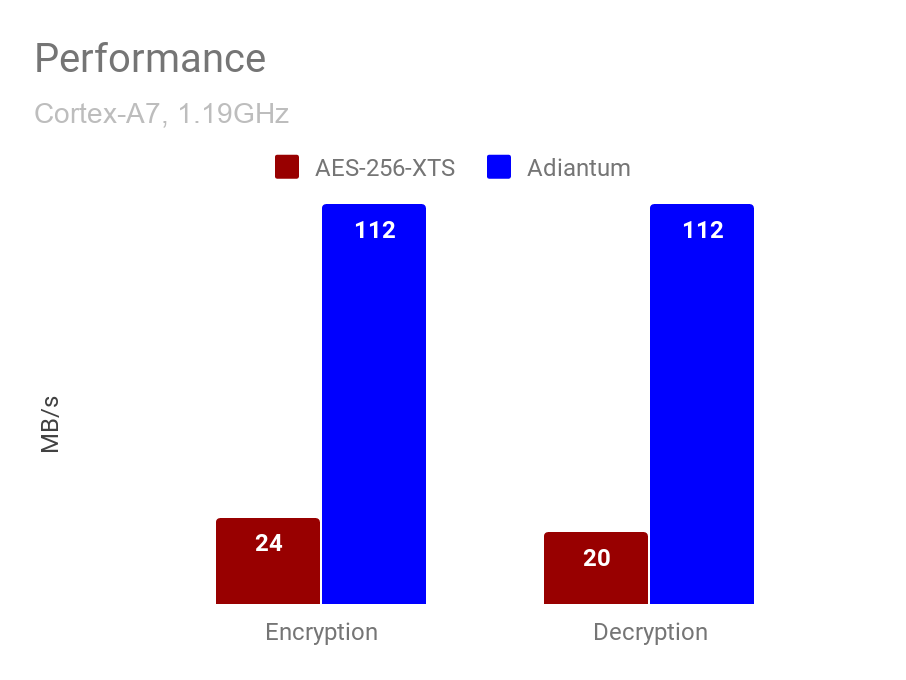
Last year Google introduced the “biometrics API” in Android 9, replacing the old fingerprint API. The old fingerprint API was made only for capacitive fingerprint readers, and like the name suggests, the Biometrics API was built for more varied authentication. In Android 9, it added support for in-screen fingerprint readers, and now in Android 10 it supports facial recognition. This will probably come in handy for the Pixel 4, which is sporting all the usual FaceID sensors.

Also new in the biometrics API: When apps call up the interface, there are now options for an implicit or explicit confirmation. The implicit confirmation will automatically advance the interface as soon as you are authenticated, which is great for things like sign-in. The explicit confirmation requires you to hit a “confirm” button, which is more appropriate for things like payments. There’s also an option for a fallback credential like a PIN for those times when a fingerprint or face scan won’t work.

Google is making TLS 1.3 (Transport Layer Security) the default for all TLS connections. TLS 1.3 was finalized by the IETF last year, and it’s faster and more secure than older versions. Google says that a faster handshake should make connection times up to 40% faster.

Android 10 is also adding support for WPA3, the newest security protocol for connecting to wireless networks. Right now there are not many routers that support WPA3.

We talk a lot about apps “targeting” a new release of Android, which gives them access to all the latest Android capabilities along with all the latest privacy and security restrictions. Starting around the release of Android 9, the Play Store and the Android OS have started deprecating old Android API levels, encouraging developers to switch to a newer version. On the Play Store, new and updated app submissions are only accepted if they target an API that is one year old or newer. And around the release of Android 10 (API level 29), the floor for app submissions will be bumped up to Android 9 (API level 28). In the Android OS itself, the system will also warns users the first time they run an app that uses an API that is very old. In Android 9, this was Android 4.2 Jelly Bean (API level 17), a six-year-old OS at the time, and in Android 10 this warning is being bumped up to Android 6.0 Marshmallow (API level 23), a four-year-old OS.

Adiantum—Storage encryption for everyone

Android always strives to bring the same powerful software to every smartphone, from the most expensive $2600 foldable phone to the cheapest $10 piece of junk you can find. Whether the hardware can handle all this software is a different story, and one of the features that has remained out the cheapest phones is storage encryption by default. Google’s compatibility rules from Android 6 Marshmallow up to Android 9 (the Android 10 compatibility docs are not out yet) require storage encryption for devices with Advanced Encryption Standard (AES) crypto performance above 50MiB/sec. The way phones hit this number is with hardware acceleration for encryption and decryption, which usually comes with devices with the ARMv8 instruction set.

Today, encryption-by-default is on for the vast majority of Android phones. If we look at Qualcomm’s lineup, nearly every single SoC is 64-bit and packing ARMv8, all the way down to the lowly Snapdragon 215. This is still not every phone, though, and the cheapest devices (usually devices sold in developing countries) still lack encryption. Usually in Android land, these are some (but not all!) of the low-end “Android Go” devices, like the $80 ZTE Tempo Go that we reviewed last year. The Snapdragon 210 in that device is still packing 32-bit Cortex A7 cores straight out of 2011, so it notably lacked encryption by default. You also can’t get encryption on Android smartwatches (if those are still a thing) because they also only ship the Cortex A7 from 2011, thanks to Qualcomm.

Credit: Google

So to get encryption on these cheaper devices, Googlers Paul Crowley and Eric Biggers developed “Adiantum,” a new storage encryption technique designed to run on devices that lack hardware acceleration for AES. Google calls Adiantum “Encryption for the next billion users” and says it can run on “across everything from smart watches to internet-connected medical devices.”

In Adiantum’s introductory blog post, Google specifically calls out the ARM Cortex A7 CPU as an issue for encryption. “On these devices, AES is so slow that it would result in a poor user experience; apps would take much longer to launch, and the device would generally feel much slower.” So Adiantum was written with devices like this in mind. Today there is encryption that works on these devices, and one example is the widely-used  ChaCha stream cipher (this is used in, among other things, Google’s HTTPS implementation in Chrome). ChaCha offers secure encryption fast on just about everything, because it exclusively uses operations that all CPUs natively support: additions, rotations, and XORs.

Adiantum takes the ChaCha encryption primitive and expands it to work across the entire file system. This involved solving a number of problems, mainly managing to use ChaCha in a “length-preserving” mode. The way ChaCha is used in Google’s HTTPS implementation requires adding a few more bits to the original message for the cryptographic nonce and data integrity, which doesn’t really work for a storage device. Storage is encrypted on a block-by-block basis, so if your output is bigger than your input, you have to hunt around for that extra space every time you want to decrypt and encrypt to make a read or write. On an already slow device, adding extra work to every single read and write will not be fast. Adiantum borrows some ideas from AES to make a length-preserving encryption mode for ChaCha, and the result is a speedy, secure encryption method for ancient ARM CPUs.

This is non-hardware accelerated AES-265 on a Cortex A7 versus Adiantum. Credit: Google

ChaCha implementations are labeled with a trailing number, which is how many times your data has been run through the cipher. Naturally, more is more secure. The best known attacks against ChaCha have broken ChaCha7, while Chrome’s HTTPS goes with the extra-secure ChaCha20. On Android, Adiantum uses ChaCha12, which the Adiantum spec paper says “is consistently one of the fastest options for the ‘armeabi’ (32-bit ARM) architecture,” aka the Cortex A7. Google’s blog post promises big performance improvements over software AES, though. “On ARM Cortex-A7, Adiantum encryption and decryption on 4096-byte sectors is about 10.6 cycles per byte, around 5x faster than AES-256-XTS.”

Any new encryption method should face some skepticism, but given that Adiantum is made up of other encryption primitives, it should be secure, too. As Biggers writes on the Linux Kernel mailing list, “Adiantum is a construction, not a primitive. Its security is reducible to that of XChaCha12 and AES-256, subject to a security bound; the proof is in Section 5 of our paper. Therefore, one need not ‘trust’ Adiantum; they only need trust XChaCha12 and AES-256.”

With Adiantum, encryption will no longer be an option for Android devices. Google’s blog post lays down the law, saying, “In Android Q, Adiantum will be part of the Android platform, and we intend to update the Android Compatibility Definition Document (CDD) to require that all new Android devices be encrypted using one of the allowed encryption algorithms.” The two options, then, would be hardware AES or Adiantum. Now we just need some cheap devices with Android 10!

A few extra settings

The app and notification screen got a new layout, too.
You can now add a Wi-Fi network with a QR Code.

There are a few extra settings bits that didn’t come up naturally in the rest of the review. The main system settings themselves have not seen many changes, other than some rearrangement to make the new “Privacy” and “Location” sections. The settings are even whiter than before, though. The grey header from Android 9 is gone, replaced, of course, by white. The same goes for all the sub-pages.

New Wi-Fi credentials can be added via a QR code scan now. To the right of the “Add network” label is a button that will fire up the camera for scanning.

Apps are no longer allowed to turn Wi-Fi on and off, but in return apps are able to pop-up these new settings panels to help guide the user through flipping on the settings they need. There are panels for Internet, Wi-Fi (which is also in Internet), NFC, and Volume. Most apps do not support this yet, but it seems like this interface will feel a lot better than the apps that dump you into the settings apps with zero on-screen instructions. The volume pop-up panel can actually be triggered by the user, via a button at the bottom of the volume slider that pops up when you use the hardware volume buttons. I also like that the share sheet follows this design.

Android Beam, an NFC-powered feature that let you put two Android phones back-to-back and transfer small bits of data like URLs, is dead. The Android 10 docs note that “Android Beam remains optionally available to device-maker partners who want to use it, but it’s no longer in active development. Android will continue to support other NFC capabilities and APIs, however, and use-cases like reading from tags and payments will continue to work as expected.” I imagine this feature was killed because it just isn’t used that much. Sticking two phones back-to-back is pretty awkward.

Finally, there is now a search button in the app info settings! And app info lets you jump to the settings for all your apps. Previously, scrolling through an alphabetized list of 100+ items is not fun, so this is a very welcome feature.

Looking toward the future

If you were to make a list of user-requested Android features after the release of Android 9, a lot of the features Android 10 brings would be on that list. People have been asking for a dark mode for about as long as Android has existed, so it’s nice to see it finally being addressed. The Share sheet revamp has been another thing at the top of the user request list for some time, as the old implementation was just obnoxiously slow. And after Android 9’s half hearted attempt at gesture navigation, having a more proper attempt at it in Android 10 is also a welcome addition.

As usual, the distribution of a new Android update is going to be very limited, but it’s better this year than it has ever been. Of course the OS is available on Pixel phones, but Essential and Xiaomi have pumped out day-one updates, and it would not surprise me to see Nokia and OnePlus follow close behind. This year, the Android beta program was also significantly expanded with 15 third-party device manufacturers participating, including OnePlus, Essential, Nokia, Xiaomi, Huawei, LG, and more. There’s really only two big names missing from the list: Samsung and Lenovo, which are both notoriously uncooperative when it comes to device updates.

While things have improved, there is no silver bullet for the Android ecosystem’s update problem. I don’t think there ever will be. It’s not just a problem of OEM customization of Android, it’s a problem of an OEM’s motivation to ship an update. Android update development is expensive, and manufacturers provide it to users for free. With no monetary incentive to ship an update quickly, why not just do it as cheaply (and slowly) as possible? Samsung manages to ship a ton of phones while doing the bare minimum when it comes to updates, so why should anyone bother?

Every release makes the Android update situation incrementally better, though, and that’s probably what we’ll see more of in the future. Project Mainline does a lot of that work this year, giving Google responsibility for more of the core system components and allowing the company to ship more code directly to consumers through the Play Store.

But it’s worth noting: a day-one release is not necessarily something you would even want with Android 10 anyway. Like with many Android releases, the OS update is just half of the picture, and we’re still waiting for the ecosystem to catch up to the new features. Even Google’s slate of apps don’t yet completely support dark mode, so hopefully we’ll see some app updates coming soon. Today on a Pixel phone, you can set the theme to “dark,” but you’ll still be staring at an extra-white screen anytime you open Gmail, the Play Store, YouTube, Google Maps, and other apps.

This isn’t just about dark mode and Google Apps, though. We also don’t know what the share sheet will look like until more apps update to support the new “sharing shortcut” API. I’m concerned about the lack of user-controlled sorting, and there are already complaints popping up about apps taking over the share sheet targets. And there is genuine foldable OS support to check out in the future. Today you can kind of try it out in the Android emulator, but we’d need a genuine working piece of hardware to really put that through its paces.

Gesture navigation is great for Google’s first real attempt at it, and while I would like for the back animation to follow the horizontal finger gesture needed to trigger it, the economics of the whole system is fantastic. Google got a lot of the basics right. Ultimately this is another Android 10 feature that isn’t quite ready yet, though. It will be a few months before gesture navigation works with third-party home screens, and considering this is your phone’s primary interface, the tradeoff is not worth it for third-party home screen users.

There’s also the upcoming Pixel 4 launch to look forward to, which will probably patch some suspicious holes that currently exist in Android 10. I’d expect a privacy dashboard along the lines of that early Android Q leak, as right now the separate “Privacy” section in the settings looks pretty barren. The Pixel 4 will also be the time to look into whatever the “themes” functionality of Android 10 is; right now the “PixelThemes” APK points to Google doing something interesting with customizability.

As far as major OS updates go, though, Google tackled several big user requests in this release and nailed down foundational improvements in Project Mainline that will hopefully grow in the future. Google has a lot of ecosystem wrap-up work to do, and it really needs to ship that gesture navigation update as soon as possible. But today with Android 10 truly available, it’s hard to imagine a significant list of user feature requests right now.

The Good

  • Gesture navigation is a huge improvement over the Android 9 version.
  • Dark mode has been the loudest user request for years, and it’s finally here.
  • Project Mainline is another incremental step in making Android’s update situation better.
  • The share sheet actually works well now.
  • Google never stops improving the notification panel, and this year is no exception with notification actions and better media controls.
  • I can’t wait to try the dual boot system when something worthy of dual booting actually comes out.
  • Google is ahead of the curve with Foldable support already built into the OS, long before any actual hardware release.
  • Adiantum will bring storage encryption to even the cheapest devices.

The Bad

  • You still can’t customize the share sheet. It’s full of junk and the “direct share” section sounds like it’s going to turn into a developer battleground.
  • Google killed clipboard apps and didn’t provide any kind of replacement API.
  • Smart replies (which are now in the notification panel) still only run the gamut from “artificial” to “downright rude.” I have never wanted to use one.

The Ugly

  • You’ll have to pick between your third-party home screen app and gesture navigation.
Photo of Ron Amadeo
Ron Amadeo Reviews Editor
Ron is the Reviews Editor at Ars Technica, where he specializes in Android OS and Google products. He is always on the hunt for a new gadget and loves to rip things apart to see how they work. He loves to tinker and always seems to be working on a new project.
165 Comments