Skip to content
Tech

Review: The 2016 Retina MacBook is a faster version of the same machine

Improved CPUs, GPUs, and SSDs are all welcome, but the core compromises remain.

Andrew Cunningham | 261
The USB Type-C port, which doesn't get a Thunderbolt upgrade this year. Credit: Andrew Cunningham
Story text
It’s thinner and smaller than a 13-inch MacBook Air.
Though its lack of ports will cause problems for some.

Designing a portable gadget is all about compromise. The main tension is between power and portability: how light can I make this phone without making it unacceptably slow or killing battery life, and how fast can I make this laptop without making the battery and necessary heatsinks and fans too large to comfortably carry around?

Every laptop you can buy exists somewhere on this spectrum, and the new version of Apple’s Retina MacBook still prioritizes portability over pretty much everything else. At two pounds, it’s one of the thinnest, lightest full-fledged laptops you can buy today. But to achieve that feat, Apple uses low-voltage processors, offers a super-shallow keyboard and trackpad, and sheds all but one of this laptop’s ports (headphone jack excepted).

It’s not a laptop for everyone. It’s not going to make every MacBook Air and Pro user happy. It probably won’t make most people who disliked the 2015 MacBook happy. But for OS X users who value portability over all else, it’s a decent generational bump that gets you more speed for the same price.

Design

Specs at a glance: 2016 MacBook
Screen 2304×1440 at 12″ (226 PPI)
OS OS X 10.11.4 El Capitan
CPU 1.2GHz Intel Core m5-6Y54 (Turbo up to 2.7GHz)
RAM 8GB 1866MHz LPDDR3 (non-upgradeable)
GPU Intel HD Graphics 515 (integrated)
HDD 512GB PCIe 3.0 x2 solid-state drive
Networking 867Mbps 802.11a/b/g/n/ac, Bluetooth 4.0
Ports 1x USB 3.0/3.1 Gen 1 Type-C, headphones
Size 11.04″ × 7.74″ × 0.14-0.52″ (280.5 mm × 196.5 mm × 3.5-13.1 mm)
Weight 2.06 lbs (0.92 kg)
Battery 41.4Whr
Warranty 1 year
Starting price $1,299.99
Price as reviewed $1,599.99
Other perks Webcam, backlit keyboard, dual integrated mics, Force Touch trackpad

Nothing about the MacBook’s design changed from last year, so if you’ve already handled one you know what you’re getting. It’s like someone threw a MacBook Air and an iPad in a blender. This is recognizably a Mac, but it comes with an iPad-flavored design and a few of the same benefits and drawbacks that Apple’s tablets have.

The MacBook is thin but not flimsy, and like all the hardware Apple makes, it looks and feels high-quality. At two pounds, it feels significantly lighter in your hands and in a bag than a 13-inch MacBook Air or Pro does, and its 12-inch screen doesn’t feel as cramped as the one on the 11-inch MacBook Air. The Apple logo on the lid isn’t backlit as it is on most Macs. Rather, the logo is a shiny inset piece of metal like what you’d get on an iPad or iPhone.

Also like an iPad, the MacBook is fanless and has zero moving parts inside—one of its best features and a side-effect of using Intel’s Core M processors rather than the standard i5s or i7s. The 2304×1440 Retina display looks sharp and gorgeous, and it doesn’t suffer at all from using a non-native 2560×1600 resolution out of the box (in the Display settings, this resolution “looks like 1280×800,” and you can use 1024×640, 1152×720, and 1440×900 modes, too).

The second most polarizing thing about the MacBook is probably its keyboard, which is firm, clicky, and full-sized but has significantly shallower key travel compared to the standard chiclet keyboard that ships in the other MacBooks. Apple has designed butterfly switches that make the keys firmer and thinner than standard scissor switches, and it’s using the same design in the Smart Keyboard covers for both iPad Pros (the new Magic Keyboard Apple ships with current iMacs has the same layout but uses more traditional scissor switches).

While I definitely prefer the feel of Apple’s MacBook Air and Pro keyboards, the firmness of the keys makes the MacBook’s keyboard tolerable. There’s a clear distinction between a key that has been pressed and a key that has not been pressed, and the switches are firm enough that you’re not going to hit any keys by accident like you might with a mushier shallow keyboard. The layout isn’t weird aside from the mixed-height arrow keys (I prefer them all to be the same height even if it wastes a little space). Still, it may take you a while to get used to the keyboard.

The Force Touch trackpad should be less controversial. To save space, Apple has created a trackpad that doesn’t actually physically click. Instead, strain gauges detect when pressure is being applied, and electromagnets vibrating against a metal rail provide haptic feedback that simulates the sound and feel of a “click.” The feel is shallower and a little less satisfying than a real clicky trackpad, but it’s a surprisingly good simulation of one once you turn the click pressure up to “firm.” At some point between our review of the original MacBook and now, Apple also added a “silent clicking” option in the trackpad settings that reduces the amount of sound the trackpad makes without changing the way it feels. It’s a nice touch.

The new MacBook keyboard, compared to the MacBook Air and a cheap Chromebook keyboard. Video edited by Jennifer Hahn.

The most polarizing thing about the MacBook, naturally, is its single USB Type-C port, which is used for everything from connecting peripherals to driving an external display to actually charging the laptop.

There are plenty of people out there who use their laptops without connecting a whole bunch of stuff to them, and it’s true that wireless printers and AirPlay and cloud storage services have made ports less essential than they once were. But it’s hard to shake the feeling that the MacBook could be an appealing computer to a wider audience with at least one additional USB Type-C port, just another option to plug something into the laptop without disconnecting it from power. Replacing the headphone jack with a second port is one potential solution, though this would simply trade one compromise for another. Making the laptop large enough to fit another port is another option, though that could make the laptop a little larger than it is.

With the design as it stands, using a USB Type-C dongle is really the only solution to the port problem. Apple’s official adapters allow for charging, either an HDMI or VGA port, and one standard USB 3.0 Type-A port, but at $79 they’re pretty pricey. The beauty of standards is that other options exist. This one replicates Apple’s HDMI dongle for around half the price. This one provides multiple outputs and an SD card slot for the same price as Apple’s simpler adapters. This one is also cheaper than Apple’s and focuses on throwing as many USB ports at you as it can. They’re bulky, which sort of defeats the purpose of making the laptop so thin to begin with, but at least these solutions allow you to work around the port issue.

The growing number of USB Type-C accessories and peripherals can also help partially mitigate the port problem. Acer, for instance, will sell you a monitor that can pass power, USB data, and a display signal to your MacBook through a single cable. Thanks to the USB Power Delivery and Alternate Mode specs, we can expect to see additional monitors and peripherals like it as time goes on. But in many cases—including my workflow, which requires multiple full-size USB ports, an SD card reader for grabbing pictures off my camera, and external display outputs—it’s still inconvenient enough that you should really think hard before plunking down $1,300 or more for one of these things.

Finally, it’s a bit disappointing that the port is still USB 3.1 gen 1 instead of Thunderbolt 3, which uses the same port but adds 40Gbps Thunderbolt and 10Gbps USB 3.1 gen 2 speeds to the mix. Apple won’t explain why Thunderbolt 3 isn’t making its debut in this year’s MacBook, but the answer most likely lies somewhere in between the power and board space required for the separate Thunderbolt controller and the desire to reserve the faster interface for faster, power-user-oriented systems. Apple might not want its slowest Mac to have Thunderbolt 3 before machines like the MacBook Pro, iMac, and Mac Pro can get it.

Internals and performance

The short version

If you’ve already got a 2015 MacBook, this one is usually faster but won’t run circles around it. Its CPU, GPU, and storage performance is in the neighborhood of a MacBook Air from two or three years ago. This new release is a solid upgrade for anyone with a Mac from, say, 2010 or earlier, but it’s not a high-powered workstation.

If you thought you wanted a MacBook but didn’t buy one because you were worried about the speed, the new model’s GPU and storage in particular are improved enough that they might tip the scales.

The long version

The 2016 MacBook uses the Skylake version of Intel’s low-power Core M chips. The $1,299 base model is a reasonably well-rounded machine with a 1.1GHz (2.2GHz Turbo) Core m3 CPU, 8GB of 1866MHz DDR3 RAM, and 256GB of storage. For $1,599, you get a 1.2GHz (2.7GHz Turbo) Core m5, the same 8GB of RAM, and 512GB of storage. And a 1.3GHz (3.1GHz Turbo) Core m7 CPU can be added to either model as an optional upgrade. All systems include the Intel HD 515 GPU, 802.11ac Wi-Fi, Bluetooth 4.0, and the same disappointing low-resolution 480p webcam as last year.

Apple provided us with the $1,599 MacBook configuration, which we’ve compared with the $1,599 version of the 2015 MacBook. CPU performance in Geekbench and Cinebench is up by around 10 percent overall. That’s due in no small part to the improved memory bandwidth provided by the jump from 1600MHz DDR3 to 1866MHz DDR3 (as nice as DDR4 would’ve been, Skylake’s Core M CPUs don’t support it).

A quick note if you’re planning on buying the $1,299 entry-level model, though we haven’t been able to do any performance testing: the Core m3-6Y30’s 2.2GHz turbo speed is actually 200MHz lower than the 2.4GHz Core M-5Y31 from last year. Skylake’s architectural improvements and the faster RAM should help the 2016 MacBook break roughly even, but it looks like you’ll want to spring for the upgraded CPUs to get anything close to a noticeable improvement.

The graphics improvements are a little more impressive. The Cinebench test shows a 10 percent improvement, while some of the GFXBench scores improve by as much as 40 percent depending on the benchmark. Not too shabby for a year-over-year upgrade.

The biggest functional improvement the better GPU provides is better and more consistent performance when using higher-resolution Retina scaling modes. I prefer to work in 1440×900 mode because it’s still legible but it maximizes screen space. On the old MacBook, using Expose or Mission Control or swiping between Spaces would often drop frames, especially when I had a lot of windows open (the El Capitan upgrade helped but didn’t completely fix it). On the new MacBook this isn’t a problem, even if you have a couple dozen windows open at once. You still might get some jerky animations here or there depending on what else the system is doing, but that’s true of any Mac.

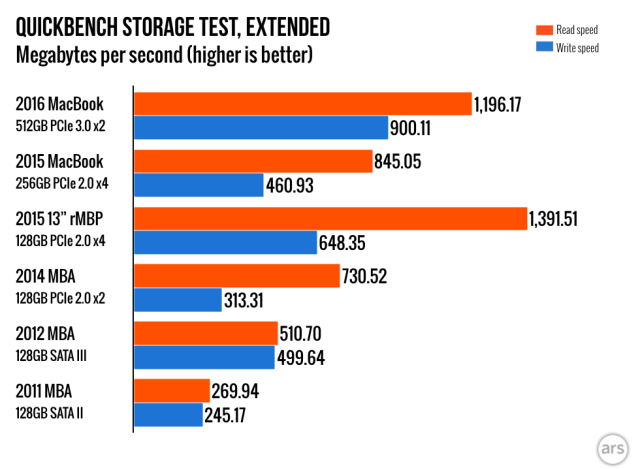
Storage performance in the 2015 MacBook wasn’t bad, although it wasn’t quite up to the level of the MacBook Airs or Pros. It’s still not quite as fast as the larger MacBooks, but there’s a noticeable increase. Apple says there should be no major performance difference between the 256GB and 512GB versions of the MacBook, since presumably both laptops contain the same number of flash chips to read from and write to at once.

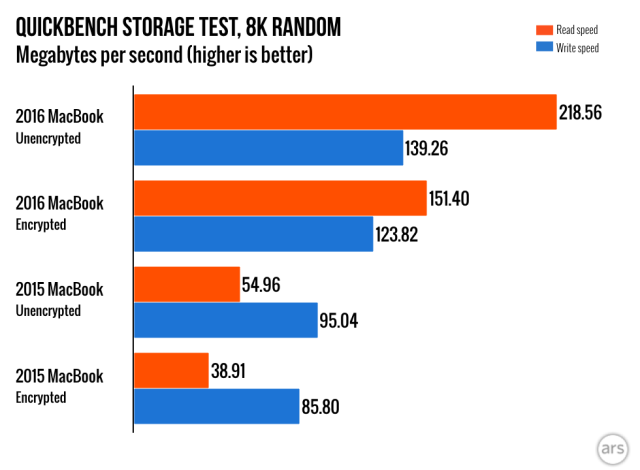
One problem that some users noted with the last MacBook was that it took a sizable performance hit with FileVault encryption enabled. So this time around, in addition to measuring peak speeds, we ran a few more QuickBench tests to measure the impact that FileVault has on both devices.

Performance on the new MacBook is dramatically better whether it’s encrypted or not, but encrypted performance in particular is a big step up from where it was before. Those of you who need to or want to encrypt your disks to protect your data don’t need to worry as much about the performance impact in the new MacBook (we have a guide here that will help you encrypt your disk if you want).

The technically inclined will notice that the PCI Express configuration has been changed a little thanks to Skylake’s support for PCI Express 3.0 in its chipset. The old MacBook dedicates four PCI Express 2.0 lanes to its SSD, while the new MacBook uses two PCI Express 3.0 lanes instead. Available bandwidth stays about the same, though. PCIe 3.0 doesn’t quite double PCIe 2.0’s theoretical bandwidth, but its overhead is also lower. We can assume that any speed increases are coming mostly from the flash and the SSD controller rather than the interface.

Battery life

Apple says the new MacBook should be good for about an hour of extra battery life compared to the old one, a number we didn’t quite hit in our Wi-Fi browsing test. The 2016 MacBook outlasted 2015’s version by about half an hour, though both laptops do pretty well compared to the competition.

In the more intensive WebGL test, which puts a light but continuous load on both the GPU and CPU, both the 2015 and 2016 MacBooks last for around the same amount of time. You’ll see the battery life gains if you’re leaving the processor idle for longer periods of time.

Windows support: No immediately obvious problems

I briefly installed and ran Windows 10 on the MacBook and didn’t run into any problems of note. Last year the Bluetooth wasn’t working with the included drivers, but whatever was causing that seems to have been fixed and isn’t a problem here. At the 150 percent scaling level, the Windows desktop is perfectly legible, and performance is good on a Skylake Core M machine with 8GB of RAM and a PCI Express SSD. The bold colors of recent Windows versions really demand a nice display panel, and the MacBook delivers in a way that low-end PCs don’t.

The most irritating part of the whole process is that despite the Boot Camp Assistant’s ability to install Windows from an ISO without a USB drive on some modern Macs, the MacBook still wants an external USB drive. This means either using one of the multiport dongles or grabbing a standalone Type-C to Type-A adapter and trusting that the install will finish before the battery runs out (this shouldn’t even come close to being a problem as long as you’re starting from a 100-percent charge).

The MacBook is a decent Windows machine, but if you’re buying it primarily to use with Windows for whatever reason, there are potentially superior competitors to consider. Asus’ ZenBook UX305 can’t quite match the MacBook in build quality, and it weighs over half a pound more, but it’s a thin, fanless, all-metal system that provides broadly comparable performance and battery life for around $700. HP’s forthcoming EliteBook Folio G1 is a 2.2-pound laptop that’s a dead ringer for the MacBook, but it manages to fit in a second port and a keyboard with better travel. The company’s upcoming Spectre notebook promises faster Core i-series CPUs in a package that weighs about 2.45 pounds, not too far north of the MacBook.

None of these systems is quite as thin and light, and none of them offers OS X. But the MacBook hasn’t completely leapfrogged the rest of the PC industry the way that the MacBook Air did back in 2008 (and again, really, when it was redesigned in 2010).

What about the iPad Pro?

The last time we reviewed the MacBook, the iPad Pro was just a glimmer in Apple’s eye—an oft-rumored potential product that was still months away from being a reality. But the 12.9-inch version in particular overlaps with the MacBook in size and weight and approximate speed (and, once you start paying for more storage and peripherals, in price). How should you pick if you’re choosing between the two?

Software is the most important thing to consider, given that size and weight are closer than they’ve ever been. Even on relatively weak hardware, OS X has greater flexibility than iOS. Support for peripherals and external displays (port problems aside) is much more robust in OS X. Apps like Photoshop and Microsoft Office, while available in actually pretty decent iOS versions, still offer better features on OS X. The MacBook can run Windows (either in Boot Camp or virtualized) and other operating systems if you happen to need or want that flexibility and compatibility. The screen can tilt at more than one angle. The trackpad is a more precise pointing device. The list goes on.

That said, iOS and iOS productivity apps feel faster on the iPad Pro than OS X and heavier OS X productivity apps do on the MacBook. The simplicity of iOS (and compatibility with the wide range of iOS apps and games) may be iPad selling points for people who are more used to the iPhone than the Mac.

In short, if you grew up using Macs and traditional windowed operating systems but want something thin and light and fanless, the MacBook and OS X are probably better choices for you. If your primary computing device is an iPhone or an older iPad (and as time goes on, there will be more and more people for whom this is true), the iPad Pro may be the sensible option.

Where’s the version of this MacBook for pros?

The 2016 MacBook doesn’t fundamentally change the position of the laptop in Apple’s lineup. It’s an impressively thin and light computer that, thanks to its low-voltage CPUs and lack of ports, might not be a great upgrade option for a lot of current MacBook Air and Pro users. If you’re reading this, you probably already know whether or not you’d be happy with this machine.

A whole lot of the handwringing about the Retina MacBooks’ drawbacks—their wimpy CPUs, their nonexistent expandability, their lonely port—would go away or at least quiet down if people also had an improved, redesigned MacBook Pro to buy instead. It doesn’t matter that the MacBook has a super-shallow keyboard and a single port if there’s a more conventional Pro-level machine to serve the people who want that stuff.

Right now the MacBook Air design is five and a half years old and the MacBook Pro designs are both four years old. All of their internals are over a year old. It’s easy to resent the MacBook if you’re looking to upgrade from a 13-inch MacBook Air or MacBook Pro and you don’t want to give up ports and step backwards or sideways in performance just to get a nice screen.

Evaluated on its own terms separately from the complaints of power users, the MacBook is a fine ultraportable laptop. The new model improves on the old one in the ways that will matter most to people who are currently using an 11- or 13-inch MacBook Air (or something older) and want to step down to something thinner, lighter, and quieter. If you mostly use your laptop as a laptop without connecting it to a bunch of external monitors and peripherals, the MacBook acquits itself reasonably well, though I still think it would have greater appeal if it was more versatile.

The good

  • Better CPU and GPU performance than last year, if just by a bit. The upgrade path from a 2010 or 2011-era MacBook Air is much clearer now, at any rate.
  • Much better SSD performance.
  • Slightly better battery life, though it was already pretty good.
  • Design is simultaneously thin and light and rock solid.
  • Fanless.
  • More color options than other Macs.
  • Excellent display, and thanks to the GPU it’s now more usable in higher-resolution Retina scaling modes.

The bad

  • 480p webcam is still low-res and ugly.
  • Low-travel keyboard isn’t quite like anything else that’s out there.
  • 5Gbps USB Type-C instead of Thunderbolt 3.
  • Expensive for the features and performance you’re getting.
  • Some people may work fine with one port, but having more than one port would increase the appeal for a larger audience.

The ugly

  • There isn’t a revamped MacBook Air or Pro with a similar design to buy if you need more power and connectivity.
Photo of Andrew Cunningham
Andrew Cunningham Senior Technology Reporter
Andrew is a Senior Technology Reporter at Ars Technica, with a focus on consumer tech including computer hardware and in-depth reviews of operating systems like Windows and macOS. Andrew lives in Philadelphia and co-hosts a weekly book podcast called Overdue.
261 Comments