It’s not difficult to get your hands on pre-release Apple software. For a mere $198 a year ($99 each for OS X and iOS) you can download beta versions of operating systems from Apple’s developer site even if you’ve never written a line of code in your life.
This year, Apple is taking things a step further. The new public beta program for OS X Yosemite officially launches Thursday, taking software that has traditionally been protected from the public by a $99 paywall and distributing it to the first million users who sign up on Apple’s site. It’s a very Microsoft-esque way to roll out an OS: you give enthusiasts a chance to work with an early-but-reasonably-stable build in exchange for valuable bug-squashing feedback. Ideally, it will keep Yosemite from suffering from some of the general bugginess that affected iOS 7.0 when it launched last year.
In advance of the public beta, we’ve been given about a week of time to use the third developer preview and get a sense of what Yosemite brings to the table. Beta subscribers will get a slightly newer build of the operating system, but at this point most of the features are locked down and ready for evaluation by the public.
This preview article won’t go as deep as John Siracusa’s epic OS X reviews—he’ll be giving the final build a much closer look when it’s officially released in the fall. This also isn’t the place for detailed comments on performance, general stability, or battery life, since those are the elements likely to change the most between now and release. What we’ll be doing today is taking a high-level look at the new operating system’s redesigned user interface and its biggest features, while shining a light on a few things that could use some more work.
How this public beta thing works
The last time Apple released a public beta of OS X, it was in September of 2000. People 14 years ago could pay $30 for the privilege of testing the very first version of OS X 10.0 (remember when operating system upgrades cost money?). It used around 800MB of disk space and looked like this. It has been a very long time since Apple has tested an OS in public, and a lot of things have changed since then.
The company’s primary goal with the public beta is to collect user feedback using a simple built-in reporting tool that we’re told will be included with the OS. Apple will evaluate this feedback and take it into consideration as it continues to fine-tune the software. However, don’t think that complaining will get you your old interface back—spamming Apple with “I HATE YOSEMITE” messages isn’t going to help anybody. On the other hand, if you want to tweak the way the new design looks and works, report specific bugs, or give feedback on new features, this will be your chance.
Apple updates its Developer Preview builds roughly every two or three weeks to keep its developers current, but the public beta build will receive updates less frequently. Apple told us that public beta users would eventually be able to update to the final “Golden Master” build of Yosemite without having to reinstall the operating system, so you can use the beta now and move seamlessly to the final version when it arrives. This is basically the same methodology Apple has used for public beta testers of the last few Mavericks updates.
That said, this is still beta software, and you will run into problems. The Yosemite beta (and any updates it receives between now and the final release) should be stable enough for most people, but installing it on mission-critical hardware at this point would be a mistake. If you do install it to a computer you rely on, using a separate test partition would be wise, and you should make a full backup of all your files before you go forward.
Yosemite’s new face
The OS X user interface hasn’t changed in any significant way since Lion in 2011, and even that was just a refinement of the interface introduced in Leopard all the way back in 2007. When iOS 7 got its all-encompassing facelift last year, though, it seemed obvious that the Mac UI would eventually be updated to match. Yosemite is the release that brings the two UIs back together.
While Yosemite takes many cues from iOS 7, it doesn’t blindly clone mobile design elements with no regard for how people use desktop operating systems. As an example, let’s look at some of Apple’s redesigned icons—it looks like Apple took its current OS X icons and ran them through an iOS filter.
Icons in iOS 7.
Credit:
Andrew Cunningham
Icons in iOS 7.
Credit:
Andrew Cunningham
Icons for the same applications in Mavericks.
Credit:
Andrew Cunningham
Icons for the same applications in Mavericks.
Credit:
Andrew Cunningham
iOS 7 + Mavericks = Yosemite.
Credit:
Andrew Cunningham
iOS 7 + Mavericks = Yosemite.
Credit:
Andrew Cunningham
Notice that the new icons still have depth and shadows and that they still come in different shapes and sizes. Many of the third-party Mac apps I use day-to-day—Limechat, Spotify, Chrome—don’t even look out of place next to the new icons in the way that iOS 6-style icons look out of place in iOS 7. Apple’s approach to the icons extends to every other area of the user interface, from buttons and toolbars to the applications themselves. Yosemite looks very different, but it still looks like OS X. That’s not to say that the entire interface is problem-free, but the transition shouldn’t be jarring for most.
Some windows in Mavericks. Note the drop shadow under Textedit, the active app, and the lesser shadows under the Terminal and Finder windows that help the user arrange the windows as they see fit.
Andrew Cunningham
Some windows in Mavericks. Note the drop shadow under Textedit, the active app, and the lesser shadows under the Terminal and Finder windows that help the user arrange the windows as they see fit.
Andrew Cunningham
Elements of Yosemite’s UI are “flat,” but it would be incorrect to say the entire OS is flat. Shadows and perspective are still used in icons and windows to accommodate desktop users.
Andrew Cunningham
Elements of Yosemite’s UI are “flat,” but it would be incorrect to say the entire OS is flat. Shadows and perspective are still used in icons and windows to accommodate desktop users.
Andrew Cunningham
Some windows in Mavericks. Note the drop shadow under Textedit, the active app, and the lesser shadows under the Terminal and Finder windows that help the user arrange the windows as they see fit.
Andrew Cunningham
Elements of Yosemite’s UI are “flat,” but it would be incorrect to say the entire OS is flat. Shadows and perspective are still used in icons and windows to accommodate desktop users.
Andrew Cunningham
RIP Lucida Grande
Apple has swapped Lucida Grande for Helvetica Neue throughout Yosemite.
Andrew Cunningham
Apple has swapped Lucida Grande for Helvetica Neue throughout Yosemite.
Andrew Cunningham
The fonts are a little lighter and cleaner than in Mavericks, though they’re heavy enough not to cause problems on non-Retina screens.
Andrew Cunningham
The fonts are a little lighter and cleaner than in Mavericks, though they’re heavy enough not to cause problems on non-Retina screens.
Andrew Cunningham
Apple has swapped Lucida Grande for Helvetica Neue throughout Yosemite.
Andrew Cunningham
The fonts are a little lighter and cleaner than in Mavericks, though they’re heavy enough not to cause problems on non-Retina screens.
Andrew Cunningham
With Yosemite, Apple is dropping Lucida Grande and using Helvetica Neue as its system typeface, the same as iOS 7. The actual weight of the typeface used isn’t all that different, though—Helvetica Neue is a thinner and cleaner font than its predecessor, but it’s not nearly as dramatic as the shift from iOS 6 to iOS 7.
Consider the kinds of displays both operating systems have to account for. iOS 7 only supports two devices without Retina displays, and as a result the non-Retina design feels like an afterthought. It’s not unusable, but text is sometimes blurry or overly pixellated in ways that can impair readability. Check how the typeface and the desktop background run together in this image from a non-Retina iPad mini:
No, nope, no legibility issues here, move along please.
Credit:
Andrew Cunningham
No, nope, no legibility issues here, move along please.
Credit:
Andrew Cunningham
The opposite is true for the Mac ecosystem. Only a handful of the systems on the support list have Retina screens at all, so Apple has spent more time making sure text and icons look crisp and clean on lower-density screens where they can look a little jagged or blurry in iOS 7. Text labels that float over the desktop or other windows are always shown against backgrounds. It’s no less legible on standard screens than it was before, even though Apple tells us that the entire OS was “optimized” for Retina displays, and we wouldn’t be surprised if it presaged a larger rollout of Retina Macs once Intel’s new Broadwell chips finally show up.
Here’s Yosemite on a Retina display. Crisp and clear.
Credit:
Andrew Cunningham
Here’s Yosemite on a Retina display. Crisp and clear.
Credit:
Andrew Cunningham
The OS still looks fine on a non-Retina screen, though, if you get close enough, it’s easier to spot potential problems. Look how the top and bottom halves of lower-case Es nearly meet.
Credit:
Andrew Cunningham
The OS still looks fine on a non-Retina screen, though, if you get close enough, it’s easier to spot potential problems. Look how the top and bottom halves of lower-case Es nearly meet.
Credit:
Andrew Cunningham
Translucency
More polarizing than the typeface switch is Apple’s increased use of translucency throughout the operating system, a design decision that has the potential to significantly impair readability if handled poorly. Happily, Apple has changed how it handles translucency since Mavericks—and this is best demonstrated by taking a look at the menu bar.
Translucency in Mavericks. Note that you can make out the shapes of trunks and branches underneath the menu bar.
Credit:
Andrew Cunningham
Translucency in Mavericks. Note that you can make out the shapes of trunks and branches underneath the menu bar.
Credit:
Andrew Cunningham
Translucency in Yosemite. You can no longer see distinct shapes; only the color of the underlying items are visible.
Credit:
Andrew Cunningham
Translucency in Yosemite. You can no longer see distinct shapes; only the color of the underlying items are visible.
Credit:
Andrew Cunningham
If you’ve got a busy background in Mavericks, you can see the shapes of objects underneath the task bar. Yosemite, on the other hand, blurs underlying items to the point where only colors end up shining through, and this is the way translucency is handled throughout the OS. It generally keeps things readable, though it’s not always perfect—take an example from Safari. Inactive tabs fade to indicate to the user which tab is active, but, with translucency enabled, the text and the thin dividing line between tabs can blur together if you’re scrolling down a dark page (the effect is more pronounced on non-Retina displays, where more noticeable font smoothing reduces contrast even further).
Translucent tabs at the top of a Safari window.
Andrew Cunningham
Translucent tabs at the top of a Safari window.
Andrew Cunningham
Contrast is reduced for non-active tabs, which can be a problem when dark content is underneath the translucent surface.
Andrew Cunningham
Contrast is reduced for non-active tabs, which can be a problem when dark content is underneath the translucent surface.
Andrew Cunningham
Translucent tabs at the top of a Safari window.
Andrew Cunningham
Contrast is reduced for non-active tabs, which can be a problem when dark content is underneath the translucent surface.
Andrew Cunningham
Tabs on a non-Retina display.
Andrew Cunningham
Tabs on a non-Retina display.
Andrew Cunningham
Font smoothing makes the effect more noticeable on lower-density screens.
Andrew Cunningham
Font smoothing makes the effect more noticeable on lower-density screens.
Andrew Cunningham
Tabs on a non-Retina display.
Andrew Cunningham
Font smoothing makes the effect more noticeable on lower-density screens.
Andrew Cunningham
For people who hate translucency and just want it gone, you can disable it entirely in the Accessibility preference pane by checking the “reduce transparency” box, which completely disables the effect for the menu bar and all windows. If for whatever reason you hate the translucent menu bar but don’t mind translucent windows, you can still disable translucency for the menu bar alone in the Desktop & Screen Saver preference pane.
Buttons, boxes, and bars
After the typeface changes and translucency, the next most noticeable thing about Yosemite is that it banishes glassy textures—the only places I ever saw shiny glass in my time with the current beta were in icons that hadn’t been updated and in the good old beachball.
Some flat buttons, checkboxes, and tabs in Yosemite.
Andrew Cunningham
Some flat buttons, checkboxes, and tabs in Yosemite.
Andrew Cunningham
Checkboxes and radio buttons in Mavericks still had a glassy texture, a holdover from the early days of OS X.
Andrew Cunningham
Checkboxes and radio buttons in Mavericks still had a glassy texture, a holdover from the early days of OS X.
Andrew Cunningham
Some flat buttons, checkboxes, and tabs in Yosemite.
Andrew Cunningham
Checkboxes and radio buttons in Mavericks still had a glassy texture, a holdover from the early days of OS X.
Andrew Cunningham
Check boxes, progress bars, and buttons have all traded in that shiny glass look for matte blue. These UI elements all pick up subtle animations, too. Checks fade in and out of view as you click on boxes, and an animated blue border flashes briefly around text fields you select. It serves no practical purpose, but it doesn’t slow things down or get in the way.
The little “traffic light” buttons at the top-left of the window also lose their glassy sheen, one of the few OS X design elements to make it (with some tweaks) from version 10.0 all the way to version 10.9. Apple has changed the way the green button works, too. Red is still “close” and yellow is still “minimize,” but green has gone from “change the window size in some random and inconsistent way” to invoking the Full Screen mode introduced in Lion. The old Full Screen button, typically placed in the upper-right corner of app windows, has disappeared, and developers shouldn’t have to do anything extra to accommodate the change.
The new flat “traffic light” buttons. The default behavior for the green button is to invoke Full Screen mode.
Credit:
Andrew Cunningham
The old green button behavior is still accessible in apps that don’t support Full Screen, or if you hold down the option key.
Credit:
Andrew Cunningham
If you miss the old window resize behavior, you can manually invoke it by holding down the option key as you click the green button. Apps that don’t support Full Screen mode automatically revert to the old behavior, too. As with the Full Screen switch, most applications should begin using the new flat traffic light buttons with no extra work required for developers—the only exception is for apps like Tweetbot for Mac that use their own custom UI.
The Dark theme
Dark mode. Note the dark menu bar and dock don’t affect the light Finder window.
Credit:
Andrew Cunningham
Dark mode. Note the dark menu bar and dock don’t affect the light Finder window.
Credit:
Andrew Cunningham
Our last stop on the UI Express will be the new “dark mode” theme, available in the General preference pane. As default UIs have skewed lighter and lighter, it’s become more common for developers to introduce a “dark” or “night” theme to satisfy people looking at their screens in dark rooms and basements and caves.
There are two gripes about the Dark theme that you should be aware of when you begin using the public beta. First, as of this writing, it just doesn’t change all that much. Here’s a list:
Things that are dark
The menu bar
Menu bar menus
The dock
The command-tab app switcher
Things that are not dark
Anything else, including first- and third-party apps
Right-click menus
Window headers and borders
Other translucent UI elements
Second, dark mode is still obviously a work in progress—some of the bugs are things that Apple can fix, while others will need attention from third-party developers. For example, Apple can probably correct the “invisible SSID” bug in the Wi-Fi network selection menu in Developer Beta 3, and it may well be fixed in the public beta build.
Where are all my networks??
Credit:
Andrew Cunningham
Where are all my networks??
Credit:
Andrew Cunningham
Apple can’t fix problems with third-party icons in the menu bar, though. Up until now, devs have been able to assume that their icons will always be shown against a light background, and, when shown against a dark background, they often just fade into it. We’d expect most active developers to address this by or shortly after launch, but it’s apparently out of Apple’s hands.
Menu bar icons look fine in Light mode.
Credit:
Andrew Cunningham
Menu bar icons look fine in Light mode.
Credit:
Andrew Cunningham
Third-party icons can blend in to the Dark mode menu bar, though.
Credit:
Andrew Cunningham
Third-party icons can blend in to the Dark mode menu bar, though.
Credit:
Andrew Cunningham
To close out this discussion of the broad, sweeping UI changes I’ll say this: I don’t find Yosemite’s UI overhaul particularly jarring. No matter what kind of Mac you’re running or what kind of user you are, I don’t think you’ll have trouble jumping to this from Mavericks. This is partly because most things still work like they did before and because Apple has taken special care to keep icons and buttons and other elements feeling Mac-like instead of blindly porting things over from iOS 7. We’ve also had a year to get used to iOS 7’s design concepts. Bright colors and flat textures that were surprising a year ago have become the new normal, and nothing in Yosemite should startle anyone who has been paying attention to Apple’s mobile OS.
Finder
A Finder window in Yosemite.
Andrew Cunningham
A Finder window in Yosemite.
Andrew Cunningham
The exact same window in Mavericks.
Andrew Cunningham
The exact same window in Mavericks.
Andrew Cunningham
A Finder window in Yosemite.
Andrew Cunningham
The exact same window in Mavericks.
Andrew Cunningham
Now that you’re familiar with the broad strokes of the redesign, let’s take a look at some of the individual components of the operating system, starting with the basic building blocks and working out from there.
The Finder got a pretty sizable update in Mavericks that included tabs, Full Screen support, and a tagging system, so Apple has largely left it alone in Yosemite. A single Finder window shows off just about everything that’s new about Yosemite’s UI—translucent sidebar? Check. Flat tabs with no shadows? Check. Thinner, more iOS-y buttons and button shapes? Check. Helvetica Neue everywhere? Check. The only “new” thing to talk about is the new folder icons, which toss out the muted blue used in Mavericks in exchange for a brighter hue.
Apple has done no harm to the Finder in Yosemite, but it hasn’t fixed any of its problems either. Monochromatic, indistinct icons on system folders and in the sidebar still aren’t as helpful as the icons in Tiger. The way Tags are implemented and used is still confusing. We’ll apparently have to wait until next year for any substantial changes here.
The Dock
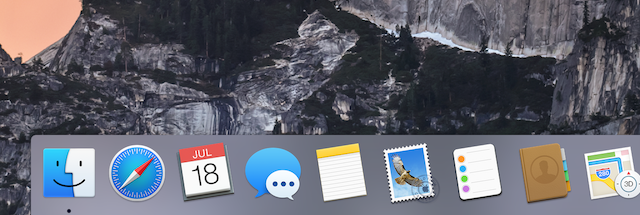
Yosemite’s Dock.
Credit:
Andrew Cunningham
Way back in Tiger (version 10.4, released in 2005) the Dock was a flat, translucent, rectangular surface at the bottom of the screen that completely enclosed your application icons. In Leopard, it became an angled glass “shelf” that reflected your icons and application windows sitting near the bottom of the screen. This effect was gradually toned down over the next four releases, but Mavericks still uses what is fundamentally the Leopard Dock.
John Siracusa’s rant about that version of the Dock is a beautiful bit of hate-poetry that minces no words and pulls no punches: it’s a “cornucopia of Obviously Bad Ideas” and “an example of sacrificing usability for the sake of purely aesthetic changes.” People who agree with him will be glad to know that the Dock has changed back into a translucent rectangle that strongly evokes its 10.4-era incarnation.
Functionally, the Dock doesn’t change much. Docked apps and folders and minimized windows all work like they did in Mavericks. The biggest change for longtime OS X users is the banishment of the angled glass; people who have come to the Mac since Leopard probably won’t have a strong reaction to it.
Notification Center
The new Notification Center has the Today View and widgets, which will also be part of iOS 8.
Credit:
Andrew Cunningham
The new Notification Center has the Today View and widgets, which will also be part of iOS 8.
Credit:
Andrew Cunningham
I’ve never liked the Notification Center in Mountain Lion or Mavericks. I don’t mind getting the notifications, which themselves were tremendously useful, but I always just switch to the app they came from rather than interacting with the tiny notification bubble all the way up in the corner there. Thus, my Notification Center is just a notification graveyard full of old Limechat pings and update alerts.
Yosemite’s (now translucent) Notification Center picks up a bunch of features from iOS 7, transforming it from a pile of old messages that exist only to be dismissed into something that’s actually helpful. In fact, your notifications aren’t even the first things you see when you bring it up—now you see the Today View from iOS 7, along with widgets for your calendar appointments, the weather, and a summary of what you’re doing today and tomorrow.
The Today View is customizable with built-in and third-party widgets.
Andrew Cunningham
The Today View is customizable with built-in and third-party widgets.
Andrew Cunningham
Clicking on widgets can open their corresponding app or display more data, as with the Weather widget here.
Andrew Cunningham
Clicking on widgets can open their corresponding app or display more data, as with the Weather widget here.
Andrew Cunningham
This menu lets you reorganize, enable, and disable widgets.
Andrew Cunningham
This menu lets you reorganize, enable, and disable widgets.
Andrew Cunningham
Clicking on widgets can open their corresponding app or display more data, as with the Weather widget here.
Andrew Cunningham
This menu lets you reorganize, enable, and disable widgets.
Andrew Cunningham
The Today View can be customized with widgets, either the ones that come with the OS or others developed by third parties. Widgets are a type of Extension that deliver quick at-a-glance (and often interactive) information that you can usually click to open the widget’s corresponding app or Web page. These widgets are coming to iOS 8 as well, and on both platforms you’ll be able to customize the Today View to show you whatever information you want it to. While Apple’s rules say widgets on iOS 8 must come bundled with a corresponding functional app, OS X developers can create standalone widgets. Distribution through the Mac App Store is recommended by Apple but not required.
Apple told us that Notification Center widgets are intended to replace the little-used Dashboard feature introduced back in Tiger. Dashboard is still included with Yosemite, and it looks and works as it does in Mavericks, but it’s disabled by default and must be turned back on by launching the Dashboard app from Applications or re-enabling it in the System Preferences.
If you like the old Notification Center more than I do, it now exists as a separate tab. It’s a translucent, Helvetica Neue-ified version of the one in Mountain Lion and Mavericks.
Spotlight
The new Spotlight.
Credit:
Andrew Cunningham
The new Spotlight.
Credit:
Andrew Cunningham
You still bring up Spotlight in Yosemite the same way you brought it up when it was introduced back in Tiger (an OS X version that’s coming up a lot here, a reminder of how long it’s been since Apple really assessed the way some of these things look and work): you can click the little magnifying glass icon in the menu bar or use the command-space key combo. The menu that popped up in the top-right corner of the screen is gone, though, replaced by a large text field that pops up in the middle of the screen, laid over top of all your other windows.
The move gives Spotlight more room to breathe, which is necessary to accommodate all its new capabilities. Spotlight is still primarily responsible for helping you find applications, files, contacts, and other content local to your computer, but Apple has added the ability to pull data from the Internet to make Spotlight more usable and context-sensitive.
For example, searching for a movie in Spotlight can pull up the iTunes Store entry for that movie, as well as showtimes, trailers, and the movie’s Rotten Tomatoes rating. Looking for an address will pull up a preview from Apple Maps. General queries might get you a Wikipedia entry or a “suggested website.” It’s a bit like what Siri can do with data from third-party sources, though it’s not programmed to respond to human-language queries like “what time is Planet of the Apes showing” or “what was the score of the Yankees-Red Sox game today.” Those concerned about privacy can shut these features off in the preference pane for Spotlight.
The new Spotlight search can pull data from multiple Internet sources to give you context-sensitive information. Here’s what it can do for movies.
Andrew Cunningham
The new Spotlight search can pull data from multiple Internet sources to give you context-sensitive information. Here’s what it can do for movies.
Andrew Cunningham
Looking up a location in Maps. Click the preview to jump into the full app.
Andrew Cunningham
Looking up a location in Maps. Click the preview to jump into the full app.
Andrew Cunningham
The new Spotlight search can pull data from multiple Internet sources to give you context-sensitive information. Here’s what it can do for movies.
Andrew Cunningham
Looking up a location in Maps. Click the preview to jump into the full app.
Andrew Cunningham
For local files, you get the same information you’d get if you pressed the spacebar to open the quick look window.
Andrew Cunningham
For local files, you get the same information you’d get if you pressed the spacebar to open the quick look window.
Andrew Cunningham
Definitions, unit conversions, and other things can just be displayed in the window.
Andrew Cunningham
Definitions, unit conversions, and other things can just be displayed in the window.
Andrew Cunningham
For local files, you get the same information you’d get if you pressed the spacebar to open the quick look window.
Andrew Cunningham
Definitions, unit conversions, and other things can just be displayed in the window.
Andrew Cunningham
The same space used to display all of this extra information is also used to offer in-line previews of local content, the same sort of information you get by pressing the spacebar to get a quick preview of a given file. You can preview documents and images, see the dictionary definitions for words, do basic unit conversions, and more without ever leaving the Spotlight window.
If I had to come up with a criticism of the feature, I’d say that it makes me feel a bit like the Windows 8 Start screen does. I can pull it up the same way and it does all of the same things, and it does some of those things even better than it did before. But the fact that it appears in a different place and looks so drastically different takes some getting used to and might be confusing or off-putting to people used to the old behavior. Mostly, though, people who use Spotlight will appreciate the new stuff it can do.
Apple has paid plenty of attention to Yosemite’s UI, but the bundled applications get some feature updates and redesigns, too. We’ll run through the biggest ones quickly, saving in-depth discussion of the new apps for our full review. If an app has just changed visually, we probably won’t spend time on it here, but we will have a collection of different Mavericks-to-Yosemite comparison shots running later today.
Safari
In Yosemite, Safari’s “new tab” page takes several cues from the iPad.
Andrew Cunningham
In Yosemite, Safari’s “new tab” page takes several cues from the iPad.
Andrew Cunningham
The old tab, which showed more information about recently visited pages but could fit less on the screen at once.
Andrew Cunningham
The old tab, which showed more information about recently visited pages but could fit less on the screen at once.
Andrew Cunningham
The address bar picks up some Spotlight-esque search functionality.
Andrew Cunningham
The address bar picks up some Spotlight-esque search functionality.
Andrew Cunningham
The old tab, which showed more information about recently visited pages but could fit less on the screen at once.
Andrew Cunningham
The address bar picks up some Spotlight-esque search functionality.
Andrew Cunningham
This Mission Control-style tab switcher makes it easier to condense dozens of tabs onto one relatively manageable page.
Andrew Cunningham
The old Mavericks tab switcher could view many, many fewer tabs at once, though your view was more detailed.
Andrew Cunningham
Safari has gotten a substantial overhaul to bring it more in line with the iOS version of the browser, at least visually. Favorites and frequently visited sites are presented in tiles on the default tab, while bookmarks and Reading List picks are lined up on the left-hand side of the screen alongside “shared links,” the same arrangement as in iOS. The UI at the top of the window has been compressed vertically to save screen space, though Apple points out that it still fits all the same buttons in that window (other apps like Maps have been similarly compressed—Apple says it’s trying to save vertical space on small-screened systems like the 11- and 13-inch MacBook Airs).
Type the name of a movie, book, or other popular item into the address bar and you’ll get some of the same contextual information that comes up when you search in Spotlight. Finally, the tab switcher has gotten much more efficient in Yosemite—where Mavericks will show you individual previews of tabs in a UI. Not unlike the iOS multitasking switcher, Yosemite shows you all of your tabs in a grid, grouping tabs from the same domain together to help with visibility. It’s Mission Control for browser tabs. From this page, you can also close tabs on other iCloud-connected devices, including iPhones, iPads, and other Macs.
Finally, Safari’s Private Browsing mode gets more flexible in the move to Yosemite, just as it did in the transition from iOS 6 to iOS 7. Private Browsing was previously an all-or-nothing affair; you either had it enabled for every window and tab in the entire browser, or not at all. In Yosemite individual windows can be opened in Private Browsing mode, and each new private tab you open is sandboxed from all the others. The address bar changes to light text on a dark gray background to denote a window that’s in Private Browsing mode.
Mail and Calendar
Mail in Yosemite looks very much like Mail in Mavericks, aside from being able to display multiple names on an e-mail thread.
Andrew Cunningham
Mail in Yosemite looks very much like Mail in Mavericks, aside from being able to display multiple names on an e-mail thread.
Andrew Cunningham
For comparison, the same Mail window in Mavericks.
Andrew Cunningham
For comparison, the same Mail window in Mavericks.
Andrew Cunningham
Mail in Yosemite looks very much like Mail in Mavericks, aside from being able to display multiple names on an e-mail thread.
Andrew Cunningham
For comparison, the same Mail window in Mavericks.
Andrew Cunningham
The biggest changes in Mail aren’t actually in the app itself, but in separate features that interact with the app. One is Mail Drop, a feature available to iCloud users that sends large attachments of up to 5GB in size indirectly, using iCloud, rather than directly through the mail servers you’re using. This was announced at WWDC, but we can’t test it yet; if it works as advertised it should help work around e-mail servers with tiny file attachment size limits, saving space in your mailbox in the process.
Also new is Markup, the feature Apple demonstrated at WWDC that lets you make simple edits to image attachments from within the Mail app. Technically this isn’t a Mail feature, though—it’s a demo for Extensions, the new bits of software in Yosemite and iOS 8 that allow third-parties access to Apple’s built-in apps and features. Simple arrows and cartoon speech bubbles on pictures attached to e-mail messages make for a cute demo, but third parties who get behind the feature should be able to make more versatile, powerful plugins.
Changes to the core features of the Mail app itself are few and far between, aside from the translucent new coat of paint. There is a small-but-useful change to the way threaded conversations are shown, though—now threads will show the first name and initial of multiple participants, instead of just the most recent sender. So that’s nice.
The old daily calendar view in Mavericks. Agenda view on the left, today’s activities on the right.
Andrew Cunningham
The old daily calendar view in Mavericks. Agenda view on the left, today’s activities on the right.
Andrew Cunningham
The new daily view in Yosemite. Today’s tasks on the left, details about the selected task on the right.
Andrew Cunningham
The new daily view in Yosemite. Today’s tasks on the left, details about the selected task on the right.
Andrew Cunningham
The old daily calendar view in Mavericks. Agenda view on the left, today’s activities on the right.
Andrew Cunningham
The new daily view in Yosemite. Today’s tasks on the left, details about the selected task on the right.
Andrew Cunningham
The Calendar app retains roughly the same weekly, monthly, and yearly layouts, but Yosemite gives it an improved daily view that actually shows you the details of your meetings on the right-hand side of the window instead of making you click each individual event, though it appears to come at the expense of the multi-day “Agenda” view you see in the Mavericks Calendar app. I prefer Yosemite’s view, but it’s too bad you can’t get both.
Messages
Lee, could you just leave me alone for a few seconds??
Credit:
Andrew Cunningham
Lee, could you just leave me alone for a few seconds??
Credit:
Andrew Cunningham
The Messages app picks up new iOS 7-style speech bubbles that trade Mavericks’ glassy textures and solid backgrounds for bright, matte colors and translucency. The app will allow you to mute notifications from certain busy group messaging threads by enabling per-conversation Do Not Disturb, and you can remove yourself entirely from conversation threads that have moved past needing your input.
Some of Messages’ other features won’t be here until iOS 8 arrives, including the ability to quickly record and send audio snippets to other iMessage users. iPhones will also be able to pass SMS messages to Macs, which Apple told us was accomplished by routing those SMS messages through the iMessage server. As with any other iOS 8-related features, we can only say what Apple has said publicly so far—there’s no public iOS 8 build available for testing right now.
AirDrop
AirDrop in Yosemite will already work with iOS 7 devices.
Credit:
Andrew Cunningham
AirDrop in Yosemite will already work with iOS 7 devices.
Credit:
Andrew Cunningham
Earlier this week, we explained why the versions of AirDrop in Mavericks and iOS 7 were incompatible with one another. In short, the OS X version of AirDrop only uses Wi-Fi to establish an ad hoc wireless connection between two Macs, where iOS devices use a combination of Bluetooth and Wi-Fi features to save energy. Yosemite maintains compatibility with the old Wi-Fi only AirDrop, but adds the Bluetooth-enabled iOS 7 version as well.
As a result, phones running iOS 7 and Macs running Yosemite can freely AirDrop files back and forth, and it works just like we had hoped it would last year. Macs can AirDrop things from the dedicated AirDrop window in the Finder, or via the iOS-style Share menu used in many OS X applications.
Obvious candidates for Mac-to-iOS AirDropping are images, text files, directions for Maps, and other files that iOS can handle relatively easily. That said, there are no restrictions to what you can send to iOS from your Mac. I sent over the OS X Chrome app, for example, and when my iPhone had finished receiving the file it popped up a short list of file management apps on the phone (Dropbox and Google Drive, specifically) that could be used to upload it to another service. Granted, neither app could actually successfully upload the file, but, once iOS 8 rolls around, apps will probably be ready to accommodate this kind of behavior.
The stuff we can’t test: iCloud Drive and Continuity
There are two major Yosemite features announced at WWDC that we can’t evaluate. The first is iCloud Drive, the much-requested exposure of iCloud’s filesystem that will let you open data from one app in another app, even if that other app happens to be running on Windows. Apps are still given individual “sandboxes” on iCloud that they store files in, but instead of being cordoned off from all other apps, those files are just stored in a folder with that app’s icon on it. Converting your iCloud account from the current, closed-off “Documents and Data” sync model and enabling iCloud Drive is a one-way process, so if you intend to enable it you’ll want to make sure every device you want to use is already running Yosemite or iOS 8.
Finally there’s Continuity, which may be the most anticipated new feature of OS X. With no public beta of iOS 8 to try out, we can’t tell you how these features work at this early date. That will have to wait for our full iOS 8 and OS X reviews. In the meantime, we’ve taken an extensive look at how phone calls, Handoff, and other features should work and the technology powering them in the same article that detailed the changes to AirDrop.
Happy beta testing!
There’s going to be a lot more to Yosemite than what we’ve covered here, and many of the differences we’ve pointed out will be subject to change between now and the final release of Yosemite this fall. Some of the things will have changed between this developer build and the slightly later public beta build. In either case, we’ll repeat what we said earlier: this is preview software. There will be problems. Part of the reason Apple is doing this is so that you’ll find problems for its OS team. Using this version of the software to power any machine you actually need for your day-to-day work would be a bad idea.
To those of you with testing hardware to sacrifice, or those who simply choose not to follow our advice, the software goes live on Apple’s site Thursday. We’ll see you for the review in a few months—until then, good luck.
Andrew is a Senior Technology Reporter at Ars Technica, with a focus on consumer tech including computer hardware and in-depth reviews of operating systems like Windows and macOS. Andrew lives in Philadelphia and co-hosts a weekly book podcast called Overdue.









 Loading comments...