Introduction
Manufacturer: Linksys
'Net price: ~$150
Rating: 8
After reading Ator's excellent home-networking installation guide, I started to realize how dysfunctional my home network was. Up to this point, I was relying on a dual-NIC configured Win2K box running the (very good) Wingate connection-sharing software. I had one NIC going out to the Internet (via my 1Mbps DSL modem), and the other NIC going directly to a Win98-based laptop, which ran the Wingate client.
Recently, I've added a Linux/WinCE box and an Amiga 3000 system, both configured with Ethernet connectivity. I wanted to be able to have a LAN running between all four machines, and adding additional NIC cards to my Win2K box was now out of the question. Additionally, I wanted these machines to be able to share my Internet connection. Obviously, I needed a router and a hub. Luckily, Linksys provides both a router and hub combination in one device, along with NAT/DHCP/firewall functionality.
After considering the Netgear RT311 Internet Access Gateway Router (I hadn't discovered the Netgear RT314), and the D-Link DI-701 Gateway/Firewall, I settled on the Linksys model reviewed here. Why?
Overview of Features
The Linksys BEFSR41 has the following feature-set:
- NAT functionality, allowing multiple IP-addresses on the private LAN to
access the Internet over a single connection. - Built-in firewall via port-inspection/blocking.
- 10Mbps connection speed to the Internet (IEEE 802.3 10BaseT).
- Built-in 10/100Mbps four-port switch (IEEE 802.3 10BaseT, 802.3u
100BaseTX). Devices on the LAN which are
equipped with 100Mbps NICs can communicate with each-other at maximum speed,
while Internet communications occur at a maximum of 10Mbps. - DHCP client functionality built-in, for configurations where the Internet
connection's IP-address is dynamically assigned. - DHCP server functionality built-in, with up to 253 DHCP-assigned
IP-addresses. - PPPoE support (not tested).
- Up-link port for secondary switches/hubs (like the $30 Linksys EtherFast
5-port Switch), or connection to the cool (but overpriced) Linksys EFG20
20GB Network Attached Storage (NAS) device with built-in print-server
functionality. - Supports a De-Militarized Zone (DMZ) for a single LAN-based computer.
- Blocking of specific LAN-based computers from Internet access (great for
when Junior has misbehaved).
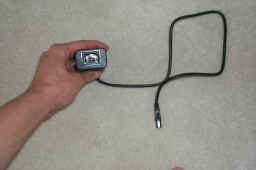 The power-cable is almost perfect, since it doesn't terminate in a wall-wart the size of a brick. Instead, it consists of a small power-adapter that connects to the Linksys, and a standard 3-prong male-to-female power-cable that mates the power-adapter to the wall-socket.
 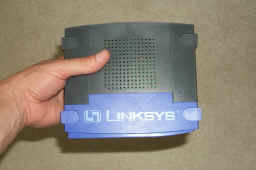 The Linksys itself is fairly compact, although I believe it could have been smaller. Because of Linksys' stackable format for many of their devices, they're forced into following that form-factor. You can see from the picture on the left that the unit is relatively small, and it's light–it weighs about 12 shots of tequila (12 ounces). Those indentations on the top of the device support the feet of other stackable Linksys devices.
 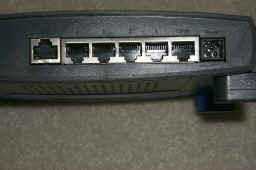 About the only devices you'll be able to stack nicely with the BEFSR41 are the simple 5-port hub, 5-port switch, or the integrated 4-port switch and 2-port print-server device.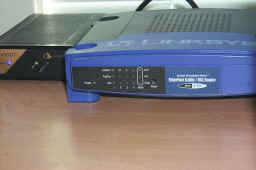


 I have to subtract a bit for the manual’s layout, owing to the fact that I believe this product should be aimed at the newbie a bit better. Also getting a demerit, two in fact, is the firmware upgrade utility, one for toasting my existing settings, and another for not working in Java mode. Finally, I have to deduct some love on account of the fact that port-mapping/filtering only work in static-mode.