Skip to content
Tech

Ars reviews the iPad 2: big performance gains in a slimmer package

The iPad 2 is an iteration on the original iPad in order to optimize the user …

Jacqui Cheng | 218
Story text

Apple’s original iPad has taken off to levels none of us anticipated when it was launched one year ago. Though it has very recently gotten some competition in the tablet space, the iPad still dominates the market and mindshare of new tablet buyers. After having sold 15 million units in nine months last year, Apple has now refined its design with the introduction of the iPad 2.

What, exactly, is new about the iPad 2 that differentiates it from the previous model? That’s what we’re here to tell you. We reviewed the 16GB WiFi-only iPad—same as the model we used for our original iPad review last year—and for aesthetic purposes, we chose black over white. (What can we say? We like a good visual screen pop.) So, on with the show.

Physical differences

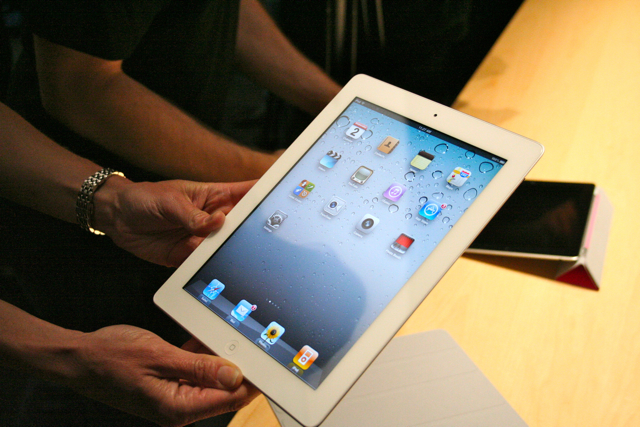
The iPad 2, like its predecessor, has a 9.7″ backlit multitouch display with a resolution of 1024 x 768 at 132 pixels per inch. There were earlier rumors that suggested the iPad 2 might get a higher-resolution, “retina” class display, but that got shot down numerous times before the iPad 2’s launch. In the end, we ended up with the same resolution after all, which was not unexpected, but a little disappointing to some who had hoped for at least some kind of bridge between the old display and the iPhone 4’s incredibly sharp graphics. It’s more likely that Apple will increase the iPad’s display resolution as part of the next major revision, which some believe will come later in 2011 (though a more conservative bet would be spring of 2012).
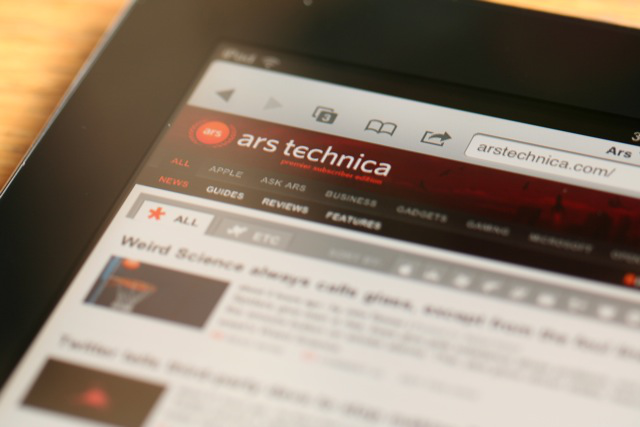
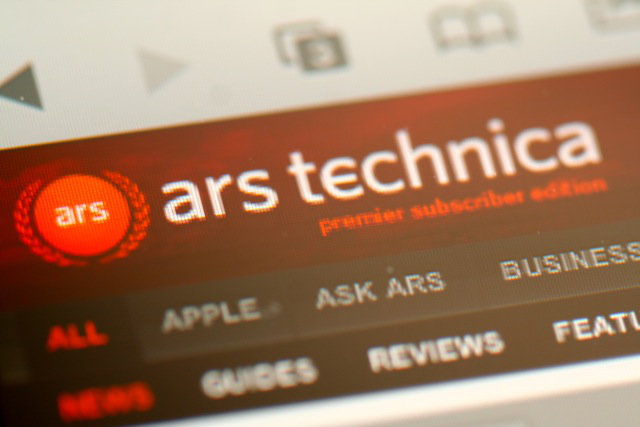
From afar, the display’s resolution is fine, but it’s no “retina” display
No “retina” display for iPad 2 users

So, the display is largely the same as before. However, the glass protecting the display is 0.23mm thinner than the previous model, as discovered by iFixit as part of the iPad’s traditional post-launch teardown. This is part of what contributes to the iPad 2’s slight weight loss—down to 1.33 pounds from 1.5 pounds—but could also lead to easier breakage and damage to the LCD underneath. There have been some reports of “backlight bleeding” near the edges of the screen when watching dark video, but we didn’t experience this problem on our iPad 2.
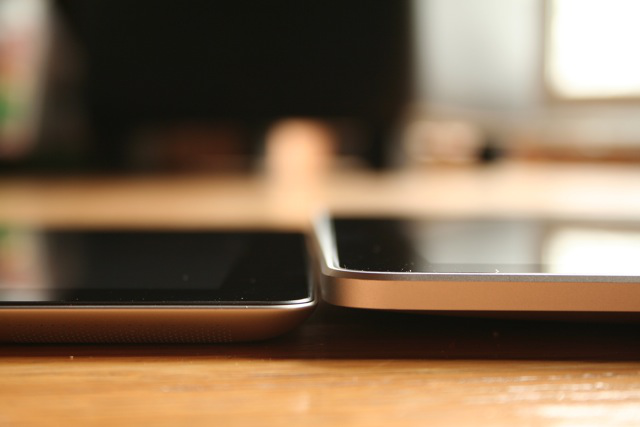
Speaking of weight, Apple touts the slight weight change as one of the iPad 2’s benefits. We wouldn’t describe it as imperceptible, but to us, it’s not enough to write home about on its own. If anything, the weight difference plays into the iPad’s redesigned casing, which is quite a bit thinner and smoother than the previous model (down to just 0.34″ in thickness with edges that taper even thinner, compared to 0.5″ of the original iPad).

iPad 2 on the left, original iPad on the right

Because of this, the iPad 2 feels much different and easier in the hand than the original—one Ars staffer described it as “Kindle-like”—making it also seem lighter. Still, it’s not so light that it’s comfortable to hold with one hand for extended periods of time. Just 1.33 pounds isn’t normally a lot for one hand to handle, but the nature of the touchscreen means that you usually have to keep your thumbs off the screen and close to the edge when holding it, which makes the weight more noticeable.

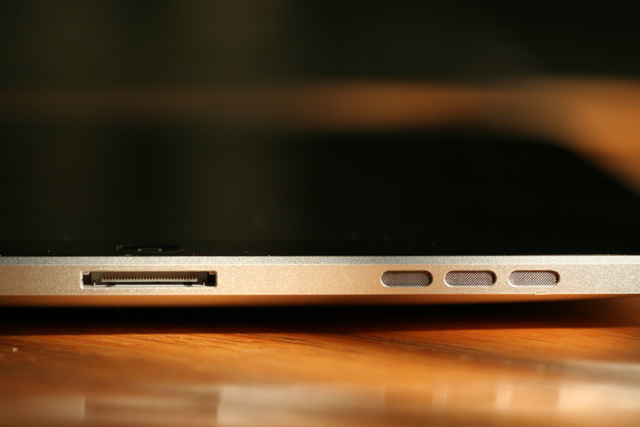
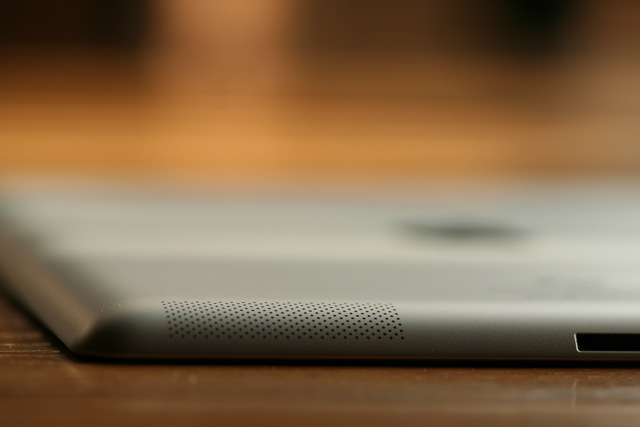
The iPad 2 also now has a completely flat back, which is a bigger deal than it seems and a much appreciated change. Many original iPad users have expressed frustration at the device’s ever-so-slightly rounded back casing, making it difficult to lay flat on a surface, but that problem is now (thankfully) in the past. And, as we mentioned during our initial hands-on with the iPad 2, the ports, buttons, and speaker are all now on the sloped part of the back metal casing, making them nearly invisible when looking at the device straight-on.

The iPad 2’s speaker, 30-pin connector, and all other switches are on the sloped part of the back casing
The original iPad’s speaker and 30-pin connector were on the bottom

This design element doesn’t affect audio coming out of the speaker grill much—even with Apple’s smart cover flipped around to the back, which we’ll get to later—but it does seem to make plugging things in slightly more difficult. The 30-pin connector isn’t quite as easy to slide in as it once was, and the audio jack on the top is a bit more awkward. These aren’t deal breakers, but they might be points of annoyance for perfectionists.

The white iPad: it lives, unlike the white iPhone 4

Oh, and how could we let a section about the physical differences slip by without mentioning the addition of a white model? Apple now offers each version of the iPad 2 in both black and white, which only applies to the front bezel and doesn’t affect the color of the metal backing. As we mentioned earlier, we chose black, but the color is really a personal preference. We think the images on the display look better with the shiny black border versus a white one, so if you’re looking for our advice on that front, we’re sticking to black. But if you have a dire need to own white Apple devices, the white option at least looks nicer in person than it does in photos (in our opinion, anyway).

Cameras

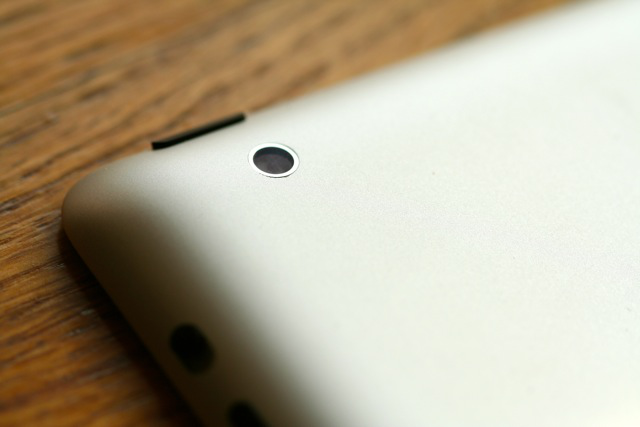
The iPad 2’s rear-facing camera

One of the other major differences between the iPad 2 and the original is the presence of not one, but two cameras. Situated in the top left-hand corner of the back casing, the iPad 2’s rear-facing camera can record 720p video at 30 frames per second, but only manages still images of 720×960 pixels—roughly 0.69 megapixels.

That makes it exactly on par with the fourth-generation iPod touch’s built-in camera (in fact, it may be the same camera), which Ars contributor and camera expert Chris Foresman described as “better than nothing.” He added that these specs are “easily outclassed by any no-name budget blister pack digital camera available at your local Target or Best Buy,” so if you were hoping for something akin to the iPhone 4’s camera, you will be disappointed.

When playing with the iPad 2’s camera, we confirmed that the photos were mostly okay for sending goofy pics to your friends or posting to Facebook, but the level of detail isn’t anything to write home about, and we certainly wouldn’t use it for any “real” photography.

(Click the images below for full-size versions, where you’ll be able to really see the difference in detail.)

The iPad 2’s rear-facing camera takes “OK” photos for posting to Twitter or Facebook, but we wouldn’t use it for anything more serious

A photo from the iPhone 4’s rear-facing camera, for comparison’s sake (no HDR was applied)

Of course, we hardly expect to be using the iPad 2 to take serious photographs. No one is going to whip out an iPad 2 to take the family Christmas photo, or to make a submission to National Geographic. However, we have found over the last year that nearly all “normals” immediately ask about a camera once they are presented with an iPad, so this is clearly something that people seem to want out of a tablet. Apple cheaped out here, which is a bit of a disappointment for some users who were hoping for something better.

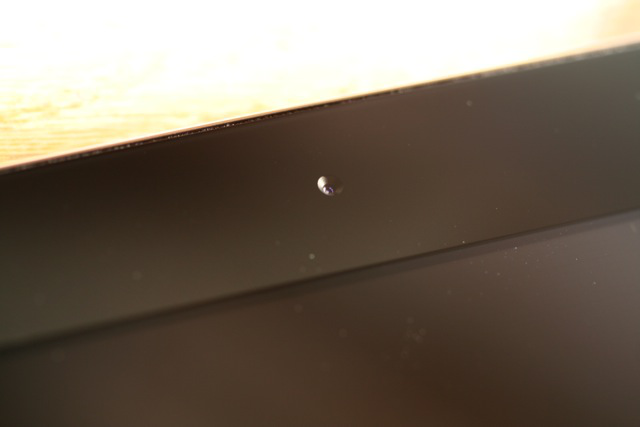
The iPad 2’s front-facing camera

The iPad 2’s front-facing camera is located at the top of the front bezel and records stills and video at VGA resolution (640×480), just like the front-facing camera on the iPhone 4. The reason for the especially low-quality camera on the front is because it’s not really meant for taking photos—instead, it’s meant largely to be used with FaceTime, Apple’s video chatting standard that it introduced in 2010 along with the iPhone 4.

The iPad 2’s front-facing camera takes the least detailed photos of all; best to save it for video chatting.

Still, despite the fact that the quality is the same as we’re used to from the iPhone’s front-facing camera, the results of the iPad 2’s front-facing camera just look so much worse because the images are being viewed on a significantly larger display. We won’t lie, it’s not a pretty sight to look at a still image from the front camera on the iPad 2 itself, so we recommend sticking to FaceTime or Photo Booth.

What’s different inside, and how does it affect performance?

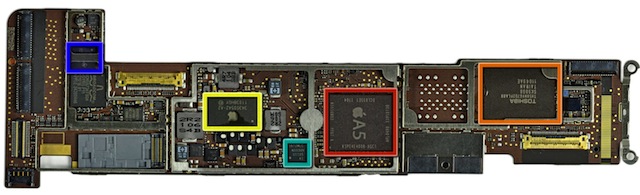
Outside of design tweaks and the new camera hardware, the biggest changes in the iPad 2 are under the hood. The iPad 2 is the first Apple device to sport the company’s brand new A5 SoC or System on a Chip. This one chip contains the CPU (a dual-core ARM A9 processor in a power-saving configuration), the GPU (a PowerVR SGX 543 MP2), and 512 MB of DDR system memory

The Apple A5

The iPad mainboard. Red – A5 SoC, Orange – Samsung 16GB NAND Flash, Yellow – Apple power management chip, Blue – touchscreen driver, Cyan – Yet another power management IC Credit: iFixit

The biggest change in the new iPad is the upgrade from Apple’s first custom SoC, dubbed the A4, to the new, dual-core A5 chip. The A5 chip is based on ARM’s multicore A9 processor. This 6.7 mmprocessor can be clocked at up to 2GHz with a TDP of about 2W. In contrast, Apple has opted to implement the power-sensitive configuration. The typical clock frequency of this configuration is 800 MHz (the A5 is clocked at 900 MHz). The A5 has an area of 4.6 mm2, and a TDP of 0.5W.

iPad 1

  • A4, ARM A8 Cortex-based SoC
  • One 989 MHz core
  • 32 KB of both L1 data/instruction cache
  • 512 KB of L2 cache
  • 256 MB of system RAM

iPad 2

  • A5, ARM A9 Cortex-based SoC
  • Two 900 MHz cores
  • 32KB of both L1 data/instruction cache
  • 1024 KB of L2 Cache
  • 512 MB of system RAM

Apple claims a CPU performance increase of 2 times, or a percentage increase of 100% over the previous generation iPad, and indeed we saw nearly exactly that level of improvement in our benchmarks. It’s difficult to compare the performance of other modern tablets like the Xoom, which uses NVIDIA’s Tegra 2 SoC, due to the lack of benchmarking tools that run the exact same tests on both Android and iOS.

We are able to easily compare floating-point performance between the platforms using the LINPACK benchmark to solve an N by N system of linear equations. It’s not as great as a consistent integer benchmark like SPECint or Dhrystone, but it’s the best cross-platform CPU benchmark we have right now (outside of JavaScript benchmarks, which we’ve also tested).

The other big changes here are the doubling of system memory to 512MB and a healthy bump in memory bandwidth. These boosts are probably a key ingredient in keeping the speedier GPU fed with data. Finally, the L2 cache has been doubled to 1024 KB, which should allow the system to cache even more data nearer to the cores. If you’d like to learn a bit more about the differences of L1, L2, and L3 caches and how they impact processing performance, check out our primer on CPU caches.

Learn more about the design decisions that Apple and PA Semi made on the A4. For even more reading:

Graphics Performance

The iPad 2 delivers an enormous jump in graphics performance. Apple has paired its A9 processor with a PowerVR SGX 543MP2 GPU which handily dominates both the old iPad and its competitors in OpenGL benchmarks. Apple claims a 9x improvement in GPU performance, and the A5 delivers. The reasons for this are explained nicely by Anand Lal Shimpi at AnandTech:

Architecturally the 543MP2 has more than twice the compute horsepower of the SGX 535 used in Apple’s A4. Each shader pipeline can execute twice the number of instructions per clock as the SGX 535, and then there are four times as many pipes in an SGX 543MP2 as there are in a 535. There are also efficiency improvements as well. Hidden surface removal works at twice the rate in the 543MP2 as it did in the 535. There’s also a big boost in texture filtering performance…

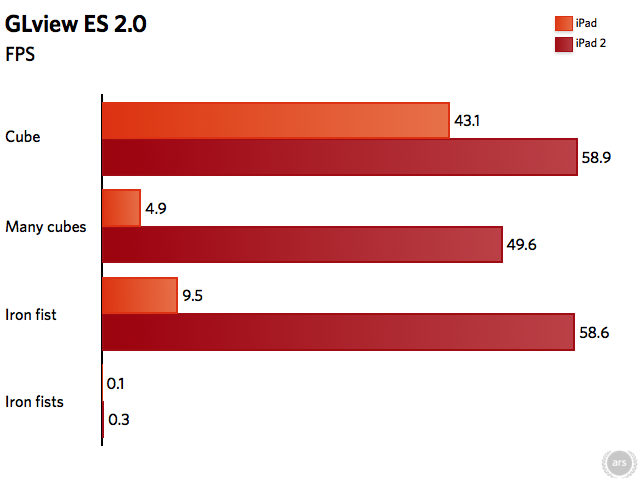
We benchmarked the old and new iPad using the widely available OpenGL ES Extensions Viewer application and indeed saw, in some cases, a 900% difference in rendered frames per second. Anand was able to do a number of more extensive graphics benchmarks using a non-public build of GLBenchmark 2.0. The full review of the iPad 2’s graphics power is explained in the AnandTech link above, but it’s clear that Apple has made a big move to make the iPad 2 and future A5-based devices gaming powerhouses.

iPad vs. iPad Benchmarks

In order to get a good idea of how the performance characteristics of the iPad have changed with these revisions, we ran a battery of tests. We’re mostly limited by applications which are publicly available via Apple’s app store. On the cross-platform front, there’s little available for useful benchmarks. One area where there’s a consistent test is LINPACK, which tests floating point speed. This leaves us Web benchmarks, which give us a reasonably decent estimate of performance but are affected by the performance characteristics of the JavaScript engine shipped with the OS/Browser.

GeekBench

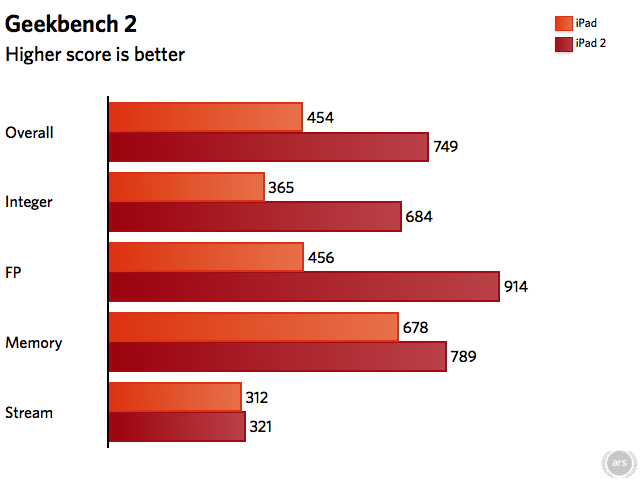
GeekBench performs a number of tests which include integer, floating point, memory, and stream benchmarks. GeekBench has more information on the set of tests run on their site. The most recent build of Geekbench runs many of these tests in both single- and multi-threaded versions, which makes it easy to compare the core-to-core performance between iPad generations.

When we compared the single threaded tests between generations we saw a 13% improvement on integer tests and a 31% increase on floating point tests. Below is a chart of the composite scores that GeekBench generates for each test category. This chart shows the multi-threaded iPad 2 results versus the single-threads iPad 1 results.

The memory score on the new iPad has improved 16%, which is likely due to a memory subsystem update, possibly in memory technology and almost certainly a bump in the memory clock speed.

OpenGL ES Benchmark

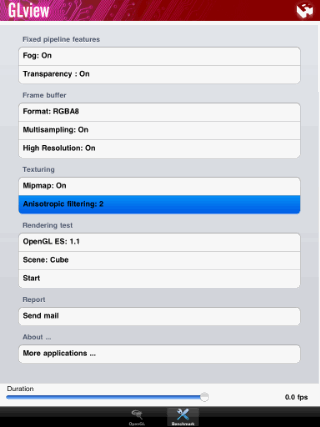
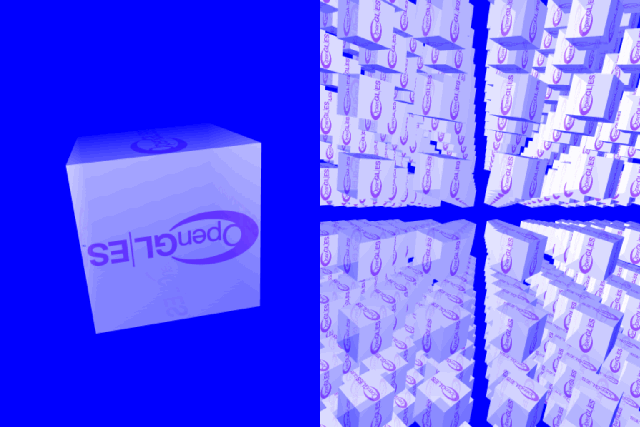
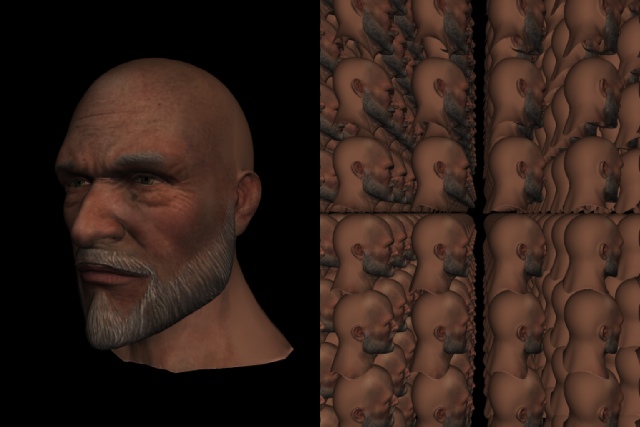
The OpenGL Benchmark was performed on each iPad within the OpenGL ES Extensions Viewer application. This application has four different, simple 3D benchmarks. The first is a single cube rotating in many dimensions simultaneously, the second is a large 3D matrix of spinning cubes, the third is the bust of a 3D character rotating in one dimension, and finally there is a 3D matrix of many instances of this bust rotating in a single dimension. The test has a number of options, which we maxed out:

The settings used for the OpenGL ES test. Click image for a larger version.

The first two OpenGL benchmarks

The final two OpenGL benchmarks

If you’re interested in a finer-grained analysis of the A5’s graphics performance, we suggest tearing through this article on AnandTech. Anand has used a OpenGL benchmarking tool that isn’t publicly available to get a much finer view of the graphics improvements on the Apple A5.

Infinity Blade

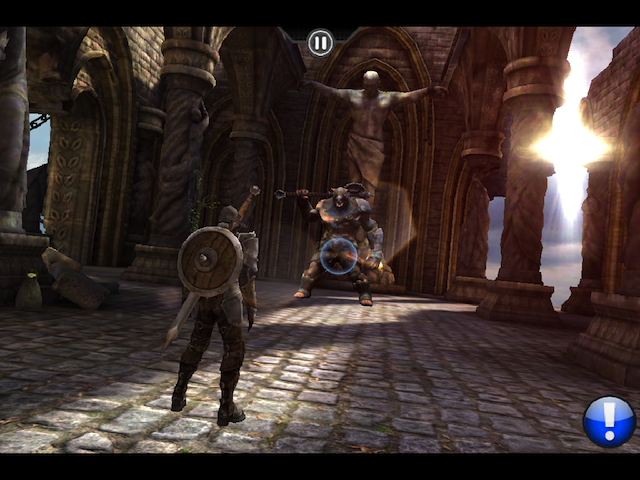
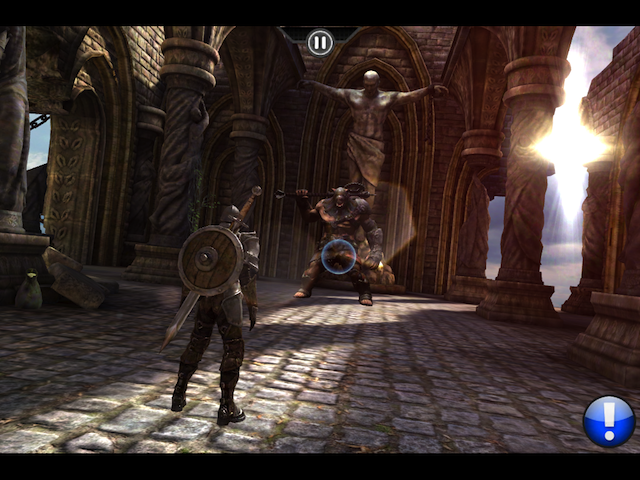
ChAIR Entertainment, developer of the extremely popular and graphically impressive Infinity Blade game for iOS, has released an update (1.2.1) to the game that takes advantage of the new iPad’s graphics processor. This is just tip-of-the-iceberg stuff, but ChAIR was able to increase the resolution of the textures used in the game while preserving performance. This really improves the look of the game, as you can see in the screenshots below from TouchArcade (click through for even more screenshots):

Infinity Blade on the original iPad. Click for a larger version. Credit: TouchArcade
Infinity Blade on the iPad 2. Click for a larger version. Credit: TouchArcade

Developers have already found ways to produce graphically impressive and fluid games on the iPad and iPhone 4, and have begun rolling out impressive updates for the iPad 2 with little trouble. With such an impressive jump in CPU and GPU power, not to mention double the RAM, we’re looking forward to an even better gaming experience on the iPad 2 and future iOS devices.

iPad vs. Other Tablets

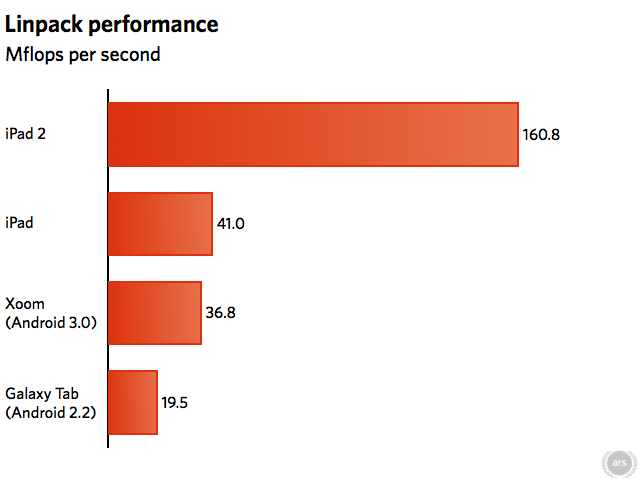
As we mentioned above, there are nearly no cross-platform benchmarking tools to let us objectively compare the performance characteristics of tablets running on different platforms. LINPACK is one area where both iOS and Android have comparable tools, and of course we’ve run the new iPad through the SunSpider JavaScript benchmarking tool as well.

LINPACK

As we saw in the previous benchmarks, the iPad 2 has a significant increase in floating point performance vs. its predecessor. This was really pounded home by the LINPACK tests which showed the iPad 2 besting its predecessor with a 292% (~3x) improvement. We ran this rest on the Motorola Xoom running Android 3.0 and the Samsung Galaxy Tab running 2.2. The iPad 2 shows a surprising 336% improvement over the Motorola Xoom on its NIVIDIA Tegra 2 platform and a 724% increase over the Samsung Galaxy Tab’s 1GHz “Hummingbird ARM” processor.

Credit: Linpack

Most surprising was that the iPad 2 was able to perform so significantly better than the Xoom in raw FP performance. The Xoom runs on the Tegra 2 SoC which is essentially a dual-core Cortex A9 platform like the iPad 2. Like NVIDIA, Apple has put its chip design team to work on improving performance on the lower-power version of the A9 configurations. 

The doubling of memory bandwidth in the new iPad contributes to some of its FP advantage vs. the original iPad. But the only factor we can think of that would explain such a boost in LINPACK performance vs. both the original iPad and rival Tegra 2-based devices is that A5 must have full support for ARM’s NEON vector extensions (the ARM equivalent of Intel’s SSE instructions). The NEON extensions, along with the larger vector FPU (VFPU) to support them, are included by default in the A8 family, but are optional in the A9. NVIDIA’s Tegra 2 opted for the smaller, lower-power, but weaker ARM FPU, while Apple seems to have included the beefier NEON VFPU in their implementation of the A9. Clearly this is the way to go, and we can expect other ARM SoC vendors to follow suit.

JavaScript Benchmarks

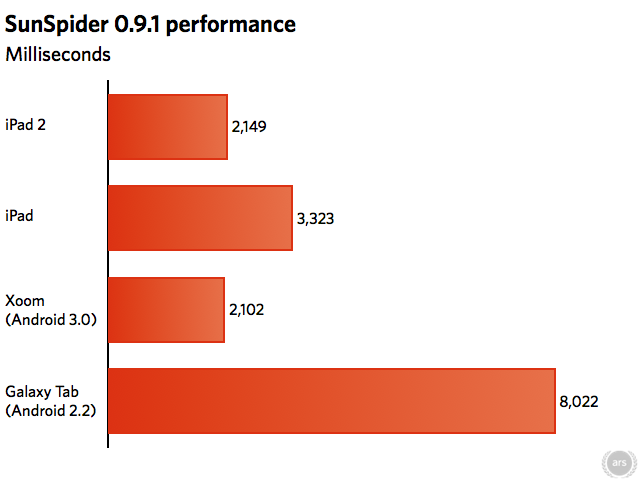
SunSpider is a JavaScript benchmark that shows off both the performance of a device’s JavaScript engine, and (to a lesser extent) the raw processing power of the underlying hardware. A poor JavaScript implementation on an insanely fast device can mask the true performance of the platform. Alternatively, a great JavaScript implementation can make up for a slightly slower system. More and more these days, the major JavaScript implementations are converging and borrowing ideas from each other. JavaScript tests are inherently single-threaded due to the nature of browsers. The SunSpider avoids many micro-benchmarks like we see in applications like GeekBench, and it attempts to benchmark processor-intensive tasks that might actually be found in a real Web application.

We’ve run this test on both the iPad and iPad 2 under iOS 4.3, as well as the Motorola Xoom under Android 3.0 and the Samsung Galaxy Tab under 2.2. The Android devices are both using Google’s V8 JavaScript engine while the iPad and iPad 2 are using Apple’s Nitro JavaScript Engine.

First, the new iPad’s hardware has resulted in a 35% improvement over the previous generation. We see that the Motorola Xoom and the iPad 2 are roughly evenly paired when it comes to this JavaScript benchmark. Despite the iPad 2’s advantage in raw processing power, the Xoom makes up for that with Google’s superior JavaScript engine. Yet the Samsung Galaxy Tab, with its older 1GHz “Hummingbird ARM” processor, can’t keep up and is considerably slower than the competition. As Apple continues to evolve their Nitro engine, however, they should be able to get additional JavaScript performance out of the same hardware.

Battery life

Apple advertises up to 10 hours of battery life while watching video, listening to music, or surfing the Web over WiFi. That’s the same quote that Apple gave for the original iPad, and according to the recent iFixit teardown, the iPad 2’s battery is a 3.8V, 25 watt-hour unit—just a hair higher than the original iPad’s 24.8 watt-hour battery.

We were able to use the iPad 2 with WiFi on, e-mail checking in the background, and about 50 percent brightness nonstop for just about 12 hours (more like 11 hours and 58 minutes, for nitpickers in the crowd). This was with video playing fullscreen for most of the time, with the occasional interruption to surf the Web, read an e-book, or do some benchmarks, and we didn’t let the screen turn off once during this entire period of time. 

Update: At the request of several readers, we performed another video test but with the WiFi off and airplane mode on. With these settings (and still at 50 percent brightness), we were able to get about 13 hours and 20 minutes of battery life. 

As we pointed out last year during our original iPad review, though, it’s rare to be watching video, gaming, or even reading for entire 12-hour blocks of time. So, we also tested the iPad 2 in a bit more “normal” scenario—spend a few hours reading, put it down for a while, check some e-mail, maybe check out a video, put it down to make dinner, make a FaceTime call, etc. Here, we kept the iPad’s brightness at around 50 percent (but sometimes lower for reading, since I have sensitive eyes) and the WiFi remained on here as well.

Using the iPad this way, we feel very confident that the device can last several days without a recharge, and possibly more depending on how you use it. In one instance, we were able to use the iPad 2 this way on and off for an entire Saturday on only 25 percent of the battery’s capacity. And on standby, it can go days and days without the need for a recharge; maybe even weeks. Of course, since this metric is a bit more subjective than a straightforward 12-hour video test, it depends heavily on what you’re doing and for how long, so your own mileage may vary.

For those of you who remember our original iPad review, you’ll notice that our results this time around are an upgrade from what we had previously written—we wrote last year that you’ll likely have to charge it daily and that a whole weekend might be a stretch. Why the difference in opinion now? Because we’ve been using the iPad for a year now and we’re more accustomed to how we “normally” use the device in an everyday situation. For what it’s worth, we get similar battery life on the original iPad these days with what we consider to be “normal” usage.

Smart Cover and HDMI adapter

Apple introduced a number of new accessories to go along with the iPad 2, and the two we were most interested in were the Smart Cover and HDMI adapter.

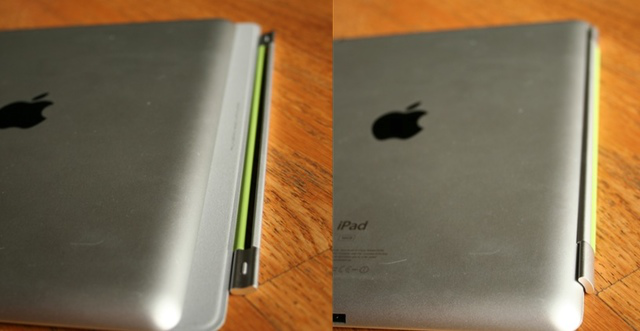
We’ll start with the Smart Cover, which Apple sells for $39 (leather versions are $69). As most of you probably know, Apple replaced the old (and in our opinion, somewhat janky) case that it had introduced with the original iPad with a new cover—don’t call it a case—that magnetically attaches to the iPad 2. When holding the iPad in your hand, the hinge of the Smart Cover is attracted to the left-side back slope and the top folds over the iPad 2’s glass to protect it from scratches.

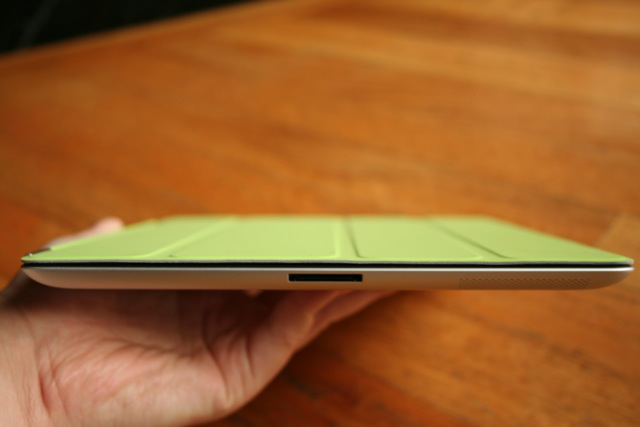
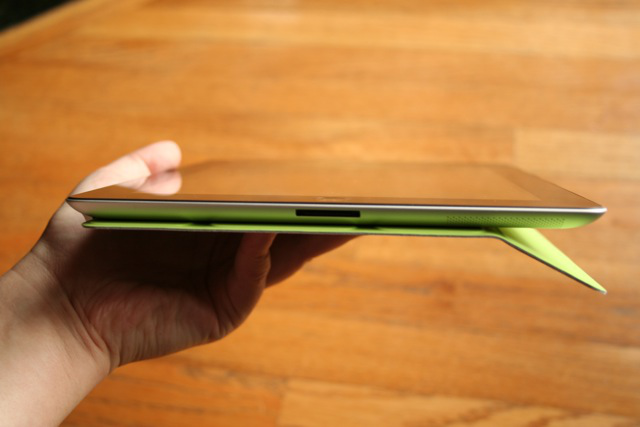
Apple’s Smart Covers add virtually no bulk
Left: Smart Cover hinge not yet attached; right: the hinge attached to the back slope

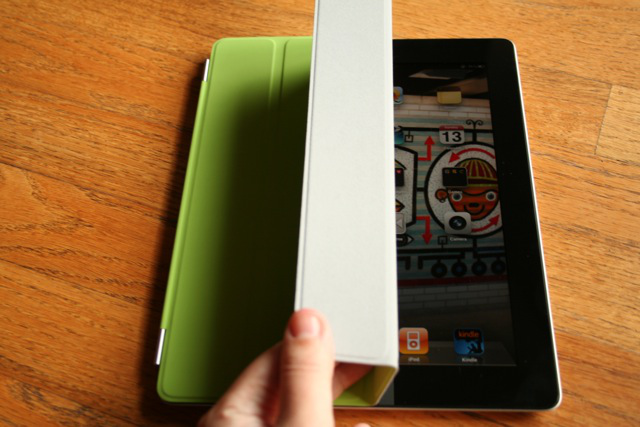
The top of the Smart Cover is also magnetic and attaches itself to the front of the iPad so it doesn’t flop open until you’re ready to use the device. When you lift the cover, the iPad automatically wakes up and turns on the screen, and if you put the cover back down, the device goes back to sleep. This is definitely a neat feature and is a fun element to demonstrate to others.

The iPad’s screen wakes up when you lift the Smart Cover

The hinge on the Smart Cover allows you to flip the cover all the way around to the back of the iPad if you want to hold the whole thing flat. The cover sort of magnetically attaches to the iPad from the back, but we get the feeling this is just a side effect of the magnets really being on the front of the iPad—the cover doesn’t hold particularly well while it’s on the back, and it can sometimes get annoying if it happens to pull away and flop around in your hand.

The smart cover can sometimes flop away when flipped around to the back

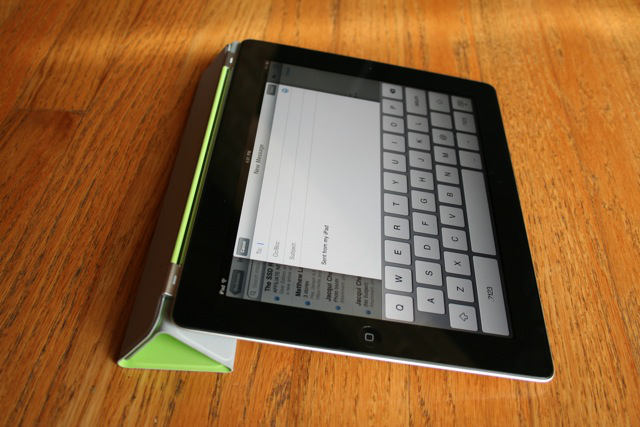
Finally, the Smart Cover itself is foldable with the intent of being used as an angled stand for your iPad. You can either stand the device up for watching a movie or leave it at a low angle for typing:

The cover is so thin that it doesn’t add any bulk to the iPad when it’s attached, and it’s versatile enough to make it an attractive accessory to toss in with your iPad purchase. However, some users don’t like the fact that the Smart Cover doesn’t protect the back of the iPad from scratches when closed, and this is a valid point. I’m not much of a case person myself (I’ve been known to just drop my iPad naked into my bag in the past), so this doesn’t bother me personally, but I agree that the Smart Cover isn’t the best accessory for those who want more than minimal coverage. We’re hoping that Apple will allow third-party case makers to use the iPad’s magnets so that there will be more equally cool options available to those who want something more.

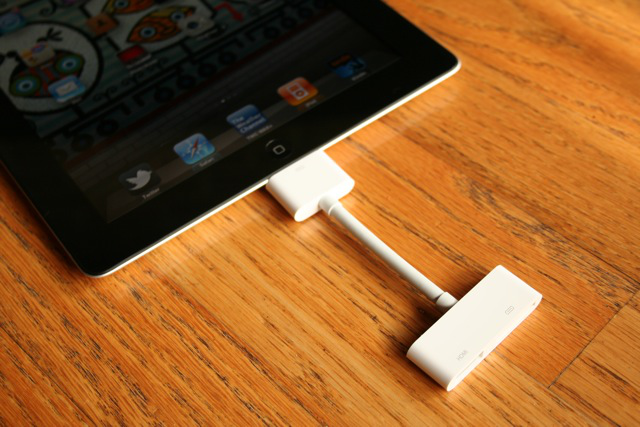
Apple’s new HDMI adapter

The other major accessory that Apple introduced with the iPad 2 is its $39 HDMI adapter that plugs into the tablet’s 30-pin connector. In fact, the HDMI adapter doesn’t just work with the iPad 2—it also works with the original iPad, iPhone 4, and fourth-generation iPod touch—and it allows those users to output HD-quality video to an HDTV. On the iPad 2, the entire display can be mirrored on an HDTV at 1080p (720p for any of the other devices), or an app can output video to an HDTV at 720p. When we tested this feature, it worked exactly as advertised and there were no extra steps aside from connecting the TV to the adapter. The process was very straightforward and we had no complaints.

This, as others have noted, is a huge bonus to those who use the iPad to make presentations or teach. The mirroring abilities in particular are valuable for demoing or illustrating on screen, and from our experience, the iPad can handle the 1080p output without any trouble. Of course, the aspect ratio of the screen isn’t likely to match up with your HDTV, so there may be black bars involved if you use the adapter.

Software

Apple released iOS 4.3 a few days ahead of the iPad 2 launch, and it is the operating system that the iPad 2 ships with. This is not a huge update to the OS—that’s more likely to come in the summer along with a new iPhone model—though it does have its benefits, and offers certain iPad-specific functionality that wasn’t in the previous version.

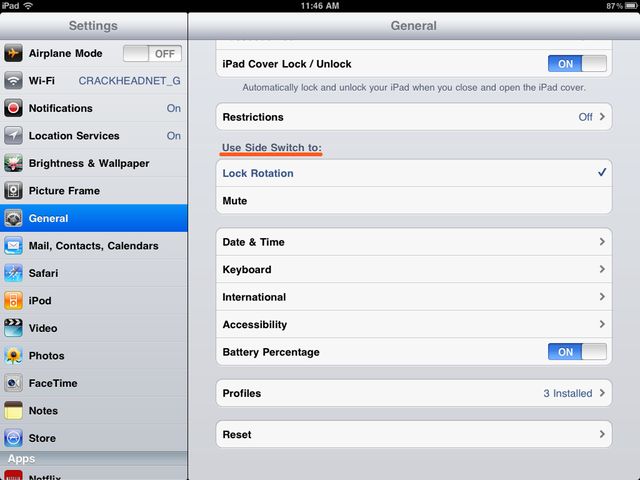
For one, the slider switch on the right-hand side of the iPad can now play the part of either a screen rotation lock or a notification mute switch. (This applies to both the iPad 2 and the original iPad.) This can be found in Settings > General, and if you ask us, the screen rotation lock wins hands-down. Using the slider as a mute switch is somewhat redundant, as the volume buttons are just as easy to access and you can mute the entire device by reducing the volume to zero. That’s in addition to the fact that the switch doesn’t actually mute all audio coming out of the device (just notification sounds, like new e-mail coming in). Yes, you can lock your screen orientation via software methods (double press the home button and swipe right to access the setting), but we find the switch offers much quicker access.

The iPad also now gains FaceTime support thanks to the front-facing camera discussed earlier. Apple has added a FaceTime app that can be set up to be associated with your Apple ID, just like FaceTime on the Mac or iPod touch. When you converse with another FaceTime user, you can switch between the front- and rear-facing cameras, which is nice for when you’re trying to show that person something nearby. This is another area where the iPad’s size sort of gets in the way—you mostly have to hold the device with two hands head-on if you want to get a good (and flattering) angle on your own face or whatever else you’re trying to show. This position can get a little awkward after a while, but it’s there if you want to use it. FaceTime still only works over WiFi connections.

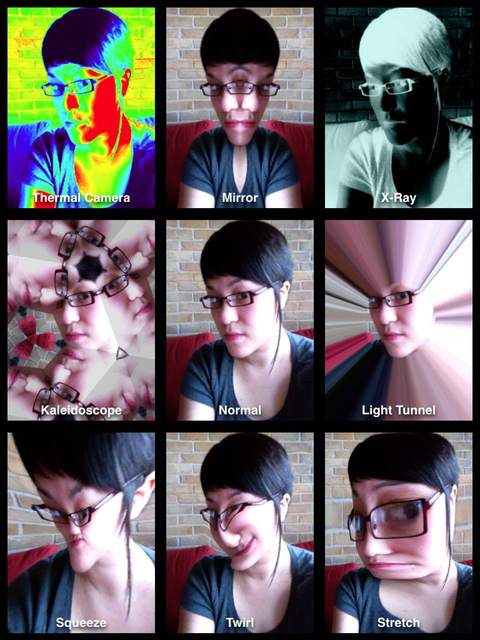
If silly photos are your thing, then Photo Booth is for you.

The iPad 2 also gains Photo Booth—a touchscreen version of the Mac app by the same name—for use with either of the built-in cameras. Photo Booth is particularly great for kids (trust us, we know from experience) and allows the user to make use of a number of standard photo filters when taking a photo.

The main headliners, though, are the recently released versions of GarageBand and iMovie for music and movie creation, respectively. We are planning separate hands-on posts for those applications and won’t be reviewing them in this review, but our early experiments with these two apps on the iPad were extremely fun, and we are optimistic about using the iPad for this kind of content creation. GarageBand in particular seems like it was made for use on the iPad, and musicians may find that it’s even more intuitive for recording and mixing music than GarageBand on the Mac.

Carrier support

Though we didn’t purchase a WiFi + 3G model this time around (I have enough personal hotspot type devices in my life that I don’t really need yet another data plan), Apple does offer the iPad 2 in both GSM and CDMA versions for those looking for 3G connectivity.

We had many strangers in the iPad 2 line asking us to explain the differences between the two, but essentially, the CDMA version will work on Verizon in the US and the GSM version on AT&T or T-Mobile. Why AT&T or T-Mobile? The iPad 2 is carrier unlocked, so it can be used on any GSM network with the appropriate SIM card and data plan. This is one thing that makes the GSM version more desirable than the CDMA version, too—if you travel overseas a lot and don’t want to limit yourself to WiFi-only while you travel, you’ll have significantly more luck with the GSM iPad, since GSM is essentially the world standard for cellular connectivity.

Even if the iPad 2 in question will be staying in the US, there are other differences between the networks that may determine how you use the device. As we found during our extensive network tests on the Verizon and AT&T iPhone 4, AT&T’s network tends to be faster than Verizon’s, but this speed difference isn’t particularly noticeable when downloading smaller amounts of data at a time (e-mails, Facebook updates, Web pages, etc.). The major differences came when we downloaded large files like apps or podcasts over the 3G network—AT&T will deliver those files sometimes significantly faster than Verizon. However, Verizon is well known for having wider and more reliable coverage than AT&T, so take this into account when deciding which version iPad 2 is best for your needs.

It’s possible that Apple will actually make use of a dual-mode chip sometime in a future iPad iteration, but for the time being, you have to commit to one standard or another when buying an iPad 2. Most Ars readers are aware of the nuanced differences between cell networks, but we’ve found that less-techy friends and family members often have trouble understanding the differences and how their iPad choice might affect them. So, be kind and help your fellow iPad buyer out if you find yourself in the same situation as we did.

It’s also worth noting that only the WiFi + 3G models come with GPS support, which may play a part in your decision on which model to get. The GPS signal is obviously good for when you’re using mapping apps or getting live directions, though the WiFi-only model performs reasonably well at this by attempting to find your location via the WiFi networks around you. We have never had a problem using Apple’s faux-GPS on devices that don’t have a real GPS chip, and the iPad 2 is no exception to this. But if a real GPS signal makes a difference to you (say because you’re taking it hiking or you’ll be in a country where there’s not much WiFi around), then it’s probably wise to get the real thing, or you could use another device to pull in your GPS location like Zachary Bir did.

Ongoing downsides

We have a few ongoing complaints about the iPad in general that we don’t really see changing anytime soon, but these could affect your decision to buy an iPad—especially if you’re a new buyer.

For one, we still don’t find the iPad particularly well-suited for longform content reading (like, say, reading e-books). As we mentioned earlier, it’s still somewhat difficult to hold comfortably in one hand for extended periods of time, making it more tedious to use than other e-book options, like a (real) Kindle or a Nook. Additionally, some of us here at Ars aren’t particularly fond of backlit screens for book reading; many readers find them to be acceptable, but we generally feel that backlit screens cause more strain on our eyes than necessary when reading long passages. This is no different with the iPad 2, so if all you’re looking for is a dedicated e-book reader, you may still want to get a Kindle instead. (I still like to use my iPad for use with the Kindle iOS app, because it allows me to easily switch between my e-books and surfing the Web, which the Kindle isn’t quite so good at.)

Secondly, the iPad still doesn’t support Flash in any form, and at this point, it probably never will. It’s true that many sites that offer Flash-based video (Vimeo, YouTube, Brightcove) now serve up HTML5 video to devices it identifies as running iOS, so this isn’t as big a deal to many users as it once was. Still, it’s not uncommon to run into sites here and there that sport that recognizable “you’re screwed with no Flash support” icon, and it’s still obnoxious (not to mention confusing to “regular” users, as I’ve repeatedly seen when extended family members use my iPad).

We’re not particularly confident that Apple will relent anytime soon in its war on Flash, though. Apple has repeatedly stated that Flash reduces battery life and performance, and that HTML5 is the future. So, if you’re trying to hold out until Apple brings Flash to the table, we don’t recommend holding your breath. Flash support is eventually coming to tablets running Android 3.0 (Honeycomb)—supposedly within weeks—if you’re insistent on buying an alternative that offers this feature.

Conclusion

When Steve Jobs introduced the iPad 2, he insisted that the rumors were wrong, that this device was no tweak or speed bump—it was a major update to Apple’s original tablet. He may have been right in some respects, but overall, we have to disagree. The iPad 2 is an iteration on the original iPad in order to optimize the user experience, both inside and outside. Despite our complaints, the results are mostly good.

The iPad is now particularly attractive to new buyers—moreso than the original was. Apple has a better idea now of what the market wants and has made a move on what it thinks are the most important elements: size/weight, cameras (even if they aren’t the best), and overall performance. The current device feels more refined than the original in almost every way, and it strives to offer a premium tablet experience via iOS.

If you own an original iPad, we’ll be honest with you: there’s not much reason run out and upgrade unless you have specific needs when it comes to the iPad 2’s cameras or CPU/graphics performance. The performance gains are indeed noticeable though, so we wouldn’t blame you if you wanted to upgrade just to ensure that your hardcore games don’t hiccup like they used to.

No doubt there are Android fans who would never consider an iPad because of the “walled” App Store garden or personal convictions, and those people may never be happy with the iPad 2. Apple is unlikely to lighten up on its App Store policies to the point where open source advocates will be happy, nor is Apple likely to add a plethora of hardware features that some members of the geek crowd want (a built-in SD card reader, USB port, etc.)

Still, as we recently wrote in our review of the Motorola Xoom, there are few reasons to buy something else over an iPad 2 as things stand today—the alternate offerings are incomplete and Honeycomb still needs work, though both of those elements may change later in the year. For now, though, the iPad 2 is the best tablet currently available, despite our various nitpicks.

The good

  • Big bump in performance, especially graphics, makes iPad even more competitive in the mobile gaming space
  • Doubling the memory makes apps and Web browsing more useful
  • Device is thinner and lighter than the previous model, feels much more Kindle-like in the hand
  • Users can now get a 3G iPad in both GSM/AT&T and CDMA/Verizon flavors
  • Good battery life, can seemingly last forever on standby

The bad

  • The new cameras are better than no cameras, though they’re not particularly great
  • “Real” GPS only comes with the 3G models
  • Glass is thinner than before; be cautious of easier breakage

The ugly

  • Display is the same old resolution as the original
  • Still no Flash support, probably never will be
Photo of Jacqui Cheng
Jacqui Cheng Editor at Large
Jacqui is an Editor at Large at Ars Technica, where she has spent the last eight years writing about Apple culture, gadgets, social networking, privacy, and more.
218 Comments