One of the enduring legacies of the ’90s browser wars has been an outsize attention to how Microsoft handles default app settings in Windows, especially browser settings. The company plans to make it more straightforward to change your app defaults in future versions of Windows 11, according to a new blog post that outlines a “principled approach to app pinning and app defaults in Windows.”
The company’s principled approach is a combination of broad, vague platitudes (“we will ensure people who use Windows are in control of changes to their pins and their defaults”) and new developer features. A future version of Windows 11 will offer a consistent “deep link URI” for apps so they can send users to the right place in the Settings app for changing app defaults. Microsoft will also add a pop-up notification that should be used when newly installed apps want to pin themselves to your Taskbar, rather than either pinning themselves by default or getting lost somewhere in your Start menu.
These new features will be added to Windows “in the coming months,” starting in the Dev channel Windows Insider Preview builds.
Though Microsoft frames these changes as a way to make changing default apps easier and more consistent, they also serve as a gentle rebuke to developers who handle things differently.
Chrome and Firefox, for example, pin themselves to your taskbar upon installation automatically without asking. Firefox can set itself as your default browser within the app itself, skipping Settings entirely, while Chrome’s “set default” button opens the Default Apps tab of the Settings app without giving you further instructions about what you need to do to change the default settings.
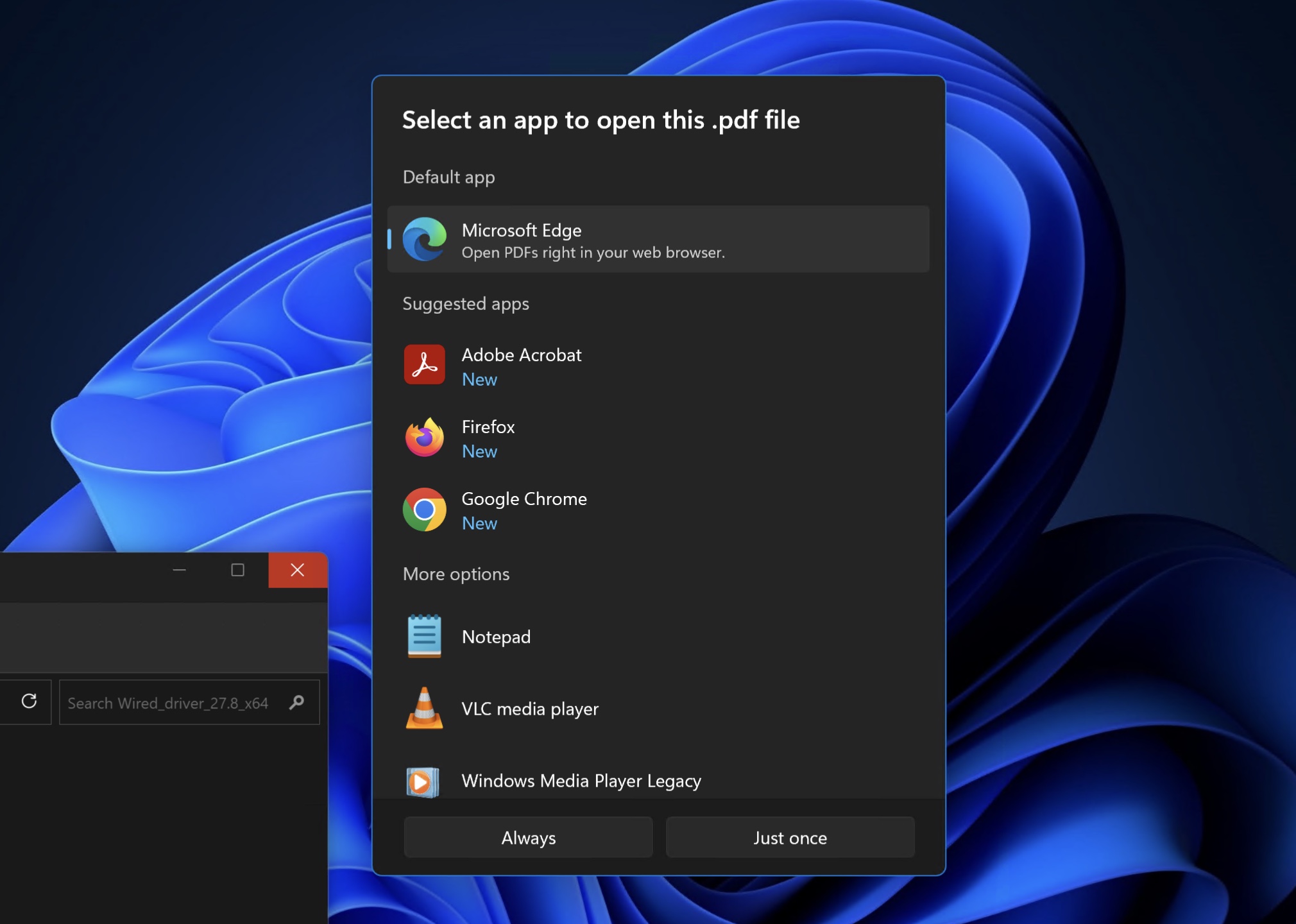
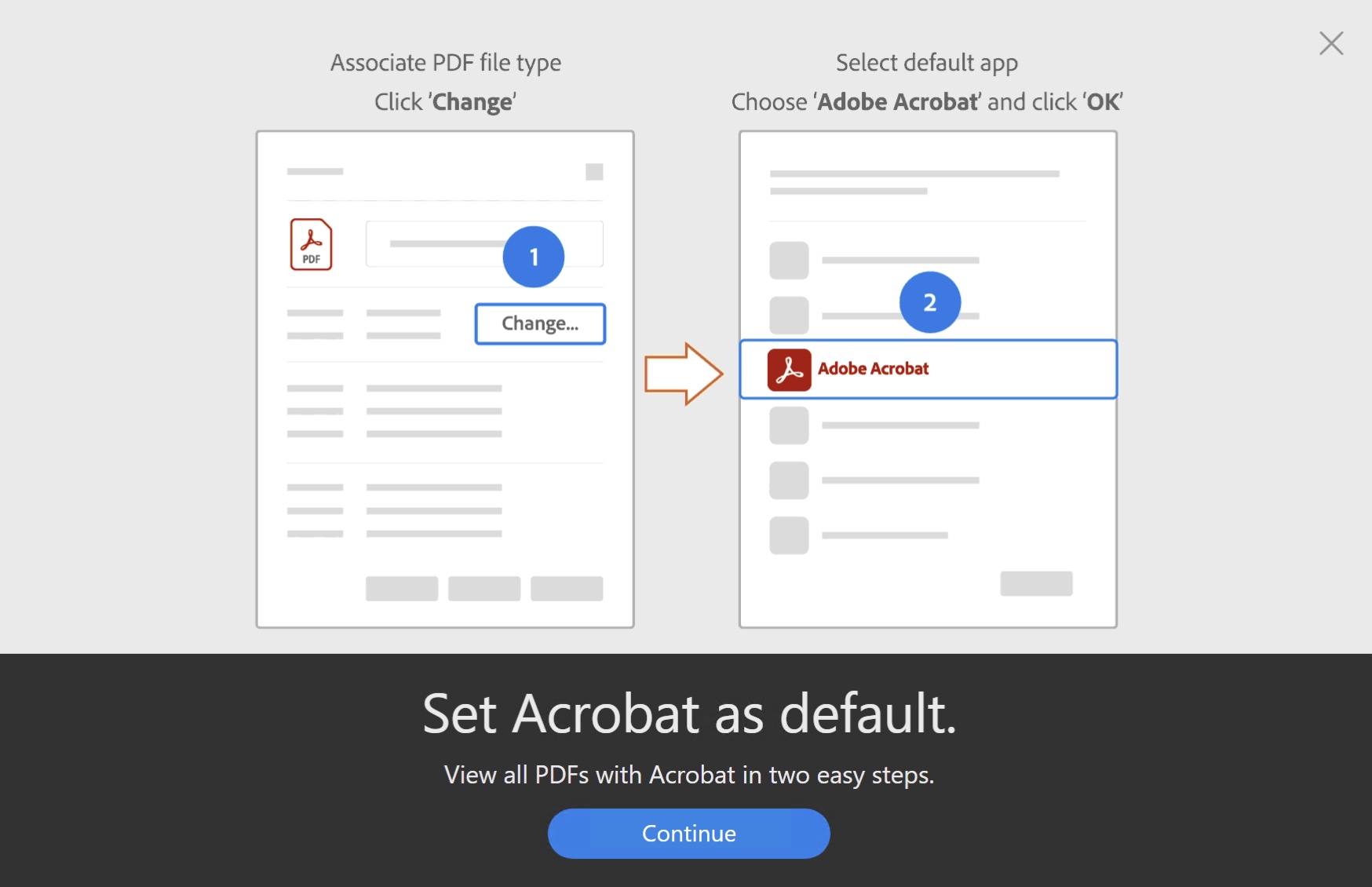
Yet another Windows feature will show you a pop-up the first time you try to open a given file type in Windows Explorer, asking you which of the apps on your PC you want to use to open that kind of file. But that window only pops up under specific circumstances and can’t be opened from within the apps themselves; if you try to change your default PDF reader from within Adobe Reader, for example, the tutorial uses an old-school Windows Properties window rather than the Settings app or the newer default app picker.



 Loading comments...