Skip to content
There’s always next year

Android 13 review: Plans for the future, but not much to offer today

Android 13 is a very small update, but it’s also the second one this year.

Ron Amadeo | 128
Credit: Google
Credit: Google
Story text

The Android update treadmill continues with the release of Android 13. It’s one of the smallest Android releases in recent memory, with barely any user-facing features to point to. Keep in mind, though, that this update follows the monster Android 12 release from last year. This is also the second Android OS release this year, the previous one being the tablet-focused Android 12L update that was rushed out the door in March.

We would have a bit more meat to work with if Android 12L was part of this release, but as it is, we’re left with a grab bag of features for Android 13. It includes many foundational features for Android tablets and smart displays, but there’s not much here for phones.

Even so, there are things to discuss, so let’s dive in.

The notification panel

Apps now need to beg for permission to show notifications.
Apps now need to beg for permission to show notifications. Credit: Ron Amadeo

One of the nicest changes to Android 13 is the addition of the runtime notification permission. You’ve been able to block apps from showing notifications for years, but apps now need to explicitly ask for permission to beep at you and will pop up an “allow/deny” box at startup. As someone who rarely wants to be bothered by my phone, I’ve found my approval rate is very low. It feels like 95 percent of apps ask for notification permissions, and I approve maybe 10 percent of them. It’s very satisfying to preemptively swat down annoying notifications.

As far as I can tell, this permission pop-up only appears if you start from a fresh install. For upgraders, everything already has notification permissions, and the OS won’t ask.

Google actually made a task manager

Another new notification feature is Google’s “Foreground Services (FGS) Task Manager,” which is a user-facing task manager that sits at the bottom of the quick settings panel. Google and Apple try very hard to not let consumers have as much control over smartphones as they do PCs, but Google has finally given users a list of running apps they can kill. It’s not a list of every app like a traditional task manager; it’s just a list of foreground services. Foreground services are Android apps that are currently doing active work, even if they aren’t showing an interface to the user—things like a music player, fitness tracking, automation, or a sync service.

The task manager lives at the bottom of the quick settings panel as a long, circular bar that reads, “X apps are active.” Tapping on it will show a list of running apps, with a “stop” button next to each one. This isn’t Android’s first task manager—there have been various running-app interfaces available in the developer settings over the years—but it’s the first one meant for consumers.

In Android 8.0, Google brought the hammer down on background processing, saying that if apps didn’t want to be automatically shut down by the system, they needed to show the user when they were running. In previous versions of Android, an app would spawn a notification saying it was running. While it’s helpful to know what apps are running, putting this information in the notification panel and showing an eye-catching status bar icon was annoying. The notification panel should be for new and temporary items, not a 24/7 reminder saying, “Tasker is running.”

In Android 13, the task manager takes over the notification duties, and now the permanent notification is no longer required. The notification will still pop up, but it can now be dismissed, unlike in previous versions of Android. Swipe away the notification, and the only indication that an item is running will be in a neatly minimized number at the bottom of the quick settings panel. This is a much nicer way to handle running-app notifications.

The new media player—big, dumb, and ugly

The media player seek bar constantly wiggles like this. No one really knows why.
The new media player is much bigger than before, seemingly only so it can show more album art.
The old media player had two sizes, with a bigger version showing in the quick settings panel. The Android 13 version is always big.
The audio selection looks different now, too. It can switch between Bluetooth devices but not cast devices.

The persistent media player introduced in Android 11 got a big redesign, and I’m not a fan. In Android 12, the media player had two sizes: compact in the notification panel and big in the quick settings panel. In Android 13, the media player is always big, even if you have notifications. It’s double the height of the Android 12 version, and since the bigger notification panel version only adds the seek bar and one extra button, it feels like a huge waste of space.

Speaking of the seek bar, what was Google thinking? Instead of being a normal, straight line, the seek bar now looks like a sine wave, complete with animated wiggles. It doesn’t make any sense—a seek bar is a linear representation of time—why is it moving up and down now? This animation would be understandable if it was trying to convey a temporary state, like loading media, but it wiggles all the time. It’s inexplicable and kind of ugly, and I hope it won’t survive future releases once the novelty wears off.

Most apps don’t correctly interface with the new media player, and this is after a six-month beta period.
Most apps don’t correctly interface with the new media player, and this is after a six-month beta period. Credit: Ron Amadeo

The album art was previously shown as a tiny square; it is now displayed as the entire background of the media player. I haven’t found a music platform that works well with Google’s new media player. Soundcloud and Amazon Music only pass the old, tiny square image to the media player, and blowing that image up to a full-bleed background image makes it look pretty blurry. Pandora often doesn’t offer an image at all, so you get a blue background instead of album art. Spotify provides a decent-looking image, but instead of an app logo for the top right corner, Spotify sends a solid, blank square.

Amazon simply passes a Chromecast logo instead of an app icon. It’s not a Chromecast button—it doesn’t do anything—it’s just there instead of the Amazon logo.

The layout of the music player is pretty bizarre, too, especially compared to the previous layout. Android 12 made full use of the available area for media information and controls. The album art, name, and artist are at the top, the seek bar is in the middle, and the controls are at the bottom. In Android 13, it almost looks like the controls are scattered around the perimeter of the media player. The player’s major controls—including the seek bar—are crammed into a single line at the bottom. Sometimes, the play button will be one line higher and right-aligned, but that never makes a huge difference to the overall emptiness of the design. While the overall size of the notification is huge, the control area feels too small and too cramped, with ridiculously tiny touch targets.

The media player layout seems designed to create a big space in the middle, as if Google wanted to make as much room as possible to show off the album art. Aren’t we here to control the music, though? If I want a good look at the album art, I can open the app. When a media player is fighting for space with my notifications, I’d rather the focus be on big, usable controls with an efficient use of space.

Google should really decide how big it wants a touch target to be. On just this one screen, we have media player controls that are barely the size of a fingertip, with zero padding, and then we have the giant “quick settings” buttons, which take up about 10 times the area of the media button. None of it makes sense.

Tablets and smart displays

On the bottom right of the task bar, there’s now an app drawer button.
Launching the app drawer as an overlay on top of the current task means you can drag icons out of the drawer and into split screen mode.

Google is returning to the land of tablets after abandoning the form factor—in both hardware and software—for years. The company is slowly getting its act together, with a Pixel Tablet slated to launch next year, Android 12L getting some much-needed tablet features out the door earlier in 2022, and Android 13 building out a few more big-screen additions. With no hardware release yet, we’re still putting the puzzle pieces together, but we should be looking at Android tablets with some kind of dock that turns them into smart displays.

As for what you can actually try in an Android 13 emulator today, that taskbar in Android 12L now has an app drawer. It sounds like it would be pretty handy to access all your apps from any screen. The other bonus of the pop-up overlay app drawer is that you can drag icons out of the app drawer and onto the left or right side of the screen, where you will trigger split-screen mode. The notification panel also lets you drag items out of it and into split-screen mode, providing a nice bit of consistency.

This is great for tablets, but phones don’t have a way to launch split-screen mode from the home screen or the app drawer. Long-pressing on a phone only lets you move icons around, not enter split-screen mode. To do split screen on a phone, you need to start at either the notification panel or the recent apps drawer, both of which take some setup to work. I wish stock Android would just let us make split-screen shortcuts that launch two apps with one button, as some Android skins offer.

The Pixel Tablet (left) and Nest Hub Max (right). I’m seeing double!
The Pixel Tablet (left) and Nest Hub Max (right). I’m seeing double! Credit: Google / Ron Amadeo

With its white front bezel and rounded-corner design, Google’s upcoming Pixel Tablet looks exactly like one of Google’s Nest smart displays. The Pixel Tablet also has a mysterious set of four pogo pins on the back for some kind of easy, drop-in connection. It sure sounds like this Google tablet, which looks exactly like the company’s smart displays, will connect to a dock and become a smart display. Google’s smart home strategy has long seemed to be “do whatever Amazon does” with its Echo line, and Amazon started turning its Android tablets into smart displays in 2018. At that time, Google wasn’t deep enough into tablets to immediately copy what Amazon was doing, but it did bring a similar “Ambient” feature to phones a year and a half later.

Android 13 seems to be laying the foundation for letting tablets function as smart displays. There are new features for a “screen saver” mode that can show the clock or photos when a device is “docked.” (I don’t think consumers can “dock” a phone yet to trigger this; it certainly doesn’t happen on a wireless charger.) Esper’s Mishaal Rahman has even hunted down a “communal” “Hub mode” that sounds like it will kick over into a smart display interface. No one knows what this interface looks like yet, but it could just be the existing Nest smart display interface. That interface is coded in Flutter, which already runs on Android.

More granular media permissions

The photo picker can pass a single photo—instead of an entire batch of media permissions—to an app.
The photo picker can pass a single photo—instead of an entire batch of media permissions—to an app. Credit: Google

There’s a new photo (and video) picker built into Android 13. Previously, hunting for a photo would launch a full-on file manager and give an app access to all your media files. That’s unnecessarily permissive when you just want to give an app a profile picture or upload something.

In Android 13, instead of getting access to all your media files, an app can launch the system photo picker without asking for any permissions. The system has file access and can display all your media, and when you pick one, that single file—and nothing else—is passed to the app. Apps need to support this feature, though, so it’s rare to actually see it in action.

Interestingly, this feature isn’t exclusive to Android 13. Google already pushed out the new photo picker to older versions of Android via a Project Mainline module in May. Any device with Android 11 or 12 should have access to it, too. That should make app developers more willing to integrate the feature, but support is pretty slim now.

In other scoped file access news, apps can now request only access to images, video, or audio; before, they had to request all media.

The predictive back gesture

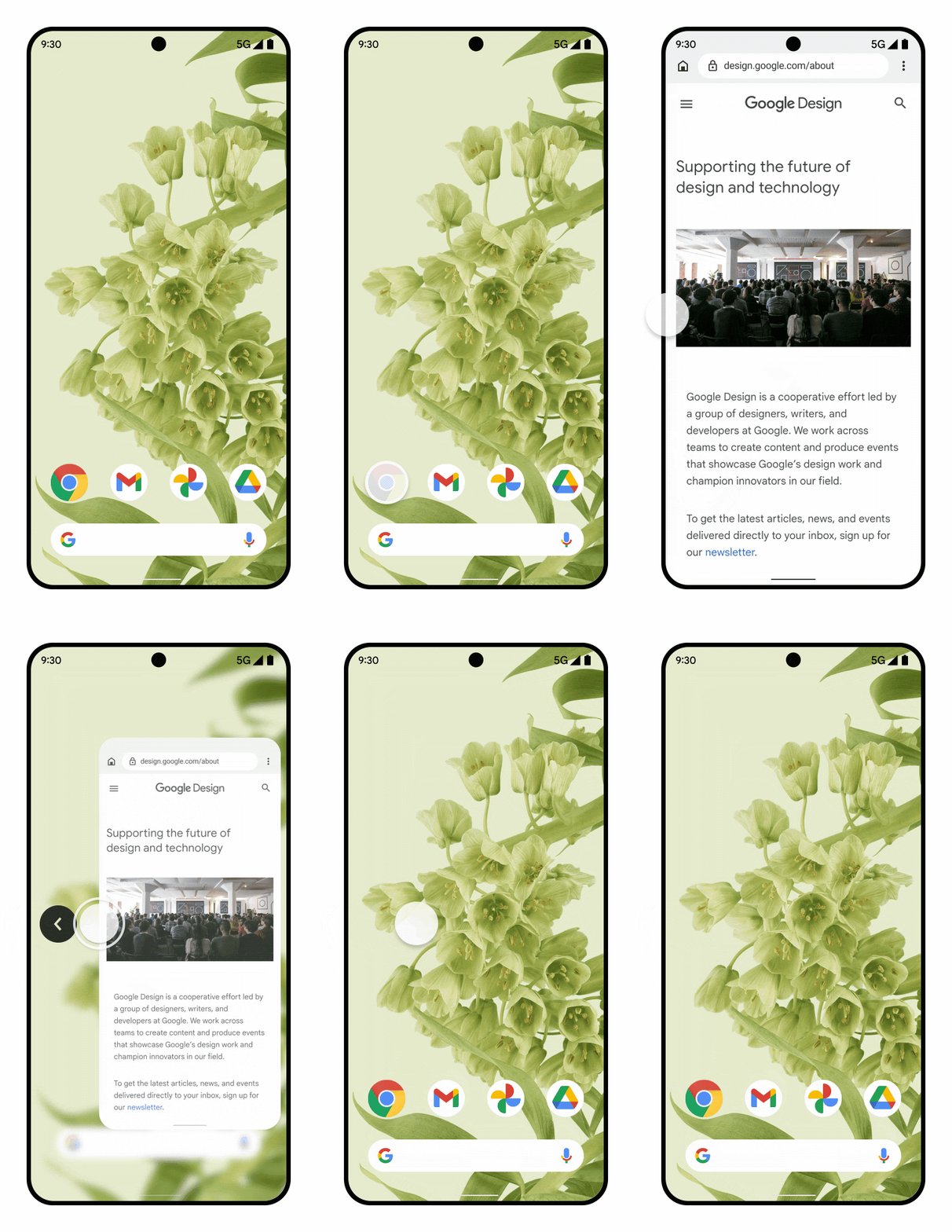
The predictive back gesture will show you where “back” goes to. Credit: Google

One of the more interesting additions to Android 13 is the “predictive back gesture.” Google’s docs say that “this feature will let users preview the destination or other result of a back gesture before they fully complete it, allowing them to decide whether to continue or stay in the current view.”

When you swipe in from the side of the screen, this new animation shrinks the current screen and over to the right a bit, showing a preview of the screen you’re headed toward. Once you see where you’re going, you can lift your finger to trigger the navigation event or slide the app back into place to cancel. It’s a lot like the existing back gesture on iOS, but Google says it will work across apps, whereas the iOS version is only for intra-app navigation.

Today, Android’s back gesture does not indicate where it will go or what it will do. Combine that with developers’ ability to mess with the back button and inconsistent behavior based on the state of an app, and it makes the back button very unpredictable. If you enter an app through a notification, what happens when you press the back button? Do you go back to whatever previous app you were in, or do you stay inside the current app and go up one level? You might expect it to work like a browser back button, but that’s often not the case. In Gmail, for instance, tapping on a mail notification and pressing “back” takes you to the inbox, even if that’s a screen you’ve never been to. Predicting what the back button will do is impossible, so anything that communicates what will happen is very welcome.

This all sounds great, but we can’t say too much about it because the feature is not getting a normal development cycle. Despite Android 13’s seven-month beta period, developers will first get to test the predictive back gesture in the final release, and even then only by enabling a developer setting. Eventually, this will be enabled by default in the OS and will work on any apps that specifically opt into it and include the correct library. In the final build, you can flip on the developer option for “predictive back,” but I don’t know of any apps that use it.

The Android Virtualization Framework

Google is building virtualization support into Android 13, with the goal of cutting through fragmentation so that virtualization use cases across the ecosystem can work. The feature has already been commandeered to run things like Windows 11 and Doom on an Android device—a pretty incredible demonstration showing that it already works—but it’s really about security and modularity rather than fun and games.

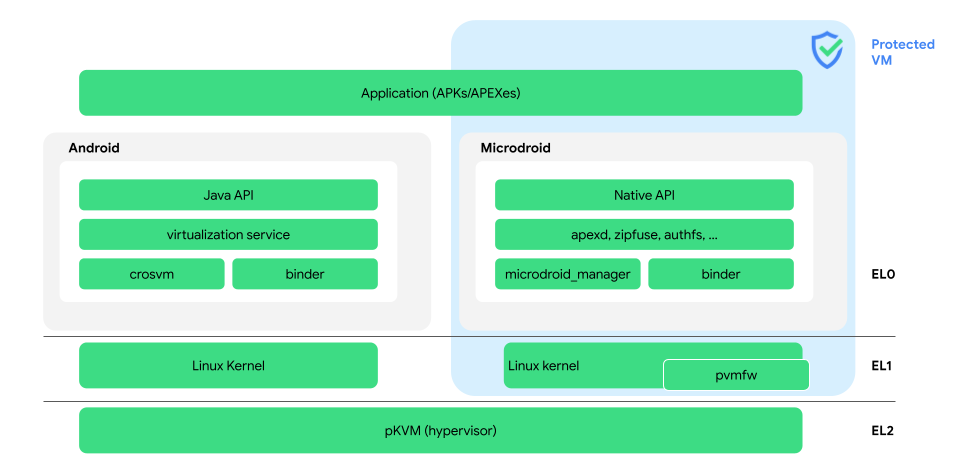
Google has a shopping list of standardized components to power the system. There’s Google’s GKI (generic kernel image), a minimally forked version of Linux for Android, which hopes to provide one kernel to rule them all instead of the triple-forked, device-specific kernels that phones typically ship with. With a standardized Linux kernel comes Linux’s KVM (kernel-based virtual machine), which allows the Linux kernel to function as a hypervisor. Google is also adding Chrome OS’s “crosvm” virtual machine manager and a headless, stripped-down version of Android, called “Microdroid,” to run into the VM. Google calls this big bundle of components the “Android Virtualization Framework.” Here’s a lovely graphic explaining it all:

The architecture of the Android Virtualization Framework. It’s a big change. Credit: Google

Let’s just take in this diagram for a second. Everything we’d normally consider “Android” is on the left side of this graphic. Android has been reduced to a virtual machine on your “Android” phone, which sits atop the hypervisor. Also running atop the hypervisor, at the same level as Android, is “Microdroid.”

The goal is to create a secure execution environment that is separate—and secret—from Android. Google’s idea is that if an app needs to process something with a high level of security, it can spin up a Microdroid VM, and the VM can do whatever processing it wants in total secrecy and securely pass the results of that processing to whichever app created it. The VM can then be destroyed. It’s an on-demand black box, where even the Android OS is untrusted.

Google’s label for the hypervisor is “pKVM”; it’s the Linux KVM with some Google additions and renamed the “protected Kernel-based Virtual Machine.” What’s “protected” is the virtual machine payloads, which Google has called “protected VMs,” or pVMs, to drive home the security sales pitch. Google’s documentation says pKVM has “been extended with the ability to restrict access to the payloads running in guest virtual machines marked ‘protected’ at the time of creation.”

App APKs can include both Android code and VM code, and once loaded, the two can only communicate as separate, untrusted processes.
App APKs can include both Android code and VM code, and once loaded, the two can only communicate as separate, untrusted processes. Credit: Google

To prevent things from loading into a black box that Android can’t control, Google says, “Android ensures that only apps with pVM permissions are allowed to create or inspect pVMs.” It also says that “only pVM images signed by Google or device vendors are allowed to boot.” This sounds a lot like the security model for APEX packages, which are only allowed to be created by Google or a hardware manufacturer.

It sounds like third-party app developers will not have access to this system. All these docs are on the source.android.com page—the one for hardware manufacturers—not developer.android.com. The above diagram says that Android APK packages will be able to include code for a protected VM, but it’s labeled “platform-signed APK,” meaning an app that is pre-installed on a device by the manufacturer, not something from the Play Store. As with APEX files, which can provide system-level components, there are a massive number of problems that could be created if you threw the door open to third parties. But limiting development to only your hardware and software vendors, which you must implicitly trust anyway, solves a lot of security problems.

The requirements for this feature are a mile long and are enshrined in the compatibility definition document for Android 13. Supporting the feature is optional, though, and requirements like the GKI mean that it currently only works on the Pixel 6.

As far as what features Google wants to use this for… nobody really knows. An entire page called “Use cases” exists in the virtualization docs, but it doesn’t mention a single specific use case. Taking a wild guess, most of Google’s “tensor” security work has been around payment verification or two-factor authentication, so maybe it will be used for that? There’s always Doom, too, I guess.

Grab Bag

You now get all of these color options for just one wallpaper.
You can set per-app languages.
  • Android 12 brought us the “Material You” color-theming system, which picks colors from your wallpaper to automatically use in the system UI and (a still very small list of) compatible apps. Android 13 gives you a few more color options. Whereas Android 12 would offer three or four color options, Android 13 now offers around 12. There are also many more “basic” colors to pick from.
  • There are now per-language options for each application. Head to “System,” “Languages and input,” and then “App Languages,” and a list of apps will let you change the language setting for each one. Presumably, bilingual people may want to have their hometown chat app in their hometown language while keeping the rest of the OS in another language. Apps need to support this feature to show up in the system list, as some apps have already built their own system-independent language settings.
  • For the first time, Android now natively supports reading QR Codes. Previously, you needed some kind of app, but now there is a quick settings button to launch a QR code scanner. It works great. The one oddity is that the QR Code scanner button is constantly lit up, as if it is on and running. Other buttons that launch interfaces, like the Calculator button or Google TV remote button, are always dark. The QR Code scanner is not constantly running in the background, but that’s what the UI makes it look like.
  • When you copy text, you’ll see a tiny pop-up in the bottom left corner of the screen, just like when you take a screenshot. Also, like when you take a screenshot, tapping on this little pop-up will open an editor. The clipboard will auto-clear after an hour, preventing it from storing sensitive information for very long.
  • Google is prepping for future connectivity standards, so Android 13 adds support for Wi-Fi 7 and Bluetooth LE Audio.

That’s it?

Yep. That’s pretty much all we get in Android 13. Even if we only had one release this year, it would count as a smaller release cycle for Android, but with two releases after Android 12L, there’s not much to go over. I usually work on these reviews with a phone running the previous OS and a phone running the new OS, and this year, I had to put labels on the devices. The two operating systems are just too hard to tell apart otherwise.

Even with the small scope, many announced or beta-tested “Android 13” features did not make it into this first release. There was talk of bringing the monocolored-themed icons out of beta, but that didn’t happen. At Google I/O, Google showed off a unified “Privacy and Security” screen for the settings, but that’s also not in the final release. Google also showed off an option for a “seven-day” privacy view in the dashboard, but that’s not here. “Do Not Disturb” was re-branded as “Priority Mode” in Preview 2, but that was also reverted.

Some of Android 13 is all about tablets, and we’ll be able to see Google’s first shot at modern tablets when the Pixel Tablet comes out in 2023. Some of Android 13 is about Google’s mysterious plans for the future, like all that virtualization work. Some of the additions will be nice if developers ever support them, like that predictive back button animation. Today, though, for people with phones, Android 13 doesn’t change much.

The Good

  • The task manager is a good solution that doesn’t clog up the notification panel while also letting users know what’s using the battery
  • Forcing apps to ask for notification permissions is nice
  • Google finally built a QR code scanner into the OS
  • Bilingual people will appreciate more granular language controls

The Bad

  • The media notification’s auto switcher still doesn’t support Google Cast devices. It only shows Bluetooth, which seems like a waste
  • You’ll barely notice this update

The Ugly

  • The new media player is a downgrade: It’s bigger, but it has a more cramped layout and a weird, squiggly seek bar

Listing image: Google

Photo of Ron Amadeo
Ron Amadeo Reviews Editor
Ron is the Reviews Editor at Ars Technica, where he specializes in Android OS and Google products. He is always on the hunt for a new gadget and loves to rip things apart to see how they work. He loves to tinker and always seems to be working on a new project.
128 Comments