Skip to content
Tech

They grow up fast: Apple quietly bulks up Swift and Xcode in year two

From error handling to app thinning, Apple continues to nudge devs away from ObjC.

John Timmer | 144
Lost in the excitement at WWDC 2015, Swift learned a few new tricks. Credit: Megan Geuss
Story text

While most people tune in to Apple’s WWDC keynote to figure out what’s coming in the next version of the company’s operating systems, the event is a developer’s conference. Apple genuinely uses WWDC to introduce a lot of new technologies that end users will never experience directly. So with the exception of big news like Swift, the company generally does this in later, non-public talks and through the software released via its Developer Connection.

This year was no exception. While some things, like app thinning, found their way into the keynote, most technical details were buried for later. Information on the new version of Xcode was scattered throughout the week’s panels, and developers were able to get a copy of a beta with plenty of preliminary documentation. In the time following WWDC, we spent a couple of weeks watching conference sessions and looking through both the software and all this documentation. The research gave us a sense of some of the under-the-hood changes that are coming for developers this fall alongside the shiny, new operating systems.

Again, much of this won’t reach an end user directly, so this isn’t meant to be an exhaustive account. However, Apple has introduced several new tweaks that stood out to us upon further reflection.

A tale of two languages

When we first looked at Swift last summer, we predicted it was Apple’s future. Objective-C wouldn’t go away any time soon, but Apple would almost certainly nudge developers toward the company’s new baby for a few years before turning the nudge into a violent shove.

Such nudging has begun. For years, Apple has been adding new features and syntax to the Objective-C language, things like automatic reference counting and closures. These features have generally made it easier and safer to develop in a language that can easily let you shoot yourself in the foot or make ObjC a better fit for some of the design patterns of Apple’s own frameworks.
This time around, ObjC gets a grand total of two new features. One of these is a useful feature stolen from Swift (generics); the second lets ObjC behave a bit closer to Swift’s expectations (nullability). Realistically, the only reason either of them are here is to make it a bit easier for projects to mix code from the two languages. (Although ObjC developers did get a new tool to help diagnose memory-related crashes—see below—it’s not a language feature.)

Swift, on the other hand… Swift gets bumped to version 2.0. This language has received a lot of attention. But let’s be clear: a lot of that attention was needed to bring the new language closer to where ObjC was already. That doesn’t mean that the new features aren’t good; it’s just that with one major exception, they’re playing catch up.

Error handling

One of these new additions is error handling. Apple had added it to ObjC a number of years ago now, but the feature was glaringly absent from the first version of Swift. Error handling is useful for situations where something can go wrong that’s beyond your control. A great example is reading data from a file; the file may not exist, the disk it’s on could get ejected, etc.

There are two ways of handling this. You can either exhaustively check for every error you can think of (running the risk that you won’t think of everything), or you could just try it and see if anything goes wrong. Error handling represents the latter approach.

If any of your methods can conceivably create an error, you note this by adding “throws” to the method definition. Within that method, when an error is encountered, you simply use the “throw” keyword to signal the error and exit the method. Throw has to be followed by a member of an enumerator that implements the ErrorType protocol. Any calls to the method have to be prefaced with the “try” key word.

Structurally, none of this is exceptionally unusual. It lacks the more elaborate exception catching of many other languages, which can handle basic problems like division by zero or access to bad memory addresses. But it’s still pretty useful, especially given that Apple is making sure its own methods (which are still mostly written in ObjC) throw errors that can be caught by Swift.

The weirdness comes in the syntax. In most languages that use it as a keyword (including Swift 1.0!), “do” is used to start loops that are closed with the “while” keyword. For looping, Apple has replaced “do” with “repeat” (which is fair enough, as far as it goes) and then repurposed “do” to start a block of code that includes statements that throw errors. This is just confusing for anyone burdened by any sort of programming history.

For those who are free of this burden, the resulting code is pretty readable.

func readMyFile( myFile: String ) throws {
 
 // I can't believe this method doesn't take an NSURL
 if !NSFileManager.defaultManager().fileExistsAtPath( myFile) {
 throw fileError.fileIsMissing
 }
 
 guard NSFileManager.defaultManager().fileExistsAtPath( myFile) else {
 throw fileError.fileIsMissing
 }
 
 // do stuff with the file, which we're assured exists
}

enum fileError: ErrorType {
 case fileIsMissing
 case fileIsBusy
 // other cases as needed
}


var fileString = "~/myfile" // tilde represents a user's home directory
fileString = fileString.stringByExpandingTildeInPath

do {
 try readMyFile( fileString )
}

catch fileError.fileIsMissing {
 // handle the error appropriately
}

catch fileError.fileIsBusy {
 // different handling here
}

Other problem solvers

Languages like Java also have a “finally” keyword that executes no matter what errors do or don’t occur. For example, if your code opened a file and then threw an error, you’d want to make sure the file is closed again—the code to do so could go in a finally code block, which is located after all the error catching code.

Apple decided to do something a bit more flexible by adding a “defer” statement. Any block of code following a defer statement will always be executed as the last thing done before a method returns. This works whether the code returns normally or by throwing an error. And it doesn’t matter at all where the code is put within a method; it always gets executed last.

If we were to open our file above, we could simply close it in the very next line in a defer statement. The whole rest of the method could then use the open file, throw errors, return data, etc. No matter what happens, the file gets closed at the end of it all. It makes for a nice logical grouping of code.

In addition to methods, defer statements can go inside loops (getting executed each time through) and any other blocks of code (like those following do). You can even stack multiple defers, which get executed in a last-in-first-out manner.

Another way of catching problematic situations that Apple has added is the “guard” keyword. Guard can be thought of as similar to an “if” statement that can only execute “else” blocks. Let’s use the same example of checking whether our file exists. If you have a bunch of conditions you need to check in a series of if/else statements, it can lead to complicated code. And it’s not always easy to see the intent of the programmer—the little ! at the start of the conditional makes all the difference, but it’s easy to overlook.

Now we can use guard instead:

guard NSFileManager.defaultManager().fileExistsAtPath( myFile) else { 
// throw the exception

Rather than testing whether something isn’t true, you’re guarding against it being false, and the resulting code’s a bit more readable.

Another new feature of Swift is rather nice but fairly technical. Both Swift and ObjC use things called protocols, which you can view as a promise: any class that adopts a protocol guarantees it will implement any methods specified in the protocol. That way, you can have a whole series of classes that all have a certain minimal behavior, but these can differ wildly in how they implement that behavior and in the other behaviors that they have.

Swift also has extensions, which are similar to ObjC’s categories. These are essentially a way to add new methods to a class without subclassing it. They’re especially useful for adding behavior to classes in Apple’s frameworks—for example, you could give all mutable arrays a random shuffle method.

In Swift 2.0, you can now extend protocols, making it easy to add required methods (and default implementations) to existing protocols.

Like C, but better

There’s another case where Swift is playing catch up to ObjC—or more realistically, that language’s foundation, C. In C, it’s possible to use a single code base to target multiple platforms using a feature called macros. C-users can use a single setting fed to the compiler that tells it to build for a specific platform; the compiler then uses macros within each code file to select which bits to compile.

Apple has borrowed a bit of the macro syntax (the # symbol) to create an API availability check. Now, with the “#available” keyword, you can create code blocks that are compiled only for specific platforms:

if #available(iOS 9, *) {

Thus, you can use the newest technology in the latest operating systems but still fall back to code that executes on earlier ones using the else statements.

I’m not really sure how I feel about this being a language feature given that its current implementation is all about Apple’s platforms. To some extent, it’ll depend on how they handle this for the Linux version of Swift that will come out later this year.

Something that’s handled better is the (virtual) return of header files. C and ObjC use header files to define what class methods and variables look like; the actual code is implemented elsewhere. This results in a lot of duplicate text, and there can be problems when making two classes know about each other’s existence by importing header files. So Swift got rid of them, which is great.

The only problem? Header files were, well, extremely useful. You could, with a quick glance, see what a given class did without having to wade through all the code. So Apple just updated Xcode so that, if a developer chooses, it displays the full code file as if it were a header. Only the method and variable names are shown; all the code is hidden.

Ecosystem services

This kind of approach—using Xcode to make up for what otherwise might be a difficult or awkward task—has generally been a central part of the Apple development experience. Or at least, it’s intended to be a part. The company has certainly slipped up at times. The first iOS SDK came without the ability to visually lay out interfaces. Merging ProjectBuilder into Xcode proper resulted in a product that was sluggish and prone to cryptic errors. But this version of Xcode (to me at least) seems to take a larger step toward integrating Xcode not only into the development process, but also into the larger software ecosystem.

At least on mobile, the App store is the only game in town, and Xcode has included some features that help developers get their software there. With the new version of Xcode, there are a number of potentially useful features that will only work if you distribute your application through Apple—and some of them are potentially useful for Mac applications.

The biggest of these is app thinning, which promises to cut down on the amount of space an application takes up. This is primarily an issue on mobile platforms, where storage is typically 64GB or less. But in recent history, Apple has also produced laptops with less SSD space than its high-end phones and tablets. Shrinking Mac app sizes can be useful as well.

Apple provides three ways of doing this, and they’re all set up in Xcode and tied to the App Store. The first is simply device-specific code. On the desktop, “fat binaries” that contain code for different processors have been a selling point for Apple—they made it possible to drag an app from a PowerPC Mac to an Intel one and still have it behave flawlessly. But this method adds to the size of the application, and app thinning gets rid of it in favor of supplying device-specific code. (On phones and tablets, you can’t copy apps between devices, so this isn’t a regression.)

Rather than making developers build separate binaries for every platform, Apple has leveraged LLVM’s capabilities by having it generate an intermediate code that is platform agnostic. (More precisely, it can’t execute on any platform.) That’s submitted to the app store, which then produces the compiled code as needed and distributes the right binaries to each device.

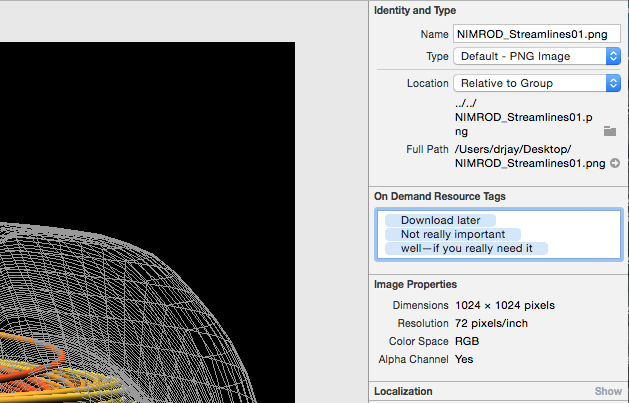
Similarly, an app on an iPhone 5 doesn’t need any of the images that are scaled for an iPad or the iPhone 6s. Apple lets you tag those, and the App Store will only send out whatever resources are tagged as needed for the device it’s sending it to.

Interface builder now lets you tag assets for on-demand downloading. The tags will presumably let developers call for their downloading.

The final space saver that’s new is on-demand resource loading. If you have a set of images that are only needed under rare circumstances, it’s now possible to keep them out of the initial build and only grab them if a user is likely to need them. Given Apple’s focus on security and signed bundles, these on-demand resources will almost certainly be required to live on the App Store (the documentation I’ve found doesn’t make this explicit yet, though).

Another thing that goes through the App Store, but is implemented in Xcode, is a new crash report viewer. You can now grab crash reports from the App Store, and Xcode can help you examine the sections of your code that are causing the problem.

All of this is good news for mobile app developers who were already compelled to use the App Store. But these features might now make sense for desktop app developers as well. We’re nowhere close to the point where using Xcode means that your app can only go to users via Apple’s services; Xcode just makes it a bit more appealing to do so.

Other Xcodey goodness

Not everything in the new version of Xcode is about the App Store though—there are a lot of additional features that may be useful to some developers. Among those is what Apple’s calling “Energy Gauge,” which tracks power usage of applications on iOS devices. It has also given C and ObjC users a bit of lightweight code that can be built into apps and can return detailed information on memory problems if the app crashes (it’s calling this “address sanitizer”).

Features in Xcode also make laying out visual interfaces a bit easier. Several versions of iOS back, Apple introduced storyboards. For mobile applications that require users to navigate through multiple screens (think diving several layers deep in the Settings app), all the different screens and pathways among them could be set up in a storyboard. The application would then handle the appropriate loading of resources and animations as needed without the developer needing to write any code.

As the Settings app makes clear, however, these storyboards could become incredibly complicated. So now, it’s possible to spread a single storyboard across multiple files, each of which would presumably be more manageable. This may not sound like a big deal, but the WWDC crowd greeted it with a round of applause.

Something else that should make visual layouts easier to deal with is something Apple’s calling a “stack view.” This is a view that automatically centers or justifies any items placed in it, while maintaining the required separation among them. As you drag controls into a stack view, existing ones shift aside to accommodate them. And, if you make a version for a device with a larger screen, the controls will spread out and/or expand accordingly. It should cut down on the amount of tweaking UI designers have to do, especially if they’re making apps compatible with the iPad’s new multitasking features.

It’s now possible to create UI Unit Tests through the interface. To populate a test, simply click within it and start recording interface actions.

Once you have an interface in place, you might want to test it to ensure it behaves properly even as you change the underlying code. To make that simpler, Apple now has it set up so that Xcode can record actions performed on a test version of the user interface and convert those into code. These can be run as unit tests to confirm the application behaves properly.

Status check

Although I never felt limited by ObjC and have some minor reservations about Swift, it’s definitely an interesting language. More importantly, however, I’ve liked every feature Apple has added to the language so far. The only complaint I have here is the decision to repurpose “do”—that was clearly unnecessary. It will simply be annoying to people new to the language. Otherwise, we’re at the point where I’m ready to move away from ObjC.

(I’m hoping to get some time to do a few performance tests on some simple code in the near future in order to compare the speed of similar implementations of a task in ObjC and Swift. We’ll see if that time ever materializes.)

As for Xcode, a lot of the changes here are focused on mobile developers that use the App Store. That’s not me, so it’s tough for me to evaluate them.

But more generally, there have been two problems with Xcode. The first is that stuffing every single task involved with development into a single application will very likely breed an interface that’s crowded and difficult to navigate; new features will be hard to discover. All of those are true of Xcode today, and adding new features won’t help matters. The second issue has simply been that Xcode has lacked polish. It has suffered from cryptic errors, sluggish responsiveness, and behavior that sporadically forces me to quit and relaunch. Most of these tend to get better over time—until those times when Apple introduces a host of new features, and things take a few steps back.

Apple has introduced a lot of new features in Xcode 7. I don’t want to judge it while it’s still in beta, but there is something ominous to note. Simply browsing the documentation has already triggered a crash.

Listing image: Megan Geuss

Photo of John Timmer
John Timmer Senior Science Editor
John is Ars Technica's science editor. He has a Bachelor of Arts in Biochemistry from Columbia University, and a Ph.D. in Molecular and Cell Biology from the University of California, Berkeley. When physically separated from his keyboard, he tends to seek out a bicycle, or a scenic location for communing with his hiking boots.
144 Comments