Skip to content
Biz & IT

Old dogs, get ready for new tricks: how to use the Windows 8 Consumer Preview

Windows 8 presents a radically new user experience that will be unfamiliar to …

Ars Staff | 482
The Start menu is no more. The Start screen is coming.
Story text

Everyone wants to try Windows 8 Consumer Preview. You’ve downloaded the software and installed it leaving just one task left: actually using the thing.

The Windows 8 Consumer Preview drops you in at the deep end. Unlike Windows of old, which has taught users how to handle the user interface with mouse tutorials and bouncing arrows, Windows 8 just dumps you at the lock screen. Swipe or drag that out the way, and you’re faced with the brand new Start screen. This will be a bit of a shock to existing Windows users (which is to say, virtually every person on earth who has ever owned a computer), and getting to grips with the Windows 8 interface is going to require some effort.

We first used the interface with the Developer Preview, and the fundamentals haven’t changed since then. The interface is built around two things: the Start screen and the charms bar. The Start screen is a full-screen, Metro-styled successor to the Start menu, and the charms bar is where various global functions—search, share, devices, and settings—reside (it also contains a Start button to bring up the Start screen).

For touch systems, the interactions are simple enough. Familiar from the Developer Preview, swiping in from the right brings up the charms, swiping from the top or bottom brings up the toolbar-like application bar, and swiping in from the left flicks between tasks. Swiping in from the left and then back out brings up a thumbnailed view of running applications for direct switching to a particular app, rather than cycling through all running apps.
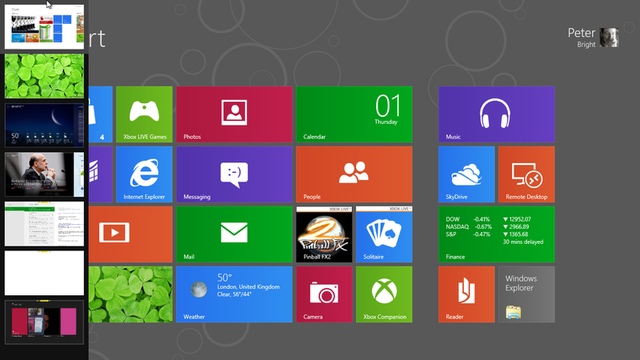
Metro applications get culled if you run too many concurrently, so the set of thumbnails never grows too big.

New to the Consumer Preview is the ability to manually close applications with gestures. Start swiping an application from the top of the screen, and it shrinks down to a large thumbnail. This thumbnail can be dragged to the left or the right of the screen, to snap it, or off the bottom of the screen, to close the application entirely.
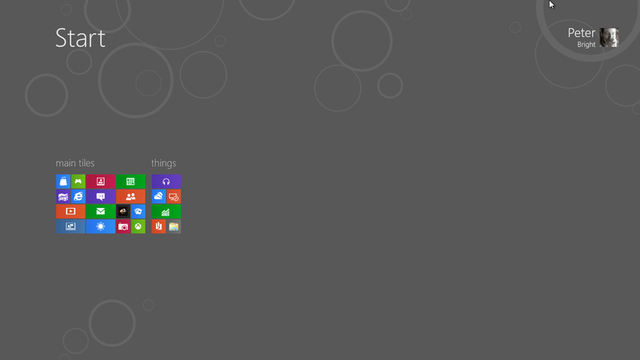
The Start screen can be visited by using its button on the charm menu, or using the hardware Windows key that all Windows 8 tablets are required to have.

Throughout, pinch to zoom and two finger rotate gestures work in the places you might expect them to work. They also work on the Start screen, in the Windows Store, and in applications that have similar tile-based layouts such as the new Vimeo application. In these applications the zooming is not simple scaling; it simplifies the layout, for example replacing live tiles by their respective icons. This feature, that Microsoft calls semantic zoom, allows easier navigation of large lists.

Semantic zoom in the Start screen replaces live tiles and text labels with simple icons.

Though the operating system lacks any significant cues to perform any of these actions, once learned they’re used consistently and rapidly feel natural.

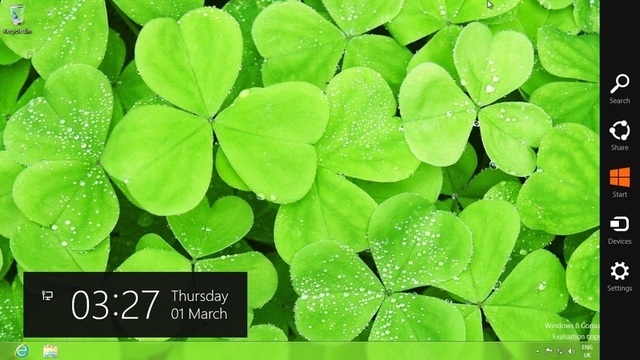
The mouse and keyboard approach is a little less obvious. Windows users are familiar with clicking on the Start button to bring up the Start menu, but the Start button is gone. Windows 8 instead uses hot corners. Clicking in the bottom left of the screen brings up the Start screen. Clicking the right hand corners brings up the charms (both corners have the same effect). Clicking the top left corner brings up the application switcher.

When mousing into the hot corner, the desktop charms start out transparent.

Only when you move the mouse to actually pick a charm do they gain a solid background.

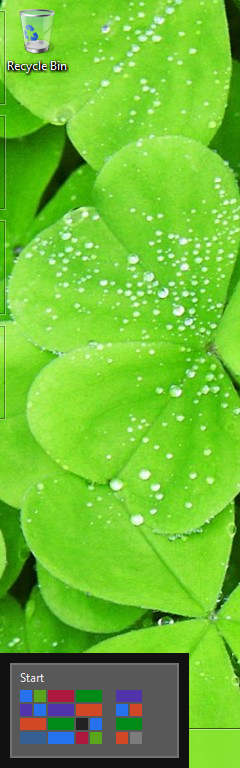
This has some oddities. When the mouse is in the Start screen’s corner, a little stylized image of the Start screen appears. This shows a kind of super-zoomed out view of your own Start screen. It’s tempting to try to click on this—but moving the mouse out of the corner usually results in the image going away (though sometimes it doesn’t). The temptation to click the graphic must be resisted, and the mouse must be clicked in the very corner.

Right-clicking the hotspot yields a special menu of handy items (Task Manager, Control Panel, Command Prompt, and more), a little treat just for the mouse users.

The top left corner behaves similarly strangely. Putting the mouse in the top left shows a thumbnail of the previously-used application. Moving the mouse down then expands the switcher to show all the running applications. But as with the Start thumbnail, moving the mouse as often as not causes the thumbnails to all disappear, which isn’t what’s wanted.

Closing applications with the mouse is similar in concept to closing them with touch. Put the cursor at the very top of the screen and it turns into a hand. With the hand, the application can be picked up and either dragged off the bottom of the screen, to close it, or dragged to either side of the screen, to snap it.

For keyboardists, Windows 8 introduces a wide range of new shortcuts, which I will tabulate here.

Note how the thumbnail mirrors the layout of the full Start screen. If you look closely you’ll also see four outlines down the edge of the screen, representing running applications.
Key Action
Windows logo key+spacebar Switch input language and keyboard layout
Windows logo key+O Locks device orientation
Windows logo key+, Temporarily peeks at the desktop
Windows logo key+V Cycles through toasts
Windows logo key+Shift+V Cycles through toasts in reverse order
Windows logo key+Enter Launches Narrator
Windows logo key+PgUp Moves Start Screen or Metro style application to the monitor on the left
Windows logo key+PgDown Moves Start Screen or Metro style application to the monitor on the right
Windows logo key+Shift+. Moves the gutter to the left (snaps an application)
Windows logo key+. Moves the gutter to the right (snaps an application)
Windows logo key+ C Opens Charms bar
Windows logo key+I Opens Settings charm
Windows logo key+K Opens Connect charm
Windows logo key+H Opens Share charm
Windows logo key+Q Opens Search pane
Windows logo key+W Opens Settings Search app
Windows logo key+F Opens File Search app
Windows logo key+Tab Cycles through apps
Windows logo key+Shift+Tab Cycles through apps in reverse order
Windows logo key+Ctrl+Tab Cycles through apps and snaps them as they are cycled
Windows logo key+Z Opens App Bar
Windows logo key+/ Initiates input method editor (IME) reconversion
Windows logo key+J Swaps foreground between the snapped and filled apps

Semantic zooming is performed by holding down control and using the mouse wheel. However, mouse users won’t have any consistent equivalent to two finger rotate; it’s up to the application to provide some mouse-driven rotation facility.

Remembering that the charms exist is central to the Windows 8 experience. Several things that are traditionally built in to applications have now moved to the charms, which takes them “outside” the application, and for new users of the operating system, at least, it’s easy to forget that they’re there.

For example, Metro applications have their configuration and settings within the settings charm, not the application itself. There are standard settings—application permissions, and a link to the store to rate and review the app—along with any custom settings that the app needs—such as account setup for the mail client. Even Control Panel is in the settings charm, accessed from the desktop.

Similarly, search is in the charms, so to search the Store, you visit the charm even when you’re in the Store app. Searchable apps add themselves to the list of search targets the charm list, even third-party programs end up in there.

Toast notifications appear on the top right, serving much the same purpose as the bubbles and pop-ups that are already widely-used by Windows apps.

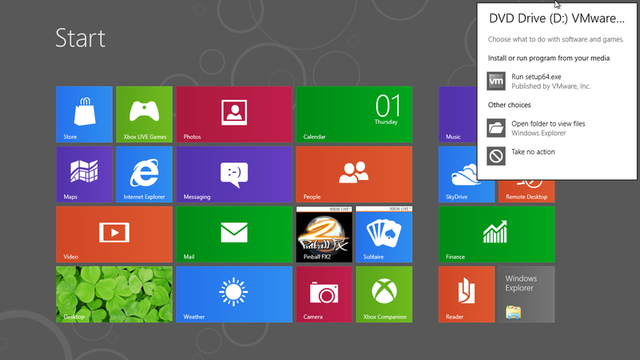
Flyout boxes allow non-essential decisions to be made. If you don’t choose anything, it’ll go away of its own accord.

Getting around the Start screen

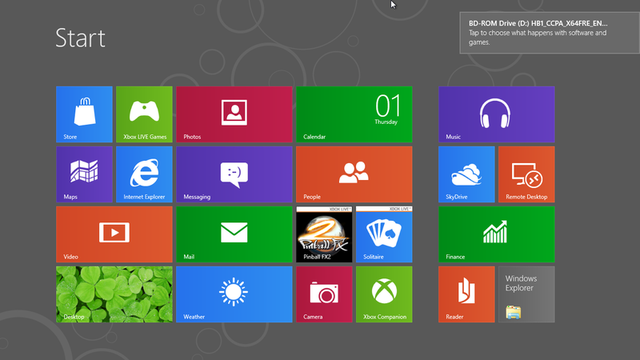
Windows 8 users will be looking at the Start screen a lot. Unlike the Start menu, which is only useful when you actually want to launch applications, the Start screen gives an at-a-glance view of what’s going on; the latest social networking updates from your friends, upcoming appointments, the weather forecast, how your stocks are doing, and so on. It’s the Start screen—and not the desktop—that’s the default thing to look at, and it’s the Start screen that’s shown when you log in. Even desktop users will have to become familiar with the Start screen.

So knowing how to make it work is important. Tapping tiles and scrolling through the list is straightforward and obvious. Tiles can be dragged around to reposition them. With the mouse they can be dragged any which way. With touch, they need to be dragged straight up or straight down to pull them out of the grid, and then repositioned as required. They can also be placed into groups.

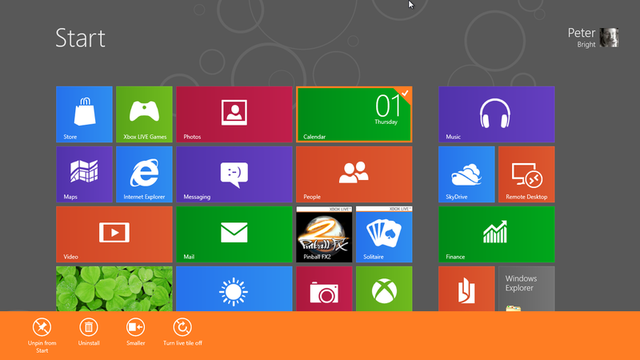
To manipulate tiles individually, they need to be selected. With the mouse, this is done simply by right clicking the tile of interest. With touch, it’s done by nudging the tile up or down. However it’s done, the tile gains a tick over one corner, and the application bar with various options will appear at the bottom. This allows tiles to be unpinned, uninstalled, and switched between square and double-width rectangular. Tiles with live updates can also have those updates disabled.

Editing an individual tile.

Groups of tiles are manipulated in much the same way. Semantically zoom out, and you can now select (by nudging or right clicking) and move entire groups. Groups can be reorganized and given names (though these names are optional).

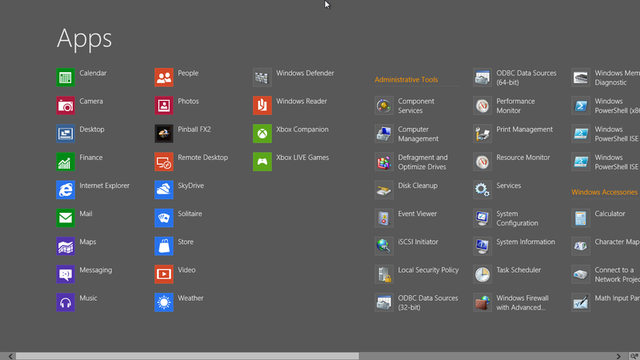
All Apps view has been improved, relative to the Developer Preview, with denser icons and grouping.

Not every app has to be pinned. The Start screen’s application bar has an “All Apps” button that lists every application on the system. This is subdivided between Metro applications (and, for some reason, Windows Defender) in the first section, followed by Start menu-like grouped icons.

With these skills and knowledge, you know enough to actually use the operating system. Windows 8 will inevitably feel a little strange to experienced Windows users. Windows has never undergone a change as substantial as this—even Windows 95, as momentous a change as that was, retained more of the Windows 3.11’s way of working than Windows 8 does, and it’s going to take some getting used to. The new operating system is no less capable than its predecessor, but does familiar tasks in a new way, and that’s going to take some learning.

482 Comments