Skip to content
Tech

Review: BlackBerry 10 is better, much better, late than never

From Gestures to the Hub, BlackBerry 10 has won us over. But is it too late?

Florence Ion | 163
Story text

Late last year, Samsung was the number one handset manufacturer on the Android side. Samsung and Apple accounted for 50 percent of the world’s handset market share. BlackBerry, once the go-to business phone for just about every major company in the world, seemed to be tottering around on its last leg. As the company lost most of the world’s smartphone market share, many looked BlackBerry’s way and wondered what the Canada-based corporation was going to do to save itself.

After a year of speculation, leaks, and promises, BlackBerry provided its answer. The company unwrapped and released BlackBerry 10, the smartphone operating system on which it’s betting the farm. While we were fortunate enough to have a first look at the gesture-based operating system during CES 2013, we walked away with a bit of trepidation. Those fancy gestures weren’t working too great for us when we poked around during our half hour with developer-assigned handsets. It wasn’t because of the prerelease hardware either—we were mostly perplexed at the idea that “gestures” and “a unified inbox” were the two game-changing features on which BlackBerry was wagering the company’s future. Can BlackBerry 10 actually win users back to its platform with these particular elements, or will consumers just see them as gimmicks?

Andrew Cunningham has already written his review of the touchscreen-only BlackBerry Z10 handset, but that review focused on just the hardware. We wanted to spend some additional time using the BlackBerry 10 operating system, so that we could dive in deeply and give this new operating environment the review it deserves. Fortunately, there’s more to BlackBerry 10 than a few gestures and a new inbox view. There have been plenty of questions asked, so we’ll try to get through all of them. Really, we think you’ll like what you see.

Gestures: A new way of life

A handy cheat sheet for BlackBerry 10’s gestures is featured within the Settings app.

Gestures are ingrained in everything the user does in BlackBerry 10 because the flagship hardware, the Z10, has no hardware navigation buttons. At first, moving around is confusing—the tutorial is frustrating, and the BlackBerry “flow” is very different from what we’ve grown accustomed to in other mobile operating systems. We’ve been so used to using buttons to go back a page or jump to the home screen that we went into this experience with hesitation.

BlackBerry 10 features four main gestures for navigation. The first and most important gesture is the quick swipe up from the bottom edge of the bezel, which brings users back to the home screen (a longer, steadier finger swipe from the middle of the screen will scroll the view). Swiping down from the top of the bezel will summon the Quick Settings pull-down shade from the home screen, or an options shade in other applications which support the gesture. Within any application, the upside-down J-hook—beginning from the bottom of the bezel and gesturing upward to the right—allows you to peek at the notifications and messages awaiting you in the BlackBerry Hub. (Left-handed people will have to hook the J the same way as right-handed people do, as there is no option for reversing the gestures.) Lastly, swiping from left to right scrolls through each screen, much like how the mechanism works on iOS and Android devices. With these four gestures mastered, the BlackBerry 10 experience becomes much more user friendly.

After about an hour of setting up accounts and then swiping to and fro, the gestures begin to feel second-nature. If you get lost in the beginning, there is always a cheat sheet (pictured above) neatly tucked away within the Setup app to replay the tutorials. New users and returning BlackBerry faithful can take comfort in the fact that they won’t simply be tossed into the new gesture soup. While the full-on embrace of gestures may seem like a big shift from the traditional keyboard and touchscreen setup, BlackBerry has successfully figured out a way to take the gestures introduced in the PlayBook tablet and bring them to its next generation of handsets. (As an aside, only the swipe up from the bottom of the bezel has been lifted directly from the PlayBook.)

Of course, we can’t push aside one fact: it really does take some time to acclimate your thumb to the general flow of the interface. At our first look at the operating system, PlayBook Product Manager Michael Clewley mentioned the philosophy of BlackBerry 10 was to “[flow] without having to think about it.” After more than half an hour with it, this philosophy made more sense. The only notable issue we could foresee with gestures is what might happen when the phone is handed off to a non-BlackBerry user. We passed the phone around to a few good friends, most of them iOS users and one a Windows Phone evangelist. No surprise, they were confused about how to get around the screens. If you really need a friend or spouse to help you multitask from time to time, consider giving them some prep time with the tutorial beforehand.

Multitasking

The handy running apps screen, also sometimes referred to as the Home screen.

Swiping up from the bottom of the bezel brings you to BlackBerry 10’s running apps screen. This area serves as a multi-functional screen for the operating system: it acts as BlackBerry 10’s application switcher and task killer, which requires a quick tap on the “X” at the lower right of a given app. Some apps offer widget-like functionality. For example, the Pictures app cycles through the photo album like a miniature slideshow, while the Calendar app shows upcoming meetings and events. You can have up to eight actively running applications, arranged in a pair of 4×4 grids that you can swipe between. Tapping an app’s tile then brings it to the foreground. There is also no way to permanently “pin” applications to the running apps screen, as they are cycled out with each newly launched application. However, the most-accessed ones will remain on the running apps screen.

The BlackBerry World screen acts like a widget on the running apps screen by cycling through featured content.

What’s nice about this method is its ease of use. Unlike Android or iOS, it doesn’t require pressing a button to bring up all of the open applications or double tapping a home button—all it takes is a simple gesture. You can also quickly kill any application that’s not in use, and you can get a quick glance at what is going on in the background.

The Hub: It’s everywhere you want to be

J-hook or swipe over to the Hub to get a look at all of your notifications from around the Web.

The Hub is more than just a notifications center; it lets users check on all of their social and e-mail accounts in one place without having to launch a whole mess of applications. E-mail, Twitter, BlackBerry Messenger (BBM), Facebook, LinkedIn, voicemails, missed calls, and system updates are all lumped on this one page. All it takes to access it is a swipe to the right from the home screen or a J-hook from the lock screen or any other application. Any time you receive a notification for any service, the corresponding icon will shine a bright red asterisk.

Having one unified inbox can feel overwhelming at first, especially if you’re trying to manage a bunch of accounts at once—but it’s actually quite handy. It’s easier to do an at-a-glance check of all of your accounts without having to sift through icon badges, and it’s instantly accessible with that J-hook gesture. If it all becomes a bit of a mess, users can simply swipe to the right to sort through messages and notifications by service. Of course, this does mean you have to leave whatever application you’re currently in to check what a friend has written on your wall.

The Hub shows all of your messages in a unified inbox.
You can add various accounts to the Hub, including all of the major social networks and Evernote.
Tweak the settings of the Hub so you don’t have to see what you don’t want.

For the business-centric user—the one that BlackBerry has always held as its core audience—the unified inbox makes sense. Those who use Facebook for marketing and social correspondence, Twitter and LinkedIn for networking, and several e-mail accounts for communicating need to have everything one place. Frankly, even the trigger-happy teenager might find this suits his or her social-centric lifestyle.

All services are properly integrated into the Hub, too—it’s not just for marking things as read. Direct messages and Twitter replies can be easily sent from within, and LinkedIn networking requests can be accepted or declined with one touch. You can accept Facebook event invitations or navigate to individual profiles of newly accepted friend requests, send e-mails, or compose BBMs and text messages. Furthermore, you can also start a video chat with another BBM user and enable screen sharing once the connection is made.

Associate Writer Andrew Cunningham and I engage in a BBM video chat.
Screen sharing was surprisingly smooth, with no stutter or buffer to speak of.

As an added bonus, BlackBerry allows developers to decide whether or not they want to integrate notifications within BlackBerry Hub.

E-mail and calendaring

To configure an e-mail account, you’ll have to navigate to the Hub’s settings panel. From there, you can add a new e-mail account, view existing ones, or modify the settings. You can either enter your e-mail address and BlackBerry 10 will try to fetch the server settings, or you can click the Advanced button to add a specific type of account. BlackBerry 10 supports Exchange ActiveSync, Gmail, Hotmail, Yahoo!, IMAP, and POP3, as well as CalDAV and CardDAV right out of the box. As an aside, ActiveSync e-mails are also no longer processed through the BlackBerry Enterprise Server as they were in previous iterations of the BlackBerry OS.

As we mentioned, e-mails are all a part of the BlackBerry Hub. Holding down on a specific message brings up a thin sidebar with options to reply to sender, reply to all, forward, mark as unread, flag, file away in a folder, invite to a meeting, and add as a contact. You can also select the ellipses button to bring up the full menu. If you need to select more than one e-mail to delete, flag, mark as read or unread, or file away, you’ll have to choose the Select More option.

Hit the settings button in the bottom right corner to view more options for each message.
Hit Select More to pick what action to take with the selected messages.

When composing e-mails, you can do so manually with the keyboard or by dictation (we’ll get to that in just a bit). Frequently contacted addresses will pop up in the address section of the e-mail, which is a neat touch, but the options don’t change based on the address you’re sending from.

From within the BlackBerry Hub, you can also hold your finger and slide down from the middle of the screen to view your calendar at a glance. You can send calendar invitations from the Hub in a reply, or you can do so from within the Calendar application. There, you can switch between e-mail accounts to distinguish between personal and work events.

Keyboard

BlackBerry 10’s virtual keyboard.

Although BlackBerry announced a phone with a physical keyboard alongside the Z10, it still had to completely revamp its notion of the virtual keyboard and fashion it into something that appealed to both devoted physical keyboard users and touchscreen connoisseurs alike. Fortunately, the company has a hit on its hands.

BlackBerry 10’s predictive engine is seriously accurate.

The letters and numbers on the BlackBerry virtual keyboard feature a familiar font and frets between the keys just like on a real BlackBerry device. As you type, the keyboard will attempt to learn your virtual mannerisms, preferred terminology, and frequently typed words to easily auto-fill in the future. It also uses that contextual information to guess where your finger is going to land next. If it guesses correctly, the word will pop up above the letter it assumes you were going to press, where you can then quickly flick up to select it. This mechanism is easy to learn, simple to use, surprisingly accurate, and ultimately results in a fantastic virtual typing experience. Three out of three Ars writers agree the BlackBerry 10 keyboard is one of the best virtual keyboards we’ve ever used.

BlackBerry Balance

BlackBerry has introduced a new feature called BlackBerry Balance to help users keep both personal and work data sequestered into their own separate spaces. IT departments can enable the feature through BlackBerry Enterprise Server 10 (or just “BES”), and users will receive an activation password to set up the work space. BES 10 will begin to remotely install applications and input e-mail accounts based on what the IT department sets up for that user. After the installation is complete, the user can simply swipe down from the apps page to switch between modes. All of the data is secured by 256-bit AES encryption, and any file created within the work space will stay within the confines of that partition. However, common apps will have to be downloaded twice, even if they already exist in the personal space.

Regretfully, we were unable to test the functionality of BlackBerry Balance because we do not employ BES 10 here at Ars, and the feature is unavailable without it. Though we didn’t get to test it for ourselves, the concept of BlackBerry Balance is smart and something readers are clearly interested in. IT departments are given oversight of company data on what might be a personally owned device. If the user leaves his or her job, all of that data can be remotely wiped, with all of the personal data remaining intact. BlackBerry believes the Balance feature will mark a huge difference from other platforms in the enterprise space that require third-party software to yield the same split-brain functionality.

Unfortunately, there are potential issues with this implementation. For a shop without any BlackBerry 10 devices and without BES, the BES software is just one more third-party application that must be purchased and maintained. Other mobile device management solutions with broader applicability to the Android and iOS space have an advantage if a company is starting with a blank slate. On the other hand, legacy BlackBerry shops that want to implement BES and BlackBerry 10 devices will be excited by the synergy.

Security

A quick look at the BlackBerry 10’s security and privacy panel.

For casual users, BlackBerry has included a helpful heaping of security features. Among these are BlackBerry’s version of Find my Phone, the ability to tweak and set application permissions, built-in password complexity controls, and automatic file encryption.

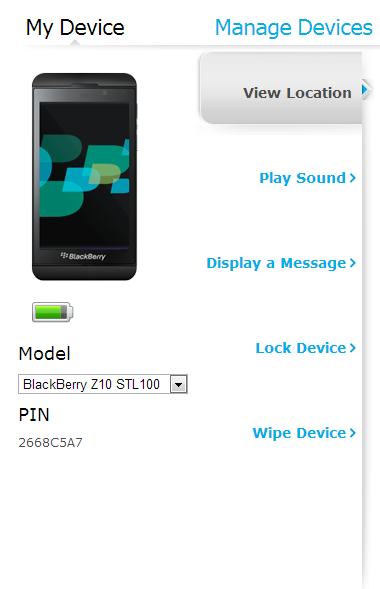
With BlackBerry Protect, you can easily keep track of your phone and its whereabouts. Log in at protect.blackberry.com to locate your lost handset—the service uses Bing maps and is quite accurate at pinpointing the device’s location. You can play a sound if you think it’s hidden in the couch cushions. You can even send a message if you think someone nabbed it from your pocket, then remotely wipe it so that no one else peeks at your data.

Locating your lost device is easy from the BlackBerry website.
For some reason, we don’t think this will work in getting back the phone.

BlackBerry 10 also allows users to disable specific application permissions. For instance, if you feel uncomfortable with Facebook’s location data mining, you can specifically turn that off within the settings, though this will also disable access to features like Places.

Peruse individual permissions within the Settings.

There are also added password complexity controls that ensure the alphanumeric key unlocking your device is challenging enough. BlackBerry 10 utilizes password logic to prevent you from using commonly used password sequences. This means you can’t use “password123″ to lock the phone.

Turn on the device password to get that extra added bit of protection.

Lastly, users can encrypt their personal files in the Settings. All it requires is a device password to work. After the switch is flipped, it will take a few minutes to encrypt data that already exists, but from there it will continue to encrypt any new files that are created or edited.

Easily encrypt your files with just the flick of a switch.

Voice recognition and dictation

Siri and Google Now have wooed us with their odd responses, slight inflections, and spot-on contextual information. It’s hard to think that anything could live up to these two services. In BlackBerry’s case, its voice recognition feature is a step in the right direction, but there are definitely some kinks to work out—many kinks, in fact—before it’s up to par with the other players.

BlackBerry’s voice recognition service doesn’t have a name, but it can perform a few commands.

To use the voice functionality, simply hold down the play button located on the phone until the dialog pops up and speak your command. Like Siri and Google Now, every query on BlackBerry’s voice recognition software is sent out via the network you’re connected to, whether it’s Wi-Fi or cellular. It also recognizes a number of commands, like whether you want to send a text, e-mail, or BBM message, call a contact, search the Internet, schedule an appointment, or make a note. What it can’t do is tell you who played in the Super Bowl this year or fetch directions to a local flower shop without first referring you to Bing. It also can’t look up the weather or get you transit times. It has a difficult time understanding if you speak too quickly or if there is background noise, like a television in the distance or a small crowd of people.

BlackBerry won’t tell me who is playing the Super Bowl.
At least BlackBerry can leave a note for me.
Perhaps I shouldn’t be so obtuse in my dictation.

While the voice recognition may be handy for taking quick notes and reminding you to pick up milk on the way home, it’s not much of a personal assistant beyond that. When it was asked to remind me to do something in two hours, the voice recognition software could not recognize the context of the number two. Worse, when I attempted to dictate a sentence (albeit an awkward one), the BlackBerry had some trouble understanding what I was saying even though I was enunciating clearly. The voice recognition service wasn’t a smooth experience overall.

Apps

BlackBerry World

Welcome to BlackBerry World.

In the same vein that Google re-branded the Android Marketplace into the Google Play store, BlackBerry changed the title of the BlackBerry App World to the more succinct BlackBerry World. The name reflects the store’s shift from a software-only bazaar to an all-encompassing content provider. Its users can now read, watch, listen, play, and buy apps, all from the same marketplace. In theory, this is a fantastic move for BlackBerry, but its execution falls flat for both new adopters and old faithful alike.

BlackBerry says its app store carries 70,000 apps, which is a paltry number compared to Apple’s 775,000 apps and Google’s 675,000 offerings. Even the fairly young Windows Phone marketplace carries roughly 150,000 apps for download. For now, BlackBerry is essentially betting on quality over quantity, but that might not matter too much if the quality of what’s available is sub-par. It’s hard not to pass judgment on BlackBerry World when trending apps on the main page feature titles like “Nail Decorating,” “LogoQuiz,” and “FishMunch Free.” Comparing that to what’s featured on rival app stores makes it hard to go into this World with much faith in what you’ll find. BlackBerry World is a bit of a mess, without many diamonds in the rough.

A look at some of the top free apps currently trending in BlackBerry World.

BlackBerry 10 is missing some very integral applications too. Video streaming apps like Netflix and Hulu are unavailable, and although Amazon has promised a Kindle application, it’s not available yet. Apps like Yelp and Shazam aren’t yet available to download on the Z10, and neither are music streaming services like Spotify and Rdio. BlackBerry World contains an abundance of enterprise-type applications, like SplashTop and third-party VPN clients (separate from BlackBerry 10’s built-in functionality), as well as fitness-centric apps for running, yoga, and Pilates. We were also able to pick out a few neat apps, like a version of Google Talk that integrates chat notifications into the Hub, or Songza, a free music service that offers curated playlists organized by activity and genre. It’s interesting to note, however, that apps like Songza are available because they have been ported over from Android.

Actually, 40 percent of BlackBerry 10’s available apps are Android ports. In a bid to make more apps available on launch day, BlackBerry has been holding Android “Port-A-Thon” competitions, paying developers $100 for every successful Android port. Both Android and BlackBerry employ similar Java frameworks, which makes the porting process a bit easier. Some have pegged it as a sloppy way to make more applications available in such a short amount of time, but it could turn out to be an intelligent move.

The ease of porting from Android means apps like Instagram could come to BlackBerry sooner than to Windows Phone, with other apps following suit as both new BlackBerry handsets go on sale in more markets. However, it’s important to note the Android applications currently ported over are being emulated in Android 2.3 Gingerbread, a two-year-old mobile operating system that is several iterations behind current offerings. The good news is BlackBerry has plans to update the Android runtime layer to Android 4.1 Jelly Bean.

Regardless, there are still many popular applications available on other platforms that have yet to make their way to BlackBerry 10. The company has a long list of developers it says it’s in talks with, but it appears many of those apps aren’t live yet. When we reached out to BlackBerry for a comment, we were told developers and application providers set their own launch times, so we can expect to see more apps added throughout the coming weeks and months. To be fair, we even saw a few new apps crop up while in the process of writing this review.

Also, while apps like Spotify and Yelp are available for BlackBerry 7 devices, BlackBerry has told us those older apps are not compatible with the BlackBerry 10 operating system.

Stock apps

Did someone order stock apps?

There are a couple of stock applications that come with BlackBerry 10, including a maps application, a Web browser (which we’ll touch upon shortly), a Sticky-type app called Remember, Docs to Go, a video-and-music stitching app dubbed Story Maker, a full-fledged calculator app, a clock app, a weather app, and a file manager. BlackBerry 10 also comes preloaded with cloud storage app Box and an application to connect to Dropbox. In addition, there’s an app called Print To Go, which enables you to send files wirelessly from your computer to the BlackBerry device, though you’ll need another app to make this functionality work.

BlackBerry 10’s stock weather app is very bare bones.
The file manager app lets you peruse through the files contained on your device.
Docs To Go lets users view Office documents and create new ones.
The Remember app integrates with Evernote and your Exchange’s Task and Notes functionality.

Newsstand

Magazines, anyone?
Magazines, anyone?

For daily train commuters, the ability to read on the go is often important for their sanity. Many old-fashioned print aficionados have taken to the digital age and adopted Apple’s ecosystem because of the variety of magazine and book titles offered in the iBookstore. Google Play hasn’t fallen far behind.

Much of what determines which titles makes it into any app store is based on where publishers decide to digitally publish. Unfortunately, it looks like there are still some titles that haven’t made their way to BlackBerry. Real Simple, the venerable life organization magazine, was not available in BlackBerry 10’s newsstand. The same goes for Vanity Fair or the Economist (though there is a separate shell app for this title available in BlackBerry World). Other titles like Harper’s Bazaar, Car and Driver, and Yoga Journal were available for individual download but not for digital subscription. These are a random sampling of what’s available in the store, but the default text size is too small to read on the phone in any case. You’ll have to pinch and zoom quite a bit, especially if you’re into text-heavy reading. This will make it tough to hold on to the subway pole during that shaky train ride to work.

Maps

BlackBerry 10’s Maps application features a traffic layer and estimated time of arrival. But that’s about it.

BlackBerry has partnered up with TeleCommunication Systems, Inc. (TCS) for the location services in its Maps app. You can search for places by name and add them as favorites for later, or hit the Go button to begin navigating to that destination. You can check for traffic spots along the way, but don’t expect any rerouting, à la Google Maps. The compass had some issues as we were turning the phone and switching directions. The navigation will get you where you’re going and offer an estimation of when, but it’s not very feature-filled. While it works, it pales in comparison to Android’s Google Maps-powered navigation, which is quite simply one of the best.

Music Playback

Music playback on BlackBerry 10.

Playing music stored on the device is relatively simple, and the music player app interface mirrors what’s on other mobile platforms. The music application included with BlackBerry 10 enables you to play one song at a time, one album at a time, or shuffle your entire library. You can also individually select albums or songs that you want to play in a session, and you can search through music for that specific song you like.

Content offerings

That feeling of happiness you get when you discover that a digital music store carries your absolute favorite electronic group.

BlackBerry World includes a nice library of music, movies, and television. In our preview, we mentioned BlackBerry had teamed up with 7digital, a privately held UK-based digital media company that boasts quite an impressive catalog. BlackBerry World managed to carry many of our favorite indie bands and electronic artists—names that you wouldn’t normally see advertised on the front page. Of course, BlackBerry also features big acts like Alicia Keys (obviously!) and Bruno Mars, but for other artists, it lacks some of the latest songs. For instance, BlackBerry World doesn’t carry Justin Bieber’s new acoustic album or Tim McGraw’s latest release. We used these as particular examples because they’re albums that were featured prominently in the iTunes Store as new releases. At least BlackBerry World has most of what’s available, and it’s definitely more than we were expecting.

You can rent and download movies instantly from BlackBerry World.

Movie rentals and television downloads are also available in BlackBerry World. A 24-hour rental for the movie Pitch Perfect runs for $3.99, with the option to purchase it for $19.99. For comparison purposes, a Pitch Perfect rental costs $3.99 on both iTunes and Amazon, and $14.99 and $12.99 to buy in standard definition, respectively. If you purchase a movie or television show, the content can only be downloaded on up to five devices, which is too limiting when other services like Amazon offer way more bang for the buck. Not to mention, Amazon and iTunes offer streaming services to set-top boxes and linked computers, although you can share content from the Z10 via DNLA.

You can buy individual episodes of popular television shows through BlackBerry World.

Regardless, BlackBerry made the right move in ensuring that its new handsets would be capable of offering most of the same entertainment content that Apple, Google, and even Microsoft offer on their mobile platforms. At least in that area, it’s keeping its head above the water.

Also, don’t worry too much about content on that tiny screen—you can sync downloaded TV shows and movies to your computer to watch on a bigger screen at a later time with BlackBerry Link.

Video sharing and photo taking

A cat that was not too happy to have her photo taken while she was trying to sleep. That’s what Time Shift is for!

To snap a photo, you can hold down on the camera icon from the lock screen or select the icon in the bottom right-hand corner of the running apps screen. We couldn’t take a screenshot of the interface because it turns out that when the volume up and down buttons are held simultaneously, it takes a photo. Instead, we took a picture of a cat with Time Shift mode, a new feature that purportedly helps take the perfect photo of smiling subjects and playful pets. Once you hold down the button to take a photo, Time Shift will essentially shoot in a burst mode and take several photos at varying intervals. Afterward, you can choose the image in the timeline that works for you and your Facebook wall and save it.

The camera application also includes settings for aspect ratio, different shooting modes, and various scenes, like Action, Whiteboard, Night, Beach, and Snow. Whiteboard mode operates exactly like sounds: it optimizes the settings to take a perfect photo of a whiteboard, which comes in handy for all that collaboration the BlackBerry target demographic is wont to do.

We don’t normally take pictures of whiteboards, but we took this photo using BlackBerry 10’s Whiteboard mode.

As you’ve hopefully seen from our hands-on, the camera hardware on the Z10 has some kinks to work out. It managed all right, but it’s missing many key features other mobile camera apps offer, like panorama and HDR functionality.

The Web browser

The BlackBerry 10 browser.

When we previewed BlackBerry 10, we were told its Web browser was going to be one of the best on the market. The numbers show this may not be too far from the truth—at least as far as Web standards and compliance goes.

First of all, BlackBerry 10’s native browser does indeed support Flash. However, it’s an optional plugin and can be disabled if those pop-ups ads and flashy banners get in the way of your Web browsing. BlackBerry disables it by default, so you won’t have to worry about Flash until you specifically remember it’s a thing that exists.

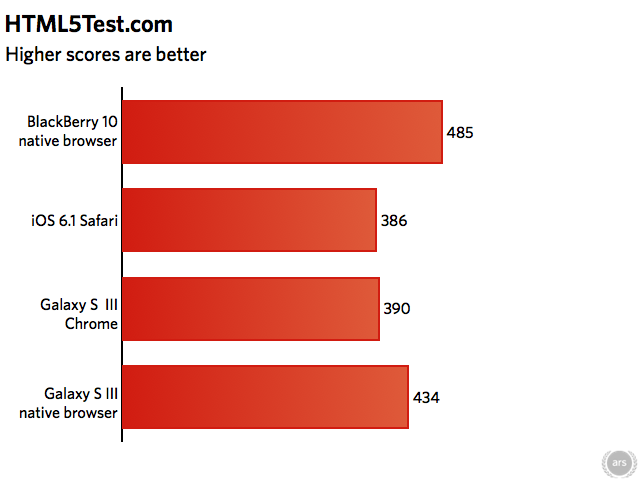
In HTML5Test, the BlackBerry 10 browser scored the highest HTML5 compliance score out of both of the Samsung Galaxy S III’s browsers (Chrome and native) and iOS 6.1’s Safari. It scored 485, in addition to 11 bonus points, out of 500. It earned the highest mark out of the four browsers tested even without additional bonus points.

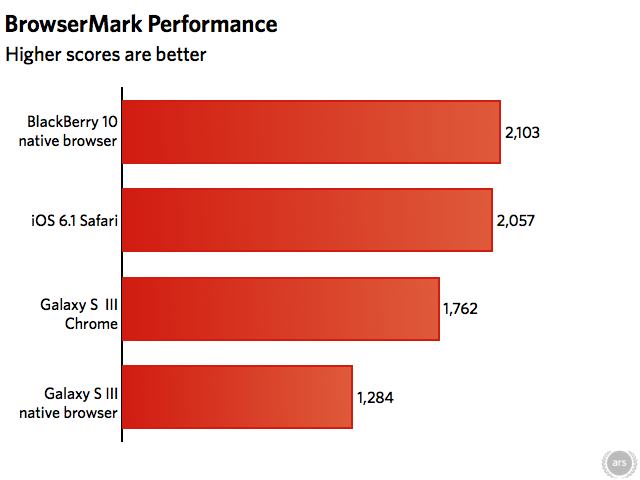
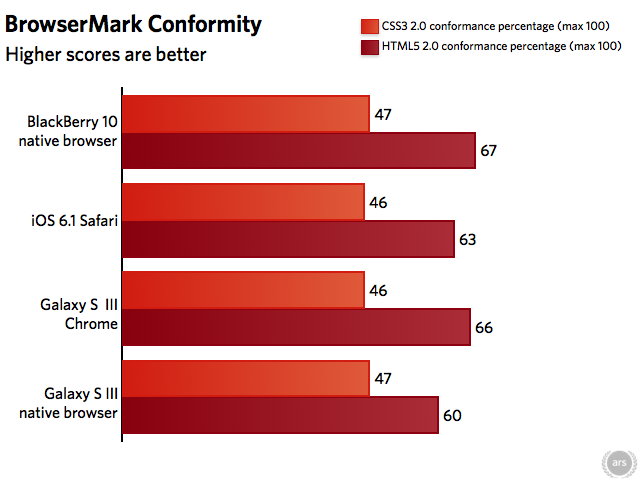
We also used Browsermark 2.0 as a benchmark for BlackBerry 10’s native browser performance. The test gauges how well the browser resizes and loads pages and sends requests. It also tests which technologies the browser supports. Again, BlackBerry 10 scored the highest in the test, with its numbers ranking it faster than 79 percent of other browser test scores the service accumulated. The browser also posted the highest percentages of conformance for CSS3 2.0 and HTML5 2.0, which means it’s just a tad more up-to-date than the others in tow (though the conformity numbers on all our tested platforms were pretty darn close).

BlackBerry’s new browser also features a few privacy and security settings, like private browsing, pop-up blocking, and the ability to automatically delete history after a certain period of time. Users can also enable desktop mode and a Web inspector from within the developer tools as well as select the default font size for surfing the Web. There’s also a handy Reader mode, and using the address bar for search will default you to Bing’s search engine.

Slide over to the right just once for open tabs, history, and bookmarks.
Slide over to the other side to select Reader mode.

Overall, we were impressed with browser speed and performance. Pages and HTML5-capable video loaded quickly and smoothly, without any stutter. Reader mode is also a comfortable way to get through a long article, though you can’t save any pages for offline reading at a later time. It’s worth noting, though, that our earlier hardware review of the BlackBerry Z10 handset showed somewhat slower Javascript benchmarks and slower page load times than similarly specced smartphones. This could be due to any number of things, but we’ll likely see performance increase as the operating system and its Web browser are updated.

Settings

BlackBerry 10’s settings page.

To access the settings within BlackBerry 10, you can slide your finger down from the home screen and select Settings or navigate to the apps grid and select the icon from there. Once in the Settings page, you can view the handset’s information, viable network connections, NFC and Airplane settings, notification modes, and overall system volume. That last menu includes headphone audio boost and the ability to skip songs by holding the volume keys on the right-hand side of the phone.

The rest of the settings page contains familiar entries, with abilities to tweak the interface’s font size and check for new software updates. Under Security and Privacy, users can view and change application permissions, set the device password and file encryption, and enable parental controls. The latter can restrict phone calls and text messages to come only from contacts, and it can also be used to limit application usage.

BlackBerry 10 features a slew of accessibility options.

Within the Settings options, there are accessibility options that enable Magnify Mode, which uses a gesture to magnify any part of the screen on the device. You can also adjust screen brightness and font size and improve the handset’s compatibility with hearing aids from this section. There’s even an option to enable teletypewriter support during phone calls.

Syncing with BlackBerry Desktop Software

The BlackBerry Link desktop software syncs your BlackBerry with your computer.

BlackBerry Link replaces the now antiquated BlackBerry Desktop Software which only works with BlackBerry 7 devices. Once you associate it with your BlackBerry ID, you can use Link to sync music and other data to the phone as well as organize videos, photos, contacts, messages, and other files over Wi-Fi or via USB. It also imports music over from Windows Media Player and iTunes.

The software displays the content available on both your computer and your device, and you can drag and drop it from the computer tab to the device tab. If you set up BlackBerry Link to pull in music data from iTunes and Windows Media Player, the software will sync playlists. This includes any new ones you add in those desktop apps down the line. You can also use the software to back up your BlackBerry device.

BlackBerry Link definitely falls short in the realm of powerful syncing applications like iTunes. Sure, iTunes certainly has its issues, but it’s much more full-featured than Link, and it’s easier to use. Link doesn’t even offer BlackBerry World functionality (though you can get to BlackBerry World via the Web). Hopefully, BlackBerry will continually update the software to make it less confusing to use. In the meantime, it will do for backup and getting content to and from your device.

Verdict

BlackBerry 10 is not necessarily intended to make iOS or Android lovers abandon their platforms. It’s for the brand new smartphone adopters, the old BlackBerry faithful, and those who might need a more work-centric phone but want all the functionality offered by other modern smartphones.

BlackBerry took a lot of time to see what the competition is doing, and then it worked to refine its operating system. It essentially had an excellent cheat sheet, filled with everything that has worked wonderfully and all the things that have bombed. That said, BlackBerry still has to mold its product for its two huge core audiences: the business-oriented multi-tasker and the developing smartphone markets. To that end, it has included all of the essential features and apps to appeal to both of those parties. The corporate user has his or her share of content to watch on the train ride to work, games and apps to help keep busy when not entrenched in a meeting, and the perfect Hub for messaging (not to mention the literal split between work and personal environments). The developing smartphone market gains access to media, magazines, and a plethora of new applications, not to mention some fantastic casual user functionality like the unified inbox and the Time Shift feature within the camera app.

BlackBerry also has a huge opportunity with its BlackBerry World store. Its partnership with 7digital and other third-party companies has really helped to up its game quickly. However, we feel inclined to give BlackBerry World a miss at this stage because it’s still early in its evolution. In fact, we might revisit BlackBerry World in a few months to see where the app and content store are then. Remember when Google Play popped up out of nowhere? It took seven months for an essential partnership between Google and Warner Brothers to gel before Google could successfully announce it had deals with all the major record labels. BlackBerry has the same route to go. We have to look at BlackBerry 10 as a brand new operating system rather than a revamped one, because that’s what BlackBerry hopes the world will see.

We’re pulling for BlackBerry. The new gesture-based interface is innovative, and although it has a bit of a learning curve, it helps give the platform its own identity. And we wish we had the Hub on every mobile operating system. As long as BlackBerry keeps pushing for more triple-A titles in its app store, it could have a major comeback story to tell near the end of the year. Of course, that story will rely heavily on how the public feels about its hardware, especially in contrast to whatever Android and iOS devices are released later this year.

Is BlackBerry 10 two years too late? After some time with it, we think it still has a viable chance, at least within those faithful markets. Whether it will attract iOS, Android, and Windows Phone users away will depend entirely on how those users feel about dealing with knock-off apps for awhile.

The good:

  • Unified inbox displays all notifications at a glance, integrates with almost every service you could need
  • Gestures get you every which way and only require a thumb
  • Multitude of accessibility options
  • Downloadable music, movies, and television shows available right from the phone
  • Responsive interface
  • Speedy, up-to-date browser with included Reader mode
  • Keyboard accuracy is fantastic

The bad:

  • Maps are about as reliable as directions that have been printed out
  • Voice recognition functionality is sub-par compared to what Google and Apple offer
  • Time-shift is a neat feature, but the rest of the camera app needs to offer more features
  • BlackBerry Link is annoying to use and lacks some features for mobile syncing

The ugly:

  • You probably won’t find your favorite app in BlackBerry World for quite some time
Florence is a former reviews editor at Ars.
163 Comments