iOS 8 wasn’t the smoothest operating system rollout in Apple’s history.
It’s true, any other ecosystem would kill for Apple’s OS adoption figures—as of this writing, 87 percent of the userbase is running some version of iOS 8. But it had a slower start than past versions of iOS, it required a ton of free space to install, and it had a few unfortunate bugs early in its life cycle that gave it a bad reputation. Like iOS 7 this was a big release, and with any big change comes the potential for big bugs.
Viewed from that lens, iOS 9 feels kind of like iOS 6 did. This is a necessary spit-and-polish release that followed two bigger, transformative releases. There’s some good stuff here, but nothing that’s quite as all-encompassing as iOS 7’s complete redesign or iOS 8’s introduction for Handoff and Continuity and Extensions.
At least, that’s broadly true for iPhones, iPods, and older iPads—the majority of the userbase. If you’ve got a newer iPad, however, Apple is making some long-overdue changes that make the tablet much more capable.
In this review, we’ll be focusing on iOS 9 features that are available to current devices. There will doubtless be a few software features unique to the new iPhone 6S, 6S Plus, and iPad Pro, but we’ll cover those in our reviews of those devices. Let’s get started.
Table of Contents
Device compatibility
iOS 9 runs on all the same hardware that ran iOS 8 as well as a few of the things introduced at Apple’s September event. Generally speaking, that’s great. The iPhone 4S and iPad 2 both showed up in 2011, though both were sold up until last year—most other mobile devices that came out that long ago have long since stopped receiving software updates. The complete list:
The iPhone 4S, 5, 5C, 5S, 6, 6 Plus, 6S, and 6S Plus.
The iPad 2, third- and fourth-generation Retina iPads, both iPad Airs, and all three iPad Minis.
The fifth- and sixth-generation iPods Touch.
Absent from that list is the third-generation Apple TV, which up until now has received updates more or less in lockstep with the rest of the family. The new Apple TV’s tvOS is still iOS-based and likely uses iOS 9 as its base, but as of this writing it doesn’t look like that courtesy is being extended to the old Apple TV.
Installation and free space
iOS 9 is available as an OTA update or through iTunes for anything that can run iOS 8. The size of the OTA will vary from device to device, but in any case Apple estimates that you’ll only need 1.3GB of free space available to install it (this is down from roughly 4.6GB for the iOS 8 OTA). If you can’t free up that much space, you’ll still be able to install via iTunes.
Both iOS 7 and iOS 8 left iDevices with less usable free space than they had before the update, an understandable but unfortunate side effect of the new features. To calculate the amount of free space iOS 9 takes up, we reset each of the following devices, went through first-time setup without configuring any iCloud or App Store accounts, and then gave the devices a few minutes to “settle.” The amount of free space decreases by a few hundred MB even if you don’t really do anything, presumably because of Spotlight indexing and other first-time setup activities. The free space readings come from the About page of the Settings app.
Device
Space available (iOS 8.4.1)
Space available (iOS 9.0 GM)
Difference
16GB iPhone 4S (VZW)
11.6GB
11.6GB
None
32GB iPhone 5 (VZW)
26.1GB
26.1GB
None
16GB iPhone 5S (Unlocked)
11.0GB
10.8GB
-0.2GB
64GB iPhone 6 (AT&T)
54.5GB
54.4GB
-0.1GB
16GB iPhone 6 Plus (Unlocked)
10.2GB
10.4GB
+0.2GB
32GB iPod Touch 5
26.5GB
26.3GB
-0.2GB
32GB iPod Touch 6
25.9GB
25.5GB
-0.4GB
16GB iPad 2 (Wi-Fi)
12.4GB
12.3GB
-0.1GB
32GB iPad 4 (Wi-Fi)
25.9GB
26.0GB
+0.1GB
64GB iPad Air 2 (Wi-Fi)
54.7GB
54.6GB
+0.1GB
16GB iPad Mini
12.0GB
11.8GB
-0.2GB
16GB iPad Mini 2
10.7GB
11.1GB
+0.4GB
With just a handful of exceptions, iOS 9 isn’t going to give you space back, but, even when it does consume more space than iOS 8.4, its impact is negligible. You rarely lose more than 100 or 200MB. iOS 8 made much larger, far-reaching changes to the platform, but in exchange it routinely gobbled up between 750MB and 1GB of extra space compared to iOS 7.1. This is an improvement.
Out of the box
The first-time setup process for iOS 9 is mostly familiar, though there have been some functional and aesthetic tweaks. On newer devices, there’s an option to transfer your data from an Android phone or tablet using Apple’s transfer app in Google Play—we’ll detail the transfer process in a separate article. TouchID devices need to set a six-digit numerical passcode at a minimum, even if you elect not to use TouchID, a nudge to encourage those users to use TouchID to unlock their phones most of the time. You should only actually need that passcode if you reboot your device or install an update. And while you can still set your iDevices up without an Apple ID and iCloud, the language has been tweaked to push you in that direction, and you need to tap three times instead of two to skip it when you’re setting up a new device.
Microsoft changed Windows 10’s setup wizard in a similar way—it’s possible to use the OS without a Microsoft account, but the setting is buried a bit. That’s just the way all of this software is moving: More connected, not less.
Andrew Cunningham
Andrew Cunningham
Andrew Cunningham
Andrew Cunningham
Andrew Cunningham
Andrew Cunningham
Andrew Cunningham
Andrew Cunningham
Andrew Cunningham
Andrew Cunningham
Andrew Cunningham
Andrew Cunningham
Andrew Cunningham
Andrew Cunningham
Andrew Cunningham
Andrew Cunningham
Andrew Cunningham
Andrew Cunningham
Andrew Cunningham
Andrew Cunningham
Andrew Cunningham
Andrew Cunningham
Andrew Cunningham
Andrew Cunningham
Andrew Cunningham
Feature fragmentation
While the older devices on that list still get the same security fixes, design changes, and most of the same APIs as brand-new ones, there are some features that aren’t available on older iThings. This is usually either because the hardware is too slow (hello Apple A5) or because some necessary hardware component is missing (no 5GHz Wi-Fi or Bluetooth 4.0 in some devices, no TouchID in others, and so on).
This is an attempt at a comprehensive list, and it includes features that were introduced in earlier versions of iOS as well as hardware-enabled features like Apple Pay and 3D Touch.
Missing iPad features
Siri doesn’t work on the iPad 2. Transparency/translucency effects aren’t supported on the iPad 2 or third-generation iPad.
Split View multitasking requires an iPad Air 2 or iPad Mini 4.
Slide Over and Picture-In-Picture multitasking requires an iPad Air, iPad Air 2, iPad Mini 2, iPad Mini 3, or iPad Mini 4.
The Health app is available only on iPhones and iPods.
Missing iPhone and iPod features
3D Touch, Live Photos, and 4K video recording require an iPhone 6S or 6S Plus.
Step-tracking and tracking walking and running distance without external hardware requires an iPhone 5S or newer or a sixth-generation iPod Touch; tracking and elevation without external hardware requires an iPhone 6 or newer or a sixth-generation iPod Touch.
Burst photos, slow-mo video, and related features require an iPhone 5S or newer or a sixth-generation iPod Touch.
The Apple Watch requires an iPhone 5 or newer.
CarPlay requires an iPhone 5 or newer.
Features missing from both
Low Power Mode is only supported on iPhones.
Public transit directions for Maps require an iPhone 5 or newer, fourth-generation iPad or newer, iPad Mini 2 or newer, or sixth-generation iPod Touch.
The Android data transfer app appears to require an iPhone 5 or newer, fourth-generation iPad or newer, iPad Mini 2 or newer, or a sixth-generation iPod Touch.
App Handoff and Suggested Apps require an iPhone 5 or newer, fourth-generation iPad or newer, any iPad Mini, or either iPod Touch. Handoff for phone calls and SMS messages will work on the iPhone 4S as well.
AirDrop requires an iPhone 5 or newer, fourth-generation iPad or newer, any iPad Mini, or either iPod Touch.
Support for Apple Pay mobile and in-app payments requires an iPhone 6 or newer. The iPad Air 2 and iPad Mini 3 support in-app payments only. The iPhone 5, 5C, and 5S can support it in a roundabout way via the Apple Watch.
“Intelligence” features and Siri suggestions require an iPhone 5 or newer, a fourth-generation iPad or newer, the iPad Mini 2, 3, or 4, or the sixth-generation iPod Touch (Apple A5 devices aren’t supported).
Safari Content Blockers require 64-bit hardware. This includes the iPhone 5S or newer, the iPad Air or Air 2, the iPad Mini 2, 3, or 4, or the sixth-generation iPod Touch.
TouchID-related features require an iPhone 5S or newer, an iPad Air 2, or an iPad Mini 3.
OpenGL ES 3.0, the Metal graphics API, and 64-bit ARMv8 apps require an iPhone 5S or later, the iPad Air or Air 2, the iPad Mini 2, 3 or 4, or the sixth-generation iPod Touch.
If you’ve got hardware from 2013 or 2014, your device is going to support just about everything that iOS 9 offers. Even the iPhone 5, released in 2012, gets most of the important stuff (as does the 5c by extension). Predictably, the iPhone 4S and iPad 2 are left out in the cold the most often.
It’s important to note that while we used the often-loaded word “fragmentation” at the beginning of this section, iOS feature fragmentation and the kind of fragmentation you see in the Android ecosystem are completely different. Attempts to compare Android and iOS in this regard are misinformed at best, facetious trolling at worst.
Android is increasingly fragmented not just by major versions, but by Google-approved implementations and the AOSP-based forks of the OS you see on many Chinese devices and on Amazon’s Fire hardware. Google has taken major steps forward in recent years (at least for Google-sanctioned Android) by breaking almost all of its Android apps and a few system components out into the Google Play store where they can be updated at will, but improvements and security fixes baked into the OS are still subject to the same carrier- and OEM-introduced delays that have always held them up.
Windows Phone exists somewhere in between. Carrier and OEM approval processes still hold up “final” updates, but Microsoft’s preview programs at least offer an officially sanctioned workaround to users who care the most about updates.
Moving beyond iOS 7: San Francisco and more
The iOS 9 lock screen gives you a look at the new typeface.
Andrew Cunningham
The iOS 9 lock screen gives you a look at the new typeface.
Andrew Cunningham
The lock screen in iOS 8. The differences between Helvetica Neue and San Francisco are minor but noticeable.
Andrew Cunningham
The lock screen in iOS 8. The differences between Helvetica Neue and San Francisco are minor but noticeable.
Andrew Cunningham
iOS 9.
Andrew Cunningham
iOS 9.
Andrew Cunningham
The lock screen in iOS 8. The differences between Helvetica Neue and San Francisco are minor but noticeable.
Andrew Cunningham
iOS 9.
Andrew Cunningham
iOS 8.
Andrew Cunningham
iOS 9.
Andrew Cunningham
iOS 8.
Andrew Cunningham
iOS 9.
Andrew Cunningham
iOS 8.
Andrew Cunningham
Notifications in iOS 9, arranged chronologically.
Andrew Cunningham
iOS 9 multitasking switcher.
Andrew Cunningham
iOS 8. The “recents” row has been removed and placed elsewhere.
Andrew Cunningham
iOS 9’s standard Share sheet.
Andrew Cunningham
The iOS 7/8 version is a little more condensed but the two fit the same amount of information on the screen.
Andrew Cunningham
The new multitasking switcher.
Andrew Cunningham
The app switcher with a Handoff notification available at the bottom.
Andrew Cunningham
The even more condensed version in the iOS 9 Photos app.
Andrew Cunningham
iOS 9.
Andrew Cunningham
iOS 8, with slightly harsher corners.
Andrew Cunningham
Larger, more bubbly menu in iOS 9.
Andrew Cunningham
More compacted version in iOS 8.
Andrew Cunningham
iPad folders can display up to 16 icons at once now, a better use of previously empty space.
Andrew Cunningham
And in landscape mode, you get a two-column view in the Notification Center.
Andrew Cunningham
Quick actions for contacts.
Andrew Cunningham
iOS 9 (and OS X El Capitan) changes the system font from Helvetica Neue to a version of the internally developed San Francisco typeface used on the Apple Watch. It’s not exactly the same—the Apple Watch version is narrower horizontally—but it’s close. If you’re interested in the typeface in and of itself (and if you want to know the difference between the “San Francisco Display” and “San Francisco Text”) there’s a good WWDC session I’ll point you to instead of going on about it at length.
The different fonts make iOS 9 look and feel different from iOS 8, even more than El Capitan feels compared to Yosemite. Those little text labels take up more of the screen on an iDevice, and you’re generally just staring at it more regularly than you necessarily are on the desktop. Functionally it’s not really any better or worse—as in El Capitan, it’s marginally more readable on non-Retina displays, though there are only two pre-Retina iPads left on the support list. The overall effect just makes the iOS 7-era design look a bit softer and rounder.
I might also be getting that impression from the pop-up dialog boxes, which are more rounded and bubbly than before. Some of the boxes and buttons also include more padding, making them larger than they were in iOS 8. Luckily, Apple has fixed some of this since the betas, particularly in share sheets.
In iOS 8, Share sheets could fit four icons horizontally, the same number as on the Home screen and with roughly similar spacing. In the final version of iOS 9, there actually appear to be a couple of different share sheets—the more common one fits four icons horizontally and shows the edge of a fifth, much like iOS 8’s. The alternate version (which so far I’ve actually only seen in the Photos app, though it could be related to the number of extensions and actions available) can actually show five across. It’s not available everywhere, but it reduces the amount of swipe-scrolling you need to do in an interface, which, depending on how many Extensions you have installed, can already require an awful lot of swipe-scrolling.
The new Android Lollipop-esque card-based multitasking switcher is also an improvement over the one in iOS 8, though it may take some time to get used to having the cards to the left of the home screen instead of the right. The iOS 8 switcher showed smallish app thumbnails bordered by large app icons below and a list of recent contacts above. That “recents” feature isn’t one that I’ve used much through iOS 8’s run—that strip of screen was left blank in iOS 7, so it always felt kind of like a “we put these here because they fit up there” move. Apparently Apple feels the same way, because that recent contact list has been moved elsewhere in iOS 9, integrated into the Spotlight search page that we’ll talk about later.
iOS 9 blows up the size of those app thumbnails to make it easier to see what you were doing in a given app, and you can swipe left and right among those cards to see all of your open apps. Information density doesn’t suffer too badly. On iPhones you can see all of one app window, slivers of two more, and a fuzzy impression of an icon for a fourth app (the final iOS 9 build turns up the blur filter for the cards in the background). There’s more to this screen, but we’ll discuss that further when examining Siri and the Intelligence features.
The notification center hasn’t changed much on iPhones and iPods, but its default sorting is different—now notifications are sorted chronologically by day instead of being grouped by app as they were in iOS 8. You can revert this behavior in the Settings if you’d like.
A context-sensitive “Back to [app]” badge in the upper-left corner helps you go back to your previous app more easily.
Credit:
Andrew Cunningham
Another change that I’ve found enormously handy is if you tap away from one app to respond to a notification or sign into a service, there’s a “Back to [the previous app]” button that appears in the top-left corner of the screen where the cellular and Wi-Fi status icons normally go. In the betas this badge even showed up when you launched an app with Spotlight, but now it only shows up if you jump from one app directly into another app.
Functionally, this is great. It serves the same purpose as the Back button on Android or Windows phone without the inconsistency or ambiguity that the Back button sometimes introduces. Visually, though, this is the poster child for the text-used-as-buttons problem that people have been griping about since iOS 7 came out—at the very least, it could be the same blue as the rest of the operating system’s text buttons. It also has the unfortunate side effect of hiding the cellular and Wi-Fi network indicators, which isn’t usually a problem but can be annoying if you’re on a train that’s going in and out of cellular coverage or if you just have a weak signal.
Finally, iOS 9’s focus on the iPad pays off in app folders (which are four by four grids now, rather than three by three) and the notification center, which has never used its screen space particularly well when in landscape mode. From iOS 5 through iOS 8, the notification shade on an iPad looked and worked like a slightly stretched version of the iPhone’s, with big blank strips on the left and right. In iOS 9, it still works that way in portrait mode, but landscape mode gets a handy two-column view with Today on the left and Notifications on the right.
The Notifications column also picks up a new “widgets” view. You can put widgets in both the Today View column and the Widgets column, increasing the number of widgets you can see onscreen at once.
If you persist in hating Apple’s bright-and-flat iOS 7-era design, iOS 9 doesn’t throw any of the core ideas out. But the changes to the multitasking switcher, software keyboard, and the iPad’s notification center all feel like steps in the right direction. They all change in ways that should please most and anger few, which is the best you can hope for in an incremental upgrade.
Fixing Shift: Software keyboard improvements
How do you fix an ambiguous Shift key?
Andrew Cunningham
How do you fix an ambiguous Shift key?
Andrew Cunningham
By changing every other key on the keyboard, of course!
Andrew Cunningham
By changing every other key on the keyboard, of course!
Andrew Cunningham
The iPad version. Note the new formatting buttons along the top, which are context-sensitive and can change from app to app.
Andrew Cunningham
The iPad version. Note the new formatting buttons along the top, which are context-sensitive and can change from app to app.
Andrew Cunningham
By changing every other key on the keyboard, of course!
Andrew Cunningham
The iPad version. Note the new formatting buttons along the top, which are context-sensitive and can change from app to app.
Andrew Cunningham
Lower-case.
Andrew Cunningham
Hold down with two fingers to put the keyboard into trackpad mode so you can move the cursor around.
Andrew Cunningham
The iOS 7-era Shift key was, at best, ambiguous. Shift in iOS 6 and older versions would glow blue when pressed, a behavior unique to that key that made it clear when it was pressed. Shift in iOS 7 and iOS 8 went through a few different iterations, but they’ve all been some combination of grey and black and white. In no case has it been completely clear whether Shift is on or not.
iOS 9 fixes the problem not by changing the Shift key, but by changing the way every other key on the keyboard works. Letters on the new keyboard will change from lower to uppercase depending on whether the Shift key has been pressed. No more ambiguity, and it’s basically the same solution that companies like Google and SwiftKey have used.
If, for whatever reason, you prefer the old all-caps-all-the-time version of the iOS keyboard, you can re-enable it in the Accessibility settings under Keyboard. When you do this, the Shift key behaves as it does in iOS 8.
That’s the primary change for the iPhone and iPod keyboard, but the iPad version of the keyboard picks up a few other features that make better use of all your tablet’s screen space. New formatting shortcuts pop up to the left and right of the typing suggestions, letting you do things like bold text and copy/paste without the same amount of tapping and long-pressing that you’d normally need to do. These shortcuts can be context-sensitive—Apple says third parties can add their own shortcuts to the bar if they want.
Software keyboards on the iPad pick up another handy feature that’s especially useful when editing text. Press two fingers down anywhere on the keyboard and the bottom part of the screen becomes a large trackpad, which you can use to move your cursor around as you would on a Mac. This is enormously helpful when editing larger text documents, something that previously required a bunch of imprecise screen tapping.
iPads learn some new hardware keyboard-related tricks, too, which brings us to one of iOS 9’s biggest additions: more Mac-like iPad multitasking.
Mac-ifying the iPad: Multitasking support
Slide Over. Scroll up and down to pick an app.
Andrew Cunningham
Slide Over. Scroll up and down to pick an app.
Andrew Cunningham
Slide Over dims the app in the background. Only the foreground app is active.
Andrew Cunningham
Slide Over dims the app in the background. Only the foreground app is active.
Andrew Cunningham
On the iPad Air 2, dragging the bar to the left of a Slide Over app enables Split View mode.
Andrew Cunningham
On the iPad Air 2, dragging the bar to the left of a Slide Over app enables Split View mode.
Andrew Cunningham
Slide Over dims the app in the background. Only the foreground app is active.
Andrew Cunningham
On the iPad Air 2, dragging the bar to the left of a Slide Over app enables Split View mode.
Andrew Cunningham
Split View is pretty handy but not without its problems. Here, an iPad user agent string shrinks our homepage even though the “window” it’s in is iPhone-sized.
Andrew Cunningham
The small button in the lower-right corner of the screen enables Picture-in-Picture mode.
Andrew Cunningham
A small, resizable window appears.
Andrew Cunningham
It can be resized, but always needs to be anchored to one of the corners of the screen.
Andrew Cunningham
The video continues playing while you do other things. Hit the button again to zoom back in.
Andrew Cunningham
You can tuck the video off to the side temporarily if you need to. It won’t stop playing.
Andrew Cunningham
If you want to use all of its multitasking features, iOS 9 significantly increases system requirements for the iPad. Only the iPad Air, iPad Air 2, iPad Mini 2, iPad Mini 3, and iPad Mini 4 can use the new Slide Over and Picture-in-Picture multitasking features. Only the iPad Air 2 and iPad Mini 4 can use the full, El Capitan-esque Split View multitasking UI, the thing you probably got the most excited about when Apple demoed it at WWDC. Older iPads get all the neat new hardware and software keyboard stuff, but you’ll need to shell out for an upgrade to take advantage of everything.
Slide Over
Slide Over is best used for quick hits. Say you’re looking at a webpage and want to jot down a couple of notes, or you need to jump into Mail or Messages to fire off a quick reply or look for a particular message. If you need to spend more time in whatever app you’re sliding over (and you don’t have an iPad Air 2 or Mini 4 with full Split View support), you’d be better served by switching to the full-screen version of the app.
The “main” app on the screen doesn’t respond when you slide something over except to fade from view, so if you’re reading an e-mail or news article and want to pop the Notes app over to jot something down, the Slide Over UI obscures part of the underlying app. Even more of that app is obscured if you call up the software keyboard, which will move things around in the Slide Over UI but not in the underlying app.
Pull down from the top of the Slide Over UI to switch between apps; the last-used app will show you a thumbnail image so you can see what you were working on, but the other apps all show up as an icon surrounded by grey padding. Apps are organized according to how recently they were used and can’t be manually reshuffled; swipe up and down to see the entire list.
Split View
Split View and Slide Over in iOS 9. Video edited by Jennifer Hahn.
On the iPad Air 2, tap and drag the little bar to the left of any Slide Over app, and it will turn on Split View mode. This brings the Slide Over app to the foreground, resizes the main app underneath it, and then lets you interact with both simultaneously.
If you read our explanation of what developers need to do to support Split View, you should already have a good idea of how apps will look and work when split. By default the screen will devote 75 percent of its space to the “primary” app on the left and 25 percent to the “secondary” app on the right. Primary apps look like regular iPad apps that have been squished horizontally, and secondary apps look like iPhone apps that have been stretched vertically. Moving the divider to split the screen down the middle makes both look like iPhone apps that have been stretched both vertically and horizontally. Drag the divider all the way to the left and your secondary app will become your primary app. The iPad Pro’s extra screen space will make it possible to have two squished iPad apps side-by-side.
The primary app window is always fixed, but you can switch between different secondary apps by pulling down from the top of the window, same as in Slide Over mode. Though you can tap and scroll through items in both apps simultaneously, the software keyboard takes up the whole screen when launched and can only interact with one app at a time (which makes sense). Hardware keyboards, likewise, will input text into whatever app you interacted with last, and there doesn’t appear to be an easy way to tab between two open apps without tapping on one or the other.
Split View generally works well—we haven’t had major performance or stability issues, and it really does make the iPad feel more like a computer that’s able to read a webpage and take notes without having to switch between apps. It’s a transformative step from the “big iPod Touch” experience toward something that feels more “Mac Lite.”
There are occasionally rough edges in both Split View and Slide Over, though. The most irritating one I’ve run into is with Safari, which gives an iPad user agent string to sites even when the “window” you’re using to load the site is iPhone-sized. Often, you’ll get tiny desktop- or iPad-sized sites where a standard mobile site would work better. We’re not sure whether Apple can solve this problem on its end or not, though it’s worth noting that sites with responsive designs work fine regardless of user agent.
As of this writing, these are the first-party apps that support Slide Over and Split View: Videos, Tips, Reminders, Podcasts, Photos, News, Messages, Maps, Mail, iCloud Drive, iBooks, Game Center, Find My iPhone, Find My Friends, FaceTime, Contacts, Calendar, Notes, and Clock. Third-party developers will need to add support to their apps before they’ll begin to show up in the list.
Picture-in-Picture
Finally, Picture-in-Picture mode is just what it sounds like. Tap the new PIP button in apps that support it and your video will be shrunk down to a little square. Video and sound keep playing, but otherwise you can use the tablet just as you normally would. The video can be moved but normally needs to stick to one of the four corners of the screen, and the PIP window is resizable within a limited range. It can also be temporarily tucked away behind the edge of the screen if you need to get it out of the way for a moment.
I can already see myself using it to watch videos and take notes at the same time or to keep a YouTube video going as I write a quick e-mail. As with the other multitasking features, it will only reach its full potential once third-party developers begin taking advantage of it, but there’s usually a flood of new apps and app updates on release day that introduce support for big new features like these.
Hardware keyboard improvements
Hardware keyboards pair surprisingly well with iOS 9.
Andrew Cunningham
Hardware keyboards pair surprisingly well with iOS 9.
Andrew Cunningham
A new Mac-like command-tab menu lets you switch apps.
Andrew Cunningham
A new Mac-like command-tab menu lets you switch apps.
Andrew Cunningham
Holding command gets you a list of all supported shortcuts in an app.
Andrew Cunningham
Holding command gets you a list of all supported shortcuts in an app.
Andrew Cunningham
A new Mac-like command-tab menu lets you switch apps.
Andrew Cunningham
Holding command gets you a list of all supported shortcuts in an app.
Andrew Cunningham
When the keyboard is connected, the suggestions and formatting buttons stick around but the software keyboard stays hidden.
Andrew Cunningham
Different apps can feature different commands, just like on the desktop.
Andrew Cunningham
The last bridge that iOS 9 builds between the iPad and the Mac is extended support for hardware keyboards. iPads have always supported external keyboards in some basic capacity, and some OEMs have created iOS-specific keyboards with Home buttons and other keys integrated. But iOS 9 makes keyboard support feel intentional rather than incidental, setting the stage for the iPad Pro and its keyboard cover.
This is mostly centered around keyboard shortcuts. Certain shortcuts are universal throughout iOS whether your app’s developer has done anything special to support them or not. Standbys like Command-C for copy, Command-X for cut, and Command-V for paste are available everywhere. Command-tab brings up a distinctly Mac-like app switching interface that lets you jump quickly from app to app, and Command-Shift-H takes you to the Home screen if your keyboard doesn’t have a dedicated Home button of its own.
Apps that want to can also add their own custom keyboard shortcuts to this list. On a Mac, these would be discoverable under File and Edit menus that iOS apps don’t have. In iOS 9, pressing and holding the Command key will display a list of shortcuts supported in the app—not all of Apple’s apps support keyboard shortcuts right out of the gate, but at least it’s pretty easy to figure that out. In first-party apps like Safari and Mail, the shortcuts often correspond to similar shortcuts in OS X.
Unlike the other multitasking stuff, the hardware keyboard improvements are available on every tablet from the iPad 2 to the iPad Air 2. The experience is better on newer tablets, though. The Command-Tab app switcher, in particular, can be painful on the iPad 2 and iPad Mini. These devices only have 512MB of RAM and have to eject apps and Safari tabs from memory pretty aggressively to make room for others, so tabbing between apps can take some extra time if they need to reload their states first.
Spotlight and third-party search APIs
Spotlight can do app and contact lookups, and some items can even include quick actions.
Andrew Cunningham
Spotlight can do app and contact lookups, and some items can even include quick actions.
Andrew Cunningham
You can now look a variety of information up right from Spotlight.
Andrew Cunningham
You can now look a variety of information up right from Spotlight.
Andrew Cunningham
Unit conversions.
Andrew Cunningham
Unit conversions.
Andrew Cunningham
You can now look a variety of information up right from Spotlight.
Andrew Cunningham
Unit conversions.
Andrew Cunningham
Incredibly complicated math problems.
Andrew Cunningham
Scores from sporting matches.
Andrew Cunningham
Spotlight search in iOS 9 is available in three places on most devices. There’s one “above” the home screen, accessed by swiping down, which is where iOS 7 put it two years ago. Spotlight results can show up in Safari when you type into the address bar. And there’s a new expanded version to the left of the home screen, accessed by swiping from left to right, which is the place Spotlight lived back in the day.
The third of the two Spotlight screens is the most important, and it’s actually assembled out of a bunch of different components. First, we’ll focus on Spotlight itself.
Spotlight can still be used to search for and launch apps, dig through local data in Apple’s first party apps, and scan external sources like Wikipedia and Rotten Tomatoes for information—that was all stuff that it did in iOS 8. In iOS 9, the biggest addition is an API for third-party developers that will finally let content from within their apps show up in Spotlight search results alongside content from first-party apps.
There are three main APIs developers can use, and they all do slightly different things. One, NSUserActivity, is responsible for displaying app content you’ve viewed recently or content that has proven popular among users of the app. CoreSpotlight can return any content from within an app whether it’s been viewed recently or not. And Web Markup can display app content from the Internet even if the user doesn’t have your app installed, theoretically improving discoverability for third-party apps and services.
First- and third-party Spotlight results can be more useful than before. Contacts, for example, can be called or messaged right from within Spotlight, sort of like the quick actions that iOS 8 introduced for notifications. Apps that use star ratings can display those alongside their titles, metadata, and thumbnail images.
And, finally, Spotlight can fetch more information for you without making you open a separate page or app. Stock prices, sports scores, weather forecasts, and unit conversions can all be done in Spotlight now, things that for whatever reason required the use of Siri in iOS 8.
All users really need to know is that third-party content will soon begin to show up in Spotlight alongside first-party content—this is pretty easy to explain, and it feels like something that should have been supported already. For those who want a deeper understanding of what the features do and how they work, it helps to know what’s happening behind the scenes.
NSUserActivity: Handoff meets Spotlight
Apple
Apple
Apple
Apple
Apple
Apple
Apple
Apple
Apple
Apple
Apple
NSUserActivity objects are also used to support Handoff, introduced in iOS 8. To make Handoff work, developers use NSUserActivity to show what users are doing in an app—composing an e-mail, viewing a specific page, playing a song, and so on. Handoff advertises these activities to other devices signed in with your Apple ID, and you can pass activities from device to device, picking up where you left off.
In Spotlight, rather than being advertised and passed to other devices, NSUserActivity objects are indexed. One of Apple’s examples is from a recipe app. When a user is viewing a specific recipe, the app’s state can be indexed in the form of an NSUserActivity object. Later if the user wants to find that recipe again, she can start typing in Spotlight and the recipe will show up; tap it, and you’ll return to the app. Think of it as a sort of self-Handoff, using a familiar system as a way to resume your activity later instead of just passing it to another device.
Another optional variable for NSUserActivity determines whether it’s eligible for public indexing. Let’s use Apple’s recipe example again—if there’s an individual recipe available publicly to all of an app’s users, and if that recipe is popular enough that many users look it up, that recipe can be added to an Apple-maintained cloud index. Those results then show up in Spotlight for everyone who has installed the app, not just users who viewed them recently.
How popular does something have to be before Apple adds it to the cloud index? The company isn’t saying. But it does stress that public indexing is off by default, meaning that developers need to explicitly mark information as public before it will be indexed and that the system the company uses to determine popularity protects user privacy and anonymity.
And there are a few other added benefits to using NSUserActivity objects in your apps. Use Siri to create a reminder when viewing that hypothetical recipe we keep mentioning, and iOS will embed the activity within the reminder for easy access (saying “remind me about this” when viewing the object should do it). These activities can also show up in your Siri Suggestions list, a feature we’ll talk about more in a bit. And finally, developers who use NSUserActivity objects to add items to the Spotlight index automatically get support for Handoff in their apps. This is enabled by default but can be disabled if you want to support indexing without supporting Handoff.
CoreSpotlight: Comprehensive indexing
CoreSpotlight will allow developers to index any app content, not just recently viewed or popular items indexed with NSUserActivity. Apple points out that this is the same API it uses internally to provide search for Mail, Messages, Calendar, and Notes, which should give you a fairly good idea of what it’s capable of.
If you were building a music or photo app, for example, you could define each song or picture as a “CSSearchableItem,” each of which could be associated with an attribute set (or metadata). Each of those individual items can then be indexed, and when users search in Spotlight they’ll see the song or picture along with its associated metadata. Tapping the search results will open it in your app—behind the scenes, iOS “resumes” an activity much as it does for NSUserActivity objects, but from the user’s perspective you would simply bring up your song or photo.
CoreSpotlight API also provides methods to update within an index to keep up with changes to objects or object metadata. Deleting individual items, groups of items, or the app’s entire index is also supported.
Web Markup: Extending your reach
The last of the new APIs, Web Markup, is specifically for apps that are pulling content from the Internet rather than from inside the app. The Yelp, Amazon, or Airbnb apps would be pulling data from their respective sites rather than storing that data within the app, for example. Deep links to that content can be included in Apple’s cloud index and made searchable even if users don’t have a particular app installed.
Developers will need to do a few things for both their apps and their sites for this feature to work as intended. They have to allow Apple’s Web crawler (creatively dubbed “Applebot”) to discover and index your site, and both site and app need to be configured to handle deep links. Additional, optional-but-recommended markup can be used to provide images, quick actions like dialing a number or getting directions from Maps, and other things beyond basic titles and descriptions.
Hey Siri, get proactive
Siri’s got a new look.
Andrew Cunningham
Siri’s got a new look.
Andrew Cunningham
“Hey Siri” isn’t new, but in iOS 9 it makes you train your voice before you can use it. On anything other than the iPhone 6S, your devices needs to be plugged in before it will work.
Andrew Cunningham
“Hey Siri” isn’t new, but in iOS 9 it makes you train your voice before you can use it. On anything other than the iPhone 6S, your devices needs to be plugged in before it will work.
Andrew Cunningham
Andrew Cunningham
Andrew Cunningham
“Hey Siri” isn’t new, but in iOS 9 it makes you train your voice before you can use it. On anything other than the iPhone 6S, your devices needs to be plugged in before it will work.
Andrew Cunningham
Andrew Cunningham
Andrew Cunningham
Andrew Cunningham
Andrew Cunningham
Andrew Cunningham
Siri gets a new look in iOS 9, a colorful waveform set against a hazy translucent background. It’s the same look that Siri has on the Apple Watch, and it’s also going to show up on the new Apple TV box in October. The familiar “ding” sound is gone on devices with vibration motors, replaced by two quick, silent Apple Watch-like buzzes. On iPads and iPods without vibration motors, the sound is still used, and you’ll still hear it if you use the “Hey Siri” voice command for hands-free operation.
The option to use the “Hey Siri” activation phrase while your phone or tablet is plugged in was included in iOS 8, but Apple has made it more precise for iOS 9—enable it in the Settings, and you’ll be asked to repeat a few basic commands to accustom Siri to the sound of your voice. In the iPhone 6S, Apple has added a low-power block to the A9 processor that will allow the phone to listen for the command even when it’s not plugged in, a feature that has shown up in several Android phones in the last couple of years. You still couldn’t enable always-on Siri on older iPhones without killing the battery, but the experience when it’s plugged in is representative of what we’ll see on the 6S.
Siri and Spotlight can both respond to more “natural” language now, the same kinds of queries we talked about in our El Capitan preview. Ask to see pictures from yesterday, and the Photos app will spring up to show you pictures from yesterday. If you want to be reminded about a specific e-mail or Web page, say something like “remind me about this in three hours,” and Siri knows what you’re talking about.
Siri’s most useful new features are its “Intelligence” features, which take it from being a call-and-response digital assistant to a more proactive helper.
Siri suggestions.
Andrew Cunningham
Siri suggestions.
Andrew Cunningham
Viewing more.
Andrew Cunningham
Viewing more.
Andrew Cunningham
Quick actions for contacts.
Andrew Cunningham
Quick actions for contacts.
Andrew Cunningham
Viewing more.
Andrew Cunningham
Quick actions for contacts.
Andrew Cunningham
Some Siri app suggestions seen in the alternate version of Spotlight, viewed by swiping down on the home screen.
Andrew Cunningham
iOS 9 can make some well-intentioned suggestions, though they’re in an odd place sometimes.
Andrew Cunningham
Some of these features are subtle. The “Siri suggestions” section of the Spotlight screen generally combines your four most recent and frequently used contacts with your four most recent and frequently opened apps, though the apps can change based on location, time, whether you have an external speaker or headphones connected, and other factors (you can expand it to eight apiece if you tap “show more”). Recent news items, curated in part based on your preferences in the Apple News app, are listed at the bottom of the screen, and these pull you into Apple News when you tap them.
In between those two menus is a “nearby” list, which opens up Maps and shows you locations based on Yelp data. The list of pre-selected categories changes based on time of day—you might see “lunch” if you look at noon, or “nightlife” if you look after dark. You also get a taste of Siri’s newfound proactivity in the multitasking switcher, which can show you app suggestions across the bottom of the screen (the same place where Handoff notifications now show up).
I’m conflicted on these. On the one hand, they did a pretty good job of suggesting apps—when I plugged in headphones, it suggested that I should launch my preferred podcast app. When I was standing at the train station, it suggested I launch a game I had been playing. It can also make suggestions based on the time of day.
On the other hand, this is a pretty strange location to actually launch apps from. I don’t know whether I’m representative of all iOS users, but generally when I’m launching apps I’m either doing it directly from the first page of the Home screen for frequently used apps and using Spotlight to launch literally anything else. Sometimes I’ll launch an app from a notification, but the only times I go into the multitasking switcher are when I want to jump between the app I’m using and one that I’ve opened recently, or when I’ve opened something specific on my Mac or iPad that I’d like to open with Handoff.
It’s not a place to go to open new apps, and, while Siri is pretty good at guessing what I want to use, it’s not as though it ever surprised me. Maybe there’s someone out there who would plug in his headphones but forget that he wanted to listen to a podcast until his phone reminded him, but I’m not that person.
Other “proactive assistant” features are sprinkled throughout the OS. As in OS X, if Mail sees something that it thinks looks like a meeting request, it can offer to create a calendar entry for it. If you get a call from an unknown number that has popped up in some obscure e-mail, iOS can guess who the contact is and offer to create a new contact based on that data. If you create a contact using a phone number and iOS thinks it has an e-mail address for the same person, it will suggest you add it to the contact. It’s little stuff, but it’s generally useful.
The Intelligence features are often compared to Google Now, but Google’s proactive assistant still has a definite edge here. Some of the best stuff that Google Now does—pulling up flight information and QR codes when it sees that you’re traveling, showing you tracking information for packages if it sees tracking numbers in your inbox—is missing from Apple’s offering. Google Now will automatically suggest specific restaurants or other nearby attractions based on your location; Apple’s version still makes you ask first.
One of Google Now’s largest and best sources of information for what you’re doing is your inbox, and Apple doesn’t seem comfortable digging through your mail ahead of time even if it means it’s missing some easy opportunities. Apple is increasingly making privacy a core feature of its products, so while iOS 9 stands farther away from the “creepy line,” there are cases where it makes the product less useful.
Safari, content blockers, and the ongoing ad-blocking debate
Enabling a content blocker in Safari’s settings.
Credit:
Andrew Cunningham
Enabling a content blocker in Safari’s settings.
Credit:
Andrew Cunningham
Safari itself doesn’t change much in iOS 9, though there are many new Safari-related features to keep track of. SFSafariViewController is a replacement for standard in-app webviews that uses Safari’s standard UI and can autofill passwords and other information you have stored in regular Safari. The “frequently visited sites” feature can be turned off in the Settings, something that wasn’t possible in iOS 8 (all of the top results when you Google the feature are about removing or disabling it).
These are nice additions, but Safari’s new “content blockers” are one of iOS 9’s more controversial new features, at least among those who work in (or adjacent to) the ad-supported media business.
Content blockers can be used either to hide elements on a Web page, or to block those elements from being loaded altogether. And while they can be used to block pretty much anything, most of the conversation (and Apple’s own demos at WWDC) has centered on the ability to block advertising and the tracking scripts that many ads use to learn more information about your browsing habits.
The feature is normally boiled down to “iOS 9 is going to enable widespread ad blocking on mobile devices,” but the reality is more complicated than that. First, let’s talk about how Content Blockers work.
Content blockers in both iOS and OS X are extensions, and they’re governed by the same rules as third-party keyboards, Share extensions, and others. Extensions must be included in a standard app downloaded from the App Store, even if all that app does is explain how to enable and use the extension. Downloaded content blockers are disabled by default, and you actually have to dive pretty deep into the settings to enable them—go to Settings, then Safari, then Content Blockers to toggle them on and off.
The building blocks of the Content Blocker extensions are “triggers” and “actions”—actions tell Safari what to do (hide this ad box, don’t load this script), and triggers tell Safari when to do it (if a script is from xyz.com, if you’re visiting SiteWithCrappyAds.biz). Developers can use Safari’s Web Inspector to examine page elements and determine exactly what to block.
And luckily for developers, updating your Content Blocker extension with more rules doesn’t require a full App Store update for a given app. The extensions are mostly written in JSON, and those JSON files can be updated with new rules in the background without requiring additional user intervention.
One caveat is that, officially, content blocking extensions won’t be supported on 32-bit iDevices. That includes everything with an A5- or A6-class processor, including the iPhone 4S, 5, and 5C; the second, third, and fourth-gen iPads, the first iPad mini, and the fifth-gen iPod Touch.
Technical vs. ethical
There are two big conversations happening around iOS 9’s Content Blockers, one technical and one ethical.
The ethical debate is the same one we’ve had a million times about desktop ad blocking: most of your favorite sites need ad revenue to do things like “pay writers and editors and engineers” and “keep the lights on,” so is it “right” to block ads and deny those sites that revenue stream?
On the one hand, it’s easy to look at those badly behaved sites and see where proponents of ad blocking are coming from, at least in the short term. This is doubly true for mobile devices, where performance, memory, battery life, and screen space are all at a premium.
And those bad sites are really at the root of the problem. For every “good” site that tries to keep ads well-behaved and unobtrusive (hi), there are a dozen “bad” sites that constantly take over your screen and try to point you to an app and bog down your browsing. Many of those who block ads do so because of the bad sites, but the good sites end up getting caught in the crossfire and suffering as a result. To close the resulting revenue gap in the long term, those sites may have to turn to corporate-owned distribution channels like Facebook or, yes, Apple News, where ads and tracking will be difficult-to-impossible to turn off, especially on mobile devices.
The technical side of the debate is about whether iOS’ content blockers are powerful enough to serve as functional ad blockers. Though proponents of blocking sometimes argue that they’re doing it to force ad networks to improve the advertising experience, in practice those ad networks often just devote resources to circumventing the blockers. In its current form, ad-blocking extension Crystal includes a reporting form for ads that aren’t blocked and sites that aren’t working that promises reviews and blacklist updates within seven days of submission. But the questions are whether that will be fast enough to keep up with the workarounds, and whether that kind of effort is sustainable in the long term given the economic realities of independent iOS app development.
It should also be noted that Adblock Plus itself has concerns about whether Apple’s blocklist format is powerful enough for its purposes. Citing those concerns, the company has built its own browser for iOS using a legacy iOS webview and its own adblocking tech.
In the short term, all we can ask of you if you use a content blocker in iOS 9 is to whitelist the sites you like (hi, again) whenever possible. That said, it’s telling that Crystal is only going to get a whitelist at some future date—it apparently won’t be available at launch.
Notes
The new, richer Notes app.
Andrew Cunningham
The new, richer Notes app.
Andrew Cunningham
Notes is a target in many Share sheets now—you can embed links, locations, pictures, and other things.
Andrew Cunningham
Notes is a target in many Share sheets now—you can embed links, locations, pictures, and other things.
Andrew Cunningham
Simple checklists are a thing now, too.
Andrew Cunningham
Simple checklists are a thing now, too.
Andrew Cunningham
Notes is a target in many Share sheets now—you can embed links, locations, pictures, and other things.
Andrew Cunningham
Simple checklists are a thing now, too.
Andrew Cunningham
All note attachments can be browsed through at once if you’re looking for a particular item but don’t remember where you put it.
Andrew Cunningham
Making pretty drawings in the Notes app is fun, too.
Andrew Cunningham
Tap the plus button on the iPhone to bring up a new formatting bar.
Andrew Cunningham
These buttons are all visible at the top level on the iPad.
Andrew Cunningham
Formatting options that were previously unavailable in the iOS version of Notes.
Andrew Cunningham
Older iOS versions of Notes could view formatting changes (bolded and italic text, bulleted lists, and so on) made in the OS X version, but it couldn’t actually do that kind of formatting itself. There’s now a new Pages-esque formatting menu you can use to make these changes. The real improvement, though, is the way that Notes handles items from other sources.
Open a Share sheet in most of Apple’s other first-party apps and you’ll notice that Notes now shows up as an option. Share something to Notes from those apps, and you’ll be asked if you want to add it to an existing note or create a new one.
That information will then show up in your note, cordoned off in a little box where you can click it to engage with it. A note with any of these little extra boxes embedded in it is said to have an “attachment,” and the number of attachments a note has will show up in the list of notes along with the title of the note, the last time it was edited, a preview of the first line below the title, and an image thumbnail (if applicable).
To make looking through all those attachments easier, Notes also picks up an attachments browser that will pull all attachments from all notes and sort them by type (the categories are Photos & Video, Sketches, Map Locations, Websites, Audio, and Documents).
Finally, those of you who already use the Notes app as an impromptu checklist (or appreciate this functionality in apps like OneNote) get some official support from Apple in the form of a “create checklist” button. It functions pretty much the same way as a bulleted list, just with big checkboxes to the left of each item. Tap the circle to mark (or unmark) the item as “checked.” Checklists will sync between different Macs and iDevices connected to the same iCloud account.
A final interesting iOS-exclusive feature is the ability to draw things with your finger or a capacitive stylus, a handy addition if you prefer writing notes by hand or if you just want to knock out a quick sketch of an idea. On the iPad Pro, this will also support the Apple Pencil, but that accessory doesn’t work on other iPads. You get just a few different “tips” to work with—a pen, a marker, a pencil, and an eraser—as well as a ruler tool and a small palette of colors. You can’t draw things in the OS X version of Notes, but anything you draw on your iDevice will show up on your desktop.
Maps and public transit
Public transit directions for certain cities are the biggest update in Maps.
Andrew Cunningham
Public transit directions for certain cities are the biggest update in Maps.
Andrew Cunningham
It’s pretty easy to get routes…
Andrew Cunningham
It’s pretty easy to get routes…
Andrew Cunningham
…and to see other options.
Andrew Cunningham
…and to see other options.
Andrew Cunningham
It’s pretty easy to get routes…
Andrew Cunningham
…and to see other options.
Andrew Cunningham
Tap a station to see details on what runs there.
Andrew Cunningham
And tap again to see more. That dank hallway is in fact an accurate representation of the 9th Street Path station.
Andrew Cunningham
Yelp-powered, location-based search suggestions are a thing, too.
Andrew Cunningham
If you’ve used Yelp, you know what you’re getting.
Andrew Cunningham
As with Notes, we’ve already been over most of the improvements in the new Maps app in our El Capitan preview. The biggest change is that, for the first time since iOS 6, Apple Maps finally supports public transit directions and routing, which are essential for city dwellers or visitors.
If you live in one of the covered areas—the New York City area, San Francisco, Washington DC, Philadelphia, Chicago, and Baltimore are among the first US cities—Maps’ transit directions can replace Google Maps or whatever patchwork quilt of transit apps you had knit together to get information. If not, you’ll have to wait and hope that your public transit system gets covered eventually.
Apple’s implementation, belated and limited as it is, seems well done and attractive. The new Transit view shows you the multicolored spiderweb of train lines with small dots for each station, and you can tap those stations to see which lines run through them and when those trains run. Getting transit directions works pretty much the same way as it does in Google Maps. Maps gives you the nearest train and the time along with the number and (if you expand) names of all the stops in between, along with walking directions to the departure station and away from the destination station.
And that’s where you get to the one place where Apple really trumps Google, at least until Google adds this feature to its own mapping software. Apple has noted the number and location of every station entrance and exit, as well as the shape of the station itself.
If you use a station often enough, you eventually figure out the best entrance and exit points yourself, but this will be really useful for both tourists and transplants. Some of these stations span multiple city blocks, and you don’t want to leave only to find out that you should have gone out the opposite way. These directions should also help me fix a problem I still have after two years of living near NYC, the old walk-half-a-block-before-you’ve-realized-you’re-going-the-wrong-way conundrum.
The other new feature in Maps in iOS 9 is a Yelp-powered search feature you can use to find restaurants, bars, shopping, and a few other things near your area. If you’ve used Yelp, you already know what you’re getting.
Apple News
Setting up News.
Andrew Cunningham
Setting up News.
Andrew Cunningham
Add at least one publication or general area of interest to your list.
Andrew Cunningham
Add at least one publication or general area of interest to your list.
Andrew Cunningham
Getting e-mail roundups is something you can do if you don’t get enough e-mail.
Andrew Cunningham
Getting e-mail roundups is something you can do if you don’t get enough e-mail.
Andrew Cunningham
Add at least one publication or general area of interest to your list.
Andrew Cunningham
Getting e-mail roundups is something you can do if you don’t get enough e-mail.
Andrew Cunningham
The “For You” page rounds up news items based on your Favorites list and reading habits.
Andrew Cunningham
Your favorites list.
Andrew Cunningham
The app will suggest things to you as you crawl through publications.
Andrew Cunningham
Searching for topics and publications.
Andrew Cunningham
Different sites in News can have different formatting to differentiate their pages and brands.
Andrew Cunningham
The WSJ.
Andrew Cunningham
The NYT.
Andrew Cunningham
If you open a raw RSS feed in Safari, you can open it in News.
Andrew Cunningham
A lot of you probably think of media publications as their own separate entities with their own home pages and apps and social media feeds and (in a gradually decreasing number of cases) a print version. But reader behavior has been trending away from the seek-out-a-publication model to the read-what-your-Facebook-and-Twitter-ecosystems-filter-out-for-you, and it’s changing how some of these companies are approaching news.
Facebook Instant Articles is the example that immediately comes to mind. In short, they’re articles directly hosted on Facebook but written, formatted, and branded by whatever media outlet they came from. This isn’t the place to discuss the effect this will have on branding or advertising revenue or editorial freedom—this is a good primer on Instant in particular. Suffice it to say that big companies are interested in becoming publishing platforms in their own right, in control of the advertising and tracking experience, and Apple’s News app is another riff on the same idea.
The first time you fire up News you’ll be asked to select at least three publications or broad topics that you’re interested in so that News can better find and curate things for you, a process that will be vaguely familiar to you if you just finished setting up Apple Music. These will join a selection of pre-programmed (and delete-able) Favorites.
Based on these initial selections and articles you like or dislike via a little heart icon in the bottom-left corner of the screen, Apple News will begin customizing its feed to suit your habits. The “For You” tab of the News app gives you a broad overview, but you can dive into a particular publication or topic from the Favorites tab.
The new additions that haven’t been available during most of our pre-release testing are the big, Apple News-specific articles like the ones the company showed off during its WWDC presentation. These will generally be richer than the articles you’ll find in there now, most of which look like articles pulled from RSS feeds and lightly formatted to fit News’ general aesthetic. In fact, if there’s a publication you can’t find in Apple News, you can head to the site’s RSS feed in Safari, hit the Share button, and add it to News yourself.
My main problem with Apple News is that I don’t trust it to give me every article from the sites I’m looking at, and I don’t trust the app to do so in a timely fashion. Loading up the Ars Technica feed, for instance, shows more than a few stories with inaccurate timestamps, things from several days ago that are listed as being from several hours ago. Even a fully customized list of outlets and topics seems like a way to supplement your news with a broad array of articles from within the last couple of days, not a way to stay up-to-the-minute with any one site or topic.
As it stands it’s just a reasonably attractive media aggregation app, no more no less—it seems tuned for casual news readers and not for junkies. At any rate, it would be hard to be less useful than the outgoing Newsstand folder, which is disappearing in iOS 9. If you had anything in it in iOS 8, iOS 9 converts it into a regular old folder with regular old apps in it. You can now drag those apps anywhere you want, dissolving Newsstand once and for all.
iCloud Drive
The iCloud Drive app can be unhidden in the iCloud settings, but you’re also given a prompt when you turn iCloud on.
Andrew Cunningham
The iCloud Drive app can be unhidden in the iCloud settings, but you’re also given a prompt when you turn iCloud on.
Andrew Cunningham
Andrew Cunningham
Andrew Cunningham
Andrew Cunningham
Andrew Cunningham
Andrew Cunningham
Andrew Cunningham
Andrew Cunningham
Andrew Cunningham
Andrew Cunningham
Andrew Cunningham
iCloud Drive, introduced last year with iOS 8 and OS X Yosemite, exposed iCloud’s filesystem to users for the first time. OS X users could open it up and use it just as they could any local folder on their system. iDevices could still see all the files but only through a document picker that had to be called up from within individual apps.
Now, iOS gets a standalone iCloud Drive app to serve the same purpose. It’s hidden by default, but you’ll be asked if you want to see the icon on the Home screen when you enable iCloud Drive, and you can toggle that icon on and off from within the iCloud settings any time you want.
(Side note: if we can do this with the iCloud Drive app, why can’t we do it with other first-party apps?)
The iOS iCloud Drive app will preserve tags and other metadata made from OS X but can’t actually edit it for you. It can open files created in TextEdit and the don’t-call-them-iWork-anymore apps in read-only mode and send them to other apps installed on your phone. It can move and delete files, and it can view images and play songs and movies, but you can’t directly upload files into it. It’s better than nothing, but it’s pretty barebones.
Health and reproductive health
A new Reproductive Health section in the Health app.
Andrew Cunningham
A new Reproductive Health section in the Health app.
Andrew Cunningham
Andrew Cunningham
Andrew Cunningham
Andrew Cunningham
Andrew Cunningham
Andrew Cunningham
Andrew Cunningham
Andrew Cunningham
Andrew Cunningham
Andrew Cunningham
The Health app can track a staggering number of items, but one oft-cited blind spot was reproductive health. That has been rectified in iOS 9, which now offers a whole “reproductive health” subheading that can track menstruation, ovulation, cervical mucus quality, spotting, basal body temperature, and sexual activity.
Remember, while you can open the Health app and put data directly into it, it’s not really the way it’s intended to be used. Health simply stores this data and can’t make recommendations to you based on that data. What it provides is one centralized repository for all of that data that multiple Health apps can read from and write to when you give them permission. It won’t replace a period-tracking app, but it can make it so that your period tracking app, your nutrition tracking app, and your exercise tracking app can communicate better with each other, and this can make it easier to share all of that data with your doctor.
Under the Hood
Every iOS release includes a number of foundational improvements that users can’t really see, but are nonetheless vital to the platform. Here are a few of the most important ones.
App thinning, and trying to make 16GB iPhones livable
“App slicing,” one of the ways iOS 9 can reduce the amount of space that apps use.
Credit:
Andrew Cunningham
“App slicing,” one of the ways iOS 9 can reduce the amount of space that apps use.
Credit:
Andrew Cunningham
Apps in iOS 9 will take up less space than the same apps in iOS 8, and users shouldn’t even have to do anything to make it happen.
There are three different mechanisms that developers can use to make their apps smaller. The first, App Slicing, is the most significant. Each iOS app binary you download contains a whole bunch of code for a whole bunch of devices—assuming it’s an up-to-date, universal iOS app that supports the iPhone 6 Plus and runs on 32-bit and 64-bit devices, the app contains assets for literally every supported iOS device whether your device needs all that code or not.
Say you have an iPhone 5C, which uses a 32-bit CPU and a GPU that doesn’t support the Metal API. Download a modern universal game, and that binary includes 64-bit code, iPad and “3x” iPhone 6 Plus assets, and Metal API code that it doesn’t need. It only needs the 32-bit code, “2x” iPhone-sized assets, and the OpenGL graphics code. App Slices will let your device download just the chunks your device needs.
It’s important to note that this shouldn’t require a ton of additional work from developers—all they need to do, according to the documentation, is put artwork in an Asset Catalog and tag it for individual platforms. Devs will still upload complete versions of their apps to the App Store just as they do now, and the App Store does the work of compiling and delivering device-specific versions of those apps.
Apple’s sample universal binary here is just 60 percent of its original size when downloaded to an iPad or iPhone.
Credit:
Andrew Cunningham
Apple’s sample universal binary here is just 60 percent of its original size when downloaded to an iPad or iPhone.
Credit:
Andrew Cunningham
The second feature is a bit more complicated. On-Demand Resources (ODRs) are chunks of apps that are only downloaded when they’re needed and are cleared from your device when you’re done with them. Apple has lots of details about the implementation of ODRs on its developer site, but the basic pitch is that you don’t need to be using all the assets in your app at any one time.
For example, in a game with multiple levels, Apple suggests that your app only really needs to have the data for the level you’re on and the levels immediately following it, not necessarily levels you’ve already beaten. For an app with a tutorial, it might download the assets for that tutorial the first time you use it but delete them from your device after it’s clear that you’re not going to need the tutorial again. An app with in-app purchases could decline to download those assets until you actually make the purchases.
While coding their apps, developers who want to use ODRs will have to assign tags to different chunks of code. Apple’s example, again a game, suggests tagging assets for individual game levels. That data will be downloaded from the App Store (or from your test Mac, if you’re a developer) when it’s needed and purged when the OS needs to make space for something else. Developers will be able to specify what code is needed for the app’s first-time launch, when the app is done with those assets, and which tags should be deleted first if it needs to make space.
The “On-Demand Resource lifecycle” for downloaded assets.
Credit:
Apple
The “On-Demand Resource lifecycle” for downloaded assets.
Credit:
Apple
Apple has a full list of what app content can be tagged as an ODR here—images and media files are included, among a few other things—but actual executable code cannot be marked as an ODR.
It all sounds slightly more effort-intensive than App Slicing, but in aggregate it could still save quite a bit of space. It’s also not clear what problems this could create for, say, apps that need to grab these assets while your device doesn’t have an active Internet connection or whether it will introduce lagging or load times while the app downloads assets, but it makes a lot of sense for an always-connected platform like the new Apple TV.
The final piece of the puzzle is something Apple calls “Bitcode.” When developers upload apps to the App Store, they’ll no longer be submitting pre-compiled binaries, but an “intermediate representation” of those apps that is compiled on demand depending on the device you’re downloading it to. This enables some of the App Slicing functionality—it determines whether your device downloads a 32-bit or 64-bit binary.
Since Apple is compiling the app on-demand, it also implements any compiler improvements that Apple makes without requiring developers to resubmit their applications. Conceptually, this is not entirely dissimilar from Android’s just-in-time (JIT) and ahead-of-time (AOT) Dalvik and ART runtimes, which compiles code for your particular CPU architecture when you run or download the app (respectively).
Using Bitcode is enabled by default but still optional for iOS apps (expect it to become required in the future, though). It is, however, required for native Apple Watch apps. Hopefully developers begin to take advantage of it quickly so that users can start to realize the App Thinning-related space savings sooner rather than later.
Making multitasking work: Auto Layout and Size Classes
Auto Layout: Many different concepts that eventually add up to a more versatile app.
Apple
Auto Layout: Many different concepts that eventually add up to a more versatile app.
Apple
“Stack views,” a new Auto Layout-related feature, lets you align multiple views in a variety of different ways.
Apple
“Stack views,” a new Auto Layout-related feature, lets you align multiple views in a variety of different ways.
Apple
Auto Layout: Many different concepts that eventually add up to a more versatile app.
Apple
“Stack views,” a new Auto Layout-related feature, lets you align multiple views in a variety of different ways.
Apple
We’ve covered this in some depth before, but it’s worth revisiting how these dynamically resizable apps work and what developers need to do to implement them.
Apple began laying the groundwork for more flexible, resolution-independent apps back in iOS 6 with a then-new feature called Auto Layout. This post illustrates the challenges of making an app look good on multiple devices with multiple screen sizes in both landscape and portrait views, at least in the days before Auto Layout. Developers needed to write a fair amount of code to make sure that apps looked right on 3.5- and 4.0-inch iPhones and, if applicable, 10-inch iPads.
Auto Layout introduced the concept of “constraints,” a set of conditions that defines the size and positioning of onscreen elements in relation to one another. Apple’s example: “you can center an image horizontally in a storyboard scene. As the user rotates the iOS device, the image remains horizontally centered in both landscape and portrait orientations of the device.”
Constrain your UI properly, and it will scale smoothly from 3.5-inch iPhones all the way up to 12.9-inch iPads. Constraints can align items, define the amount of padding between items, and even control the size of buttons or other text fields (useful if, say, the length of a word inside a button changes when the language changes). Apple has continued to build on Auto Layout and introduce complementary features as iOS has developed. A related feature in iOS 9, called “Stack views,” makes it easier to align multiple views with one another. And “size classes,” introduced in iOS 8, lets developers define two separate views for their apps based on the size and orientation of the screen. Understanding size classes is key to multitasking in iOS 9.
“Compact” and “regular” size classes define how apps look on differently sized screens and, now, in multitasking mode.
Apple
“Compact” and “regular” size classes define how apps look on differently sized screens and, now, in multitasking mode.
Apple
It’s not an accident that Slide Over and Split View apps look like stretched-out iPhone apps.
Apple
It’s not an accident that Slide Over and Split View apps look like stretched-out iPhone apps.
Apple
“Compact” and “regular” size classes define how apps look on differently sized screens and, now, in multitasking mode.
Apple
It’s not an accident that Slide Over and Split View apps look like stretched-out iPhone apps.
Apple
iOS apps can support two different horizontal and vertical size classes: “regular” and “compact.” Standard full-screen iPad apps have regular horizontal and vertical size classes. Most iPhones have compact horizontal and vertical size classes. The iPhone 6 Plus in landscape mode has a compact height, but it’s large enough to support a regular width, which is why so many of Apple’s built-in apps resemble iPad apps when you turn the phone sideways.
Apple is actually encouraging developers to stop thinking of their apps as “iPhone” and “iPad” apps with “portrait” and “landscape” layouts, but as one big app that uses size classes to move information around no matter what device you’re using or how the screen is turned. All of this is covered in the “Getting Started with Multitasking on iPad in iOS 9” session at the recently concluded WWDC (there are some good resources available on the developer site too).
Let’s look at the iOS Mail app to demonstrate the differences between regular and compact views. The compact view of the Mail app focuses on showing one thing at a time—your list of inboxes and accounts, a list of your messages, or the message you’re currently reading or writing.
The regular view is a two-column layout. The left column is used to switch between inboxes and accounts and scroll through your e-mails, while the larger right column is always used for e-mail content. You can implement this kind of two-column layout for regular views using a UISplitViewController to combine two different, otherwise-independent views into a single, large view (despite its name, this feature is unrelated to the Split View multitasking feature).
On an iPad that supports the Slide Over feature (the iPad Air, Air 2, Mini 2, Mini 3, and Mini 4), it’s no coincidence that the apps that are slid over look exactly like tall iPhone apps. Apps that already support compact views will just use that compact view when slid over.
Split View is more versatile but a bit more complicated. In Split View, each app you have open is either the “primary” app or the “secondary” app. The primary app is the one on the left, and it can do a few things that the secondary app can’t—it “owns” the status bar, can work with an external display, and can use as much as 75 percent of the display. This gives it enough room to use a regular horizontal size class. The secondary app, which can’t use more than half of the display, can only use its compact size class. This image sums it up:
All the different potential size class combinations you can get on an iPad with Split View support.
Credit:
Apple
All the different potential size class combinations you can get on an iPad with Split View support.
Credit:
Apple
On the iPad Air 2 and Mini 4 when the iPad’s screen is using the default 75/25 split in landscape mode, the primary app uses a regular horizontal size class while the secondary app uses a compact size class. When the screen is split down the middle, both apps use a compact size class. The upcoming iPad Pro’s screen is large enough that it can support two regular views side-by-side in landscape mode, though you can also choose to use a compact view alongside a wider regular view.
A nice side effect of all of this is that any developers who put in the work to make their apps support Slide Over and Split View today will have apps ready for the iPad Pro’s screen on day one. And that’s probably at least one of the reasons why the big tablet is launching in November and not now. Developers have a couple of months to support multitasking and think about how they might implement keyboard shortcuts and Apple Pen support, giving them a leg up when the first iPad Pro early adopters hit the App Store.
App Transport Security: HTTPS by default
Apple has loosened up some of the restrictions on third-party apps in the last couple of years, but they still aren’t allowed to run endlessly or download things in the background. To support downloading after apps have been closed and suspended, Apple offers APIs like NSURLSession—developers are supposed to have their apps pass download requests to built-in services so that those downloads can happen even after the third-party apps have been closed.
In iOS 9, Apple is forcing users of the NSURLConnection, CFURL, and NSURLSession APIs to use HTTPS by default rather than the unencrypted HTTP, encrypting that data in-flight regardless of how sensitive it may or may not be. Apple calls this feature “App Transport Security,” or ATS.
To use ATS, at a minimum your server has to support TLS version 1.2, connection ciphers with forward secrecy, and certificates signed with a SHA256 hash with a 2048 bit RSA key or a 256-bit Elliptic-Curve (ECC) key.
ATS will work with newer and stronger versions of those standards, but to support older ones you’ll need to define exceptions in your app’s Info.plist file. These exceptions are just that, though—exceptions. If you target your apps to iOS 9 and OS X 10.11, ATS is the default, and these are encryption standards that you really ought to be complying with if you don’t have a specific reason not to.
Performance and battery life
When it comes to iOS 9’s performance, the news is mostly good. Using it on every supported iPhone, iPod, and iPad feels about the same as using iOS 8—it doesn’t fix that operating system’s biggest performance sins, particularly for Apple A5 devices, but it doesn’t make anything much worse (we’ll be examining iPhone 4S and iPad 2 performance in a separate article). In some cases, it even makes things better.
First, mobile Safari sports some JavaScript performance improvements across the board. Kraken test scores improved on everything from the iPhone 4S to the iPad Air 2, while Google Octane scores rose for nearly every device. There are some regressions in the Sunspider test, but that one’s old and light enough that we won’t keep it around much longer.
On newer iDevices that support Metal, you may also see better graphics performance in iOS 9. We noticed improvements in A7, A8, and A8X-based devices running the GFXBench Metal Offscreen tests—Apple is apparently still fine-tuning its proprietary graphics API as it goes.
Finally, we get to battery life. For this test, we wiped each device, ran the battery test twice in each OS version, and averaged the results. Most of the iOS 9 results are just a few minutes up or down from the iOS 8 results, within what we’d consider to be the margin for error. A few see noticeable improvements, particularly the iPhone 6 Plus, but no device sees debilitating drops.
Low Power Mode
Low Power Mode is only supported on iPhones, and it uses a few tricks to squeeze a bit more life out of your phone:
Slightly lowers screen brightness.
Locks screen after 30 seconds, which can’t be changed.
Mail fetch, background app refresh, and background downloads are limited or turned off altogether.
Tones down some visual effects.
Limits the peak speed of the SoC.
Low Power Mode can be enabled manually at any time through the Settings app, and it’s offered as an option in the 20 percent and 10 percent battery dialogue boxes. Once enabled, it can be turned off manually in the Settings, or your phone will turn it off automatically once it’s got a sufficient charge.
It’s difficult to develop a consistent, repeatable test for Low Power Mode, partly because most battery tests require the phone to be active constantly, and most of the power-saving features are intended to increase the amount of time the phone spends idle. Our standard tests won’t run because the screen won’t stay on longer than 30 seconds. In Geekbench’s battery test, which can force the display to stay on, we saw only a marginal difference in battery life between Low Power Mode and standard mode, so it’s probably not the best way to measure.
Anecdotally, Low Power Mode makes it easier to squeeze extra time out of your battery by automating things that many people do to preserve battery life anyway—dimming the screen and disabling things like Background App Refresh are already common recommendations for people whose phones are nearing death. The Battery page of the Settings app also makes other power-saving recommendations based on your settings. If you turn off auto-brightness, for example, it will recommend that you turn it back on.
The battery usage stats in iOS 9 are also more granular than in iOS 8—you can see for exactly how long something was “on screen” or in the background, giving you a bit more insight into what apps are using the most power and when they’re using it.
Grab bag
Some of iOS 9’s new wallpapers.
Andrew Cunningham
Some of iOS 9’s new wallpapers.
Andrew Cunningham
New icons in Mail.
Andrew Cunningham
New icons in Mail.
Andrew Cunningham
Andrew Cunningham
Andrew Cunningham
New icons in Mail.
Andrew Cunningham
Andrew Cunningham
New albums in Photos.
Andrew Cunningham
Battery widget for Bluetooth devices.
Andrew Cunningham
The things we’ve covered so far are the largest and most immediately noticeable changes, but there are a few smaller niceties that are worth taking a quick look at.
Searchable Settings
We’ve been asking this for a while now—iOS’ labyrinthine Settings app finally has a search box, giving you quicker access to those settings you need to change just seldom enough that you always forget where they’re hidden.
Otherwise iOS 9 does a bit of the typical settings-shuffling. The biggest change is a new “Battery” subheading. Low Power Mode lives here, but the Battery Percentage status bar setting and the battery usage stats live here too. It used to be buried all the way under General > Usage > Battery Usage, so it’s good to see it climb out of that hole.
Smaller updates (and more)
A major complaint about iOS 8 was the amount of free space it needed to download and install updates over the air, a particular frustration for people with 8GB and 16GB iDevices. App Thinning will help give those devices more free space in the first place, but Apple has made other adjustments to make updates easier to install.
For one, updates just require less free space than they did. The main iOS 9 update will require 1.3GB to install instead of iOS 8.0’s 4.6GB, at least according to Apple (though as we saw toward the beginning of the review, the amount of space it takes up on a device once installed is more or less the same). And if you’re trying to install an app on an iDevice without sufficient space, iOS 9 will offer to uninstall and redownload apps for you to make room (the company tells us that data saved in the apps is preserved during this process).
With some luck, this will improve adoption rates. If you still find yourself without the free space you need to install the OTA update, connecting your device to iTunes and updating the old fashioned way should work regardless of the amount of free space you have.
6-digit passcodes and two-factor authentication
If you’ve got a device with a TouchID fingerprint sensor (the iPhone 5S, 6, 6 Plus, 6S, and 6S Plus as well as the iPad Air 2, Mini 3, and Mini 4), you’ll now need to create a backup passcode with a minimum of six digits. This is true even if you opt not to use TouchID. Non-TouchID phones and tablets still prompt for a four-digit passcode by default.
This shouldn’t be disruptive for anyone who’s generally happy with TouchID’s accuracy—you only need your passcode when unlocking your device or changing your security settings, both of which happen relatively rarely. I switched to using an eight-digit passcode in September of 2013 when the iPhone 5S came out, and it hasn’t been a particular hardship.
Apple is also pushing two-factor authentication (2FA) harder in both iOS 9 and OS X El Capitan, and it has published a support page outlining roughly how the new system works. Even if you install these betas today, you may not be offered the chance to enroll in the new 2FA system until Apple deems your account “eligible.”
If you’re already using the old two-factor system, the new one doesn’t look all that different on paper. You still have to use phone numbers or trusted devices to log in on new devices, the new system just requires six-digit verification codes rather than the current four digits. The fact that Apple is pushing 2FA a bit harder might result in more people using it, though, which is a good thing.
Battery widget
There’s a handy new Today widget that can show you the battery levels of your device and any battery-powered accessories connected to your device. This works for accessories like the Apple Watch and Bluetooth speakers, but not for our Apple wireless keyboard. If previous versions of iOS showed you a little battery icon next to the Bluetooth symbol at the top of the screen, the battery level should be visible in this widget now.
New default photo albums
Apple has added two new special photo albums to the Photos app, one for selfies and one for screenshots. If you prefer everything in one place, you can always fall back on the Camera Roll, which displays every picture, selfie, and screenshot in a chronological list as always.
Find iPhone and Find Friends
These two utility apps were previously available in the iTunes Store, but as of iOS 9 they’ve joined the gaggle of pre-installed Apple apps. Aside from some visual tweaks, the apps work the same way they did before, though Find Friends appears to support location sharing via AirDrop where it didn’t before.
New wallpapers and missing wallpapers
iOS 9 includes a handful of new wallpapers, mostly dark and trippy where iOS 7’s and 8’s were a combination of bright colors and nature themes. I liked the old ones better and I don’t like that iOS 9 includes fewer wallpapers in total, but given the number of people who use their own photos as wallpapers it’s hard to justify the storage space used up by high-resolution pictures.
Conclusions
Last year we said that iOS 8 felt like the second half of the iOS 7 update, the one that completed the transition between iOS’ skeuomorphic era and our current reality, where the lines between “mobile device” and “computer” blur a little more every day. iOS 9 takes that foundation and builds on top of it without radically altering things, much in the same way that iOS 6 built on top of the advancements in iOS 4 and iOS 5.
It was a smaller release, and as a result, testing the final build of iOS 9 was frankly kind of a relief.
iOS 7 and 8 made big changes, and those changes could make the early releases of those operating systems frustrating to use. iOS 7 didn’t settle down until version 7.1, and iOS 8 didn’t feel quite right until 8.3. iOS 9 doesn’t feel like it needs a major bugfix release before we can recommend it without hesitation for every device that supports it (and we should know, we tested it on most of them).
The worst thing we can say about the new release is that its biggest, best new contributions—the things that make the iPad feel more like its own device and less like a big iPhone—are only available to a sliver of existing devices. Slide Over and Picture-in-Picture need an iPad from 2013 or later, and the truly transformative Split View mode needs a cutting-edge model. The rest of the operating system is about spit-and-polish, taking existing features (Siri, Spotlight, Maps) and extending them in logical ways.
And then you get to iOS 9’s real killer feature—you can fire up your iDevice and download it today, regardless of which one you’re using or which carrier you subscribe to. It feels vaguely absurd to say that in 2015, but that’s the state of mobile devices today; in any given Android phone you’re usually two companies removed from Google’s OS updates, and neither your OEM nor your carrier are particularly interested in giving you reliable, extended software support. You can read volumes about new software updates and then go months without seeing them on the one device you actually carry around daily.
But if you’re running iOS 8, update. There’s no reason not to, and there’s nothing keeping you from doing it.
The good
Visual tweaks continue to refine the aesthetic introduced in iOS 7. The software keyboard in particular is a big improvement.
The iPad was in need of some attention, and this update’s multitasking features and hardware keyboard support give it that attention.
Supports all hardware that ran iOS 8 and shouldn’t really slow anything down or consume much more space.
Improved battery life on some devices, and Low Power Mode should help you squeeze a bit more out of your phone in a pinch.
Updates require less space to install, and the OS includes several other space-saving tricks.
Proactive Siri and third-party search APIs are welcome additions to the platform.
Additions to existing apps like Safari and Notes are generally useful.
Searchable Settings. SEARCHABLE SETTINGS.
Available to everyone today.
The bad
Maps public transit supports a discouragingly small number of cities after three years of waiting.
Proactive Siri still isn’t as capable or as useful as Google Now.
iPhone 4S’ cramped screen is still a problem, given that many buttons and boxes expand in iOS 9.
No Low Power Mode on iPads or iPods.
The ugly
Few iPads are actually powerful enough to use the best of the new features.
Andrew is a Senior Technology Reporter at Ars Technica, with a focus on consumer tech including computer hardware and in-depth reviews of operating systems like Windows and macOS. Andrew lives in Philadelphia and co-hosts a weekly book podcast called Overdue.





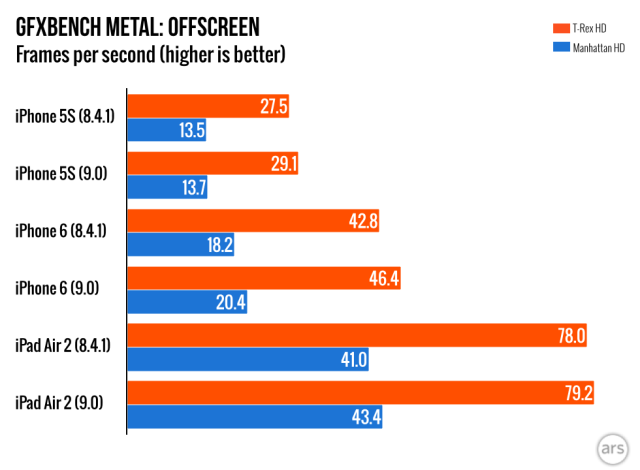





 Loading comments...