Skip to content
Tech

Pixel-pumping prowess: Ars reviews the third-generation iPad

Ars goes in-depth with the third-generation iPad.

Jacqui Cheng | 223
Story text

Another year, another iPad update. For its third shot at the tablet market, Apple borrowed an approach it pioneered with its longer-running series of iPhones: no radical redesign in consecutive years, just a solid upgrade. This year, the iPad looks nearly identical to its predecessor and carries a bit more weight in the belly, all in order to provide a high-resolution display, a better rear-facing camera, and LTE wireless support.

The screen, called a “retina” display because its individual pixels are said to be invisible to the human eye at normal viewing distances, is the main selling point over the iPad 2. Indeed, the upgraded internals (A5X processor, twice the memory, larger battery) exist largely to drive the beautiful display; overall performance remains on par with last year’s iPad 2 otherwise.

Maybe that’s why Apple never officially gave the third-generation iPad the name “iPad 3”—It’s really more like “iPad 2 Premium Edition.” But if you’re up for spending the extra $100 over an iPad 2, what a nice Premium Edition it is.

Retina display

The new high-resolution “retina” display is the third-generation iPad’s flashiest improvement over the iPad 2. It essentially doubles the number of pixels used in both directions, bringing the 9.7 inch screen’s resolution to 2048×1536. At 264 pixels per inch (ppi), the new screen’s density remains lower than the iPhone 4 and 4S’s 326ppi—but far higher than the iPad 2’s 132ppi.
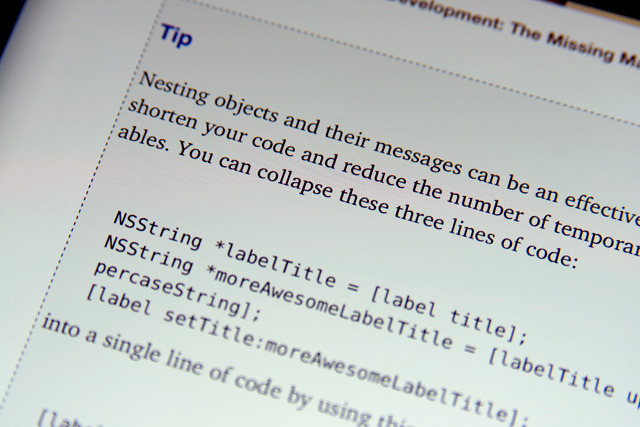
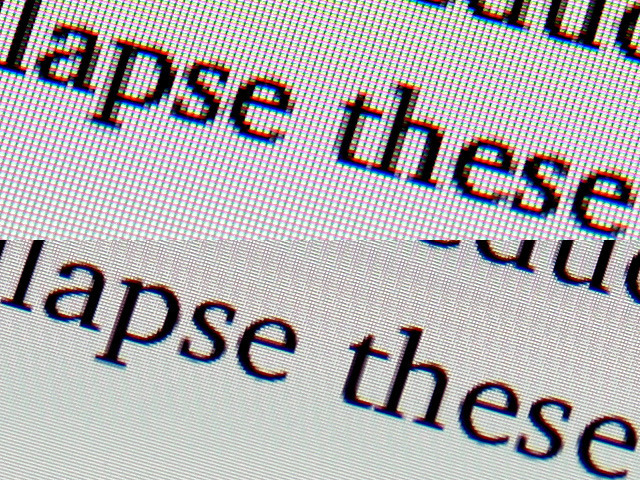
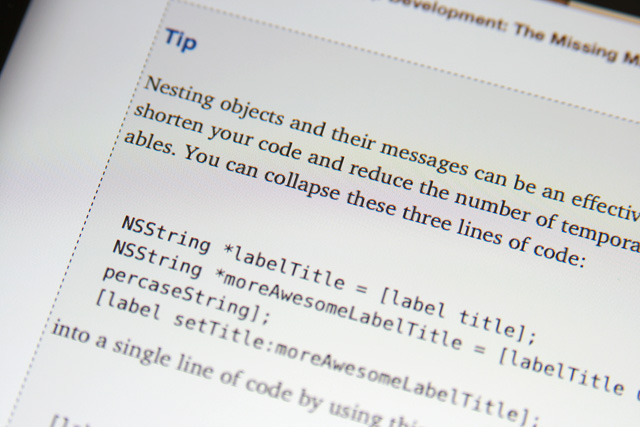
Text on a third-gen iPad looks crisper—lines, curves, and serifs are finer—and is much easier to read at small sizes. Credit: Chris Foresman
An up-close comparison of text on an iPad 2 (top) and an iPad 3 “retina” display (bottom). Credit: Chris Foresman
Text on an iPad 2 is legible, but the lower pixel density gives text a slight blurriness. Credit: Chris Foresman

The result: a noticeable improvement in text and icon smoothness. Individual pixels are now almost undetectable by the naked eye, and the screen on the third-gen iPad (which we’re calling the “iPad 3” from here on out) looks good. We showed the new screen to several casual users. Though they couldn’t pinpoint what was different about it, they did note that it looked sharper and qualitatively “smoother.” Some computer displays on the market do boast a similarly high pixel density, and people who use them on a regular basis won’t be as impressed by the iPad 3’s display. But among mobile devices, the iPad 3’s screen is on the high end.
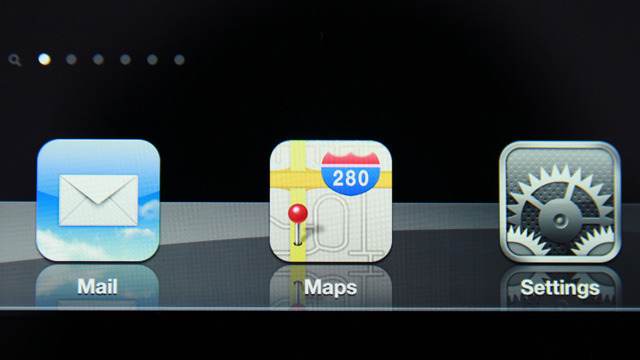
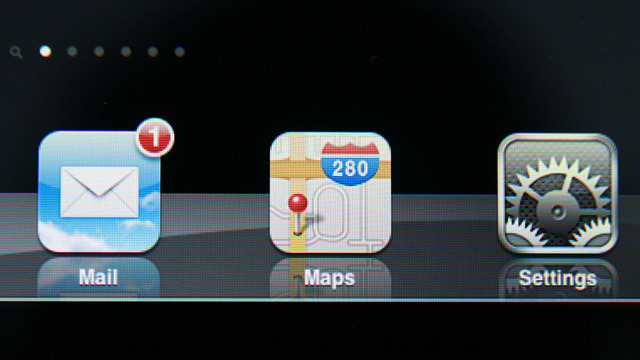
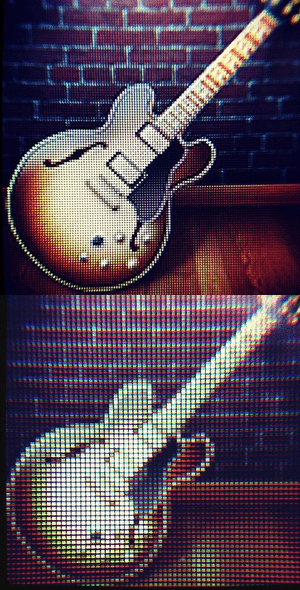
A close up of icons on iPad 3’s home screen. Notice how the “retina” display makes the icons almost photo-realistic. Text labels are also almost as sharp as a printed page.
A close up of icons on iPad 2’s home screen. Colorful, detailed—but pixelated.
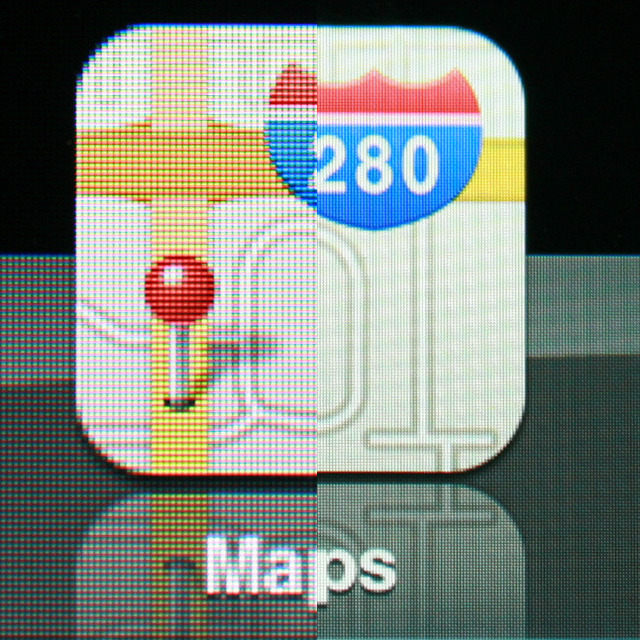
Enlarged Maps app icon. Icons on the iPad 2 (left) are fuzzy compared to the “retina” graphics of an iPad 3 (right).

Above are some macro shots we took of the iPad 2 display versus the same items on the iPad 3. The images largely speak for themselves—the iPad 3’s display is much sharper. Even when viewed at a normal distance, the difference is obvious. Below is an animated .gif of two photos taken by Ars contributor Chris Foresman, created by Ars reader and Twitter user @Cinquetacche:

Credit: Chris Foresman, animation by @Cinquetacche

Apple claims the iPad 3’s “retina” display has higher color saturation than the iPad 2 display. The effect is significantly subtler than the bump in resolution, but we were able to see some difference when viewing the same high-resolution photos side-by-side. Color saturation falls under the heading of “nice to have” improvements, but many users won’t even notice the difference.

Speaking of color, now’s a good time to note that some iPad 3 buyers have begun complaining about a yellow tint on their screens. It appears as if the yellow tint “problem” only affects some users, however. We were unable to see any difference in color temperature when comparing our iPad 2s and iPad 3s side by side. Some affected users have been able to take their iPads back to Apple for a replacement and have reported back to say their new devices don’t have the tint.

Are all those pixels even necessary?

While the new display clearly surpasses the old one, some critics argue that the technology is overkill. Dr. Raymond Soneira, creator of the DisplayMate screen calibration software, argues that most adults don’t have 20/20 vision and therefore can’t maximally enjoy the display’s resolution anyway. Hold an iPad 3 more than 18 inches away from your face, he says, and “that resolution is wasted.”

Some of us at Ars agree (though opinion is split). However, even if most adults remain perfectly happy using lower-resolution screens and can’t fully enjoy every single pixel on a high-res display, this doesn’t mean the better display is useless. Most users I spoke to were able to tell that the iPad 3’s display has indeed improved over the iPad 2 and other mobile devices. But if you are one of those users who doesn’t want to pay for the high-resolution display, you’re in luck. Apple still sells the iPad 2, and for a lower price than the iPad 3.

Be aware, though, that the improved display carries a technical cost. Many of the other improvements within the iPad 3 (such as quad-core graphics, increased RAM, and larger battery) exist to serve the increased performance needs of the display. Pumping out four times the number of pixels takes a lot of juice, and even with the improved innards, iPad 3 overall performance remains level with the iPad 2.

Cosmetic changes

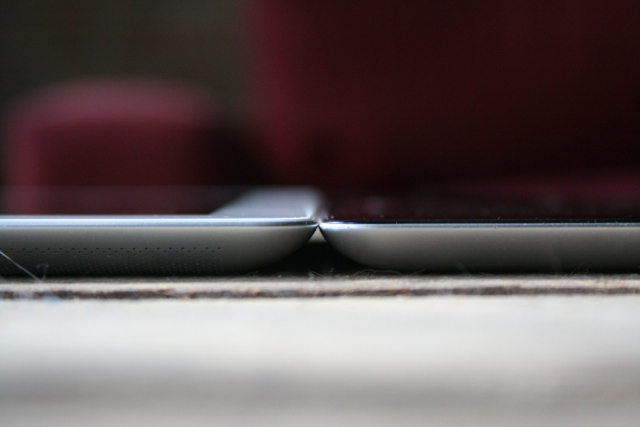
Ignore the dust on my table as we try to see the minuscule difference in thickness. iPad 3 on the left, iPad 2 on the right.

As we noted immediately after the iPad 3 was introduced on March 7, the device weighs 0.11 pounds more than its predecessor, and it’s a minuscule 0.03 inches thicker, too (comparing WiFi model to WiFi model). Overall, iPad 3 is 0.37 inches thick and weighs 1.44 pounds (increased to 1.46 pounds for WiFi+LTE).

The iPad’s yo-yo diet bothers me on principle—I greatly appreciated the weight reduction seen in the iPad 2. But in daily usage, the increased weigh doesn’t impede my regular iPad habits.

For those of you familiar with the iPad 2, the increase does make the iPad 3 noticeably heavier. As for the thickness, we probably wouldn’t have noticed it without the extra weight drawing our attention to the device’s feel in the hand. (As you can see from the image above, the depth difference is barely perceptible).

Critics have complained about the weight of the iPad since the original (at 1.5 pounds) was introduced in 2010. Many people read or surf the Web while holding the device with one hand, and their grip tends to tire after holding the device for long periods of time. The WiFi-only iPad 3 comes within 0.06 pounds of the original’s weight, so be warned if you found that device heavy.

Other than weight and thickness, the iPad 3 design heavily follows the iPad 2. The aluminum back (thankfully) lies flat on the table when you put the device down; a glass front protects the 9.7-inch multitouch screen. The sleep button sits at the top and, contrary to some rumors before the device was announced, a Home button still sits on the front near the bottom.

Volume buttons remain on the right-hand side, and the switch above the volume buttons can be used either as a screen lock (my favorite) or a mute switch. This functionality can be controlled via System Preferences on the device.

We don’t mind the design—the iPad has already seen wild success in its previous two forms, and this one is certainly functional and attractive. Apple tends to lean toward the conservative side when it comes to radical cosmetic redesigns in immediate succession to one another. (We would have been far less pleased had Apple left out the Home button as some had theorized, however. For too many users, the button is a crucial part of the iOS user experience.)

Smart Cover: yes, it still works

Despite the miniscule thickness difference between the iPad 2 and the iPad 3, the Smart Covers made for and sold alongside the iPad 2 still work. There were some rumors before the iPad 3’s announcement suggesting Apple’s magnetic Smart Cover would also get a makeover, sporting a back section to protect the iPad’s aluminum backside. These have not materialized. Apple currently sells the same design of Smart Cover alongside the iPad 3; as far as we can tell, they are identical to the older ones.

For those unfamiliar with Apple’s $39 Smart Cover, here’s what we wrote about them in the iPad 2 review from 2011:

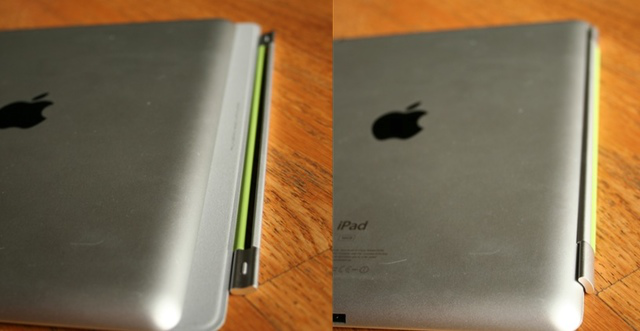
Apple replaced the old (and in our opinion, somewhat janky) case that it had introduced with the original iPad with a new cover—don’t call it a case—that magnetically attaches to the iPad 2. When holding the iPad in your hand, the hinge of the Smart Cover is attracted to the left-side back slope and the top folds over the iPad 2’s glass to protect it from scratches.

Left: Smart Cover hinge not yet attached; right: the hinge attached to the back slope

The top of the Smart Cover is also magnetic and attaches itself to the front of the iPad so it doesn’t flop open until you’re ready to use the device. When you lift the cover, the iPad automatically wakes up and turns on the screen, and if you put the cover back down, the device goes back to sleep. This is definitely a neat feature and is a fun element to demonstrate to others.

The hinge on the Smart Cover allows you to flip the cover all the way around to the back of the iPad if you want to hold the whole thing flat. The cover sort of magnetically attaches to the iPad from the back, but we get the feeling this is just a side effect of the magnets really being on the front of the iPad—the cover doesn’t hold particularly well while it’s on the back, and it can sometimes get annoying if it happens to pull away and flop around in your hand.

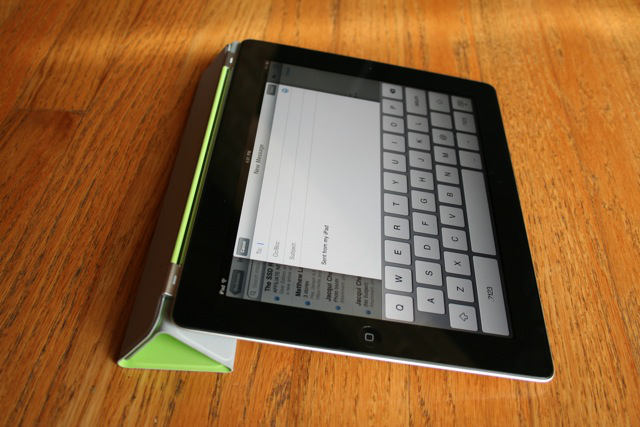
Finally, the Smart Cover itself is foldable with the intent of being used as an angled stand for your iPad. You can either stand the device up for watching a movie or leave it at a low angle for typing:

The cover is so thin that it doesn’t add any bulk to the iPad when it’s attached, and it’s versatile enough to make it an attractive accessory to toss in with your iPad purchase. However, some users don’t like the fact that the Smart Cover doesn’t protect the back of the iPad from scratches when closed, and this is a valid point. I’m not much of a case person myself (I’ve been known to just drop my iPad naked into my bag in the past), so this doesn’t bother me personally, but I agree that the Smart Cover isn’t the best accessory for those who want more than minimal coverage. We’re hoping that Apple will allow third-party case makers to use the iPad’s magnets so that there will be more equally cool options available to those who want something more.

We still have the same (relatively minor) complaint about the Smart Cover when used with the iPad 3—it tends to flop around in the back. I have modified my own behavior to help deal with this annoyance; folding the cover in half before flipping it around to the back. This keeps the cover from flopping down when I hold the device with my left hand while using my right to navigate.

Photographic shot in the arm

by Chris Foresman

The original iPad lacked any camera hardware whatsoever. Apple added both a rear-facing camera and a front-facing camera to the iPad 2, but the fixed-focus, 0.3 megapixel rear-facing camera felt like a throw-away. It was capable of 720p HD video but struggled to make a decent-looking still. It was better than nothing… but not by much.

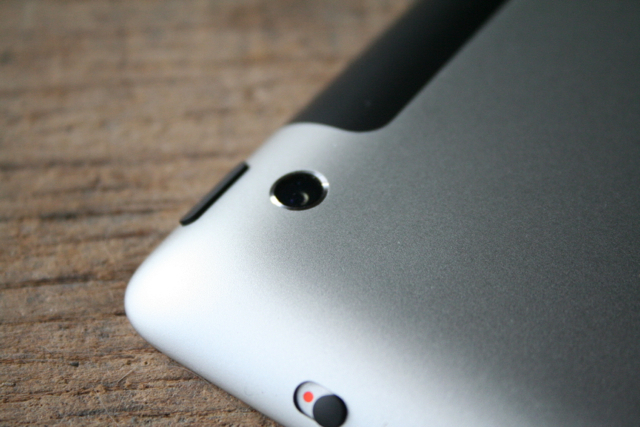
Any improvement would have been welcome, but Apple gave the iPad 3 a serious shot in the photographic arm. The front facing VGA-resolution FaceTime camera is identical to the one in the iPad 2, which was already fine for video chatting. However, Apple significantly improved the rear-facing camera, bumping resolution up to a respectable 5MP. Video resolution also increased from 720p to a full 1080p. Apple also improved the lens, using a five element autofocus lens.

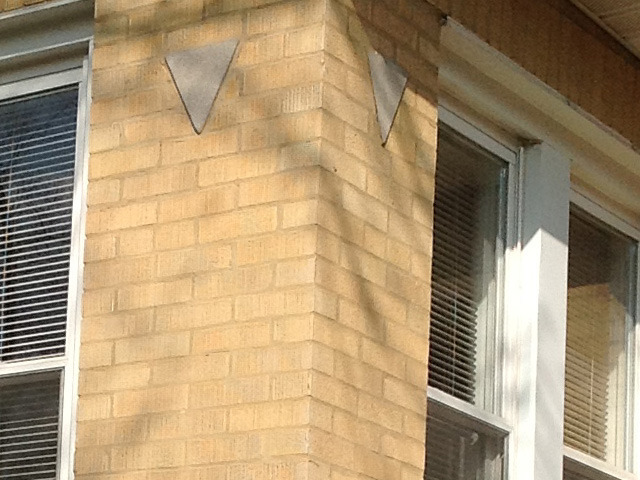
We trudged around Chicago with an iPad 3, an iPad 2, and also took some comparison images with the 5MP iPhone 4. We tried to get images in a variety of lighting situations, including bright, mixed, and low light.

The first thing we can say is using the iPad 3 as a camera is sort of a mixed blessing. The sharp screen makes a wonderful viewfinder, which in turn makes it easy to scrutinize details and fine-tune composition. (Anyone who has used a large format view camera can understand this point). However, the iPad’s size is a bit unwieldy. You’ll definitely call attention to yourself when using it as a camera.

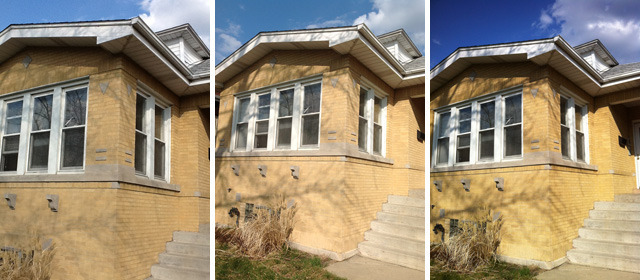
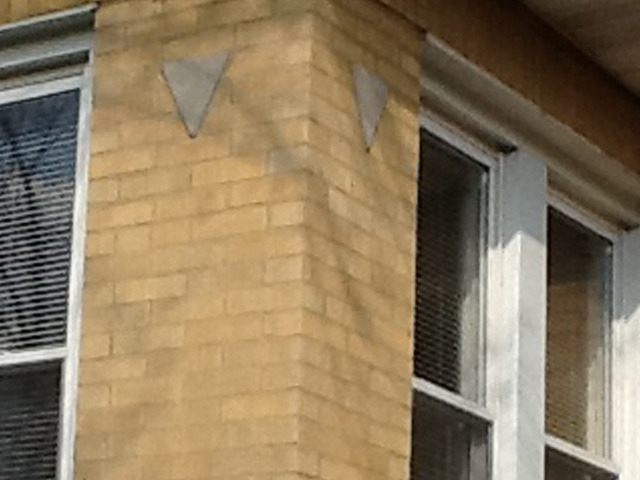
A light brick home in bright daylight. Left: iPad 2, middle: iPad 3, right: iPhone 4. Credit: Chris Foresman
A 100x view of the iPad 3 image. Fine details are easy to spot, though a bit of noise is apparent. Credit: Chris Foresman
The iPad 2 image enlarged to comparable size. Notice the lack of detail. Credit: Chris Foresman

But where the iPad 2 was a constant disappointment, the iPad 3 delivers. In bright light, it makes sharp, detailed images. It doesn’t hurt that the 2048×1536 display makes the 5MP images look good, but the camera hardware itself is just so much better that it’s hardly fair to compare the two devices. The iPad 2’s 0.3MP images were barely acceptable on the iPad’s own screen, whereas the iPad 3’s 5MP images are good enough to print.

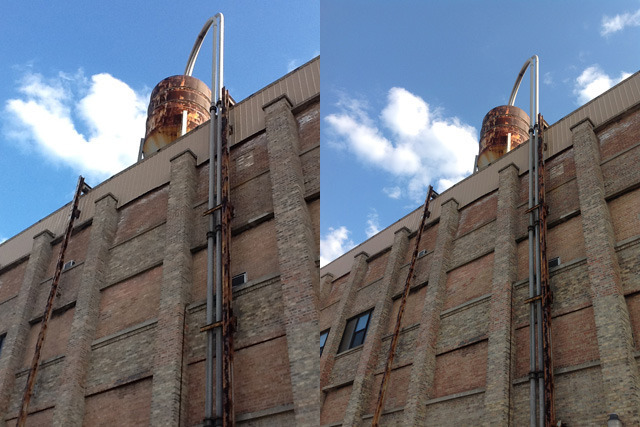
The iPad 3 doesn’t have an HDR shooting mode, which combines two different exposures to increase dynamic range. To compensate, it seemed as though the autoexposure setting tended toward a little extra exposure to pull in more shadow detail. The iPhone, on the other hand, seemed to push the exposure down to grab highlight detail at the expense of shadow areas. The HDR feature is purely a software function, though, so Apple may well add it to the iPad 3 in a future iOS update.

A water tower atop a commercial building in mixed daylight and shadow. Left: iPad 2, right: iPad 3. Credit: Chris Foresman
You want fine detail? Good dynamic range? You want the iPad 3 (right). Credit: Chris Foresman

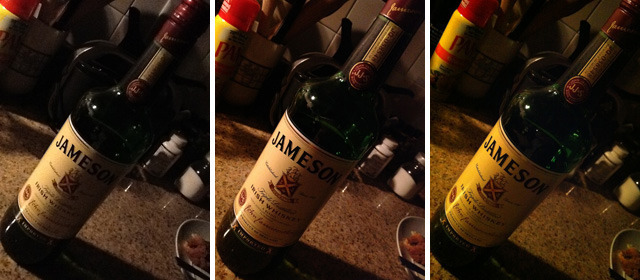
In low light, the iPad 3 performs as well as the 5MP iPhone 4, and visibly better than the iPad 2. Both iPads lack any sort of LED flash (we consider that a feature, not a bug), so it’s up to the sensor to make the best of dim light. The iPad 3 does as well as we could expect. Image noise seems similar to the iPhone 4, leading us to believe the iPad holds a similar, back-side illuminated sensor. According to analysis by Chipworks, it is indeed the same sensor as in the iPhone 4. It’s no surprise the results are similar.

A bottle in dim incandescent lighting. Left: iPad 2, middle: iPad 3, right: iPhone 4. Credit: Chris Foresman
A 100x view of the iPad 3 image. Text is legible and detail and texture can be easily seen. Credit: Chris Foresman
The iPad 2 image enlarged to comparable size. A blurry, murky mess. Credit: Chris Foresman
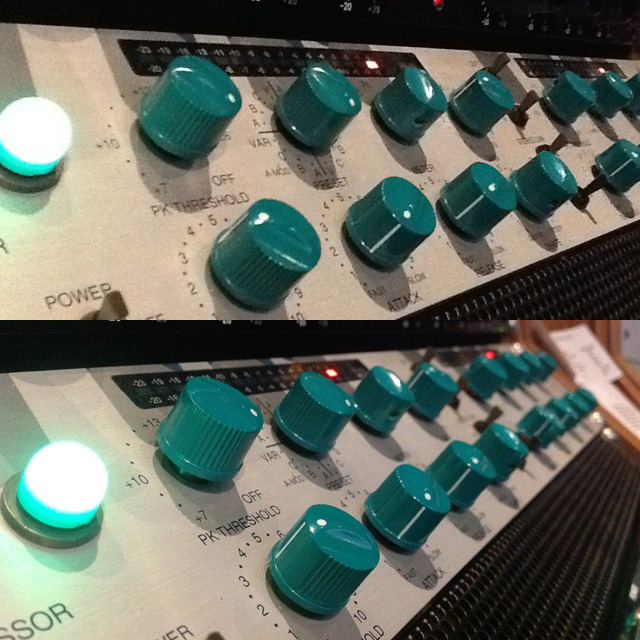
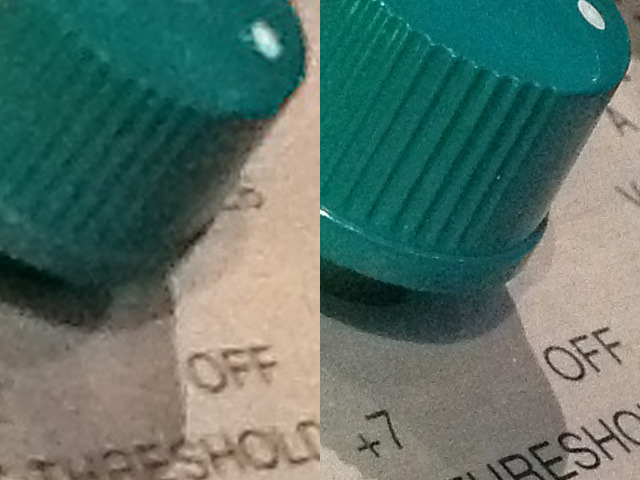
A recording console in dim indoor lighting. Top: iPad 2, bottom: iPad 3. Credit: Chris Foresman
Again, we see that while the iPad 3 image has visible noise, it captures fine detail. The iPad 2 image is pretty much unusable. Credit: Chris Foresman

What about 1080p video?

The differences in video capabilities are a little less obvious. The iPad 2 did fine shooting 720p video. The iPad 3’s 1080p video is sharper but not necessarily better as far as dynamic range is concerned.

Below are a few video samples we took with the iPad 2 and iPad 3 side by side. We didn’t edit these in any way so as to minimize the risk of them being affected by transcoding.

Daylight:

iPad 3 Daylight Video Test—Shot from a bouncy CTA bus during bright daylight. (Original 1080p)
iPad 2 Daylight Video Comparison—Shot from a bouncy CTA bus during bright daylight. (Original 720p)

Night footage:

iPad 3 Evening Video Test—Shot at night at the California Blue Line Stop. (Original 1080p)
iPad 2 Evening Video Comparison—Shot at night at the California Blue Line Stop. (Original 720p)

Artificial light:

iPad 3 Artificial Light Video Test—A classical busker at the Jeff Park Blue Line stop. (Original 1080p)
iPad 2 Artificial Light Video Comparison—A classical busker at the Jeff Park Blue Line stop. (Original 720p)

The iPad 3 has a significantly higher crop factor when shooting video. This was surprising considering the lens on the iPad 3 is quite a bit wider than the iPad 2. However, the iPad crops a central area of its sensor to shoot video. A 1920×1080 pixel area is a pretty significant crop of its 5MP sensor, whereas the iPad 2 uses essentially a 720p sensor. It’s not a deal breaker by any stretch, but it’s something to think about when trying to capture a wide scene.

Another improvement Apple added was digital image stabilization, similar to that on the iPhone 4S. In our test shot from a bouncy CTA bus, the effect is subtle but noticeable. It won’t replace a good steadycam mount or tripod, but it does help smooth out rough motion.

In all, we’d say the iPad 3 has an excellent camera. Still images are sharp and detailed, and the sensor performs admirably in low light. Composing on the 9.7-inch “retina” display is quite pleasant compared to the relatively tiny screens on compact cameras or smartphones. Video is as good as on any smartphone, and the 1080p resolution and image stabilization are welcome improvements. The iPad is unwieldy from an ergonomic perspective, but the old adage still applies: the best camera is the world is the one you have with you.

Innards (processor/graphics/RAM)

With the third-generation iPad, Apple also introduced an updated version of the A5 processor that came with last year’s iPad 2. According to the Apple-provided tech specs, the new A5X is a dual-core, “custom-designed, high-performance, low-power system-on-a-chip with quad-core graphics.” The A5 in the iPad 2 was also dual-core (two Cortex A9s), and although Apple hasn’t explicitly laid out the details of the A5X, we and Anandtech are in agreement: the A5X also appears to have a pair of Cortex A9s. Anandtech believes the A9s are “now paired with a PowerVR SGX543MP4 instead of the 543MP2 used in the iPad 2.”

iPad 2

  • A5, Dual ARM A9 Cortex-based SoC, up to 1GHz
  • 32KB of both L1 data/instruction cache
  • 1024 KB of L2 Cache
  • 512 MB of system RAM

iPad 3

  • A5X, Dual ARM A9 Cortex-based SoC, up to 1GHz
  • 32KB of both L1 data/instruction cache
  • 1024 KB of L2 Cache
  • 1 GB of system RAM

Apple claims the A5X’s graphics performance is 2x that of the A5—which the iPad 3 would need in order to support 4x the number of pixels in its high-resolution “retina” display. The A5X also sports a heat spreader, which is probably necessary because the A5X is still being manufactured on a 45nm process. In some cases the iPad 3 has a vastly higher GPU load too, requiring the removal of a lot more heat.

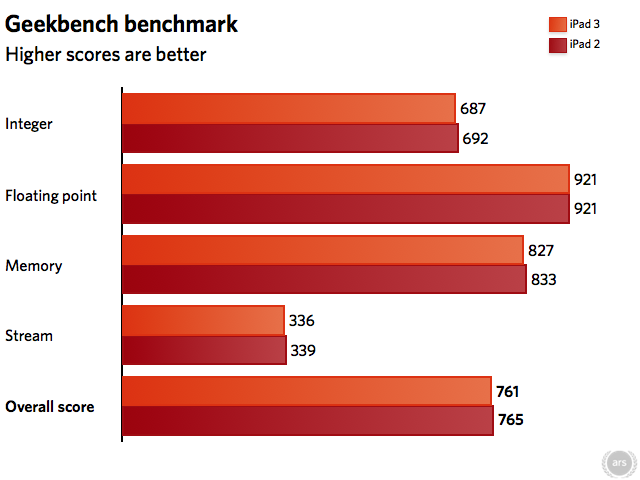
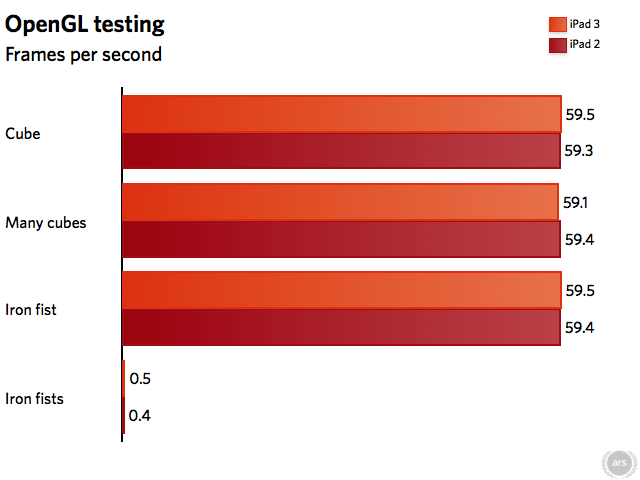
Our benchmarks generally reflected this. In nearly all tests between the iPad 2 and iPad 3 (both running iOS 5.1), scores came out nearly the same. The CPU-specific tests were basically identical too, showing the bulk of the iPad 3’s internal upgrades are geared toward delivering massive amounts of pixels while not losing performance elsewhere. Essentially, the overall performance of the iPad 3 is roughly the same as the iPad 2, graphics/display aside.

Benchmarks

As you can see from the charts, our results for GeekBench and OpenGL ES Benchmark showed almost no difference between the iPad 2 and the iPad 3. (Any small differences can be attributed to random skew; we ran each benchmark three times and averaged out the results).

To most users, the iPad 3 is pretty much the same as the iPad 2 but with a nicer-looking display. Yes, it has twice the memory of its predecessor, but don’t expect to see big performance benefits from it. You might see fewer applications—and Safari tabs—get paged out of memory. Games which support high-resolution retina graphics will benefit. But on the whole, applications on iOS are fairly responsible when it comes to memory and probably won’t perform better due to the mere presence of more system RAM.

(For some user perspective on the performance issue, read an Ars forum thread on some performance disappointments from a photographer; he expected the quad-core graphics and 1GB of RAM would help him view very high-resolution photos faster. They did not.)

JavaScript (Sunspider)

In addition to the aforementioned benchmarks, we also ran SunSpider’s JavaScript benchmark. We wanted to get a taste for the iPad 2 and 3’s JavaScript performance running iOS 5.1. As we wrote last year:

A poor JavaScript implementation on an insanely fast device can mask the true performance of the platform. Alternatively, a great JavaScript implementation can make up for a slightly slower system. More and more these days, the major JavaScript implementations are converging and borrowing ideas from each other. JavaScript tests are inherently single-threaded due to the nature of browsers. The SunSpider avoids many micro-benchmarks like we see in applications like GeekBench, and it attempts to benchmark processor-intensive tasks that might actually be found in a real Web application.

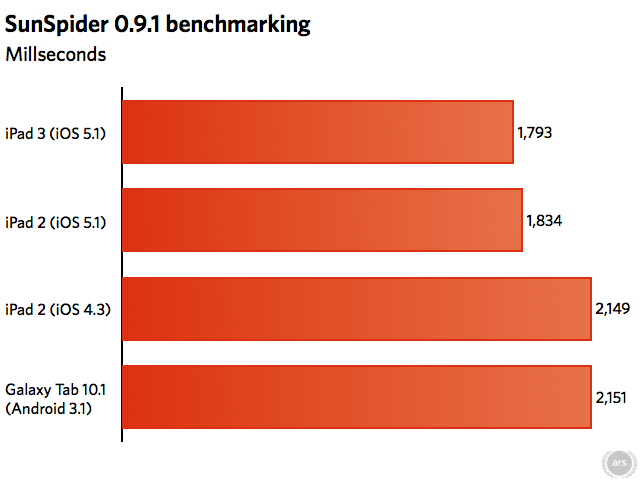
Compared to the SunSpider 0.9.1 benchmark we ran on the iPad 2 under iOS 4.3 last year (which ran in 2,149 milliseconds), even the iPad 2 has seen some improvements after upgrading to iOS 5.1. The iPad 2 now runs SunSpider 0.9.1 in 1,834 milliseconds. The iPad 3 ran the same benchmark in 1,793 milliseconds—41 milliseconds faster than the iPad 2, which is essentially identical.

For comparison’s sake, we also ran SunSpider 0.9.1 on a Samsung Galaxy Tab 10.1 running Android 3.1. (And by “we,” I mean that a friend of a friend graciously helped out by running the benchmarks for us when the Ars Galaxy Tab 10.1 decided to stop booting.) The Tab 10.1 ran SunSpider 0.9.1 in 2,151 milliseconds, roughly the same as the iPad 2 under iOS 4.3, but slower than both the iPad 2 and iPad 3 under today’s iOS 5.1. (Keep in mind the Tab 10.1 is using Google’s V8 JavaScript engine while the iPads are using Apple’s Nitro JavaScript Engine.)

LTE

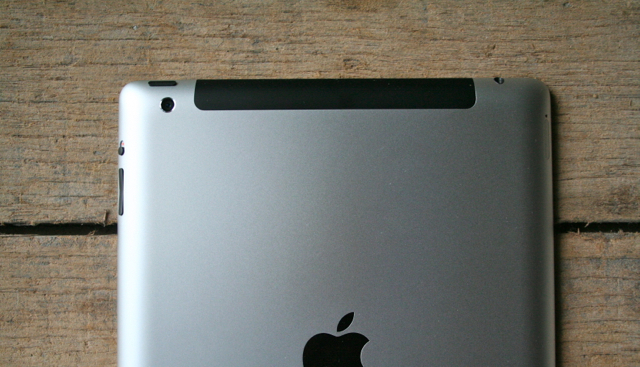
As usual, the WiFi+LTE iPad has a black bar across the top back to expose the cellular antenna.

The iPad 3 introduces LTE (Long Term Evolution) network support if you buy a WiFi+LTE version of the device. This means, at least on a theoretical level, the iPad 3’s cellular connection can send and receive data even faster than every one of Apple’s other products on the market right now, including the iPhone 4S (which uses HSPA+ and was previously characterized as 3G until the introduction of iOS 5.1, which now labels HSPA+ “4G”. The situation is confusing because LTE networks are considered to be a kind of 4G network, as is WiMAX, but it’s debatable whether HSPA+ really qualifies.) Regardless of the labeling, LTE is capable of fast upload/download speeds; Apple advertises a theoretical maximum speed of 72Mbps downloads.

Of course, in the real world, things don’t work that way. Buildings and trees get in the way, lakes reflect signal, concrete and windows bounce around noise. Our real world download speeds are never anything close to the theoretical max. (Read my article from 2009, recently bumped in 2011, about cell “bars” and signal for a little more detail.) When I tested the LG VL600 USB dongle on Verizon’s LTE network last year, I often saw between 15Mbps and 20Mbps download speeds here in Chicago. Speeds will definitely vary, depending on the time of day, your coverage area, what kind of building you’re in, and so on.

Both AT&T and Verizon operate their own LTE networks, but on different bands. LTE rollouts mostly exist in the US for the time being, and only in limited markets. So when the AT&T and Verizon iPads can’t connect to LTE, they will fall back to their respective 3G networks, and they’re both capable of roaming internationally on GSM. This is all made possible by the new multi-band RF transceiver (a Qualcomm RTR8600 chip) included in the WiFi+LTE iPads.

The chip also makes it possible for the Verizon iPad to work on AT&T’s 3G network. Apple has chosen not to lock the device to Verizon here in the US and instead has left its GSM capabilities open for use with AT&T if you should decide to swap out your Micro-SIM card. A WiFi+LTE iPad sold for Verizon’s LTE network will not work with AT&T’s LTE network, however. The two LTE networks operate on incompatible bands and the Verizon iPad won’t flip between them—it will only work on AT&T’s HSPA+ and EDGE networks. We still think this is a pretty cool and unexpected compromise. As we’ll see below, AT&T’s HSPA+ network remains decently fast if you’re in the right coverage areas, so if you are a commitment-phobe like myself, the option to switch to AT&T after buying a Verizon iPad is nice to have. (The opposite isn’t true of the AT&T iPad 3; it won’t be able to use Verizon’s 3G network if you switch out the Micro-SIM.)

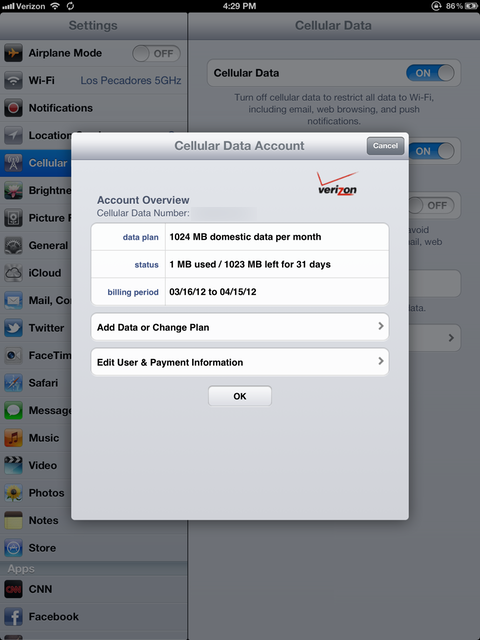
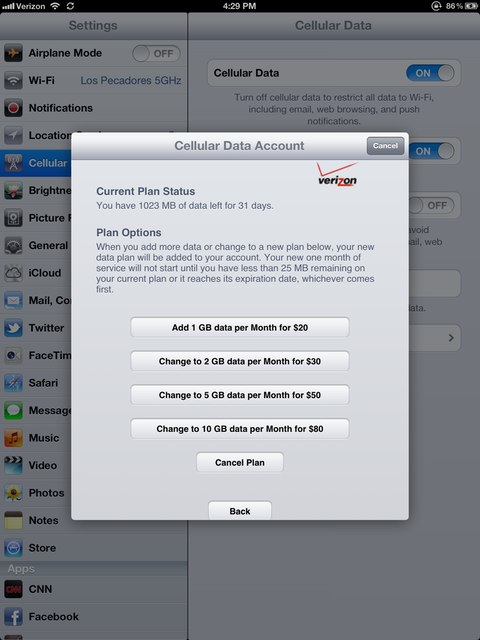
Finally, keep in mind that even if you buy an iPad with cellular capabilities, you aren’t committed to any kind of regular contract on either network. Both AT&T and Verizon allow you to pay for data packages on a per-month basis. You can choose (if you want) to pay for LTE one month and only use WiFi the next month. You can sign up for a cellular data plan right from the iPad itself, too—go to Settings > Cellular Data > View account, and if you haven’t already signed up, it will prompt you to enter your personal and credit card details. Once you’ve signed up with a username and password, you can return to this screen to view your data usage, upgrade your data plan, or even cancel it. (No more pleading phone calls to customer service).

Speed tests

We only had a Verizon LTE iPad available for this review, so we’re unable to make direct comparisons between AT&T’s LTE network and Verizon’s. However, because we’d never throw away an opportunity to do speed tests, we thought we’d still run a few to see how Verizon’s LTE network measures up on the new iPad. We took the iPad around various parts of Chicago’s Bucktown and Wicker Park neighborhoods and consistently saw download speeds in the 8-11 Mbps range, with ping speeds between 39 and 61 milliseconds. Upload speeds varied between 3-12 Mbps.

For comparison’s sake, we performed the same speed tests in the same spots using an AT&T iPhone 4S with HSPA+. (We should note that we don’t think the two networks are directly comparable, but we wanted to see the difference anyway.) With the iPhone 4S, we regularly saw between 2.5-6 Mbps downloads, between 100 and 170 millisecond ping speeds, and usually less than 1Mbps uploads.

Your own speeds will vary depending on a number of factors, but we’re pretty pleased with the numbers we saw when performing these tests.

Hotspot

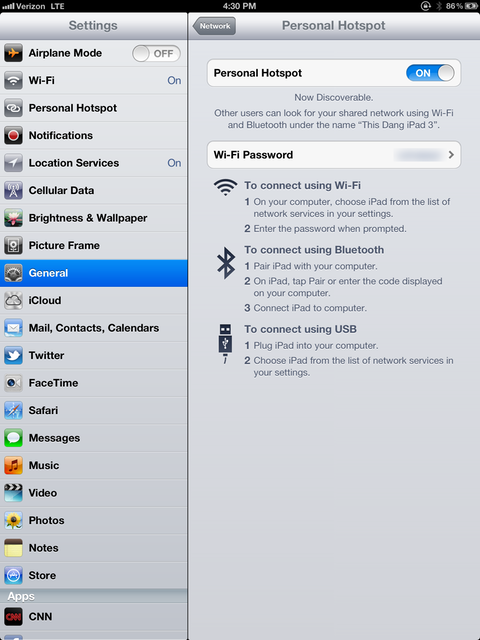
Another benefit to choosing the Verizon iPad 3 over the AT&T version is that Verizon allows users to make use of iOS’s wireless hotspot features, while AT&T doesn’t as of this writing. If you’ve already signed up for LTE service as we discussed earlier, you can use your iPad to share that high-speed LTE connection over WiFi, Bluetooth, or USB to your other devices.

Should you use the hotspot feature to share your LTE connection over WiFi, the iPad allows up to five simultaneous connections. And the functionality to turn it on and off is simple enough—go to Settings and then Personal Hotspot.

If your iPad supports hotspot capabilities (currently Verizon only), you can share your cellular data connection with other devices

You can change the default WiFi password to anything you’d like, but you can’t change the network name. When you look for the WiFi network’s SSID from your laptop, for example, it will show up as whatever you named the iPad itself. There’s a software switch to turn the personal hotspot feature on or off. If you don’t have WiFi turned on when you flip it, the iPad will ask you if you want to turn it on.

This is the same functionality found in Apple’s other iOS devices with hotspot capabilities, but we’re very glad to have it as part of our Verizon iPad 3. For me, it was one of the major deciding factors in choosing Verizon over AT&T when buying the device. However, AT&T has told Ars it’s working with Apple to bring this feature to the AT&T version of the iPad as well.

Battery life

The iPad 3 has an excuse for the noticeable increase in weight and slight increase in thickness: its battery. iFixit’s recent teardown of the device revealed what many people had already suspected—the large majority of the iPad 3’s innards are made up of a massive 42.5 watt-hour battery. The bigger battery helps power all the boosted specs in the iPad. After all, a high resolution screen sucks a lot of juice, as do high-speed LTE chips and a more powerful processor.

For comparison’s sake, the iPad 2’s battery was 25 watt-hours and the original iPad’s battery was 24.8 watt-hours. Our own Chris Foresman calculated in his writeup on the iFixit teardown that the iPad 3’s battery not only has an apparent 70 percent increase in capacity over the iPad 2, it’s also 70 percent larger. “Earlier speculation suggested that Apple had somehow significantly improved on the power density of the cells, but our calculations show otherwise. Apple was just able to more efficiently pack in the components—and increase the overall device thickness ever so slightly—to make the battery larger,” Foresman wrote.

Apple claims the iPad 3’s battery life should match that of the iPad 2. That translates to an advertised “up to” 10 hours of Web surfing, video watching, or music-listening with WiFi turned on or up to nine hours while surfing the Web using a cellular data network.

As usual, we performed our own tests to check Apple’s claims. We performed two tests in which we generally surfed the Internet, read, listened to some audio, and did other everyday activities. We also performed three video-watching tests. For all tests (except for one video test using airplane mode), we left push notifications on for Mail and a number of other apps, and screen brightness remained at a constant 75 percent. Here’s the breakdown of our findings:

Video watching: WiFi-only

We left an HD (1080p) iTunes movie running on the iPad 3 with WiFi turned on but our cellular data connection turned off. As mentioned above, push notifications were on and the screen brightness was at 75 percent. The device surprised us by staying alive for a little over 12 hours this way.

Video watching: cellular data only

This time, we watched the same iTunes movie but with WiFi turned off and the cellular data connection (Verizon LTE) turned on. All settings remained the same, including screen brightness. Under these conditions, the iPad 3’s battery lasted for about 11 hours and 40 minutes.

Video watching: airplane mode

In this test, we put the iPad into airplane mode, which turns off WiFi and any cellular connection. (Battery misers know that flipping your device into airplane mode is the ultimate battery saver.) Since the iPad no longer had any kind of connection to the Internet, it was unable to receive push notifications for our apps or Mail as in the other two video tests. Screen brightness was left at the same level, however. We also left the same iTunes movie running.

The iPad 3’s battery lasted for almost exactly 13 hours when used this way—more than in both of our other video tests. Of all our tests, this one resulted in the longest single usage time. It’s not surprising, since airplane mode helps to cut down on any battery power that might be going to other things, like checking for e-mail in the background.

Internet surfing and general use: WiFi only

During our general usage tests, we performed a number of activities that we might normally use the iPad for on, say, a relaxing Saturday at home or at the coffee shop. These involved using Safari and several apps (Instapaper, Alien Blue, the New York Times, etc.) to read content on the Web. We also watched a couple videos from iTunes U, listened to some music, and read an e-book using the Kindle app.

For this particular test, we turned off cellular data but left WiFi on. Screen brightness again remained at 75 percent, and all the same settings from our video tests applied when it came to push notifications. Under these conditions, our iPad 3 battery lasted for 8 hours and 20 minutes.

Internet surfing and general use: cellular data only

Here, we used the iPad in similar conditions to the WiFi Internet surfing test, but with WiFi turned off and LTE turned on. When doing this, we squeezed out nearly the same amount of surfing time: 8 hours and 15 minutes.

Battery conclusions

If you’ve been following along, you’ve noticed our video-watching tests all resulted in battery life that went beyond Apple’s “up to 10 hour” claims, even for the one that was using LTE. That’s pretty consistent with our past experience when testing Apple’s iOS devices—we often get longer life out of our video tests than Apple claims. That doesn’t mean it’s not (still) a pleasant discovery.

Our general usage/Internet surfing tests came in a bit lower than Apple’s claims, which is again somewhat expected. This test can involve the most variables over each individual session. Your own mileage will definitely vary depending on what kinds of activities you perform on your iPad. We weren’t disappointed in the battery life we got out of the iPad 3 during general usage, but we weren’t mindblown by it, either. Perhaps we’re already spoiled by the long battery life of the iPad 2. (Of course, even an 8 hour iPad battery life kicks my 11″ MacBook Air’s butt, as it can only last for 2-3 hours while doing the exact same activities.)

If you’re planning to use an iPad for extensive periods of time in one day, you’ll definitely want to keep a charger nearby to recharge it again overnight. An iPad 3 isn’t likely to last all the way through a high-use weekend without at least one recharge.

One last note on battery: several Ars staffers noticed that their iPads began to get uncomfortably warm in the back (particularly on the back left-hand side) during their usage sessions. We observed this as well, so it’s something to watch out for. The level of heat shouldn’t hurt your hand, but it does sometimes leave you feeling a little unsettled about whether we’re going to face another exploding battery situation. (But that won’t happen, right? Right.)

Voice dictation

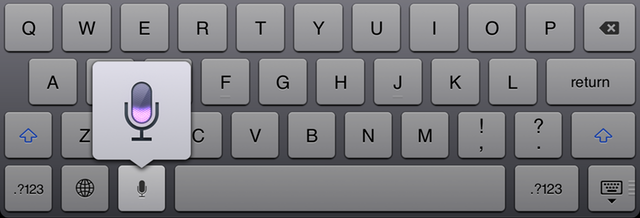
Anywhere you see the microphone button on the keyboard, you can dictate instead.

Apple didn’t end up introducing its “virtual personal assistant” Siri to the new iPad as many expected (read our review of Siri as part of the iPhone 4S review). But Apple did add one feature to iOS to complement the iPad 3: built-in voice dictation.

If you’re already familiar with the dictation features of the iPhone 4S (which we also wrote about last October), this isn’t anything new and functions in the same way. You can dictate text into pretty much anything that allows you to enter text via on-screen keyboard. If you’re not familiar with how text dictation within iOS works, here’s an edited version of what we wrote previously.

A microphone button will appear on your on-screen keyboard on the left side of the space bar; tapping it will bring up a microphone screen, indicating that you should begin speaking, with a “Done” button underneath. Say what you like and tap “Done”—the purple dots indicate that the system is processing your speech.

In our experience, iOS is quite good when it comes to text dictation. If you mention names of people, the device will try to find those people in your address book in order to find the proper spelling (good for people like me who have oddly spelled names, but for which there are “traditional” spelling counterparts, like “Jacqui” versus “Jackie”). Siri seems to have an easier time recognizing long or complicated words, and various US accents—ranging from northeast to midwest to southern—didn’t throw it off much. This feature can even handle specific dictation details, like when you want to write in all caps, use special symbols, start new paragraphs, and more. (Jim Rhoades at Crush Apps has published a fairly extensive list of the dictation commands that iOS can understand when you’re dictating text, so check that out for more suggestions.)

The major caveat to this feature—both in its command-taking form and text dictation form—is that it requires an active network connection to function. Apple sends your dictated voice data up to its own data centers for processing and the sends the results back down to your phone. If your cell carrier’s data signal is slow or poor, or you’re stuck in an area where there simply is no signal and no WiFi, you’ll be out of luck. (And if you put your iPad into airplane mode, the microphone button disappears from the keyboard altogether).

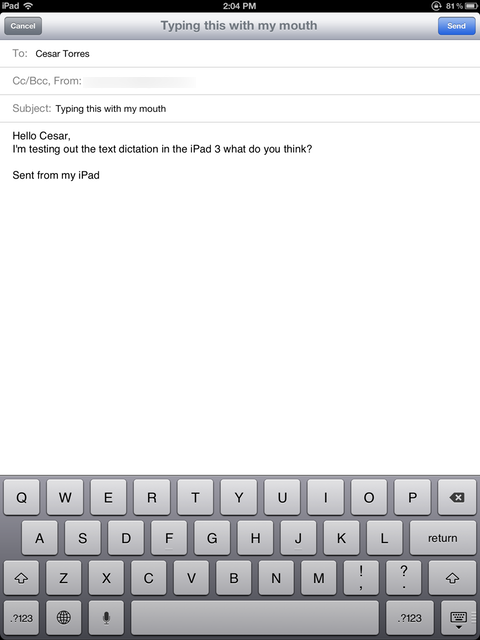
An example of a short dictated e-mail

This all remains true when it comes to the iPad 3’s text dictation features. Unlike when we reviewed the iPhone 4S, we were actually impressed this time around when it came to the iPad’s speed and accuracy. (Part of this was undoubtedly due to Apple’s servers being heavily over-trafficked when the iPhone 4S came out. This is no longer the case—most of the time.)

When you get used to the idea of dictating your search terms, notes, or e-mails with your voice, the process can often be quicker than entering the same information by keyboard. The real problem is getting into the habit if you’re not already there. Ars Editor in Chief Ken Fisher, for example, is a dictating fiend and believes there’s no better method of entering text into an iPad than via voice dictation. I, on the other hand, tend to be a fast keyboard typist (even on the iPad) and am often working/browsing in places where I wouldn’t feel comfortable constantly speaking things into my iDevice.

Conclusion

The third-generation iPad may not save your soul, but it does make a few solid improvements over the already successful iPad 2: “retina” display, support for LTE cell networks, voice dictation, and a much improved rear-facing camera. Considering that it’s the same price as the iPad 2 was at its launch (starting at $499 for 16GB WiFi-only iPad 3s), it’s a fine product.

But those looking for significant performance improvements over the iPad 2 will be disappointed, as might those who have no need for a high-resolution display. The iPad 3’s updated processor and memory bump left it performing at about the same level as the iPad 2, so it’s clear that most technical improvements exist to keep the retina display chugging.

Perhaps realizing that the new features don’t provide major new functionality, Apple has chosen to continue selling the iPad 2 alongside the third-generation iPad for those with an eye toward cost. Consider the iPad 2 the “entry level” iPad for those looking to explore Apple’s world of tablet computing for a little less money. The 16GB WiFi-only model starts at $399 and the WiFi+3G model goes for $529—not a significant savings off the iPad 3, but it may be enough to pique the interest of those who were undecided about taking the plunge on a tablet and the iOS ecosystem.

So if you’re considering an iPad and don’t already own one, which one to choose? The decision depends almost entirely on whether sacrificing a high-res display, nicer camera, and faster cellular data (here in the US, anyway) is worth the $100 savings. (In our opinion, if you have the money, the iPad 3 is worth the extra $100.) But if those things don’t matter to you and you’re not sure yet if you’re into this iPad stuff, an iPad 2 might be a more comfortable bet.

If you already own an iPad 2, as I did before this review, then the question becomes more nuanced. When I purchased the iPad 3 for this review, I wasn’t sure if I’d keep it once the review was done. But after having used it for several days, I particularly like my LTE data options (and the Verizon iPad’s ability to share LTE over a wireless hotspot), which is the main factor convincing me to keep it. The nicer-looking display is a bonus, but if not for the LTE and hotspot features, I would seriously consider sticking with my iPad 2 for another year.

The Good:

  • LTE support here in the US, coupled with GSM roaming internationally, delivers data extra fast (assuming you live in a good coverage area)
  • Rear-facing camera is much improved over the iPad 2, can now do 1080p video
  • Bluetooth 4.0 support (didn’t dig into this in the review, but it’s a plus!)
  • Voice dictation works wonderfully when you get into the habit of using it
  • “Retina” display looks great

The Bad:

  • Only Verizon iPad offers wireless hotspot feature for now; AT&T may be coming soon
  • Nearly all updates to tech specs are used to beef up the “retina” display; very few performance improvements over the iPad 2 otherwise
  • Still no Siri, despite dictation support
  • Increased weight makes some users grumpy

The Ugly:

  • All that heat from the back turns us into Smokey the Bear—“Only you can prevent forest fires!”
Photo of Jacqui Cheng
Jacqui Cheng Editor at Large
Jacqui is an Editor at Large at Ars Technica, where she has spent the last eight years writing about Apple culture, gadgets, social networking, privacy, and more.
223 Comments